Take and Manage Snapshots
Snapshots allow you to capture the state of a VM at a given point in time. They are useful before a major update, a migration, or any risky operation.
Prerequisites
- A VM Instance in your tenant
Step 1 — Access snapshots
From the VM Instances list, click on your VM to open its detail panel, then navigate to the Snapshots tab.
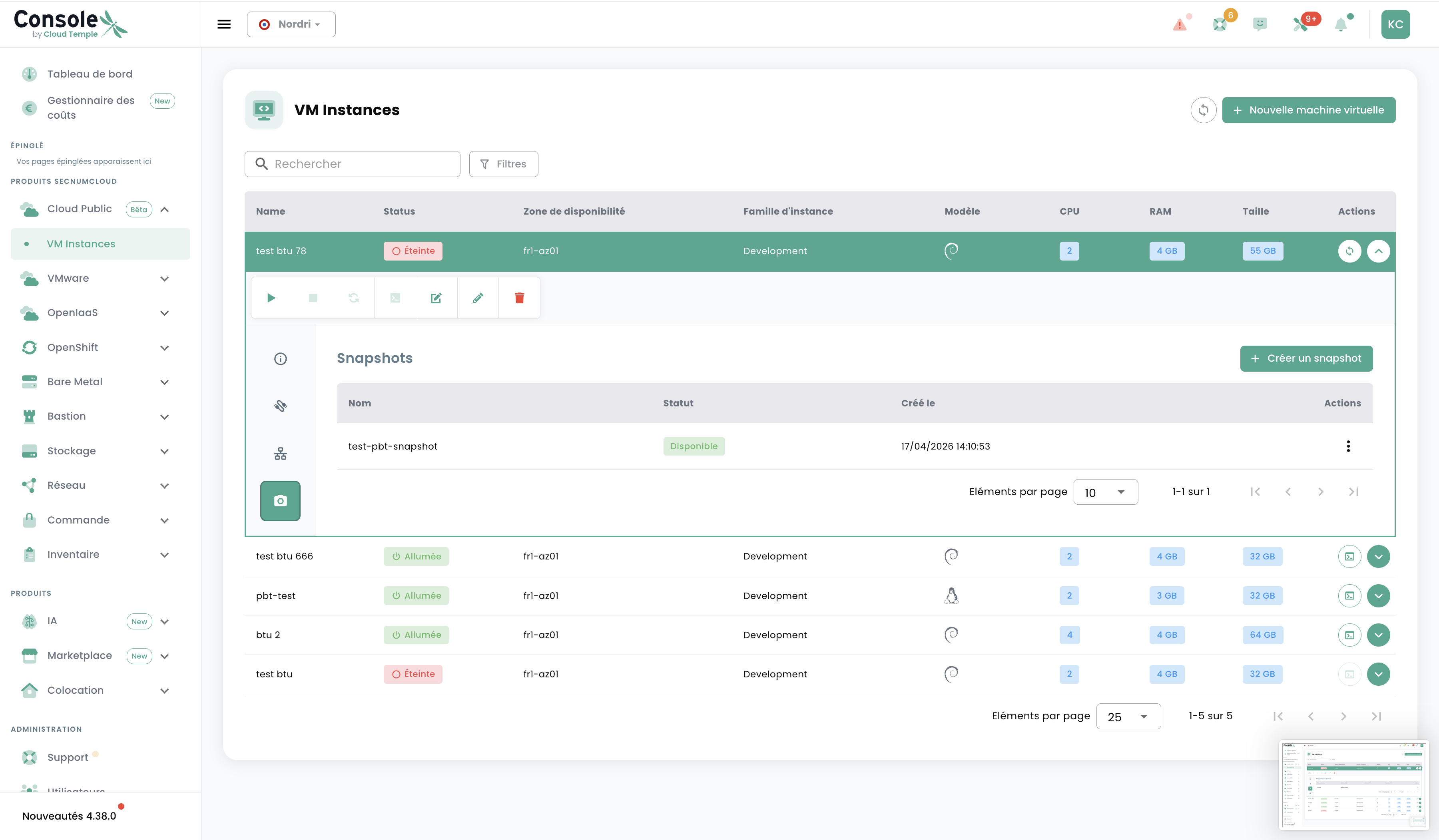
You will see the list of existing snapshots with their name, status, and creation date.
Step 2 — Create a snapshot
Click + Create a snapshot.
Enter a descriptive name, for example:
before-nginx-updateprod-2026-04-17-before-migration
Click Create. The snapshot changes to Available status once the capture is complete.
- Include the date in the name for easy identification
- Specify the reason for the snapshot (e.g. before-upgrade, before-migration)
Step 3 — Restore from a snapshot
To restore your VM to the state captured by a snapshot, click the Actions menu (⋮ icon) to the right of the snapshot and select Restore.
Restoring from a snapshot overwrites the current state of the VM. All changes made after the snapshot was taken will be lost. Make sure all important data is backed up before proceeding.
Step 4 — Delete an obsolete snapshot
Snapshots consume storage space and are billed accordingly. Delete obsolete snapshots to optimise costs.
Click the Actions menu (⋮ icon) next to the snapshot and select Delete.
General best practices
| Best practice | Reason |
|---|---|
| Take a snapshot before any critical operation | Enables quick rollback in case of a problem |
| Name snapshots explicitly | Facilitates identification in an emergency |
| Regularly delete obsolete snapshots | Reduces storage costs |
| Do not use snapshots as long-term backups | Use the dedicated backup policy for long-term retention |
Difference between snapshot and backup
| Snapshot | Backup | |
|---|---|---|
| Use case | Quick restore point (short-term) | Long-term data protection |
| Retention | Manual | Configurable (retention policy) |
| Cost | Per GB used | Additional paid option |
| Configuration | VM Snapshots tab | Information tab → Backup policy |