Managing VM Disks
This tutorial explains how to add an additional storage disk to an already deployed VM and prepare it from the operating system.
Prerequisites
- An active VM instance in your tenant
Step 1 — Access the VM disks
From the VM Instances list, click on your VM's row to open its details panel.
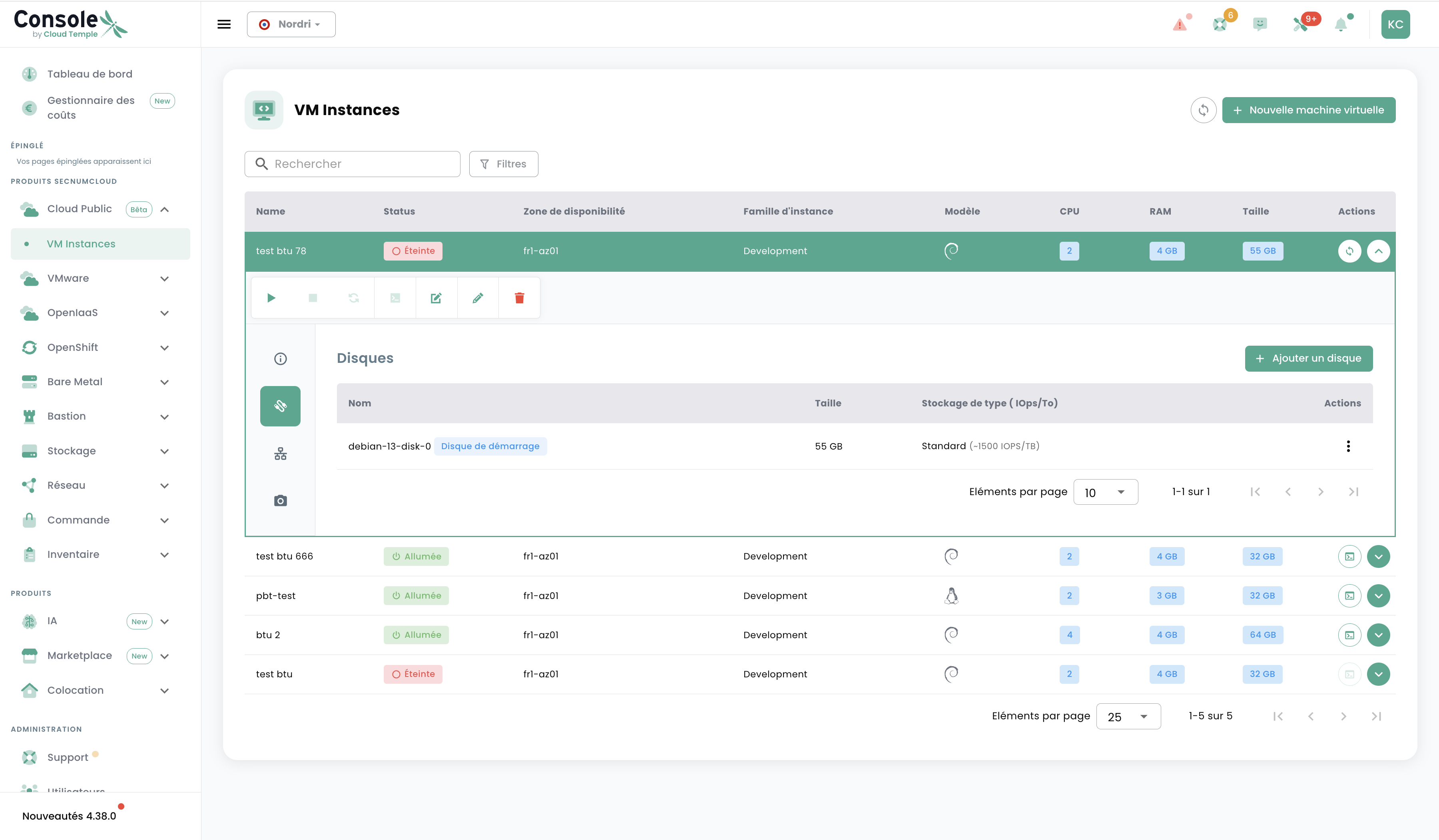
Navigate to the Disks tab (disk icon in the left sidebar of the details panel). You will see the list of disks currently attached to the VM, with each disk's name, size, and storage type.
Step 2 — Open the add form
Click the + Add a disk button at the top right of the disk table.
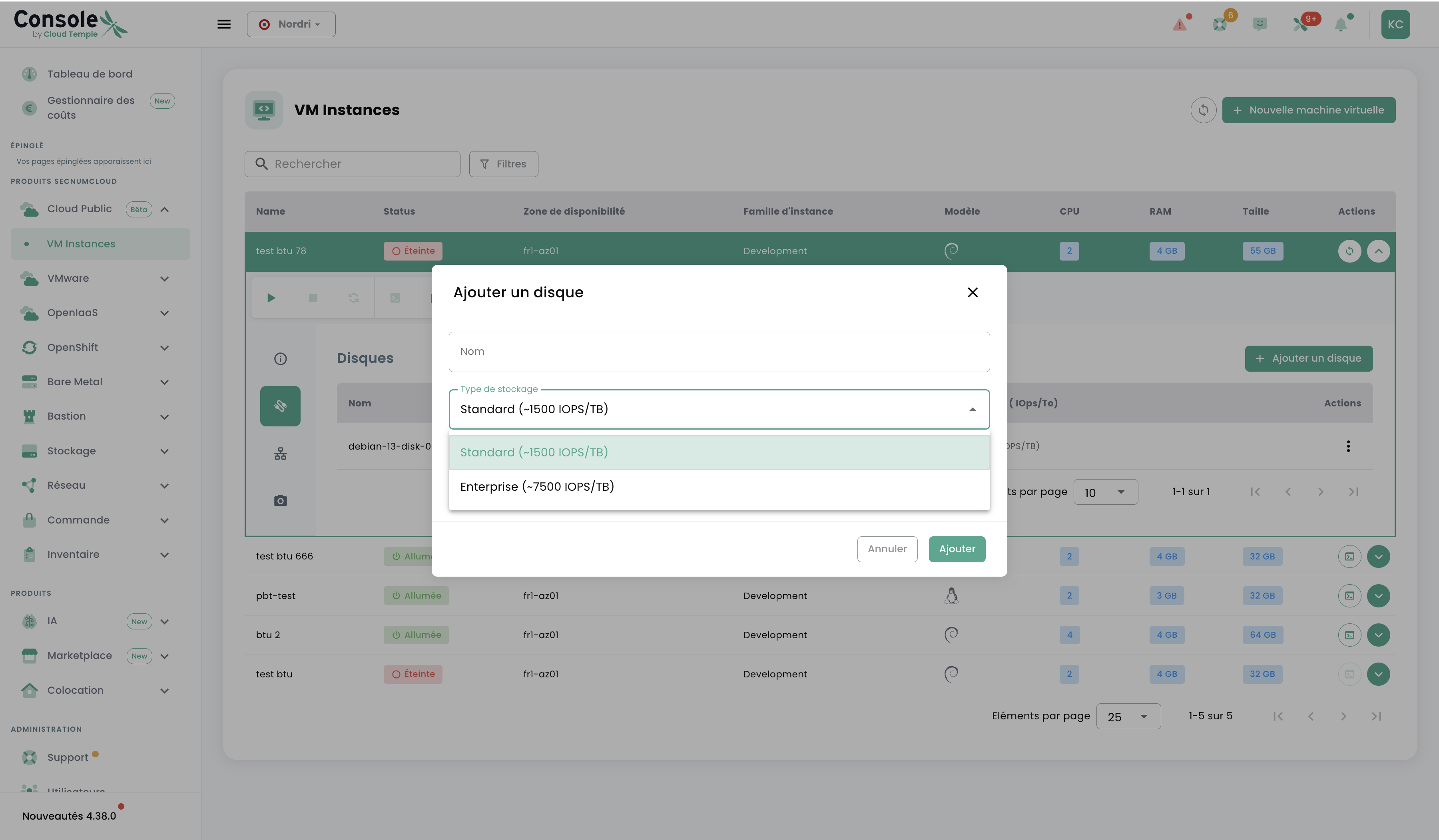
The Add a disk form opens with the following fields:
| Field | Description |
|---|---|
| Name | Disk identifier in the console |
| Storage type | Standard (~1,500 IOPS/TB) or Enterprise (~7,500 IOPS/TB) |
Step 3 — Configure and add the disk
Enter the settings:
- Name: enter a descriptive name, e.g.,
data-postgresql - Storage type:
- Choose Standard for general data (logs, files, backups)
- Choose Enterprise for databases or I/O-intensive workloads
Click Add. The disk is attached to the VM in real-time, without requiring a restart.
Step 4 — Partition and mount the disk (in the VM)
After adding it from the console, connect to your VM and initialize the disk:
# Lister les disques disponibles
lsblk

# Créer une partition (remplacez /dev/vdb par le bon device)
sudo fdisk /dev/vdb
# Dans fdisk, tapez : n → p → 1 → Entrée → Entrée → w

# Formater la partition
sudo mkfs.ext4 /dev/vdb1

# Créer le point de montage
sudo mkdir -p /data

# Monter le disque
sudo mount /dev/vdb1 /data

# Vérifier le montage
df -h /data

# Rendre le montage persistant au redémarrage
echo '/dev/vdb1 /data ext4 defaults 0 2' | sudo tee -a /etc/fstab
Adjust the device name (/dev/vdb, /dev/vdc, etc.) based on the output of the lsblk command. The first additional disk is usually /dev/vdb.
Going Further
- For a high-performance disk, use the Enterprise type (~7,500 IOPS/TB) — ideal for PostgreSQL, MySQL, or any I/O-intensive workload.
- You can attach up to 16 volumes per VM, with a maximum size of 2 TB per volume.
- Billing is based on allocated GB, regardless of actual usage.