Getting Started Guide
Prerequisites
Before getting started, make sure you have the following:
- An active Cloud Temple Tenant
- A subscription to at least Standard Support for a direct client; Basic Support is intended for clients accompanied by a trained partner (see the FAQ)
- The necessary permissions in your Cloud Temple organization
Accessing the VM Instances Service
Log in to the Cloud Temple Console and navigate to Cloud Public > VM Instances from the main menu.
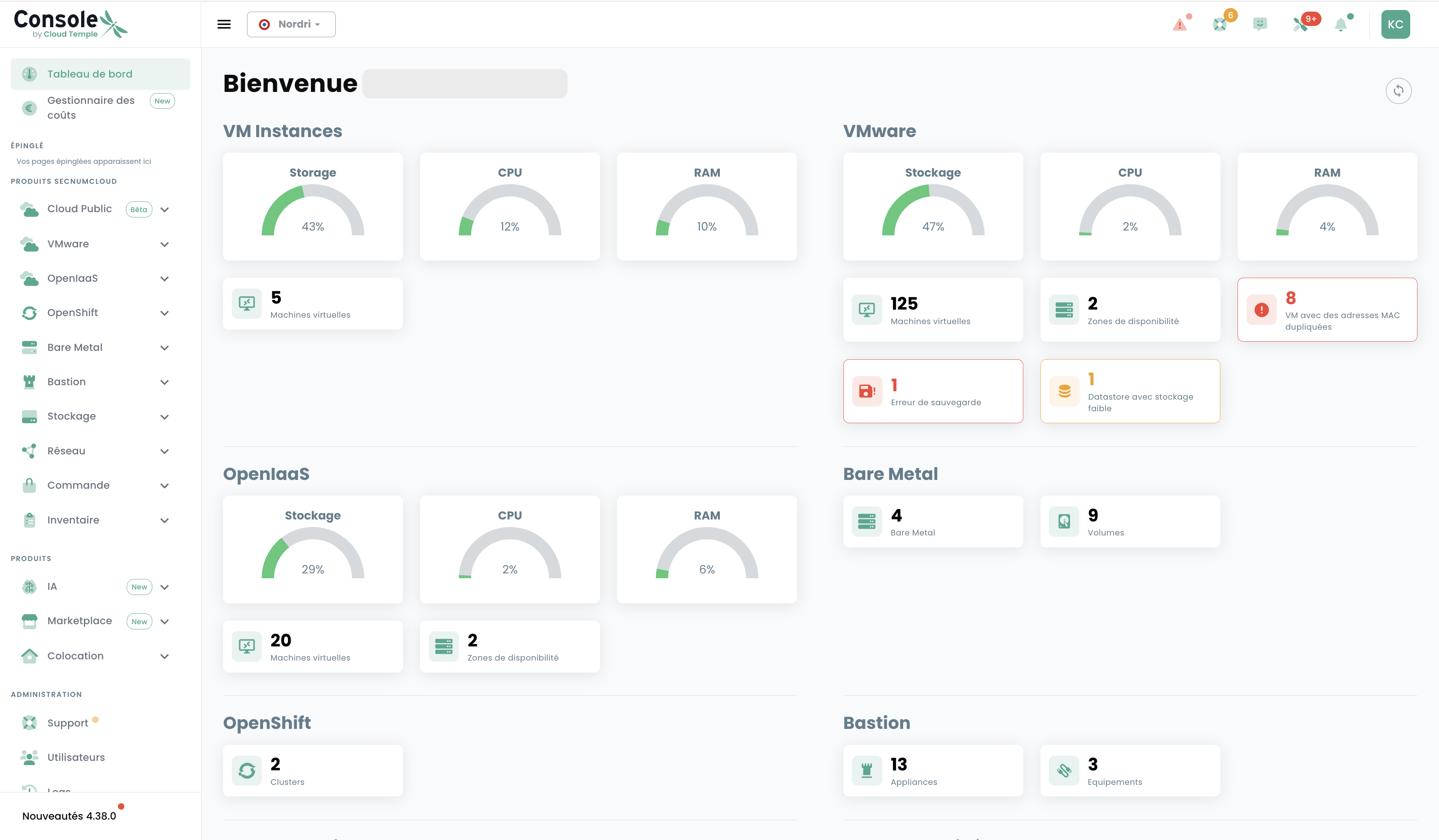
The dashboard provides an overview of the consumed VM Instances resources (storage, CPU, RAM) as well as the number of active virtual machines.
Click on Cloud Public in the left sidebar to expand the submenu, then select VM Instances.
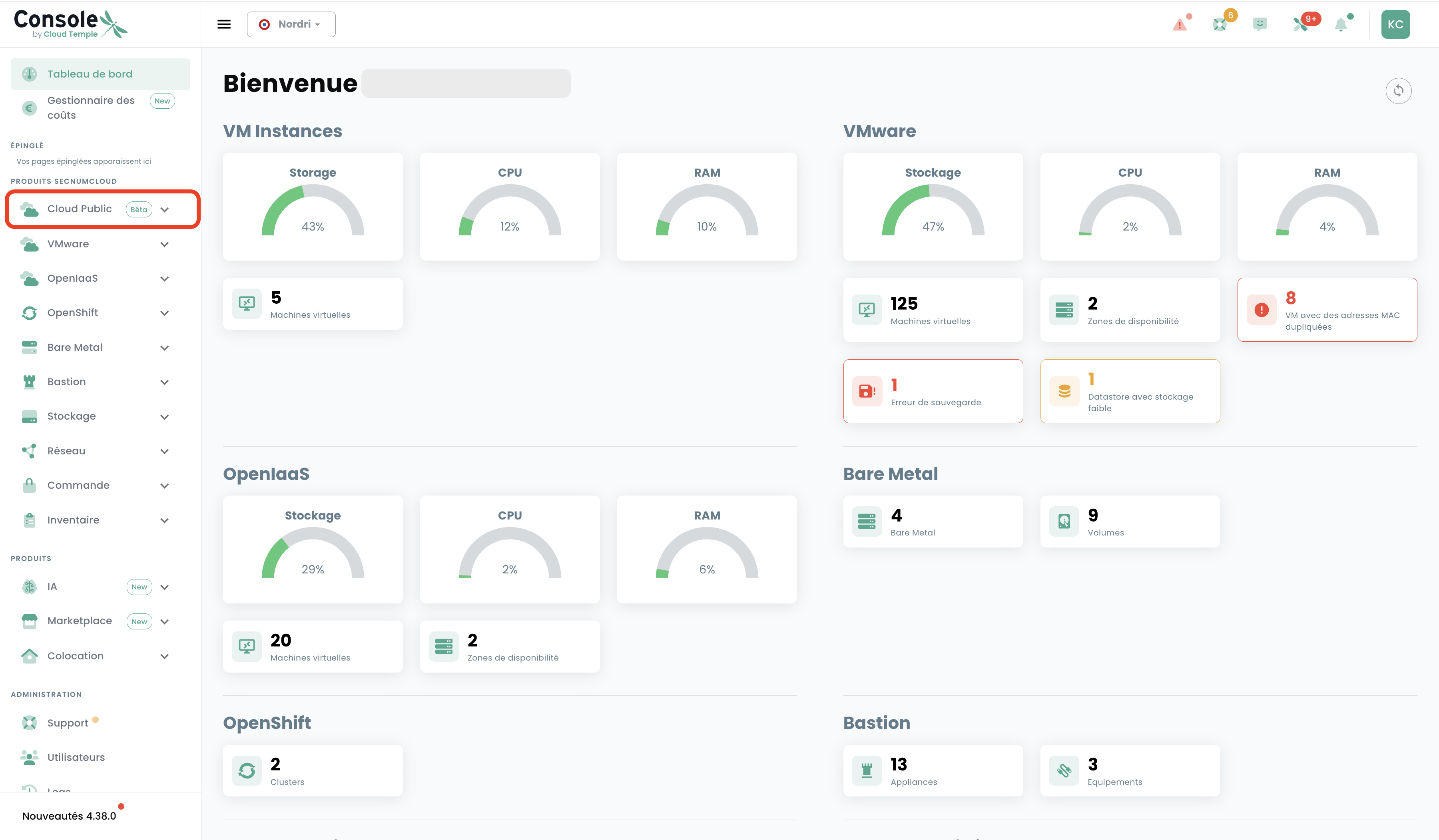
You arrive at your VM Instances list:
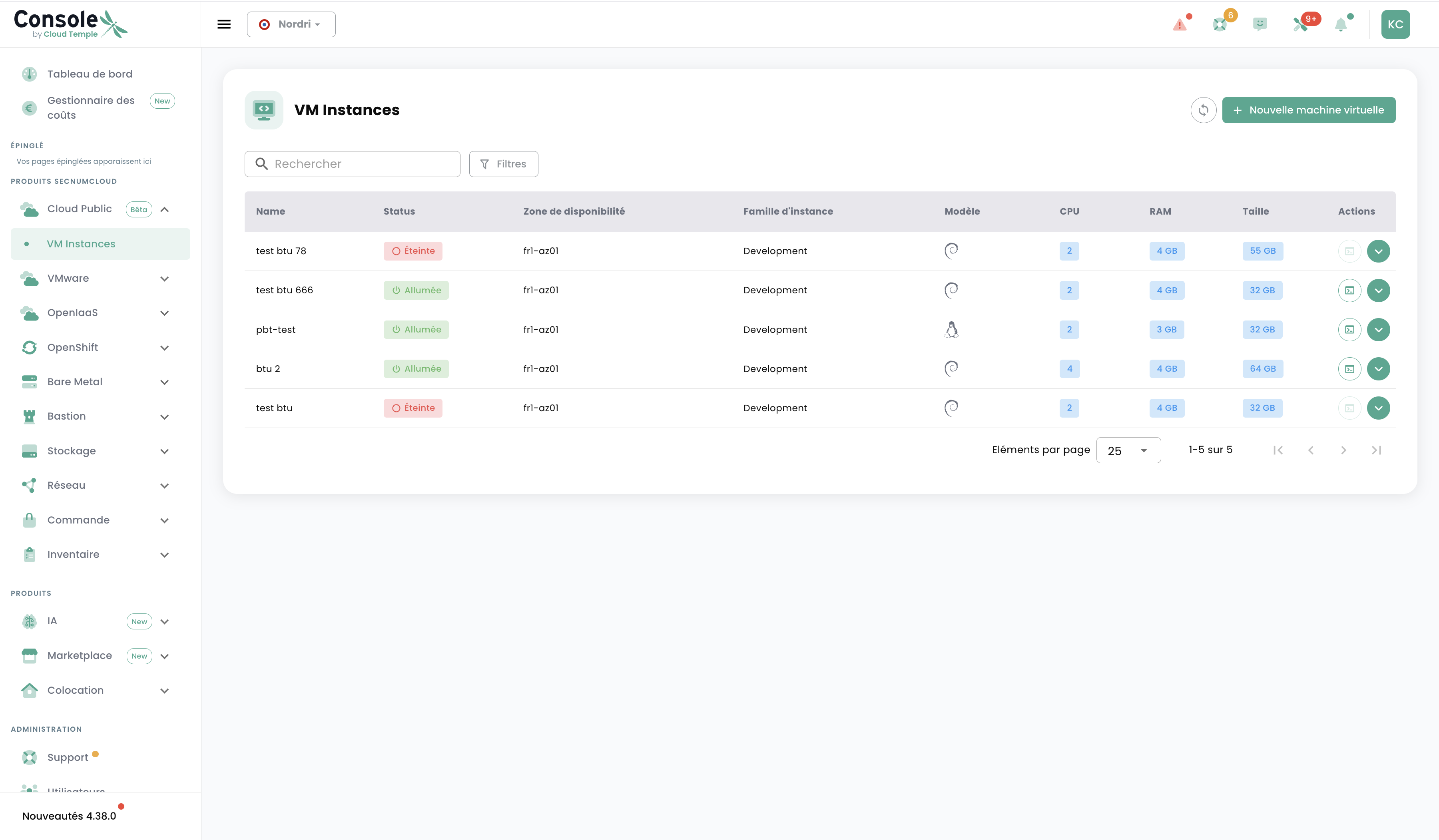
The table displays for each VM: its name, its status (On / Off), the availability zone, the instance family, the model, as well as the allocated resources (CPU, RAM, Disk size).
Deploy a virtual machine
Click the + New virtual machine button in the top right to open the creation wizard. This wizard consists of 9 steps.
Step 1 — Instance family
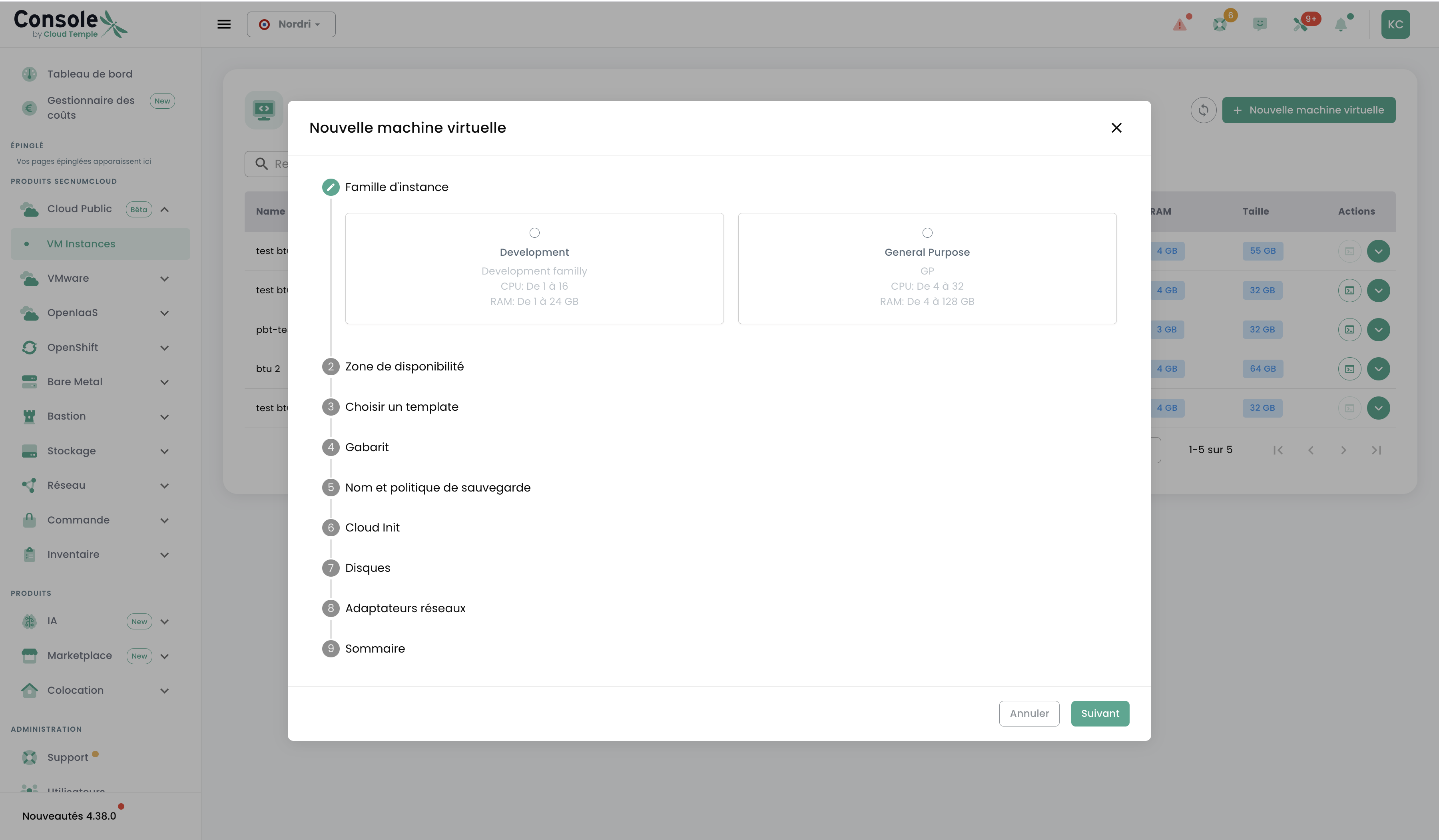
Choose the instance family suited to your workload:
| Family | Description | CPU |
|---|---|---|
| Development | Cost-optimized, for test and staging environments | Shared |
| General Purpose | Optimal vCPU/RAM balance for standard workloads | Shared |
The Performance family (dedicated vCPU) is available via the custom template.
Step 2 — Availability Zone
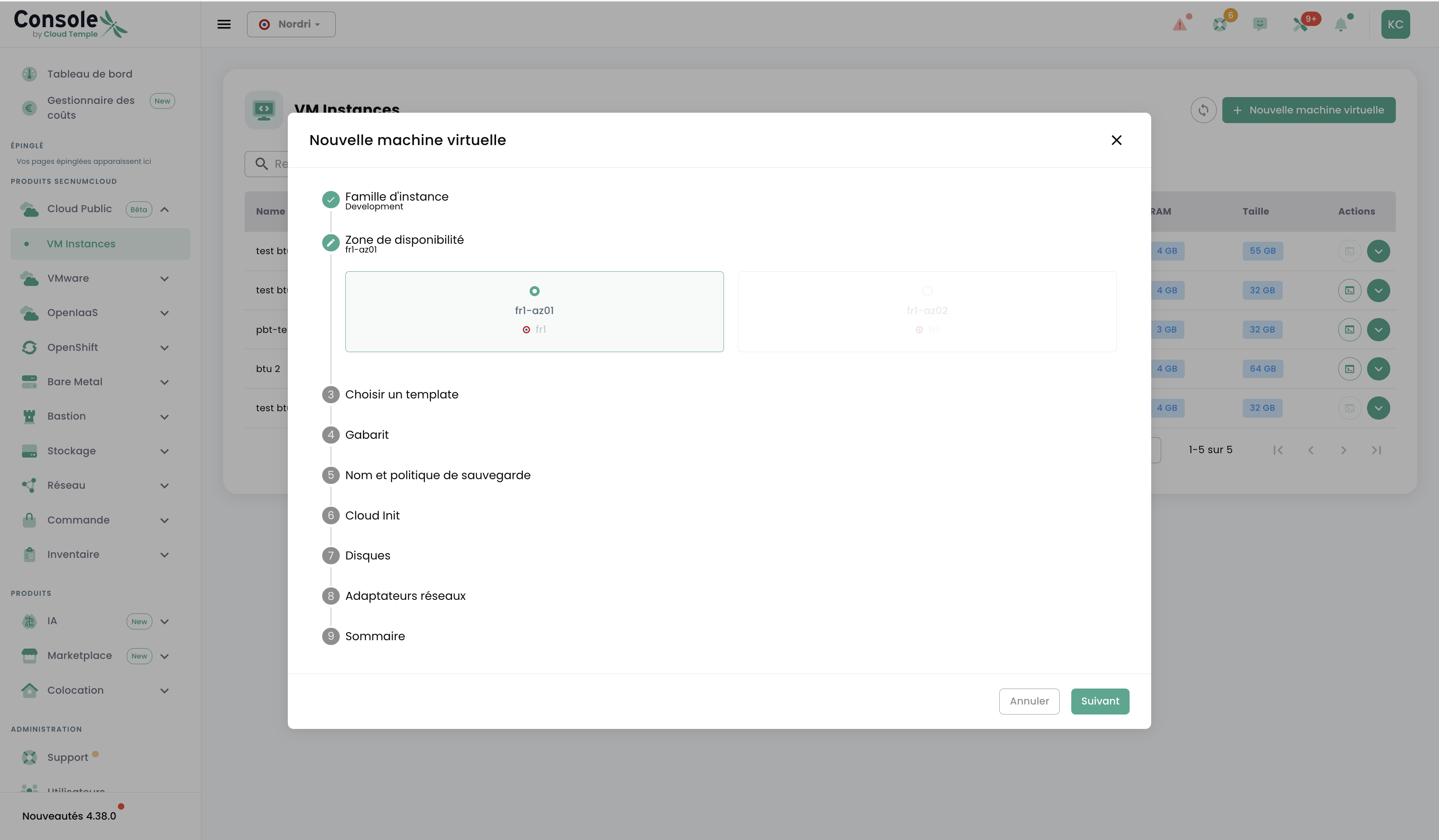
Select the availability zone (AZ) in which your VM will be hosted (e.g., fr1-az01).
This choice does not require subscribing to the billed AZ activation of the IaaS offer: this subscription is not a prerequisite for VM Instances.
Step 3 — Choose a template
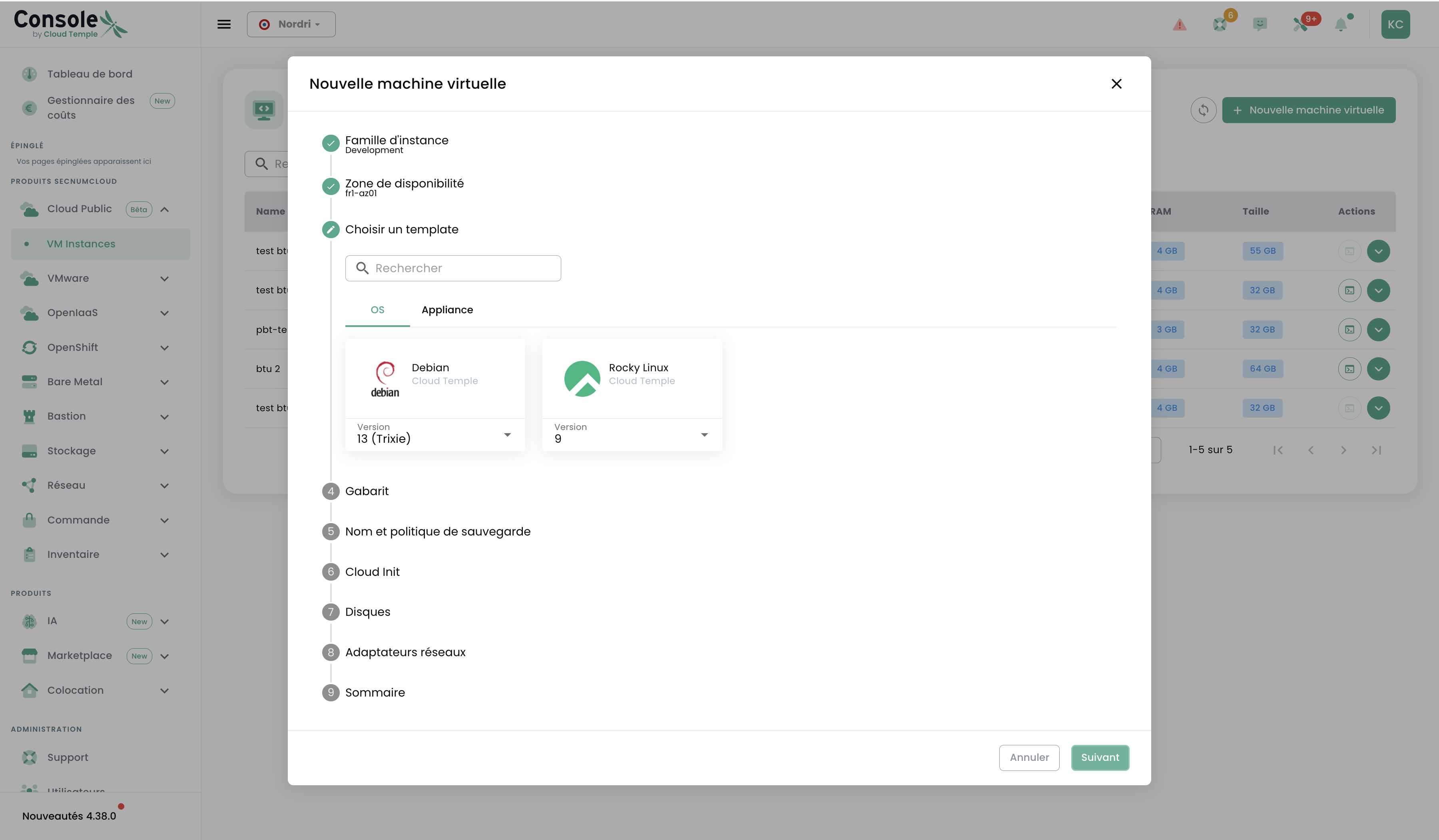
Browse the catalog of available images via the OS and Appliances tabs:
- Debian 13 (Trixie)
- Rocky Linux
- And other systems available in the Cloud Temple Marketplace
Select the desired operating system and choose the version from the associated dropdown menu.
Step 4 — Template
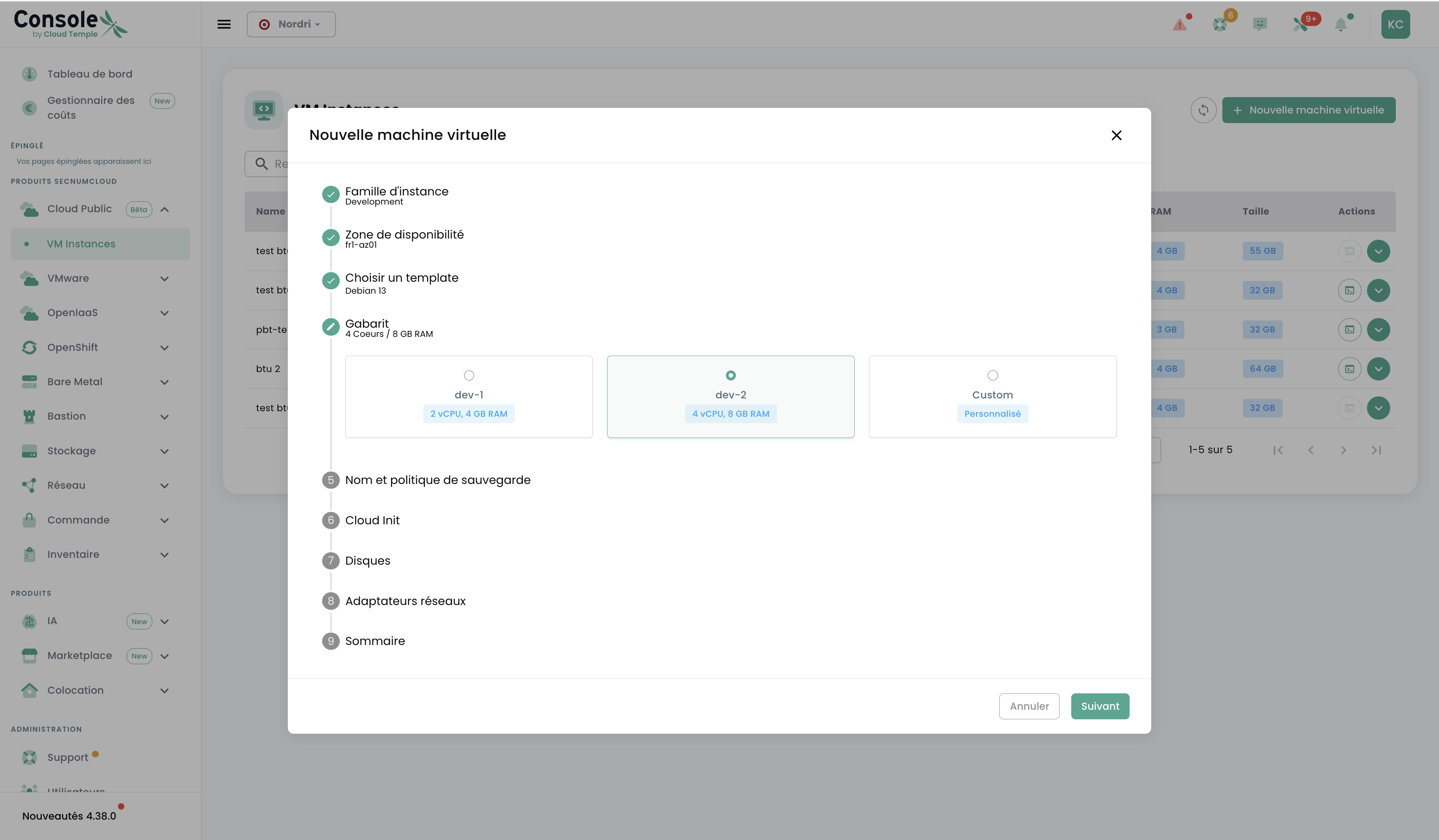
Choose a predefined template or create a Custom template:
dev-1: 1 vCPUdev-2: 2 vCPU / 8 GB RAM (selected by default)- Custom: freely specify the number of vCPUs and the amount of RAM
Step 5 — Name and backup policy
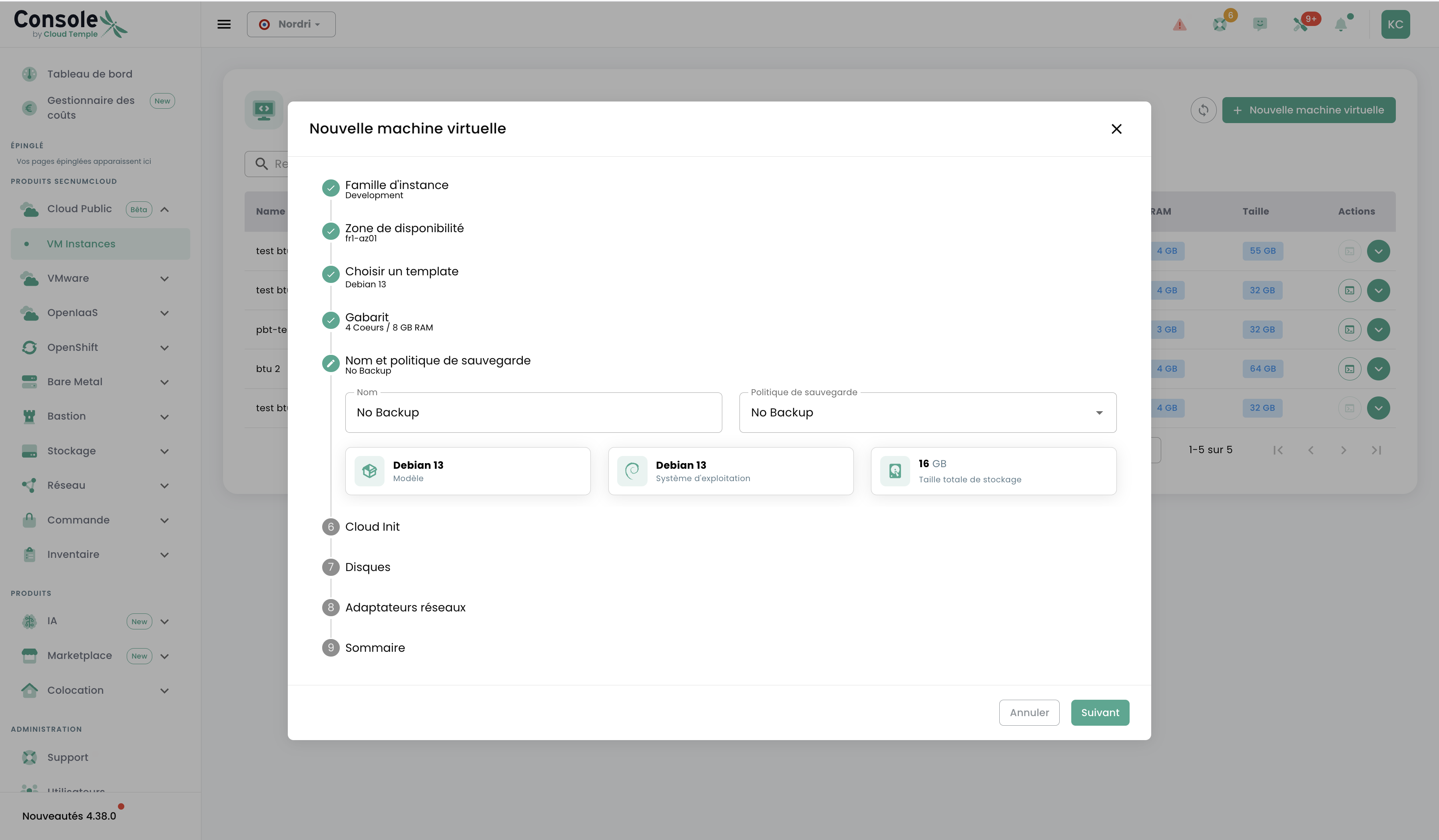
Fill in:
| Parameter | Description |
|---|---|
| Name | Unique name of your VM in the tenant |
| Backup policy | No Backup by default, or a retention policy if the backup option is subscribed |
This step also displays a summary of the selected operating system and the system disk size.
Step 6 — Cloud Init
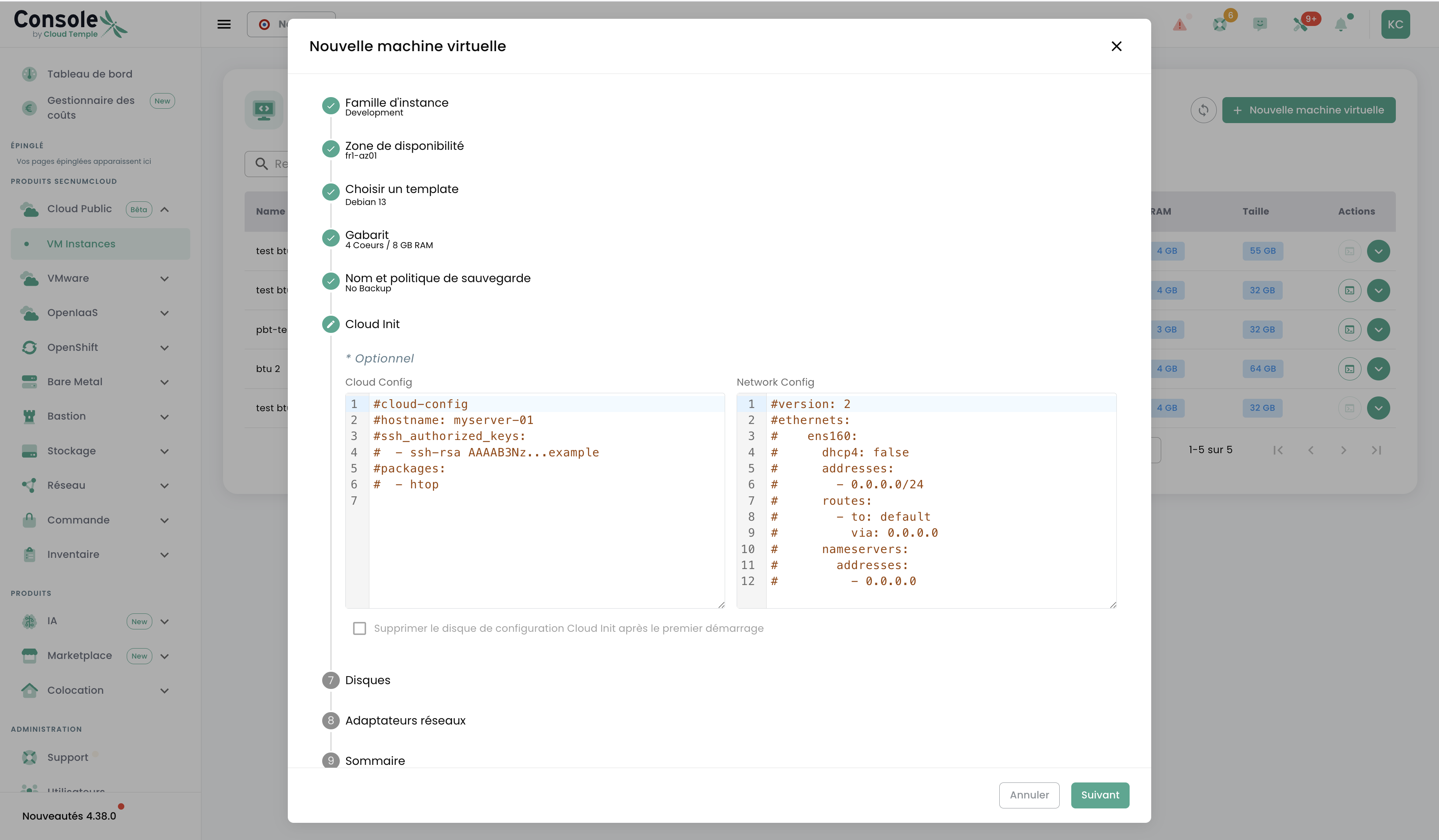
This step is optional. It allows you to pre-configure your VM on first boot via two editors:
- Cloud Config: SSH key injection, hostname configuration, package installation, etc.
- Network Config: static network configuration (Netplan format)
Example of a minimal Cloud Config:
#cloud-config
hostname: mon-serveur-01
ssh_authorized_keys:
  - ssh-rsa AAAA...votre_cle_publique
packages:
  - htop
A checkbox allows you to delete the Cloud Init configuration disk after the first boot (recommended for security).
Step 7 — Disks
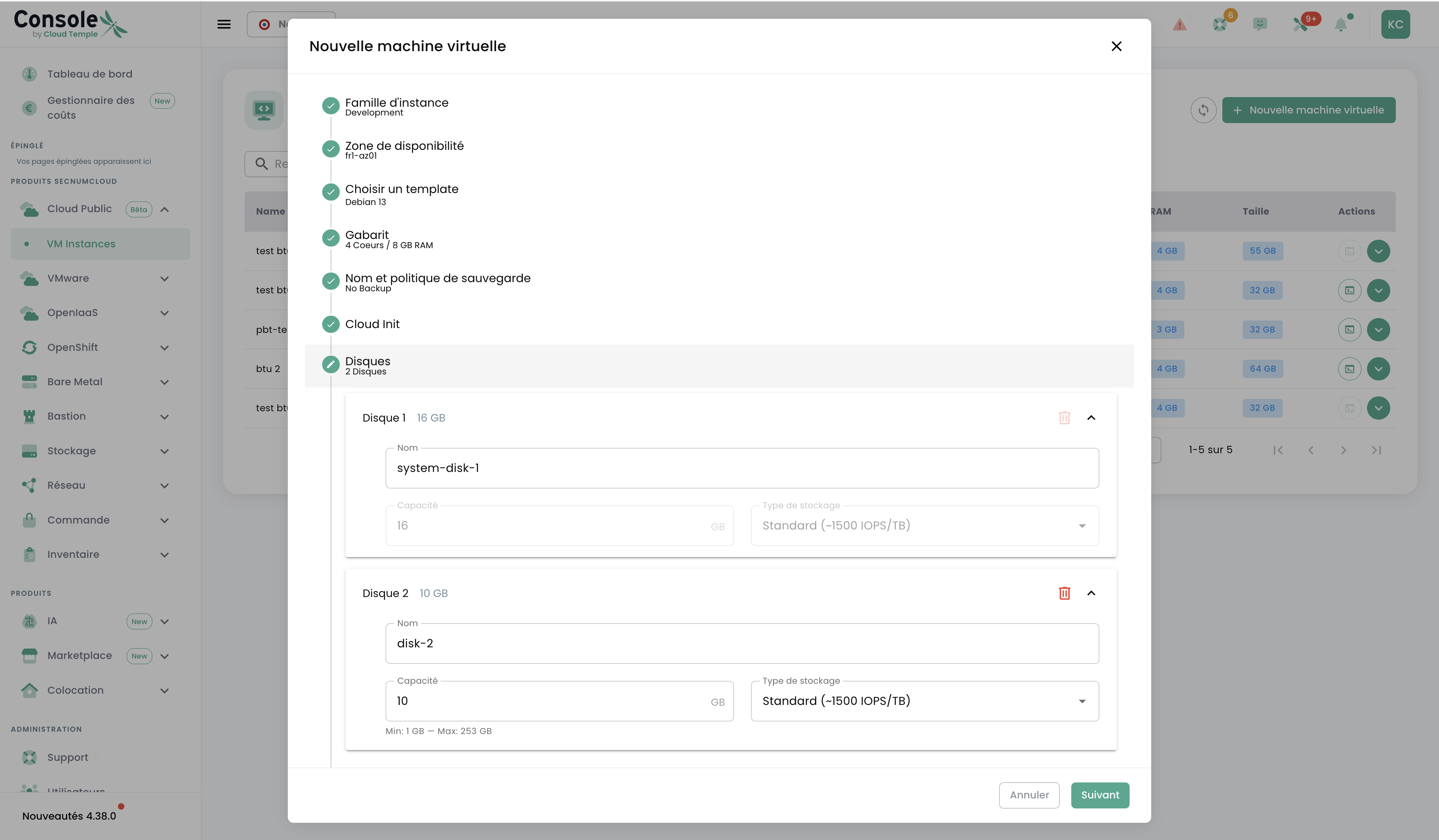
Configure the disk(s) of your VM:
- System disk: created automatically (
system-disk-1), size determined by the OS - Additional disks: add extra volumes with the desired name, capacity, and storage type
Two storage types are available:
| Type | IOPS |
|---|---|
| Standard | ~1,500 IOPS/TB |
| Enterprise | ~7,500 IOPS/TB |
Step 8 — Network Adapters
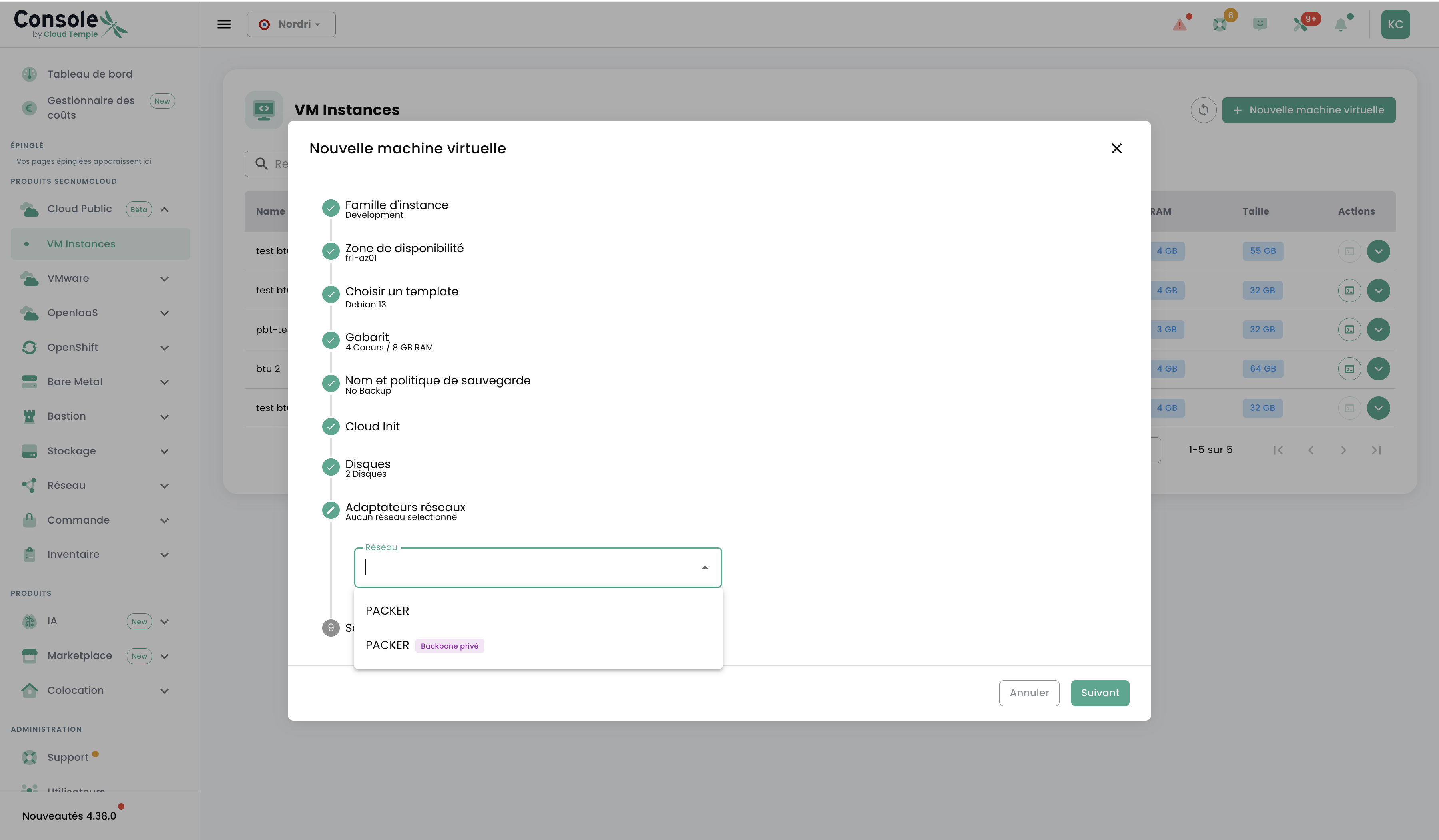
Associate your VM with a network from the dropdown menu. Two types of networks are available:
- Private backbone (e.g., PACKFR): shared private network with logical isolation
- VPC: fully dedicated private network with advanced segmentation
Step 9 — Summary
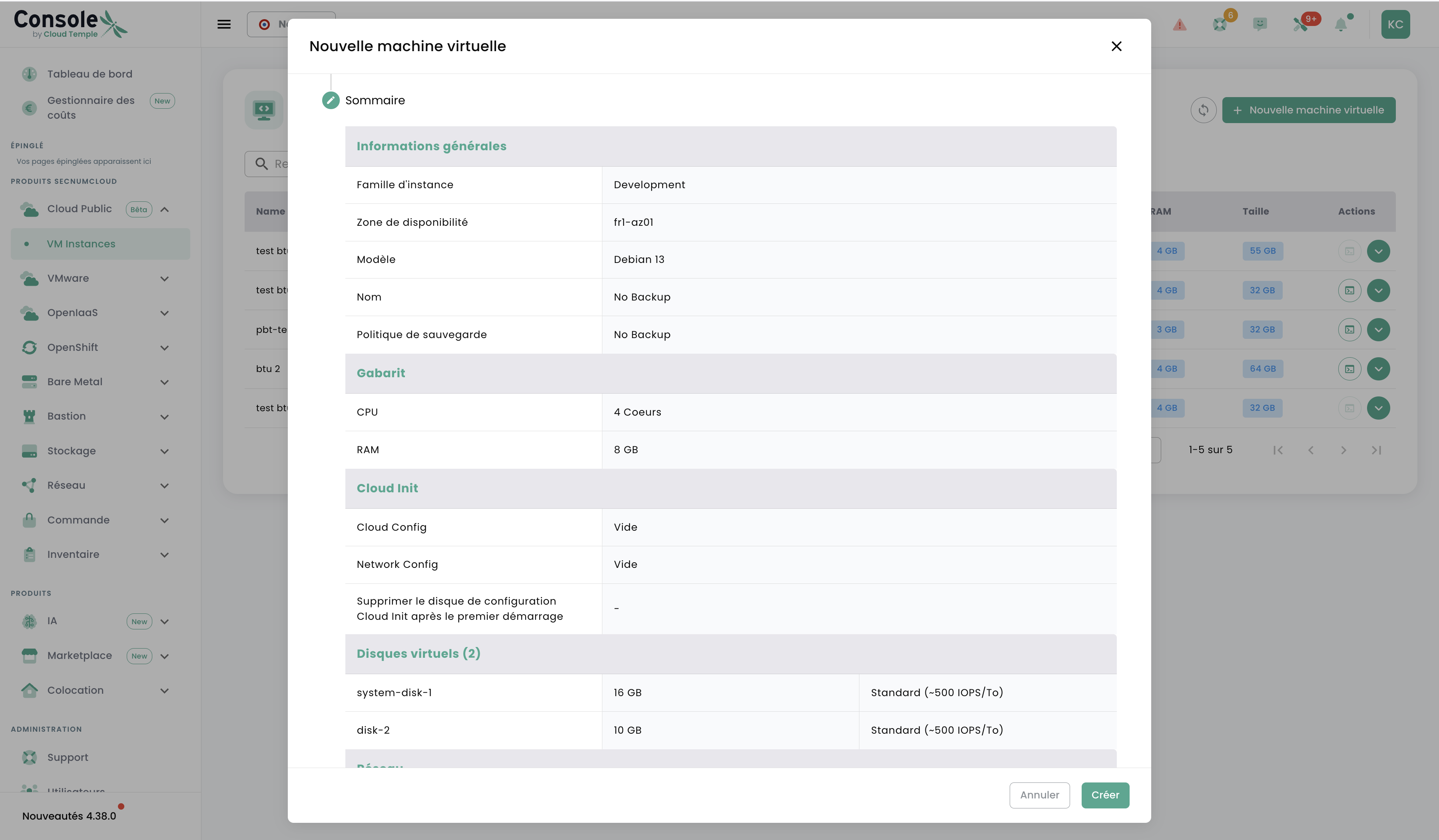
Verify the full summary before launching the provisioning:
- General information (family, AZ, model, name, backup)
- Template (CPU, RAM)
- Cloud Init configuration
- Virtual disks
- Network
Click Create to launch the deployment. The VM is provisioned in a few minutes.
Manage your virtual machines
From the list, click on a VM to expand its detail panel. Four tabs are available:
Information Tab
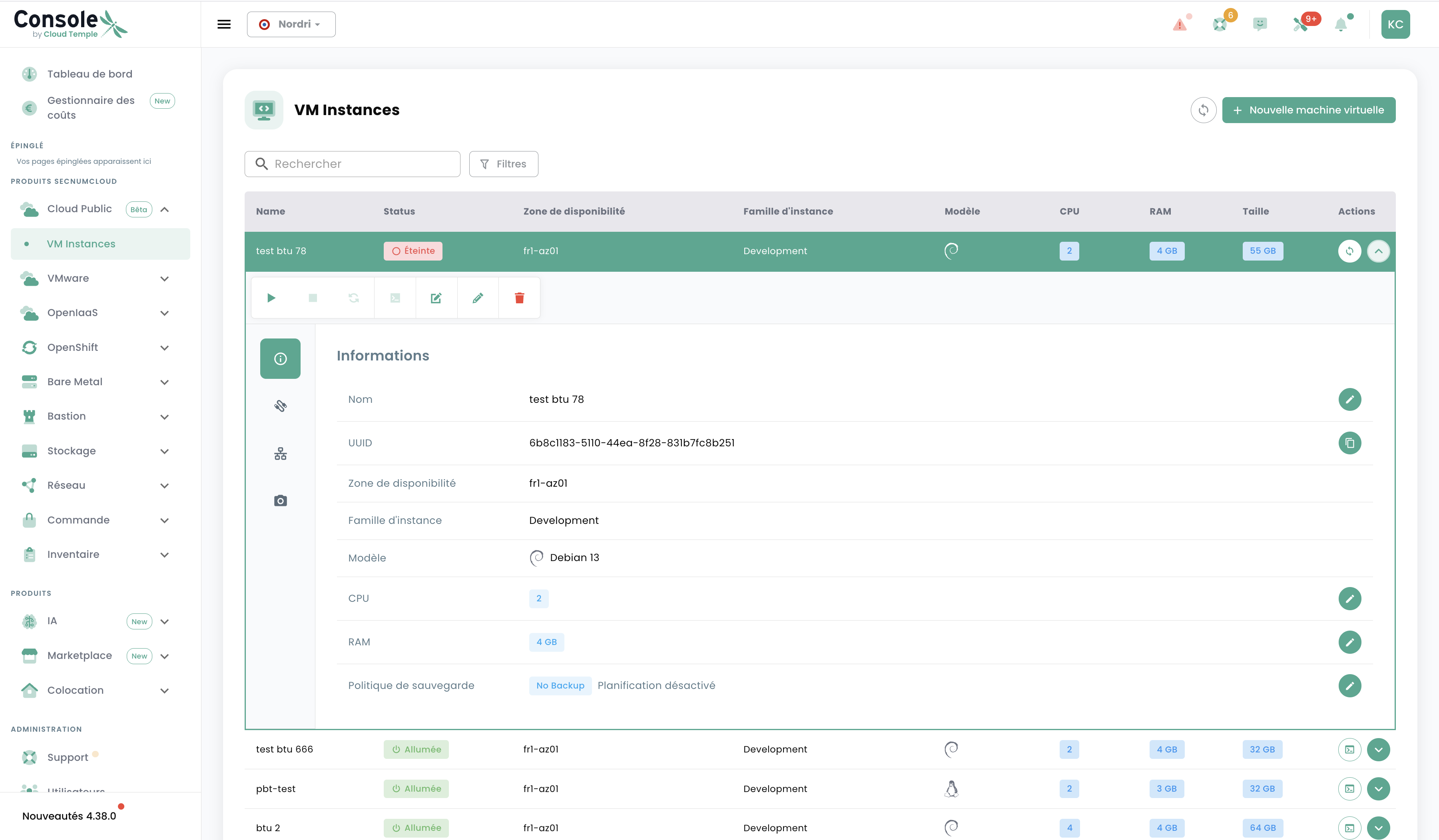
View and modify your VM settings:
- Name, UUID, availability zone
- Instance family, OS model
- CPU, RAM (modifiable when VM is stopped)
- Backup policy
Action icons allow you to start, stop, restart or open the console of the VM.
Disks Tab
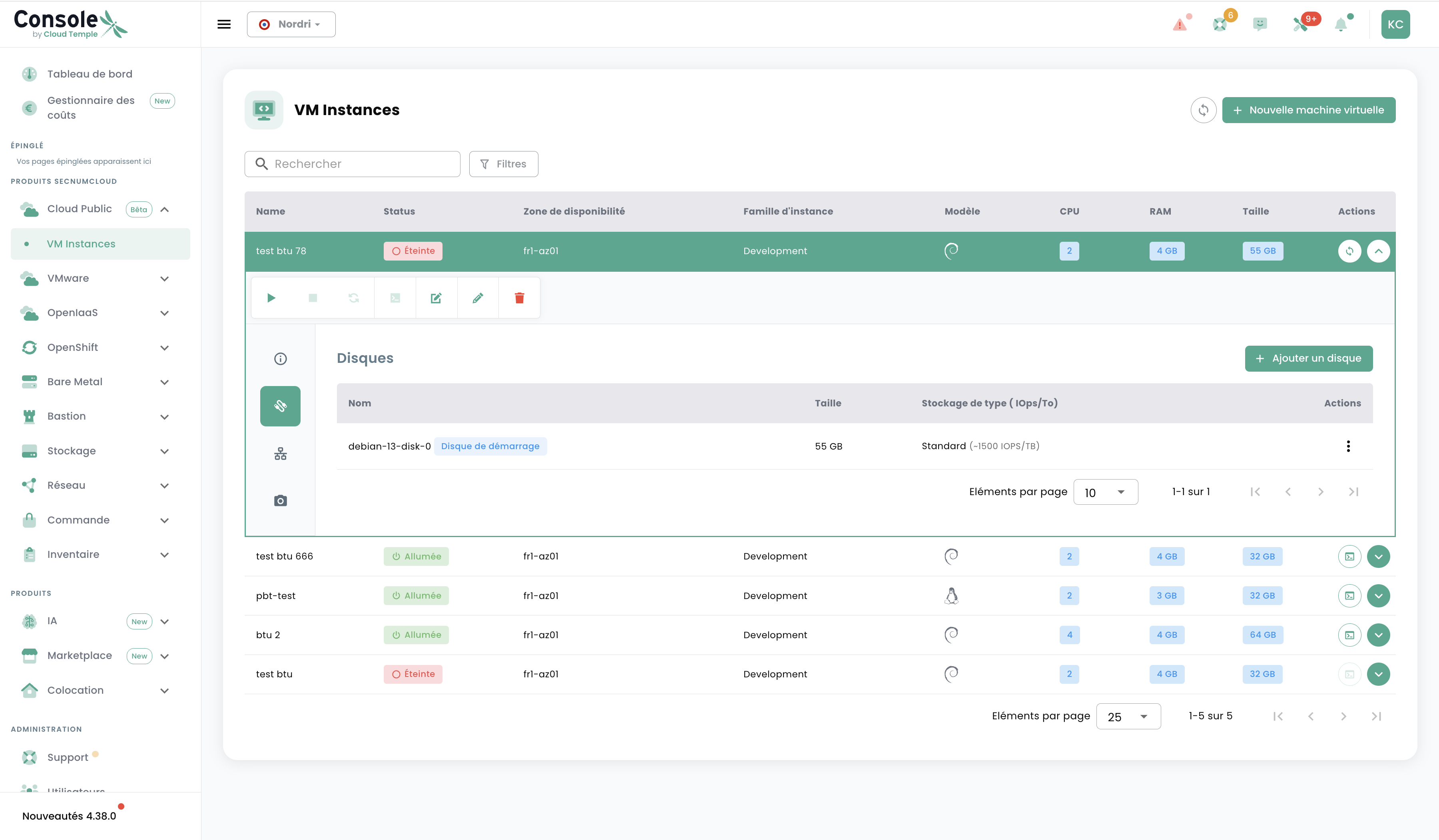
View the attached disks and add additional volumes via the + Add a disk button.
Network Adapters Tab
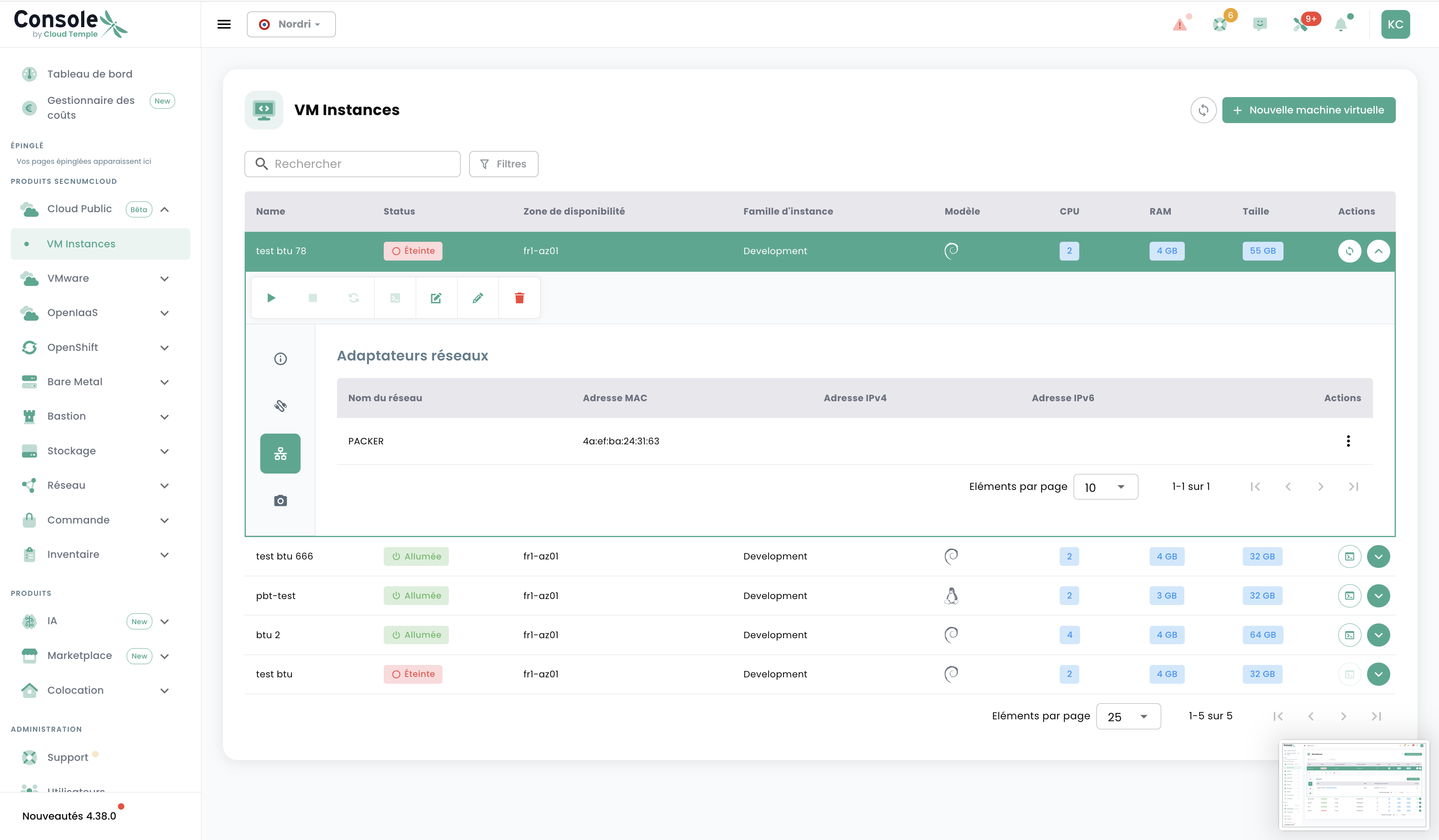
View the VM's network interfaces (network name, MAC address, IPv4/IPv6 address).
Snapshots Tab
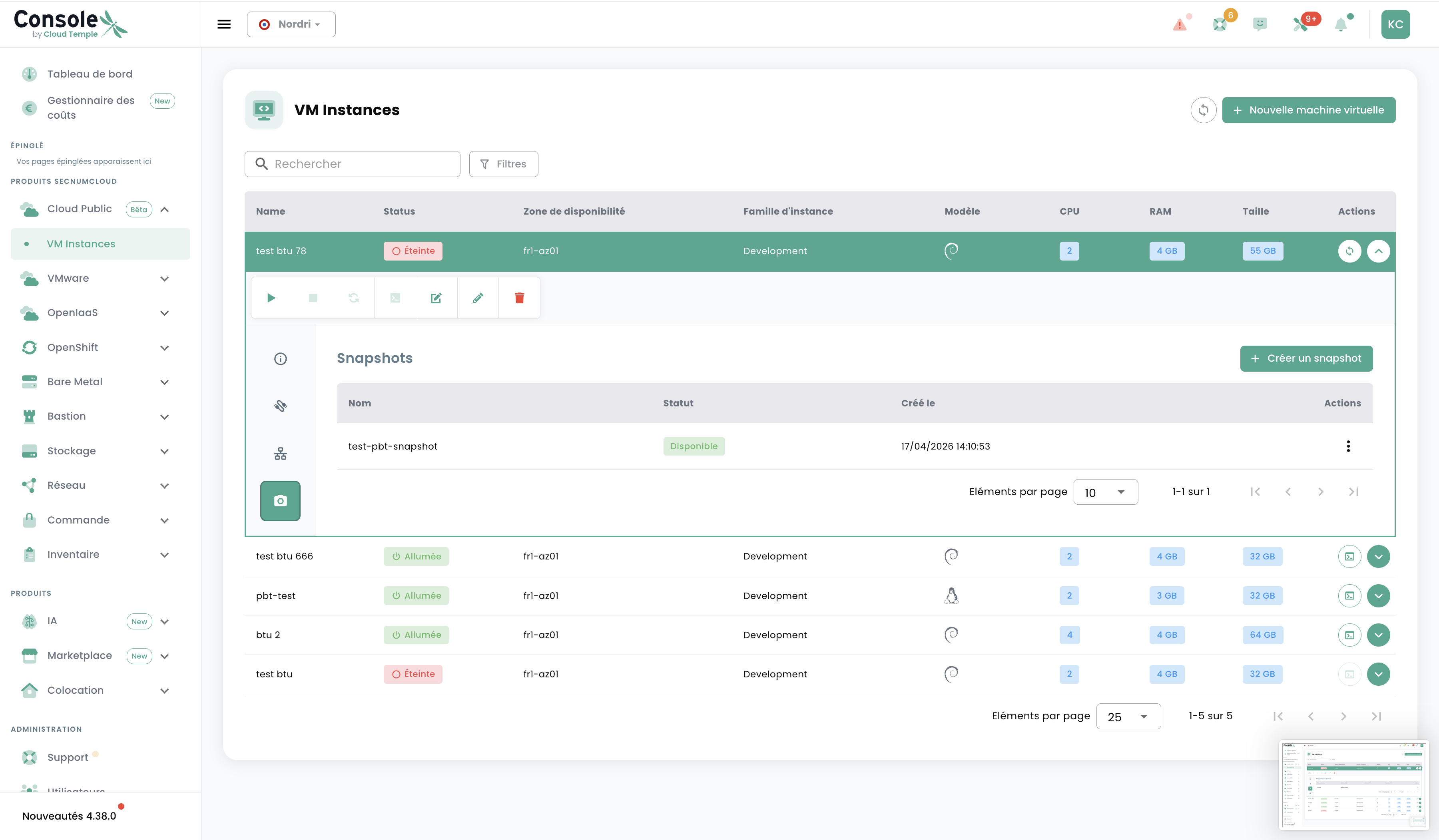
Create and manage snapshots of your VM via the + Create a snapshot button.
Automation and Infrastructure as Code
The VM Instances service is fully automatable:
Via the REST API
The Cloud Temple REST API allows full programmatic control of the virtual machines' lifecycle.
API Reference: https://shiva.cloud-temple.com/api/
Via Terraform
The Cloud Temple Terraform provider allows you to manage your VM Instances as Infrastructure as Code.
# Exemple de ressource VM Instances avec Terraform
# Consultez la documentation du provider pour les attributs disponibles
resource "cloudtemple_compute_vm_instance" "example" {
  # ...
}
See the documentation Terraform for provider installation and configuration.