Quick Start VPC
This guide walks you through creating your first Virtual Private Cloud (VPC) and deploying your first private networks.
Prerequisites
Currently, activating the VPC service requires subscribing to an IaaS Open Source offering. (This requirement will be removed in the future).
Step 1: Access the Console
- Sign in to the Cloud Temple Console.
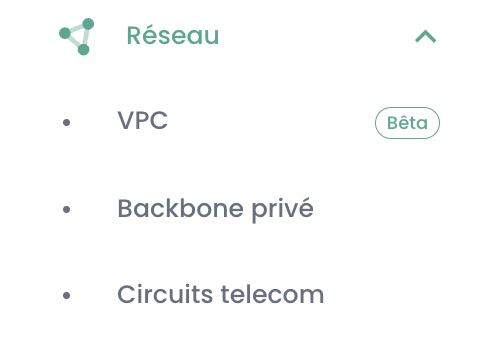
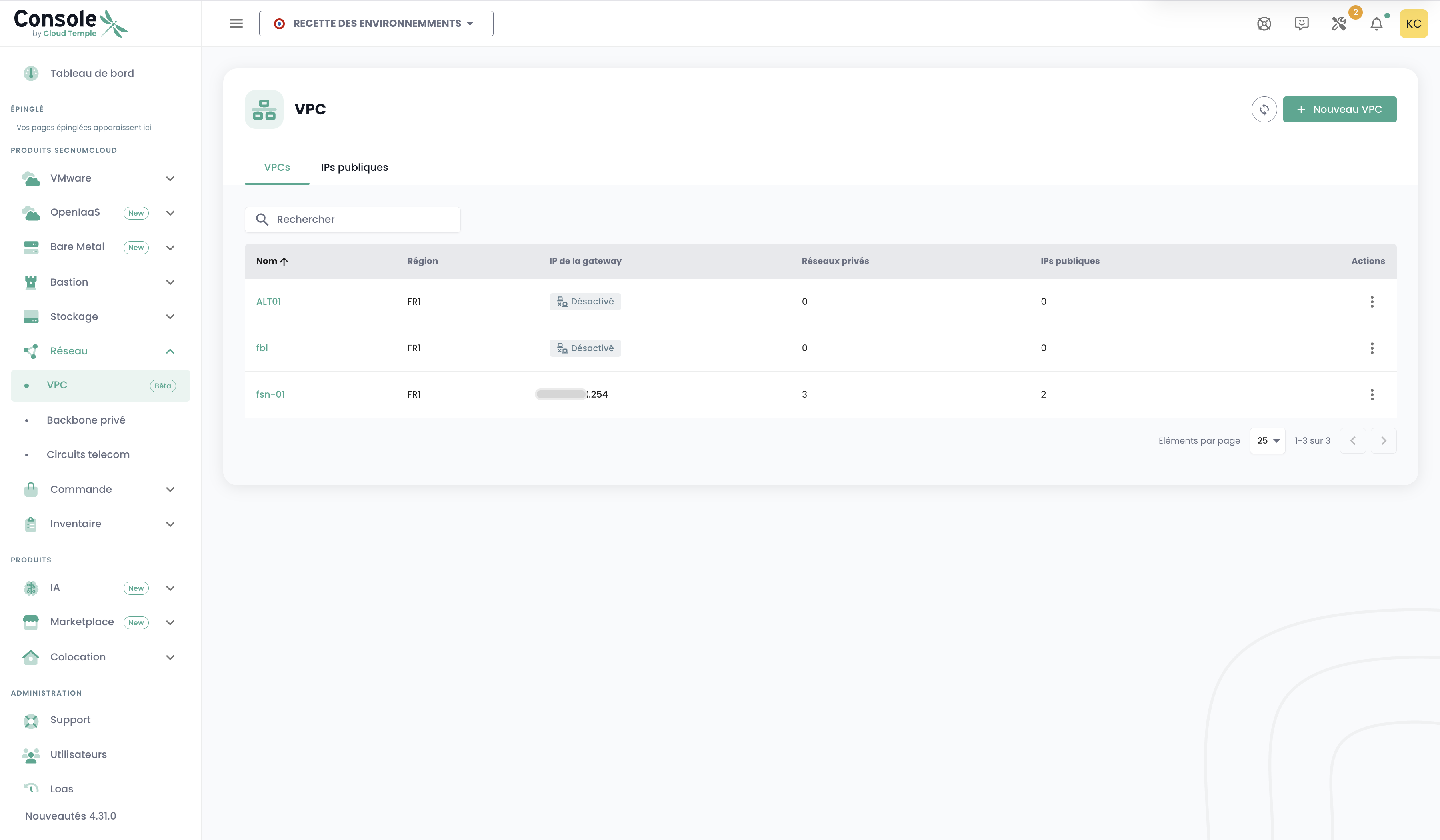
- In the navigation menu, select Network then VPC.
Step 2: Create a VPC
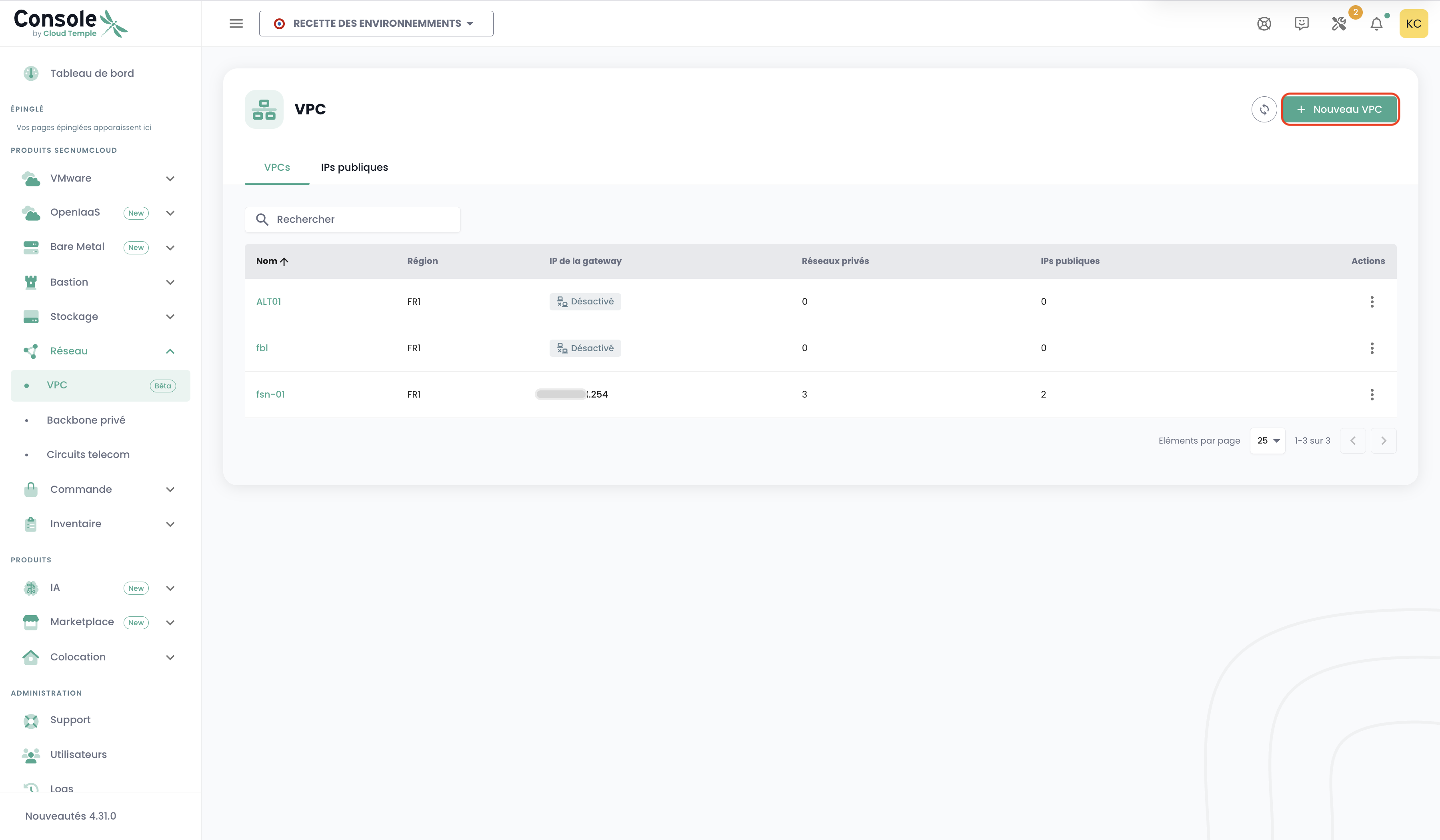
- Click the New VPC button.
- Fill out the guided form:
- VPC Name: Choose a unique name to identify your environment.
- Description: (Optional) Add a description.
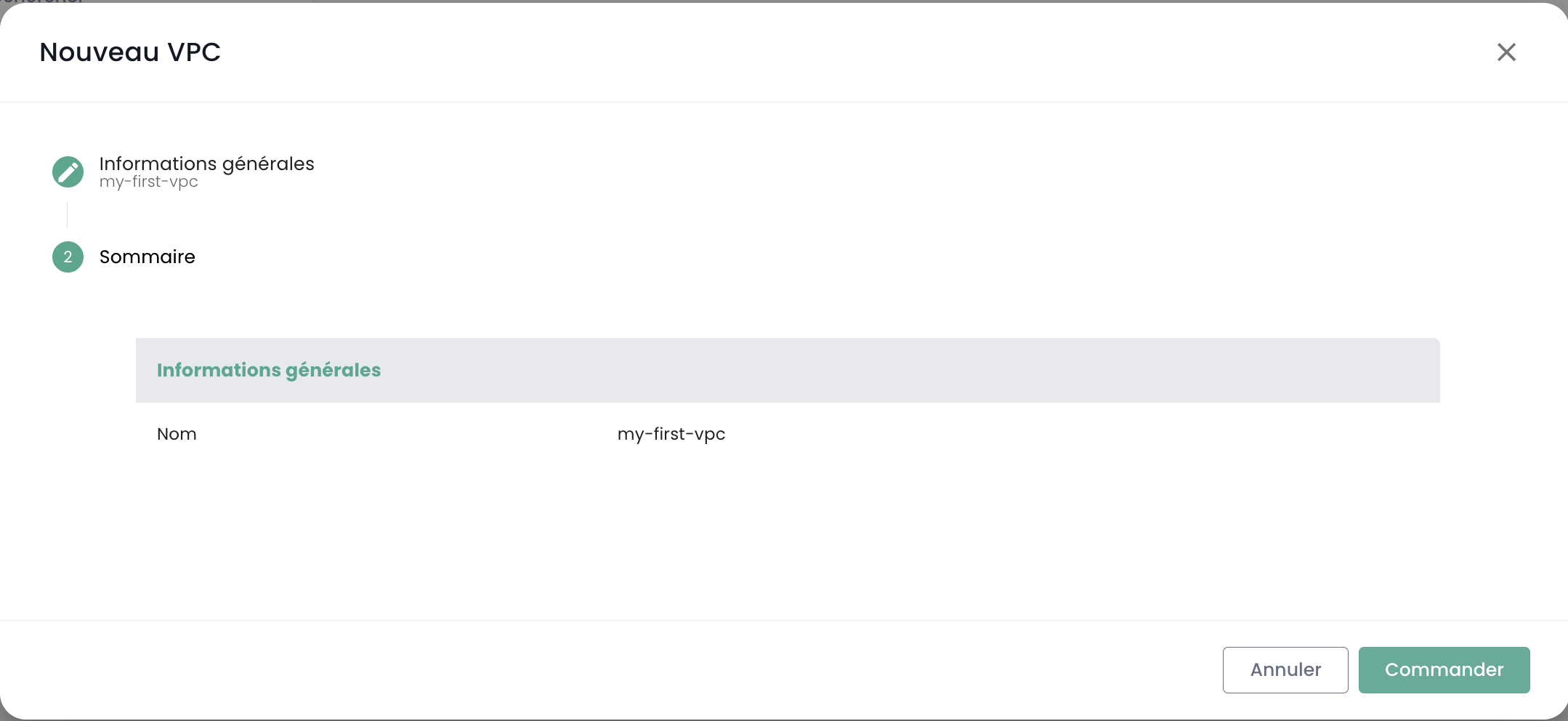
- Confirm the creation.
Note: VPC provisioning is fully automated and typically takes less than one hour.
Alternative: Via the Commands Tab
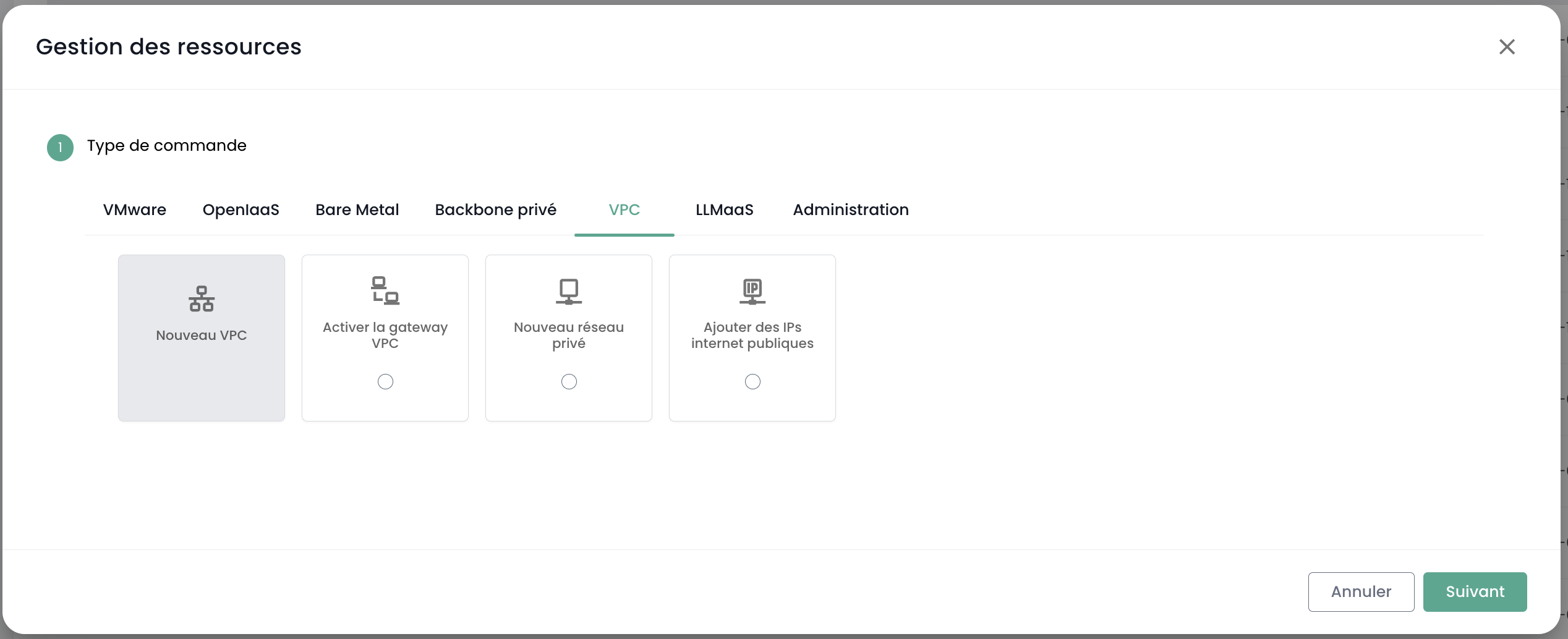
You can also initiate the VPC resources command directly from the Commands menu.
Step 3: Create Private Networks
Once your VPC is active:
- Go to your VPC details by clicking on its name.
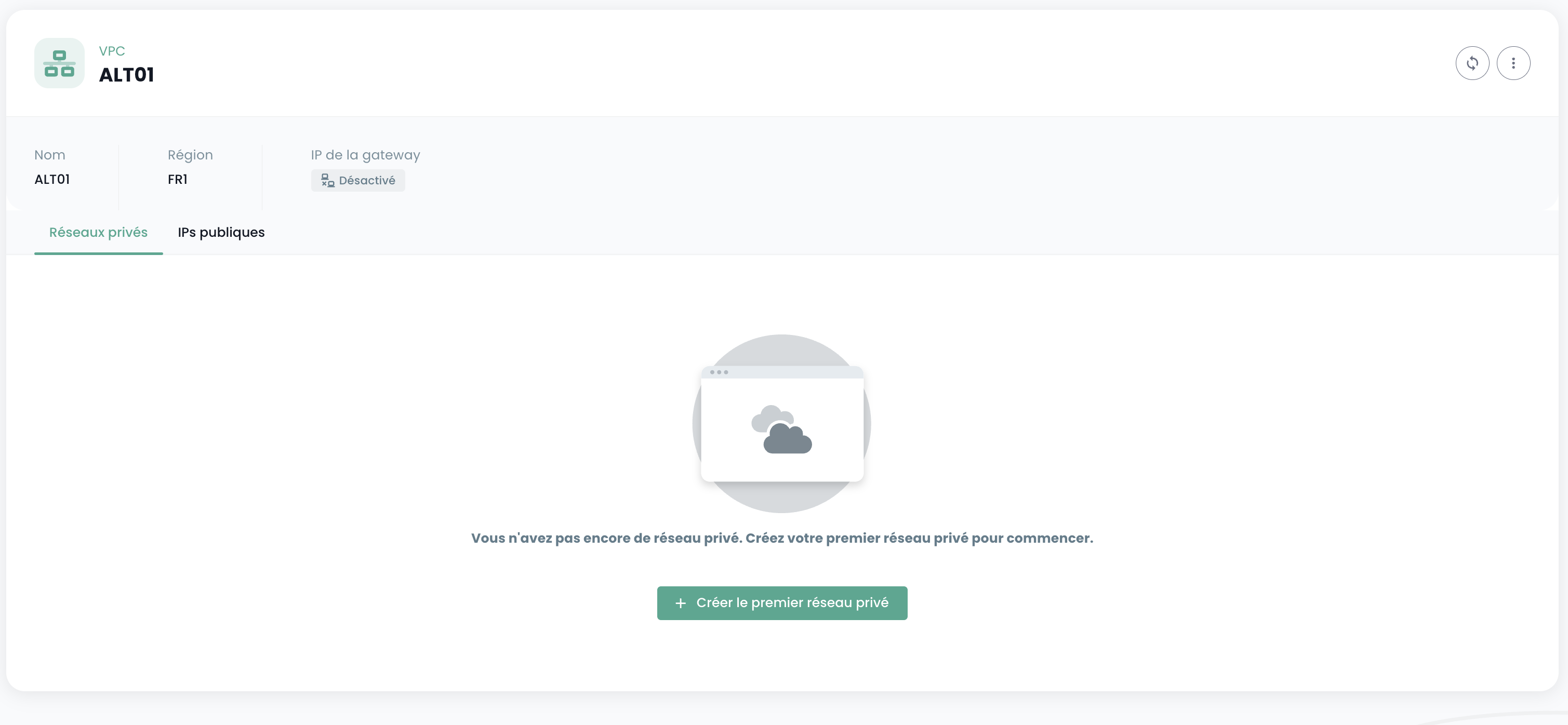
- Navigate to the Private Networks tab.
- Click Add a network.
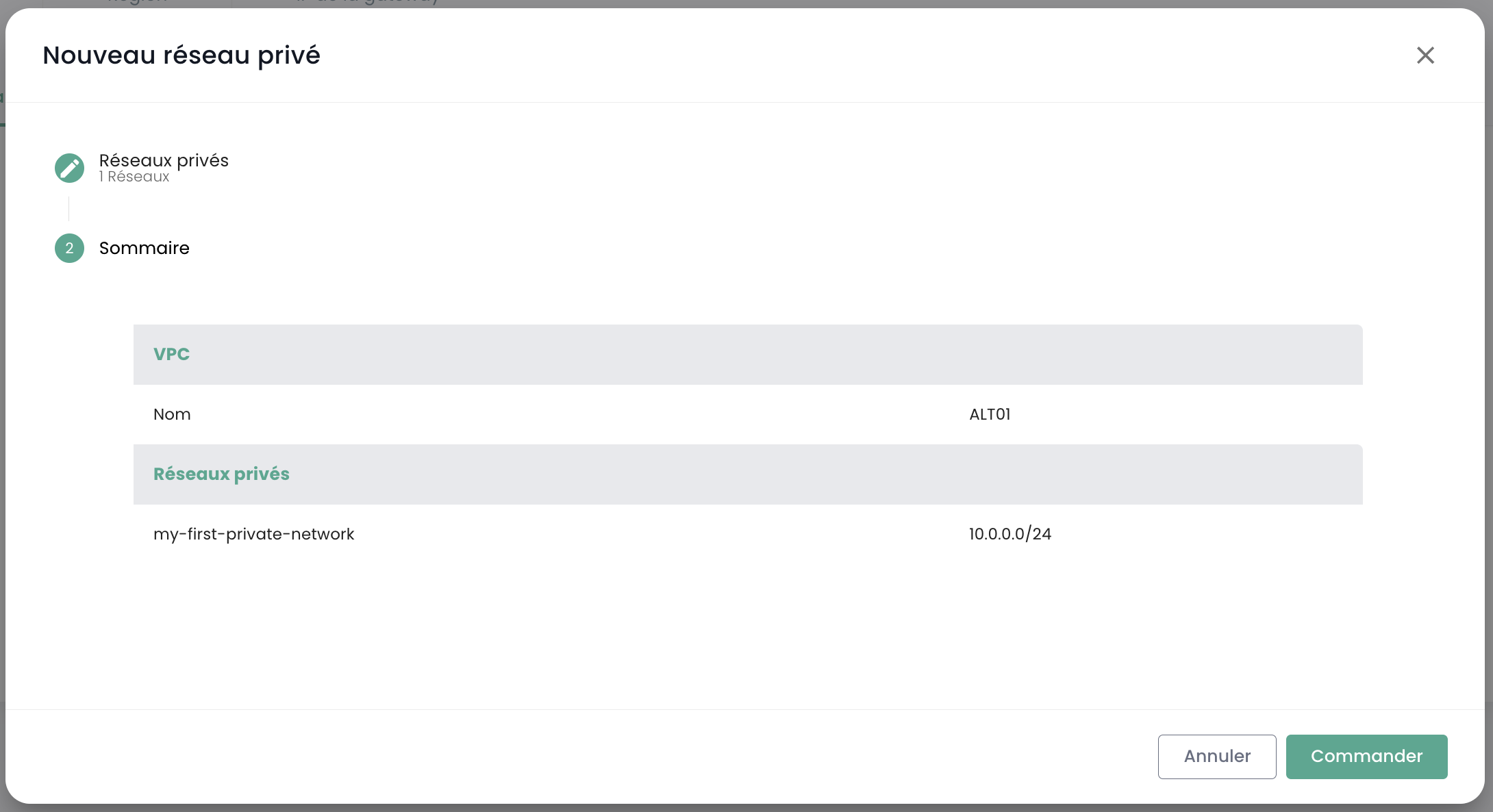
- Configure your network:
- Name: Name of the network segment (e.g.,
backend,frontend). - CIDR: IP address range (e.g.,
192.168.1.0/24).
- Name: Name of the network segment (e.g.,
Step 4: Activate the Gateway and Request Public IPs
To enable Internet access and expose services:
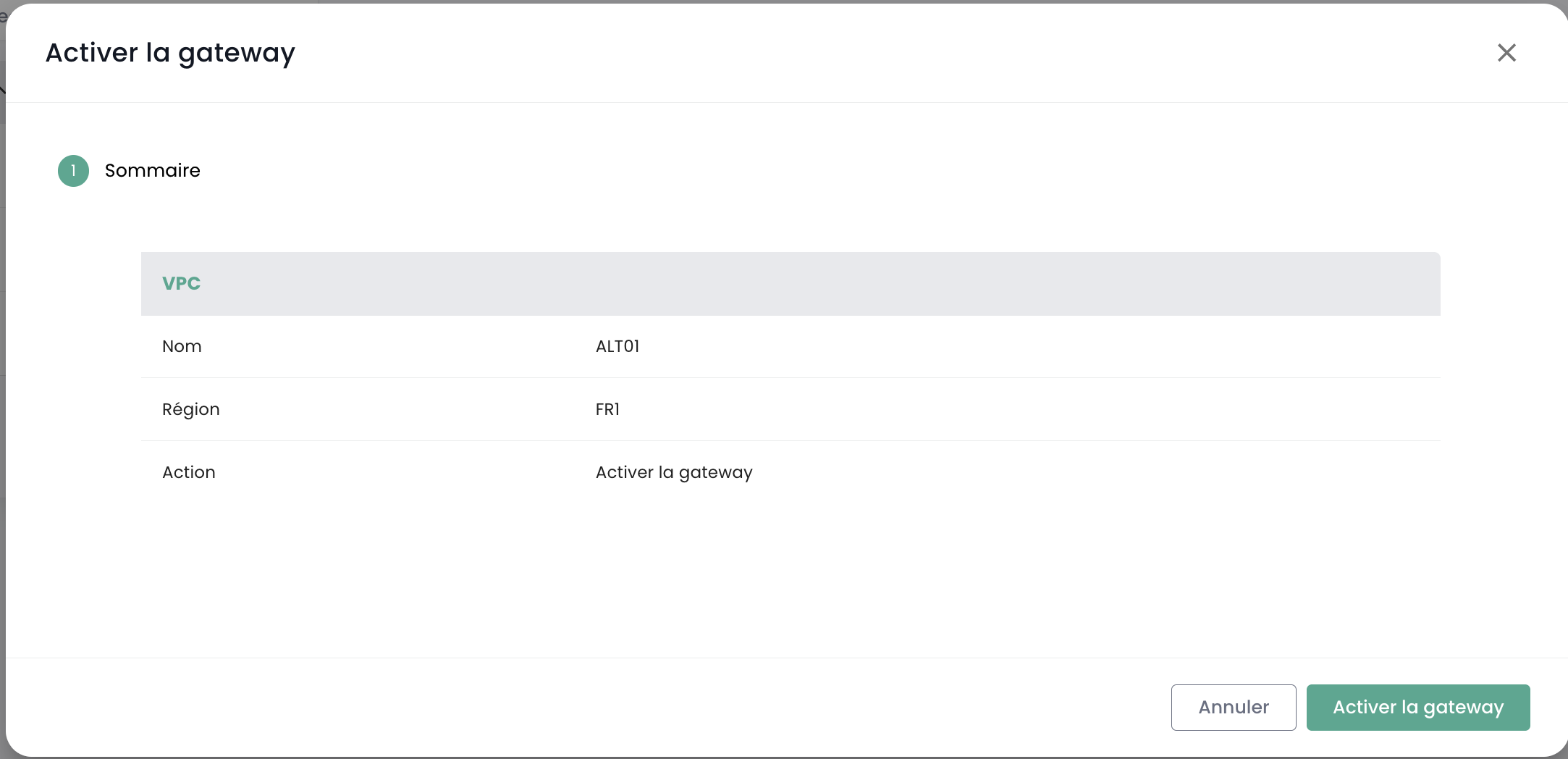
- Check whether the gateway is activated. If not, click the activation button.
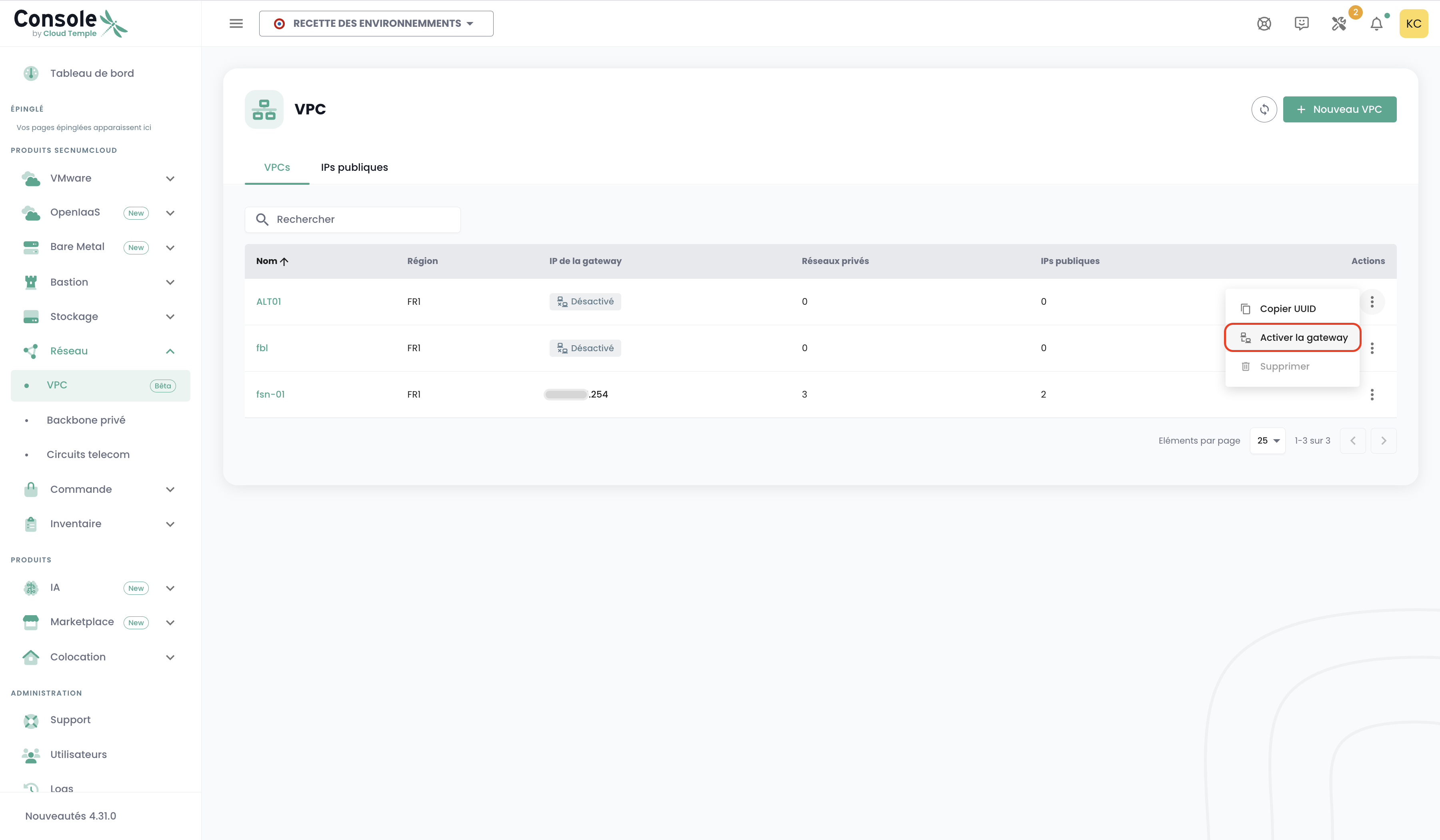
- Once the gateway is active, go to the Public IPs tab.
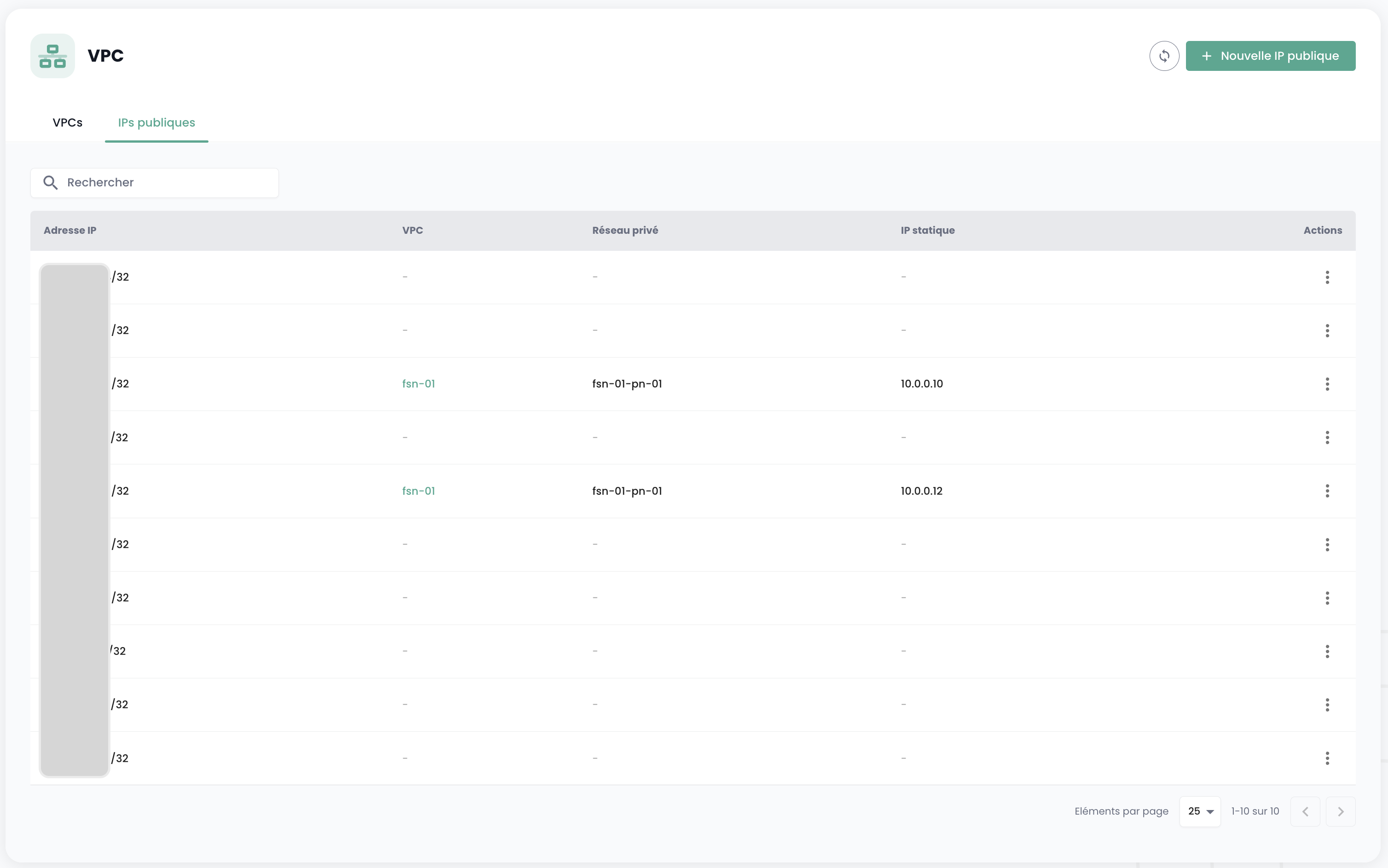
Note: The Public IPs list at the root of the VPC menu displays all public IPs (assigned or unassigned). The Public IPs tab within a VPC's details allows you to manage only those IPs assigned to that specific VPC (requires the gateway to be active).
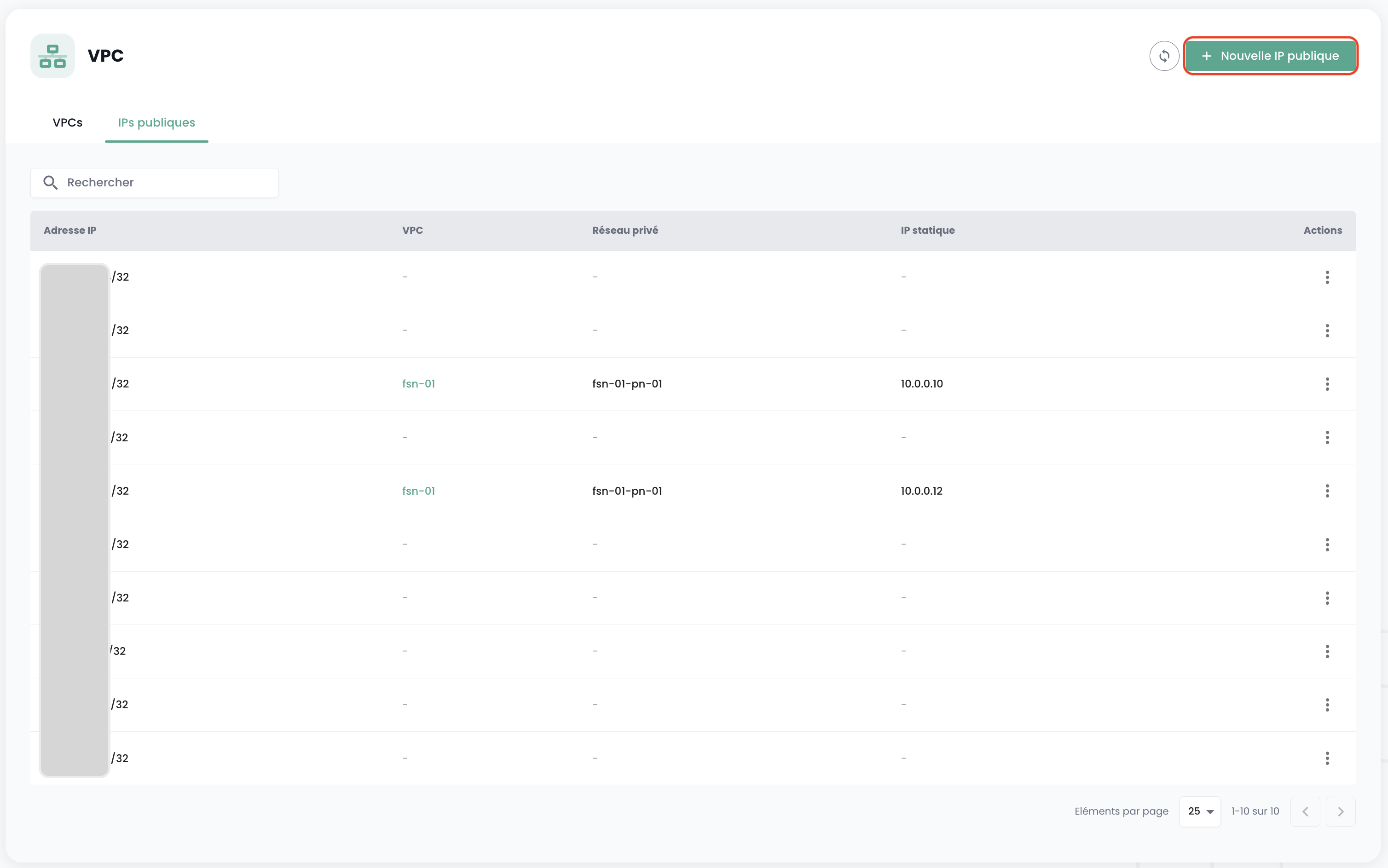
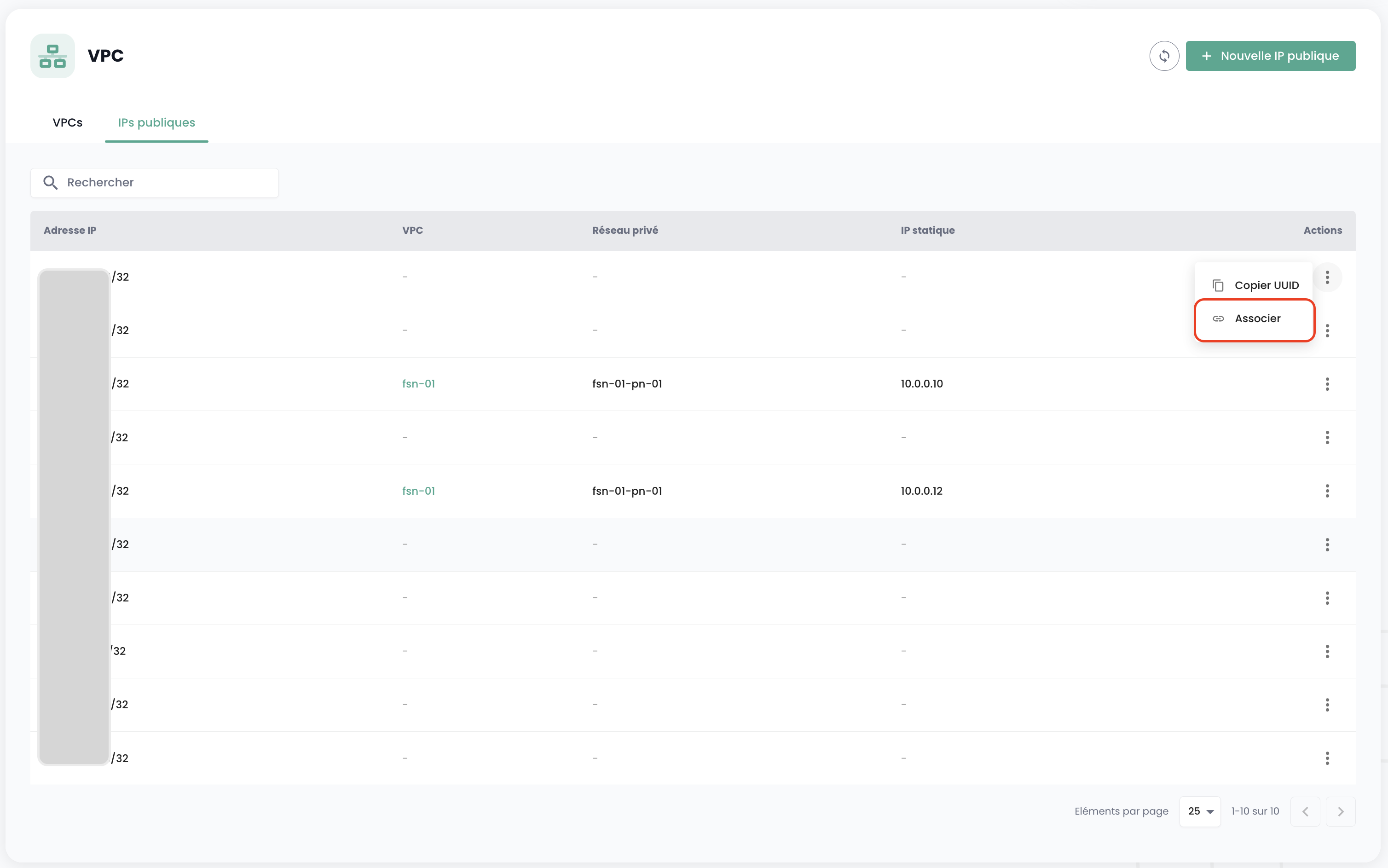
- Click the button to request new IPs, or click the "Assign" action to assign an IP from the list that is not yet assigned.
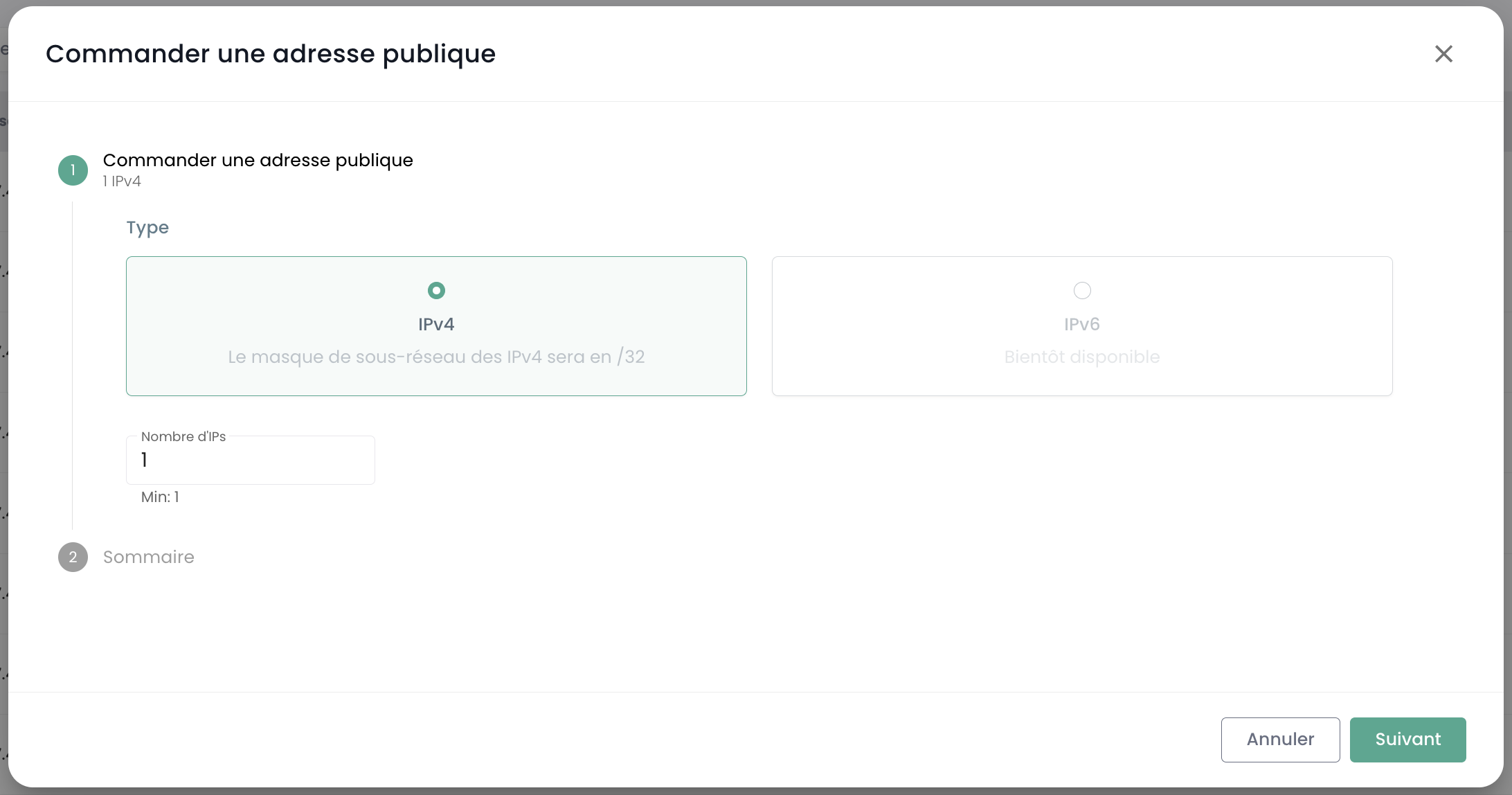
- Select the number of IPs you wish to request, then confirm your request.
Step 5: Connect Your Resources
Your private networks are now available across all Availability Zones (AZs) in the region. You can connect your Open Source IaaS virtual machines or your servers directly from their respective configuration interfaces.
To learn how to set up a VPC network on a virtual machine, refer to our tutorial: Configure a Static IP and a VM.