Getting Started Guide
Private Regional Networks
The management of private networks within a region is directly handled through the Cloud Temple console.
Within a Tenant
The creation of a virtual network takes place in the Networks menu on the top left bar of the screen.
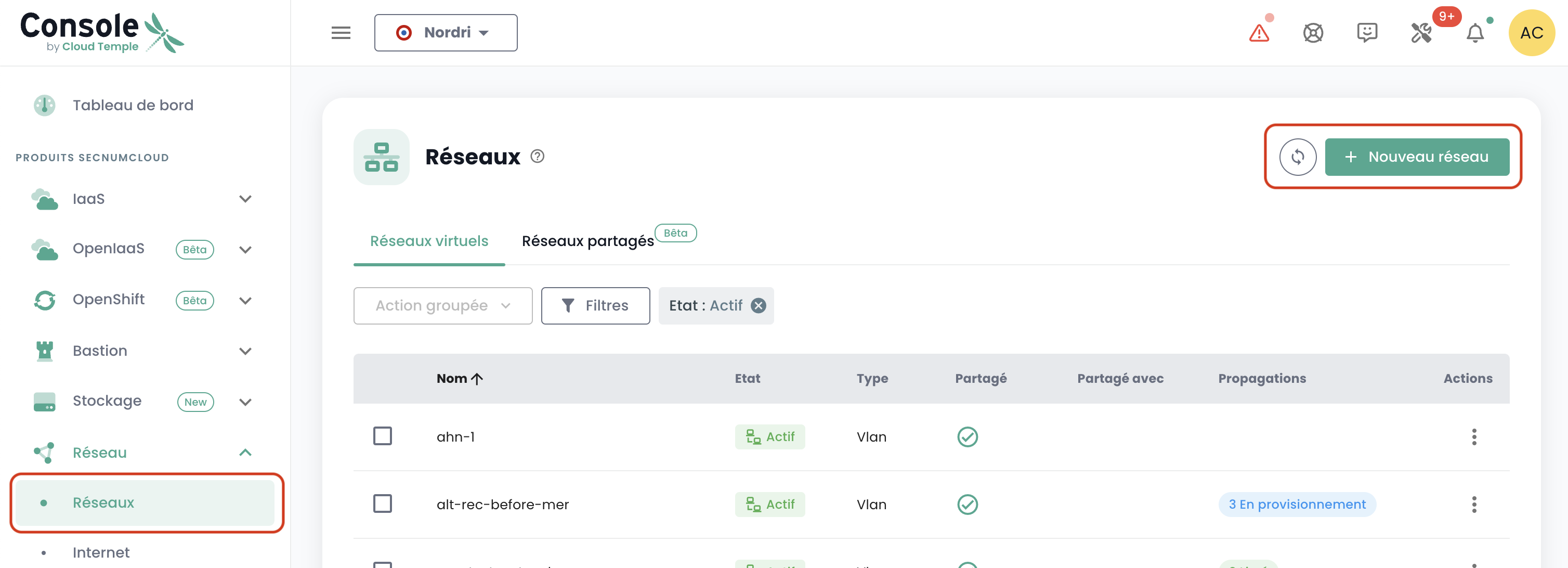
Clicking on the button New Network
You need to specify the name of your network, which will be displayed. By default, all of your clusters will access your new network.
It is now possible to create multiple networks simultaneously. Simply click on Add Network.
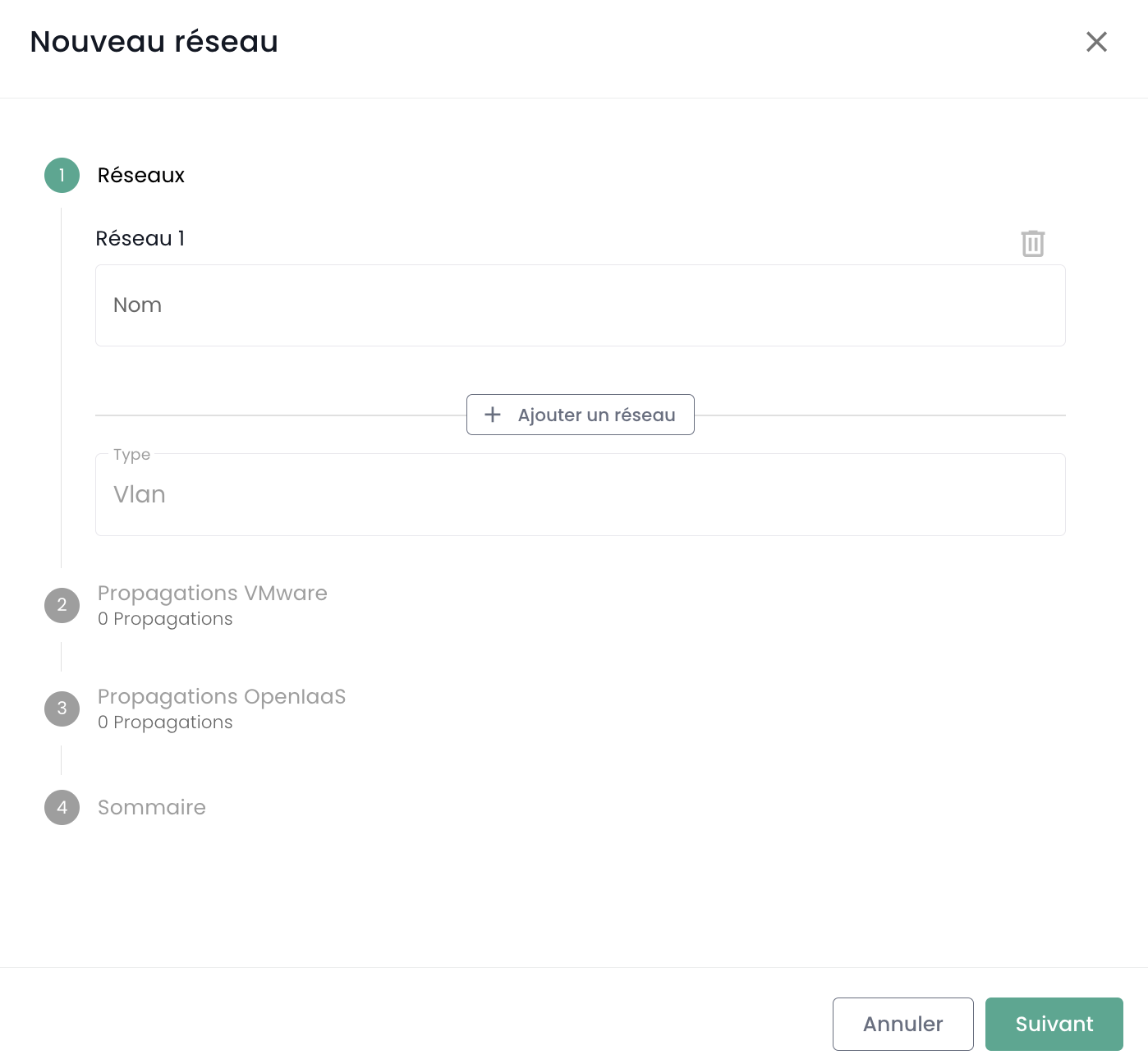
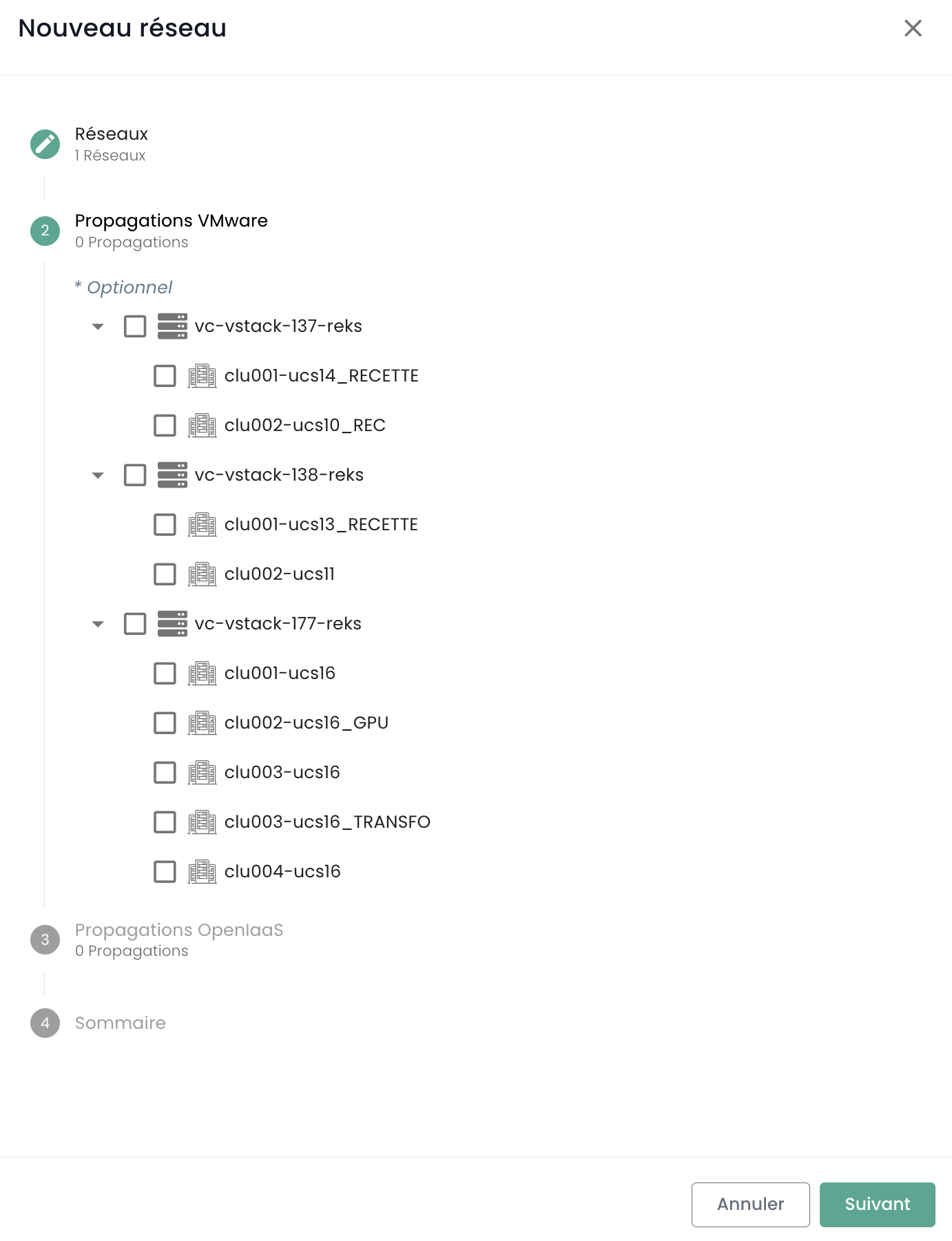
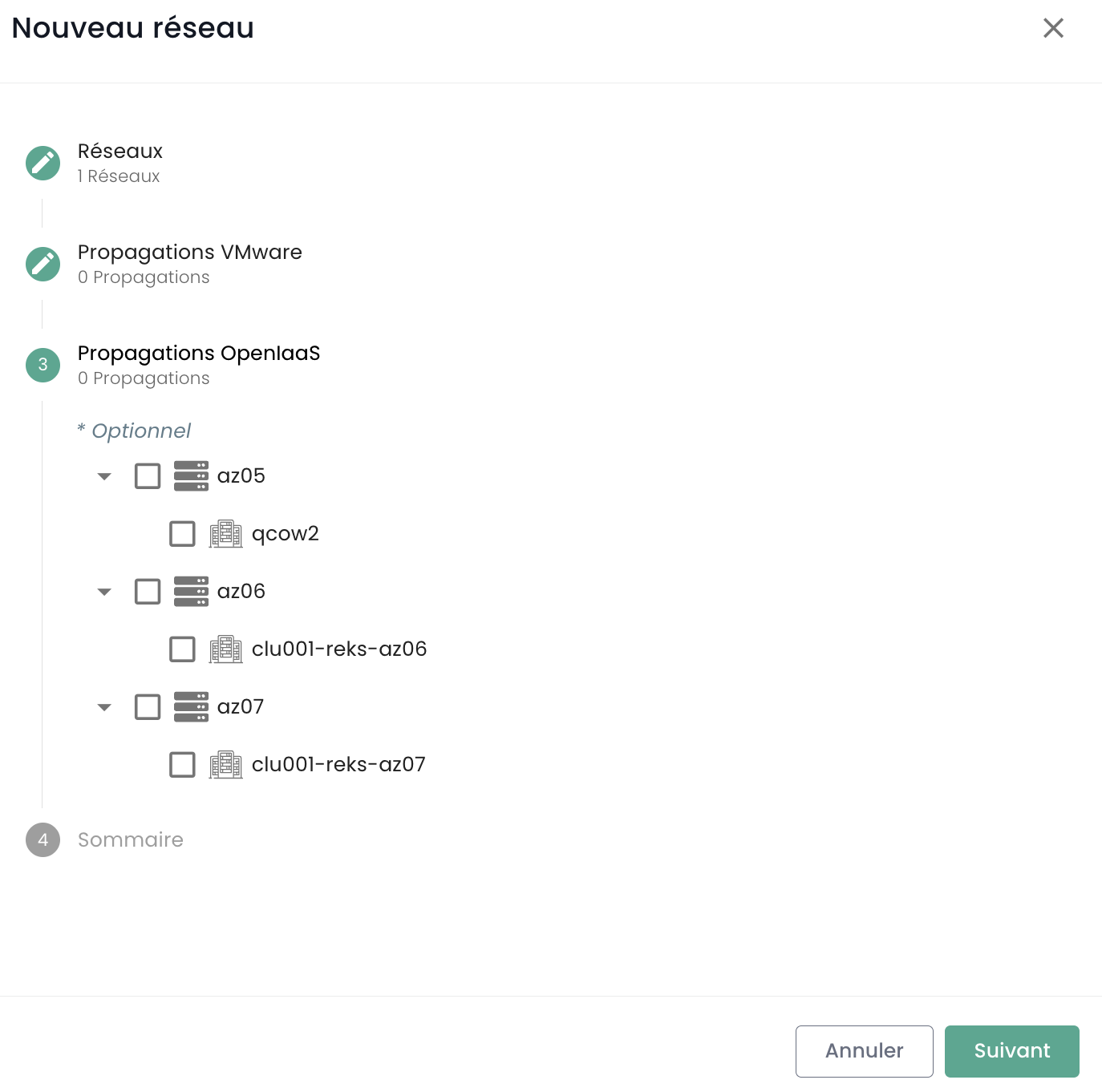
In the following steps, you can specify more precisely the scope of propagation within the tenant between your different IaaS VMware or Open IaaS clusters.
Network Command Management
Once all steps are completed, your networks are created, and a command is generated to propagate them. You can track your commands:
- Through the Commands tab in the main menu
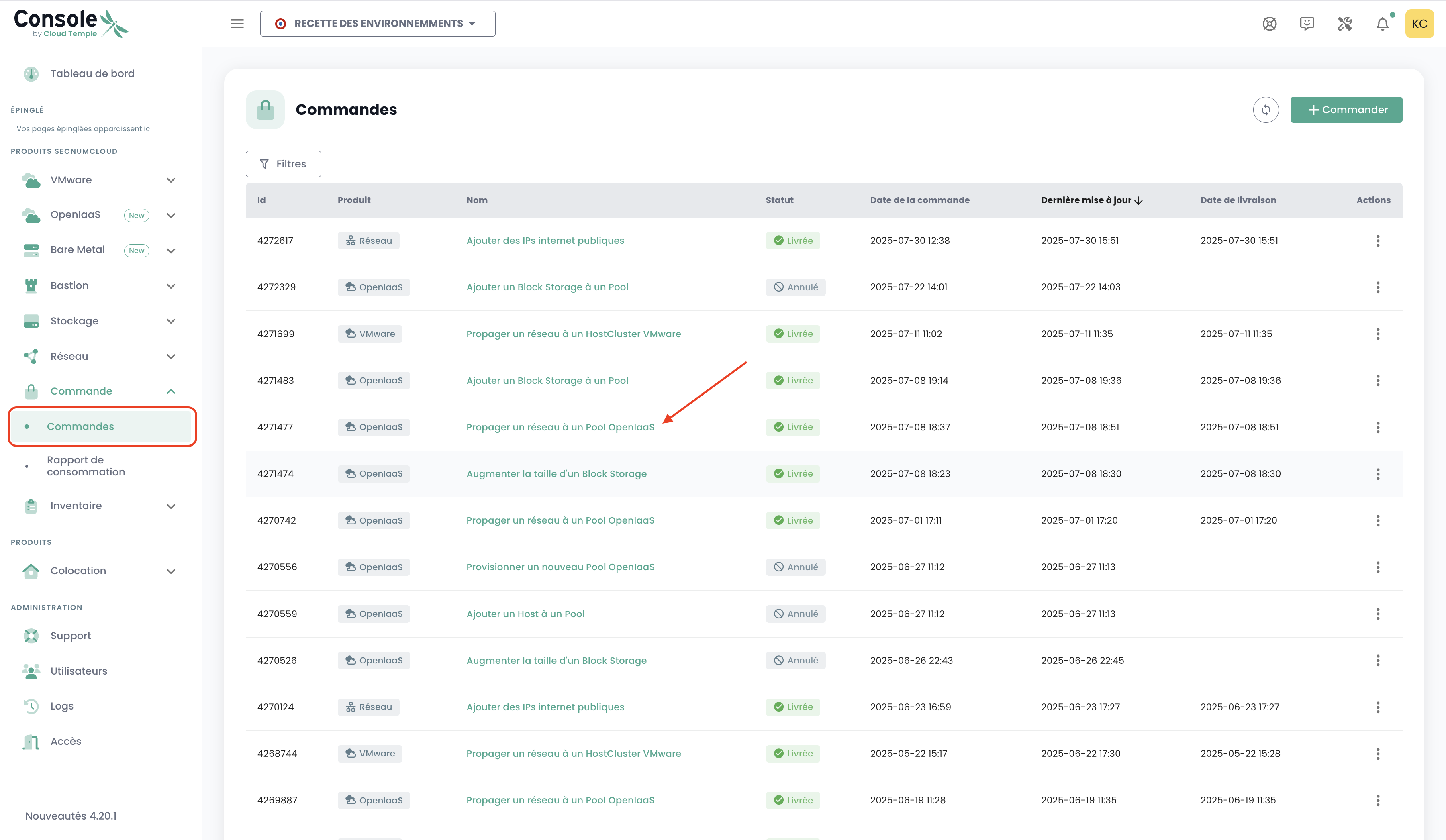
- By clicking on informational labels that redirect to related commands
Important: It is not possible to generate multiple commands of the same resource type simultaneously. You must wait for the current command to be processed before creating a new one.
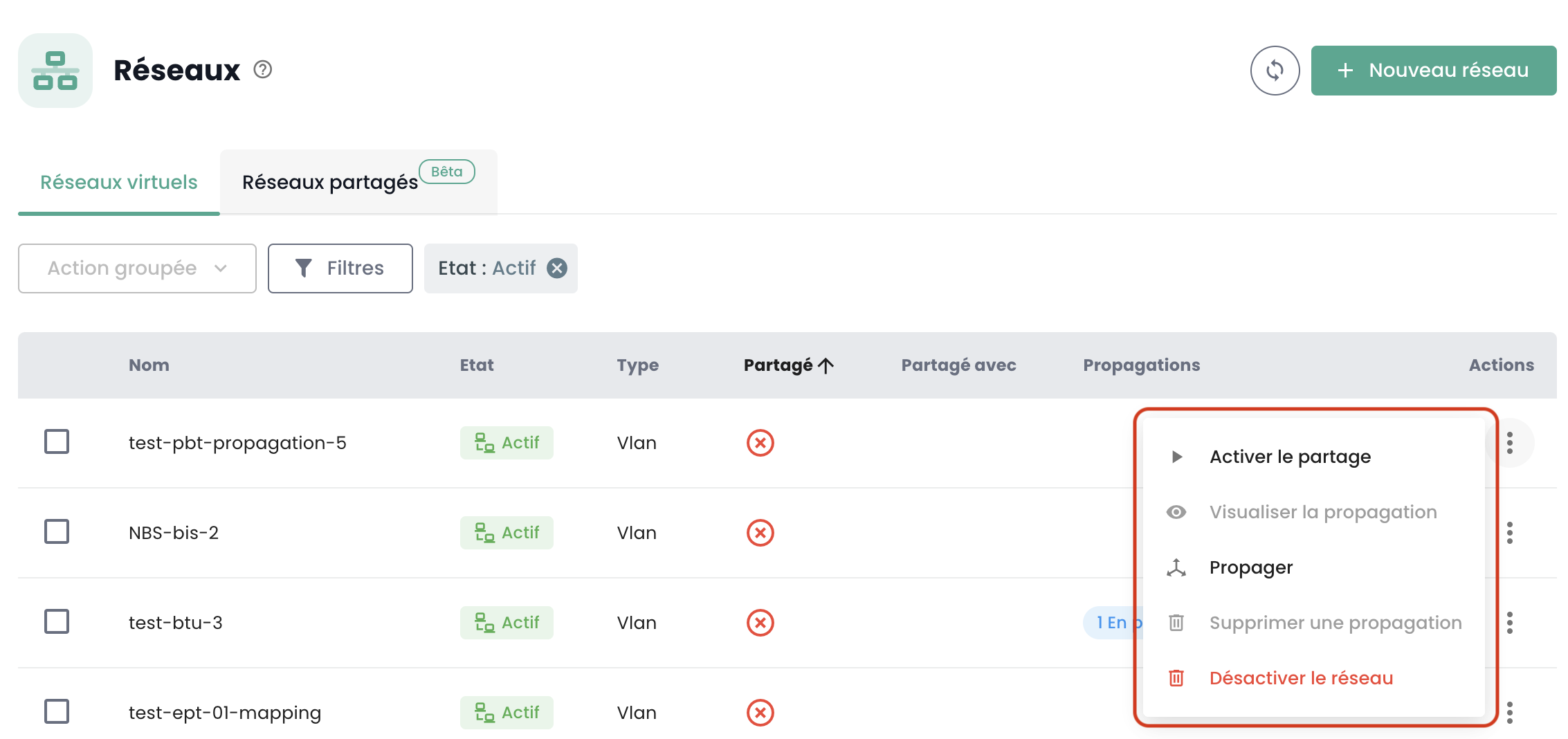
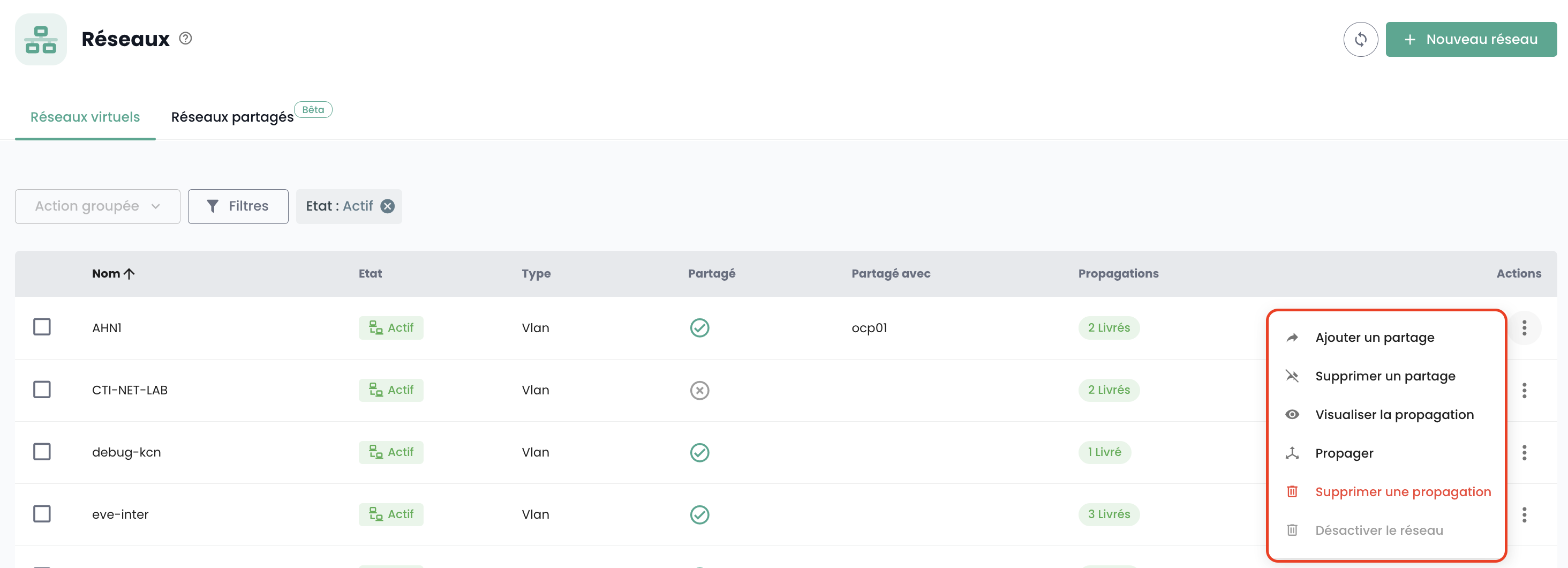
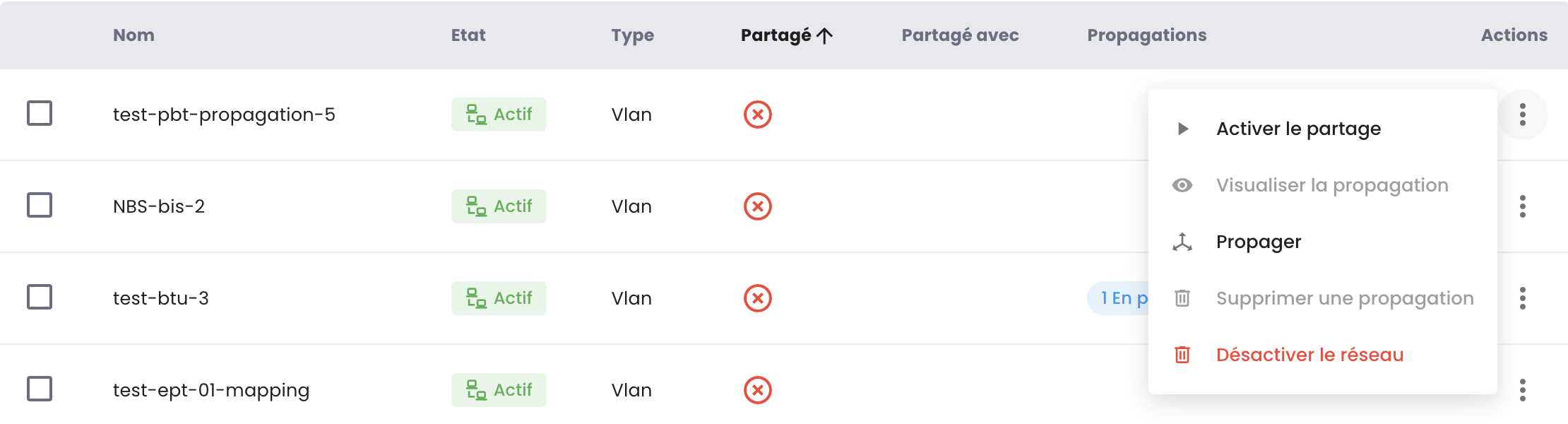
All possible actions on your networks are available in the Actions menu of each one:
- Enabling or disabling network sharing between tenants within the same organization.
- Disabling network sharing between tenants within the same organization.
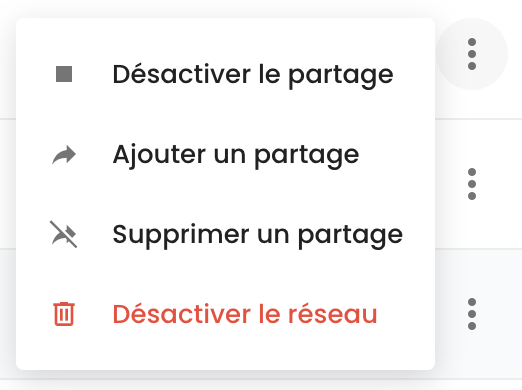
- Adding a network sharing between tenants within the same organization.
- Removing a network sharing between tenants within the same organization.
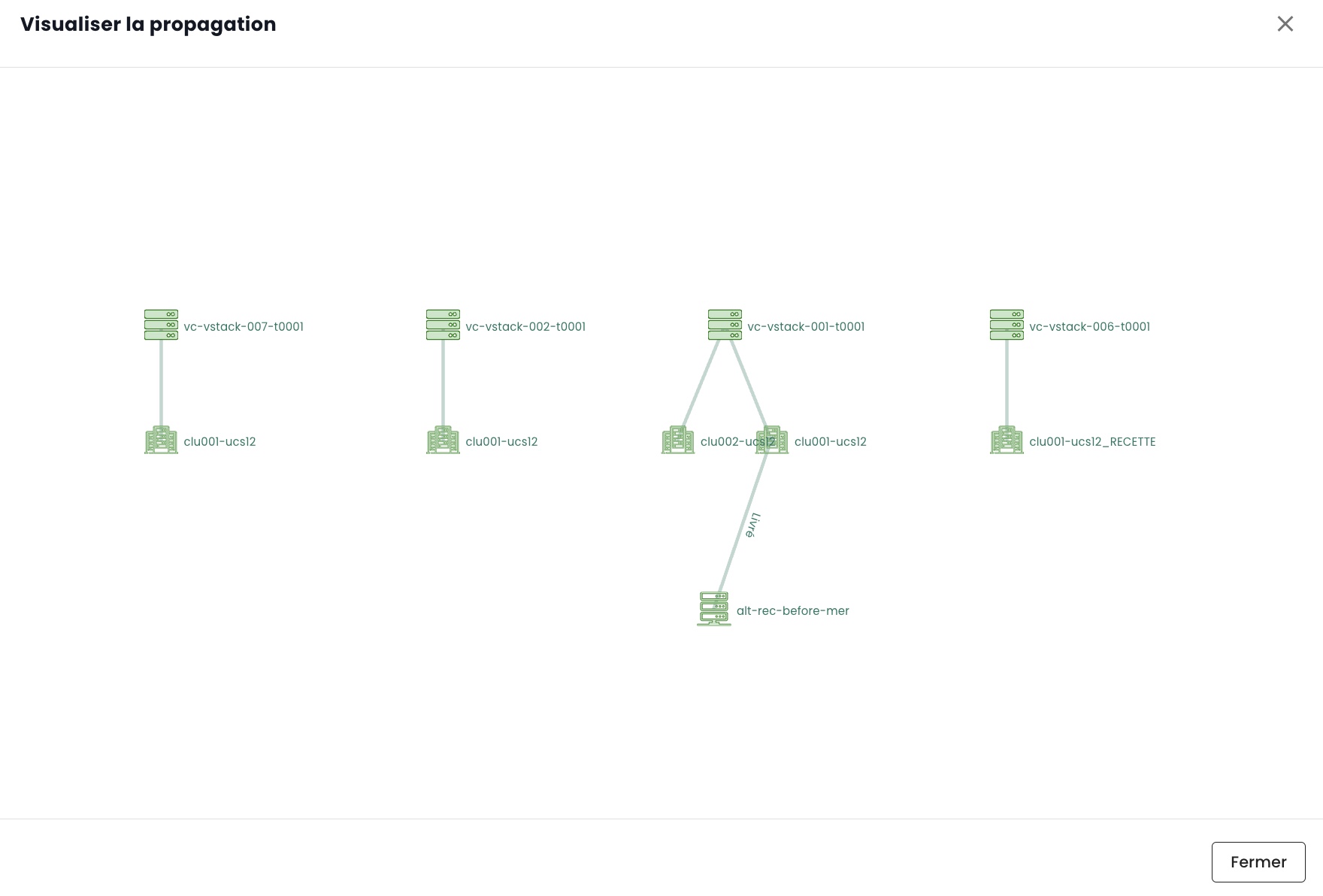
- Graphically visualizing the propagation of a network across all your clusters and hypervisors within a tenant.
- Removing network propagation within a tenant.
- Modifying network propagation within a tenant.
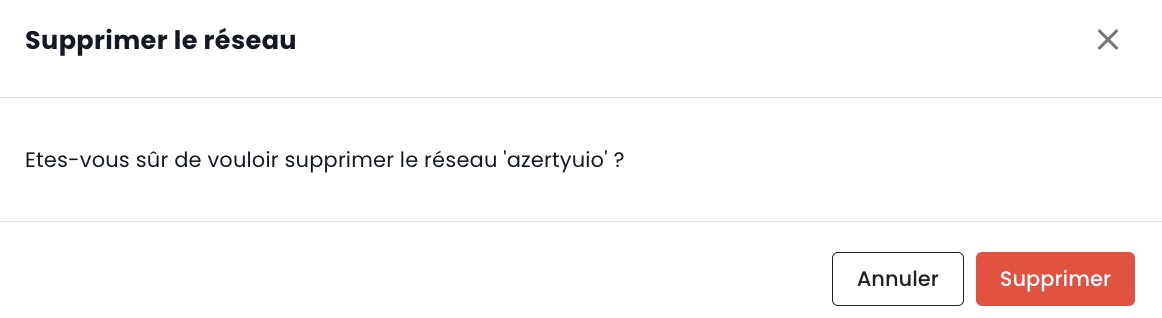
Network removal is currently not available.
Visualization of Network Propagation
You can easily visualize a network's propagation to your various clusters within the same tenant by selecting the option "Visualize Propagation" from the menu Actions:
Modification of Propagation
Modifying a propagation within a tenant is done via the Propager option:
Next, select the target product (IaaS VMware, Open IaaS, Bare metal) for your network propagation, and ensure that the clusters are integrated into this propagation.
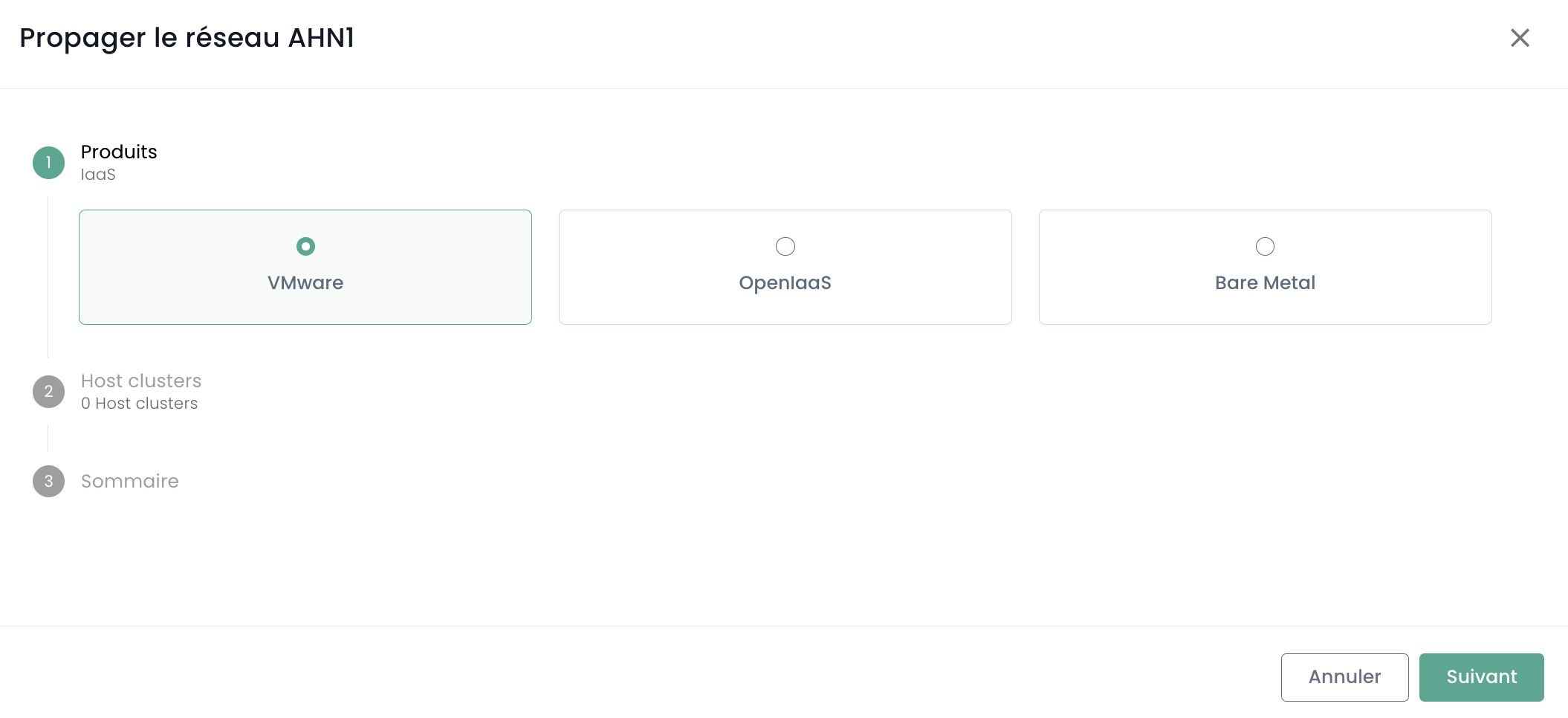
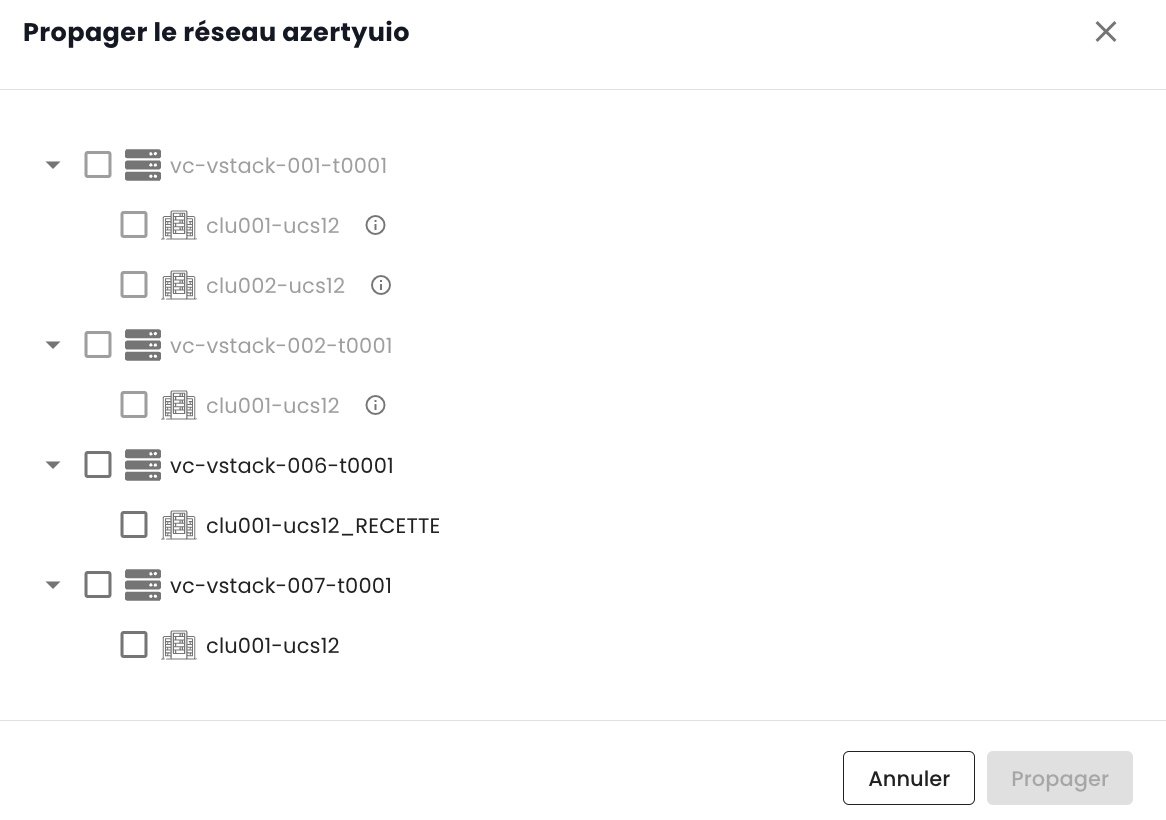
Note: Propagation modification is limited to 20 networks per action.
Suppression of Propagation
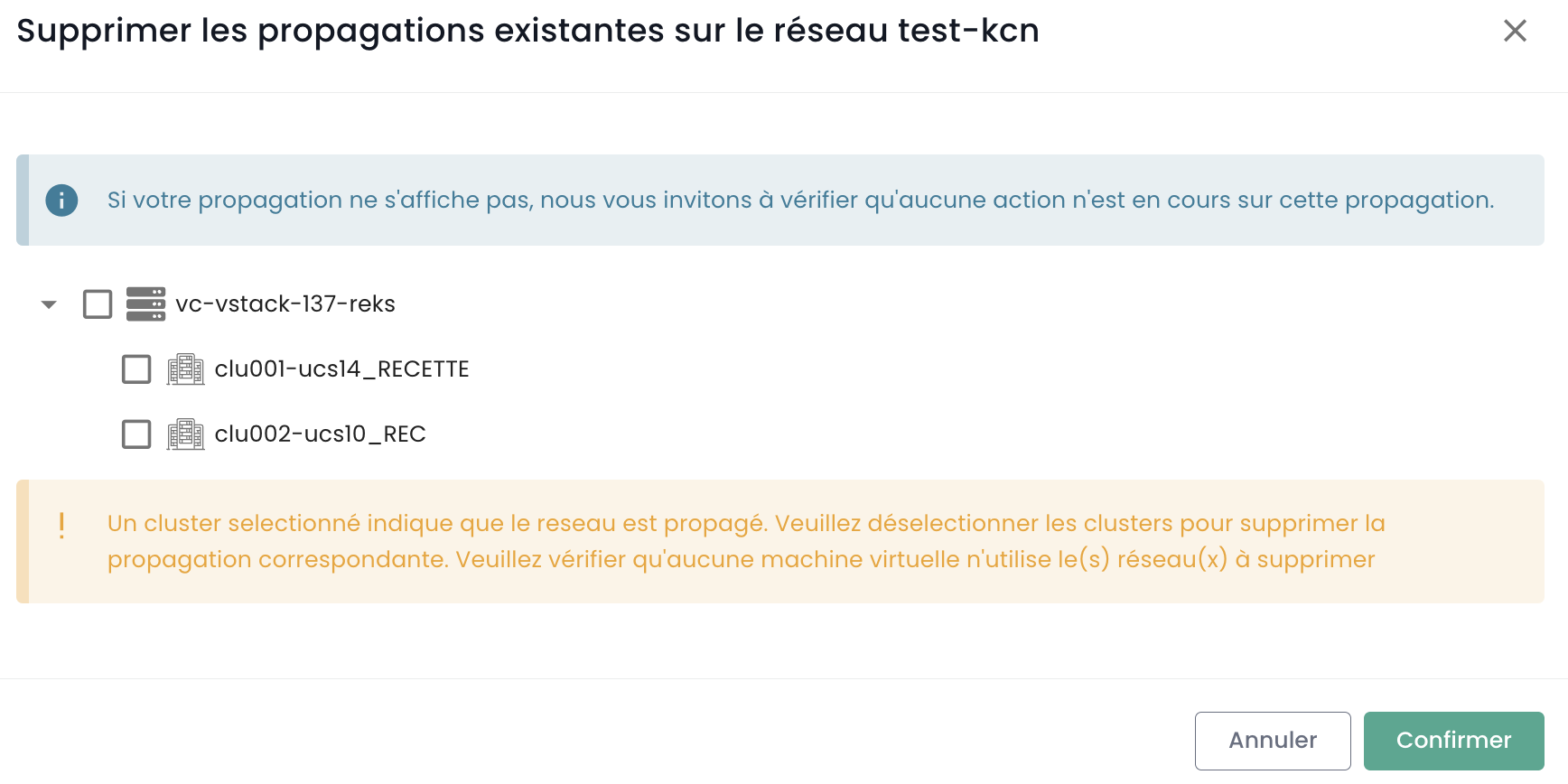
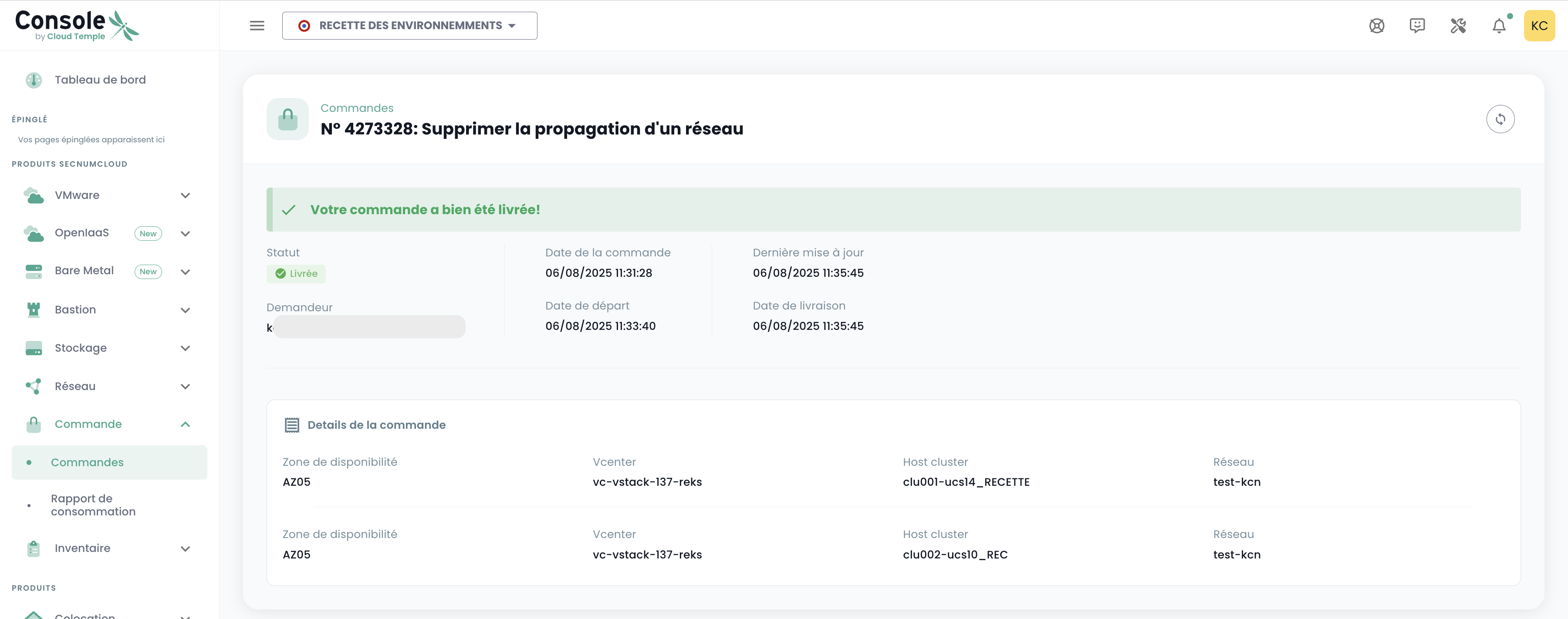
The removal of a propagation within a tenant is carried out through the option __Remove Propagation:
You then select which propagation you wish to remove:
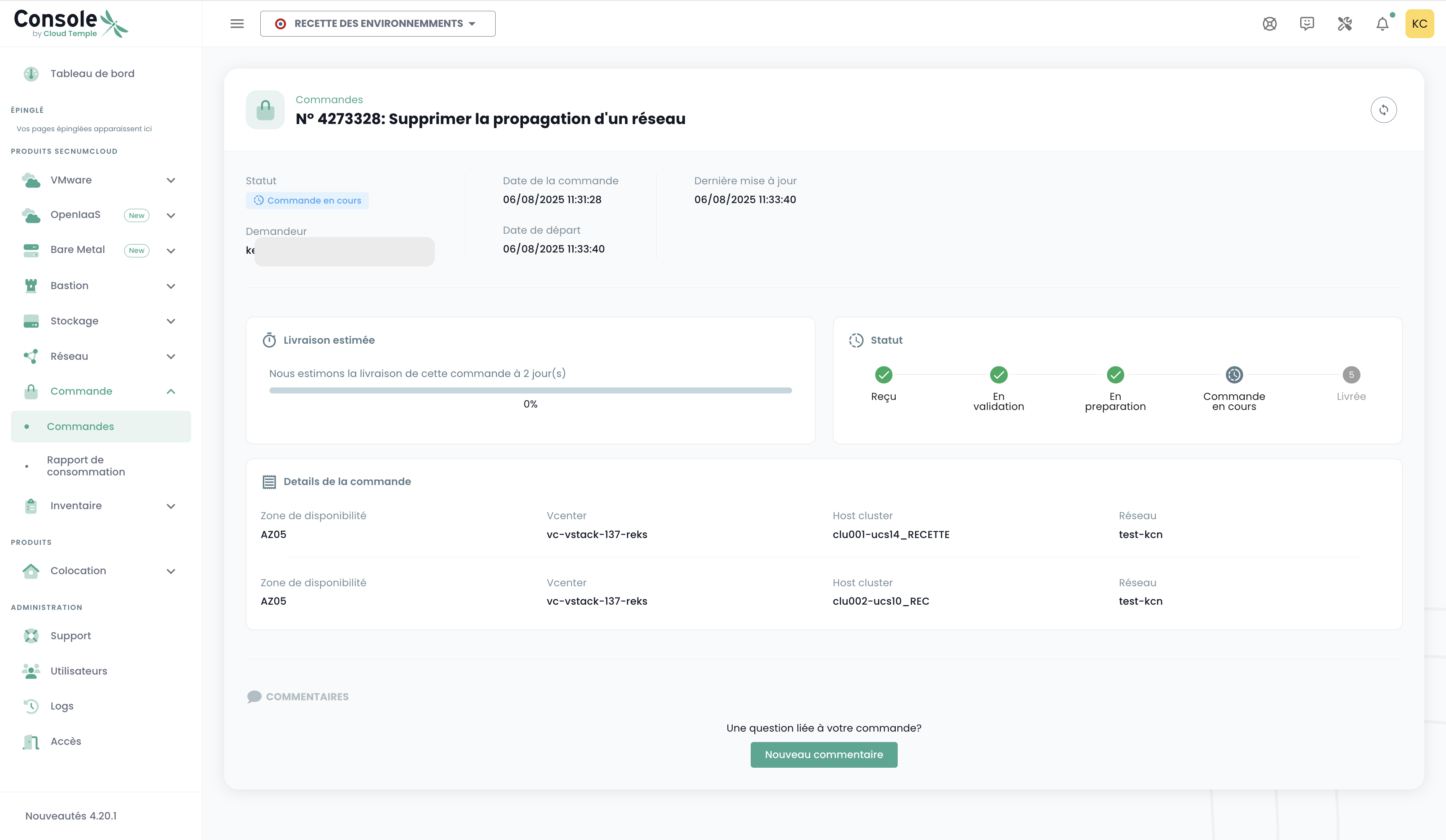
A command is subsequently generated, similar to the initial creation with propagation.
Delayed Network Propagation
It is feasible to separate the creation and propagation of networks into two distinct stages:
- Propagate an existing network: Click on the action Propagate for a network that has already been created.
- Select the target for propagation: A command is then generated, similar to how it was done initially with propagation.
Activation and Deactivation of Networks
A network can be temporarily deactivated without being deleted, and then reactivated later.
Network Sharing Between Tenants
By default, networks are only available within a single tenant. You can choose to share a network across multiple tenants for technical or connectivity reasons. This allows you to share a network between your Tenant within the same organization.
To achieve this, simply enable sharing as shown below:
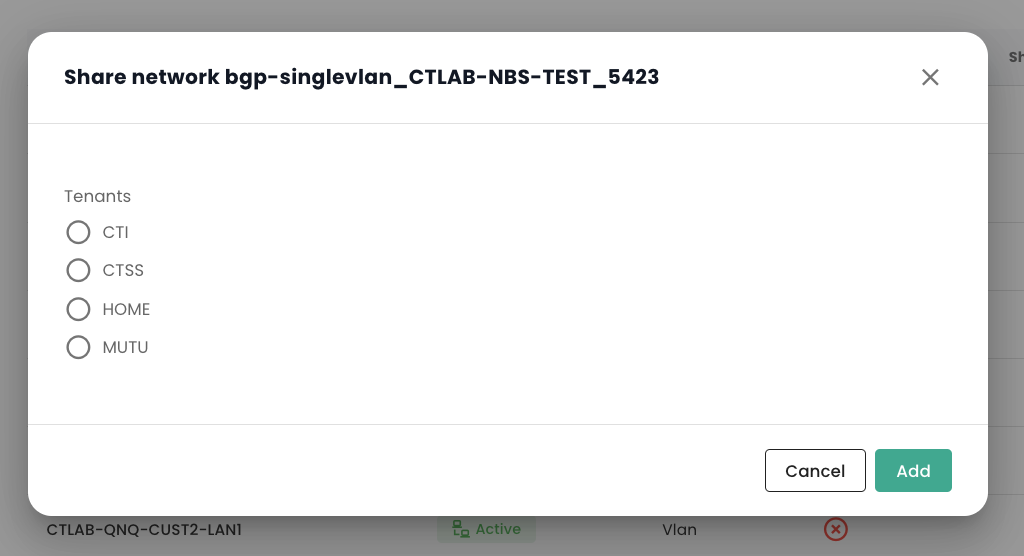
After enabling sharing, add a share as follows:
Next, select the target tenant. Note that the list of tenants is dynamic and depends on your organization and your permissions.
Once network sharing is enabled, it will be visible in the 'Shared Networks' tab from your second tenant.
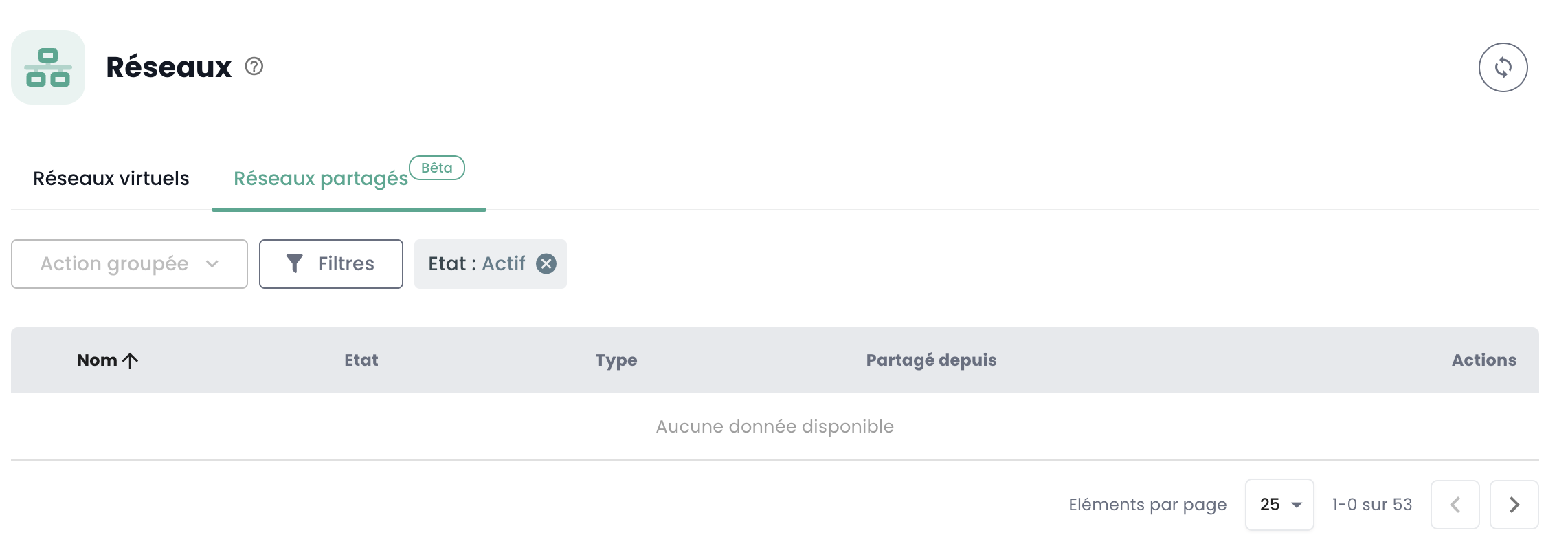
Visualization of Shared Networks
After propagating the networks, the "Shared Networks" tab allows you to visualize the networks that other tenants within your organization share with you: