Deploy a Stormshield SNS EVA firewall
Prerequisites
Before getting started, you need an active Cloud Temple account and the corresponding permissions:
- having subscribed to the Cloud Temple offer;
- having permissions on the Compute module.
Once these elements are in place, deployment takes only a few minutes.
What is Stormshield SNS
Stormshield Network Security (SNS) is a French firewall / UTM published by Stormshield. Its virtual variant is called SNS EVA (Elastic Virtual Appliance). Its key features:
- a complete web-based administration interface;
- an ordered rules-based filtering and NAT engine;
- the integrated BIRD dynamic routing engine (BGP, OSPF, RIP);
- native IPsec and SSL VPN support.
All administration is done from a browser. Once the network is set up, console access is no longer needed, except for a few advanced checks such as BGP session status.
Deployment principle
We set up two virtual machines:
- the firewall itself, deployed from the SNS EVA image;
- a management VM with a graphical interface, placed in the same network as the firewall's LAN interface. This is the VM from which the initial firewall configuration is performed.
The firewall has two interfaces: LAN (internal network side, named in on SNS) and WAN (Internet side, named out on SNS).
We will configure the LAN interface to access the firewall's web interface in order to subsequently configure Internet access.
Step 1 — Retrieve network parameters in Shiva
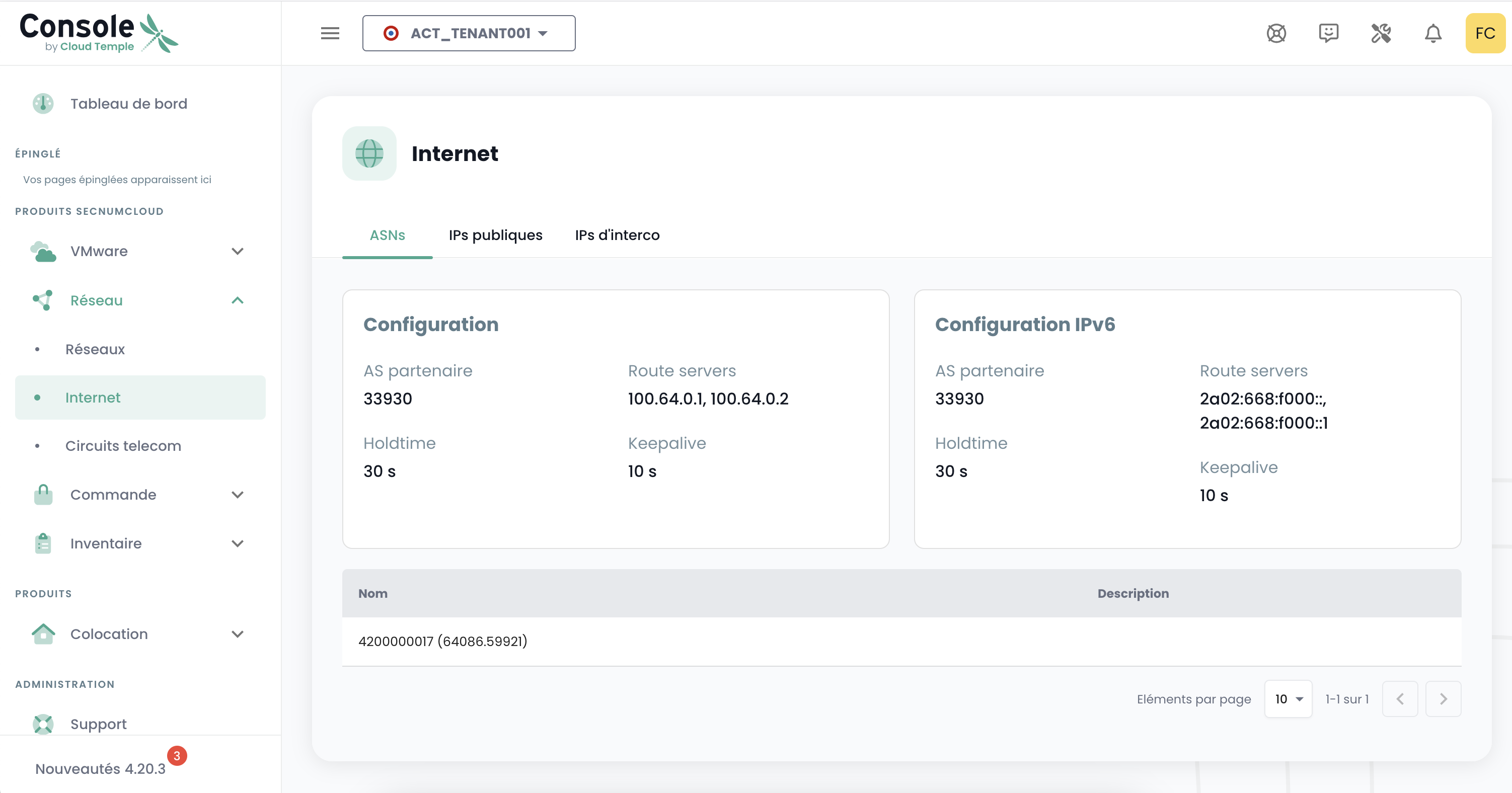
In the Shiva interface of Cloud Temple you will need to retrieve the following elements to configure the BGP session that provides access to the Internet:
- Public prefix: your block of public IPs (onglet « IP publiques »)
- Interconnection prefix: the point-to-point subnet that carries the BGP link (onglet « IP d'interco »)
- Shared gateway address (onglet « IP d'interco »)
- Local AS: the AS number of your organization
- Partner AS: the AS number of Cloud Temple
- Keepalive timer: the interval that keeps the BGP session alive
- Hold-time timer: the delay before the session is declared dead
- Route server addresses: the servers with which routes are exchanged
Keep this list in view, we will come back to it at the WAN step and in the BIRD configuration.
Step 2 — Deploy the two VMs
From Shiva:
- deploy the firewall from the SNS EVA image from the Marketplace;
- deploy the management VM with a graphical interface (Ubuntu for example).
The WAN interface of your firewall must be configured in your Internet vLAN with an IP taken from the interconnection prefix provided by Shiva.
Step 3 — Configure the LAN and access the web interface
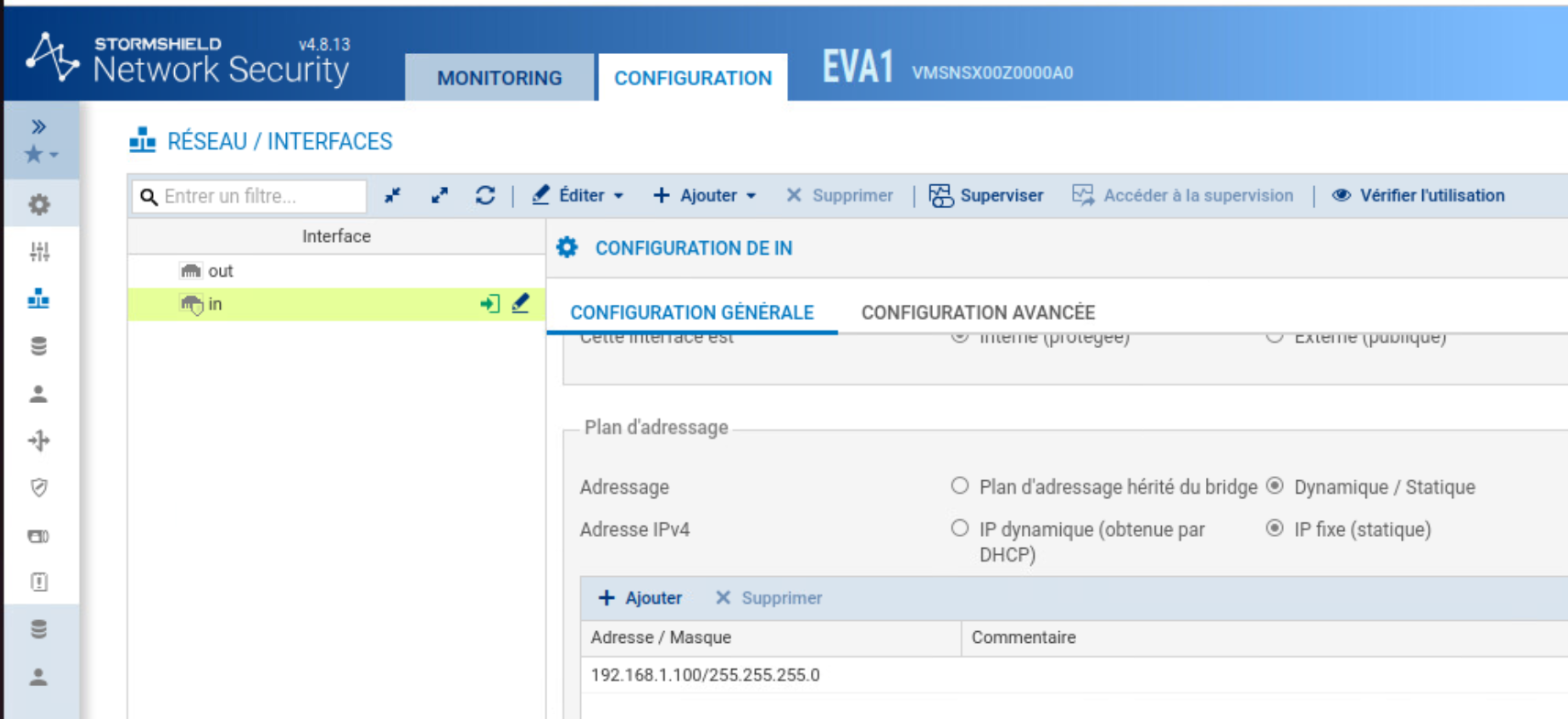
On the firewall's LAN interface, set an IP from your internal network with its subnet mask.
On SNS this is done on first boot via the console.
Then place the management VM in this same network.
For the demonstration we use an Ubuntu 26.04 LTS image available on the Marketplace, with an IP from the same subnet assigned via Netplan.
The default gateway of this VM must be the firewall's LAN address.
Open a browser on the management VM and enter the address https://IP-LAN-du-firewall/admin.
You should now be able to access the SNS administration interface.
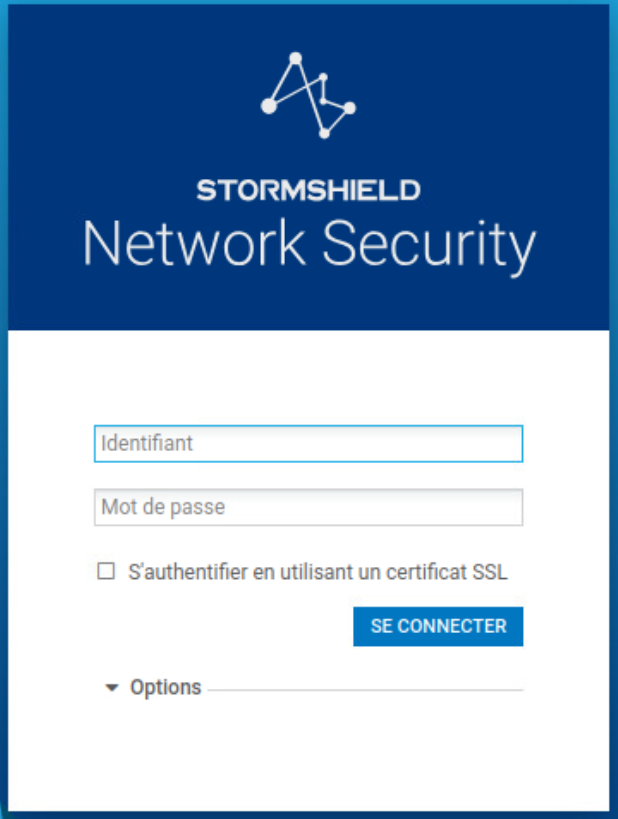
Default credentials Username : admin Password : admin
Before going any further, replace the default admin password.
Step 4 — WAN Interface Configuration
Everything now takes place in the web interface, under Configuration > Network.
On SNS, you do not enter an IP address directly in the route, filtering rule, or NAT fields: you must first declare it as a network object in Configuration > Objects > Network Objects, then select it.
So create the objects you need as you go along (passerelle, route servers, préfixe public, réseaux LAN et WAN).
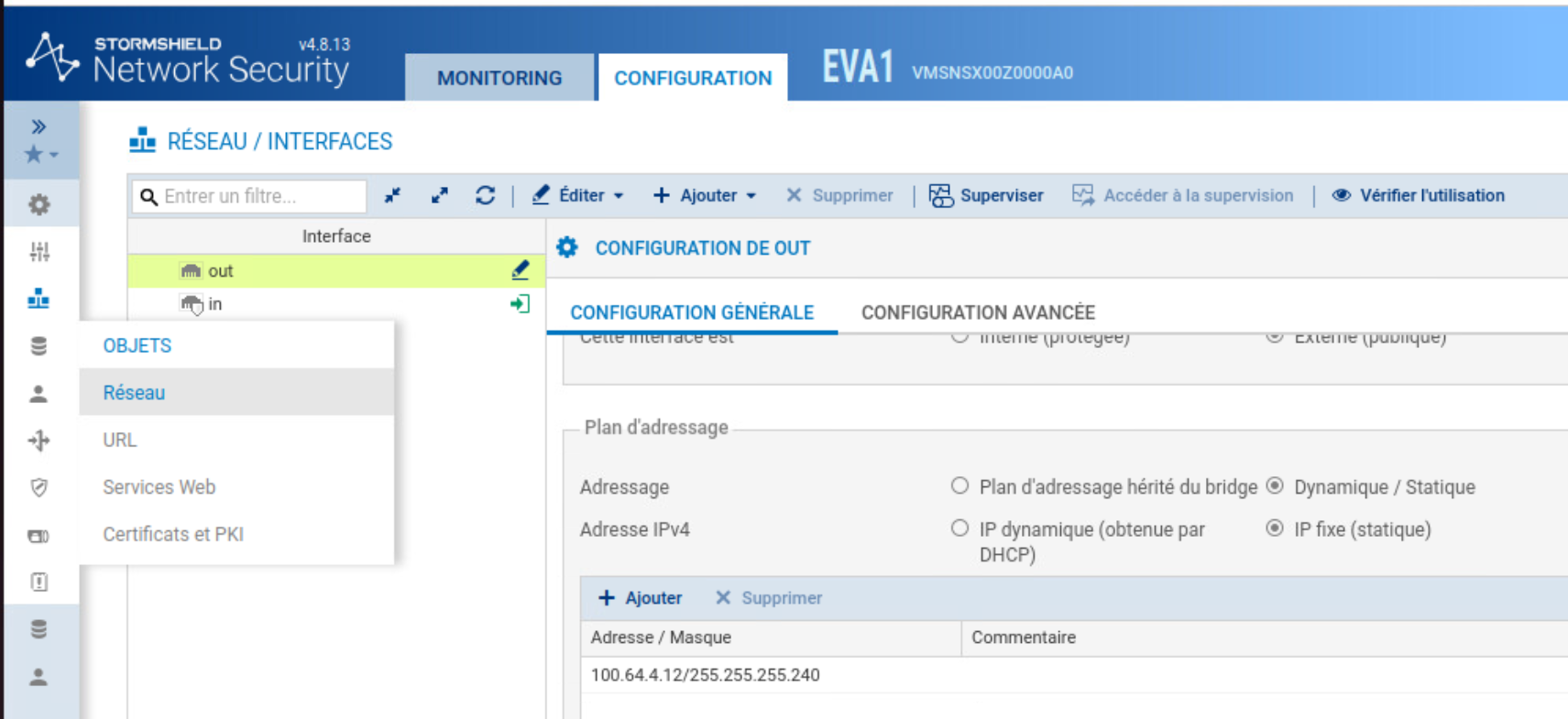
4.1 — The WAN Interface
In Network > Interfaces, configure on the WAN interface (out) an IP taken from the interconnection prefix.
4.2 — The gateway
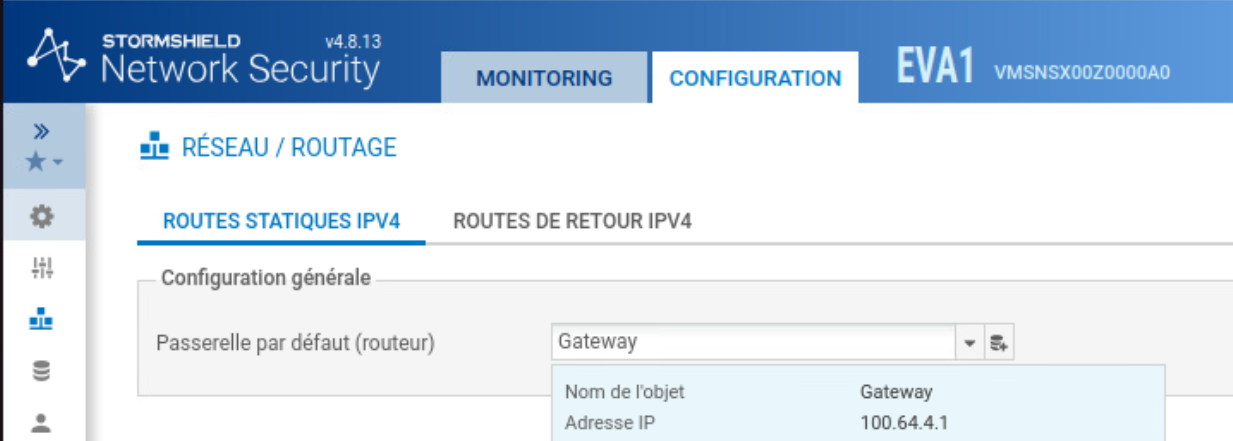
In Network > Routing, set the default gateway with the shared gateway address noted in step 1.
Step 5 — Create the loopback for the public prefix
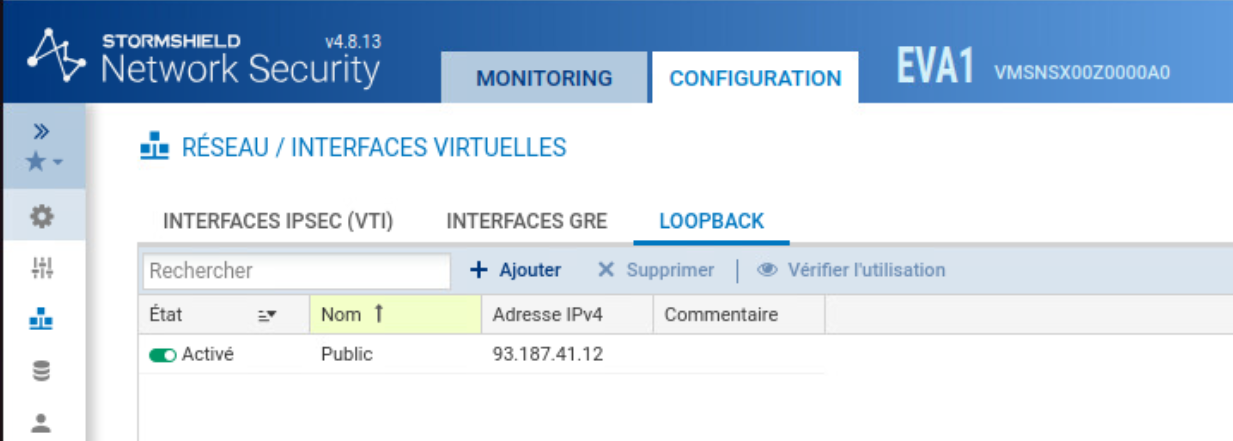
The public prefix must be carried by a loopback interface on the firewall.
In Network > Virtual interfaces, Loopback tab, add a loopback with your public IP in /32.
Step 6 — Establish the BGP session
On SNS, BGP is configured in the BIRD engine, via Configuration > Network > Dynamic Routing.
6.1 — Static routes to route servers
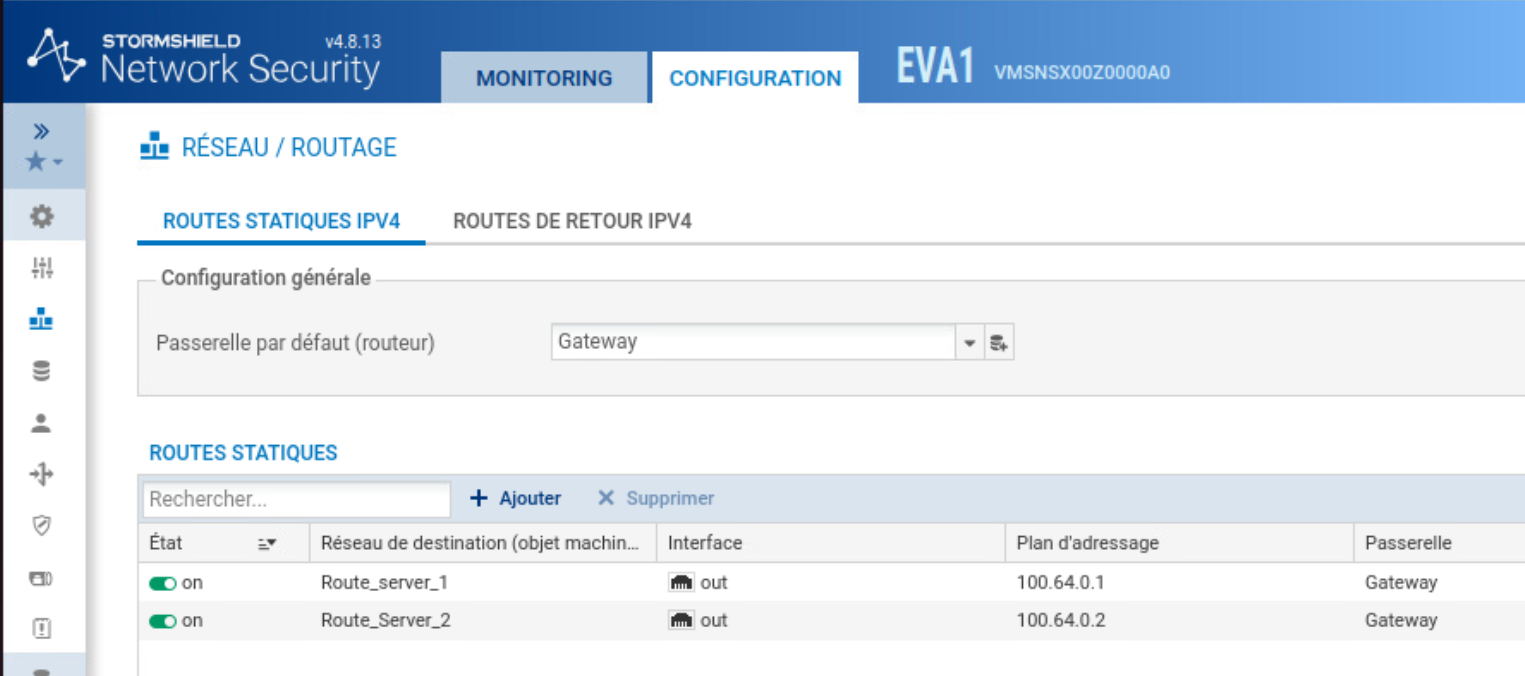
In Network > Routing > Static routes, add a /32 route to each route server, pointing to the shared gateway.
These routes must be declared here and not in BIRD, to prevent BGP traffic from being blocked by IP address spoofing alarms.
6.2 — Enable dynamic routing
In Dynamic routing, enable BIRD dynamic routing and select the BIRD v2 version.
6.3 — Writing the BIRD Configuration
In the BIRD V2 tab, enter the configuration by replacing the values with your own (noted in step 1). A protocol bgp block is declared per route server.
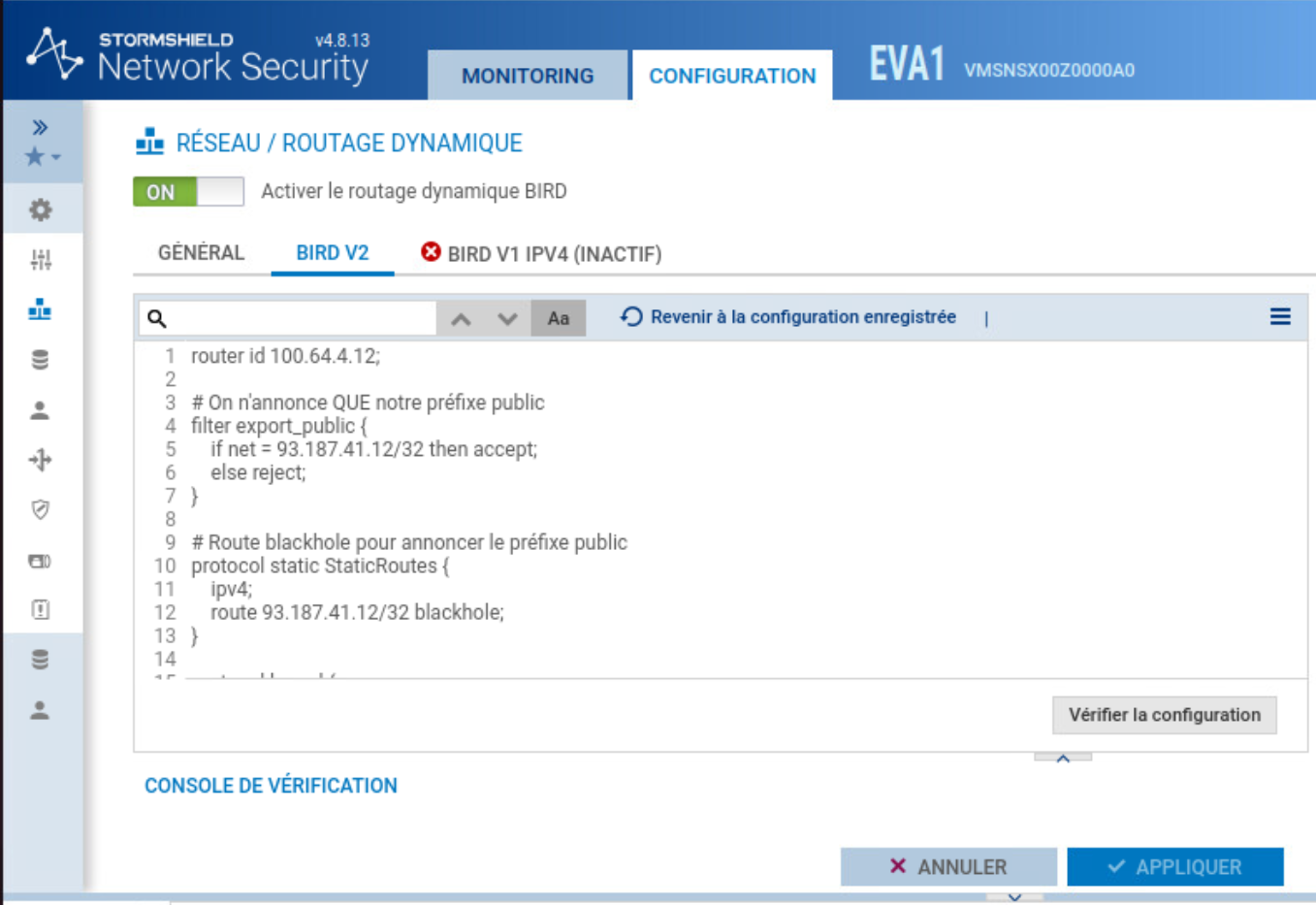
router id <ip-wan-firewall>;

# We only announce the public prefix
filter export_public {
    if net = <prefixe-public> then accept;
    else reject;
}

# Blackhole route to announce the public prefix
protocol static StaticRoutes {
    ipv4;
    route <prefixe-public> blackhole;
}

protocol kernel {
    persist;
    scan time 20;
    ipv4 {
        export all;
        preference 254;
    };
    learn;
}

protocol device {
    scan time 10;
}

# Session to route server 1
protocol bgp RS1 {
    description "Route server 1";
    local as <local-as>;
    neighbor <ip-route-server-1> as <as-partenaire>;
    multihop 5;
    hold time <hold-time>;
    keepalive time <keepalive>;
    source address <ip-wan-firewall>;
    ipv4 {
        import all;
        export filter export_public;
    };
}

# Session to route server 2
protocol bgp RS2 {
    description "Route server 2";
    local as <local-as>;
    neighbor <ip-route-server-2> as <as-partenaire>;
    multihop 5;
    hold time <hold-time>;
    keepalive time <keepalive>;
    source address <ip-wan-firewall>;
    ipv4 {
        import all;
        export filter export_public;
    };
}
Click Verify configuration then Apply.
Route servers are more than one hop away, and an eBGP session has a TTL of 1 by default: without multihop, the packets would never reach the servers.
6.4 — Verify the session
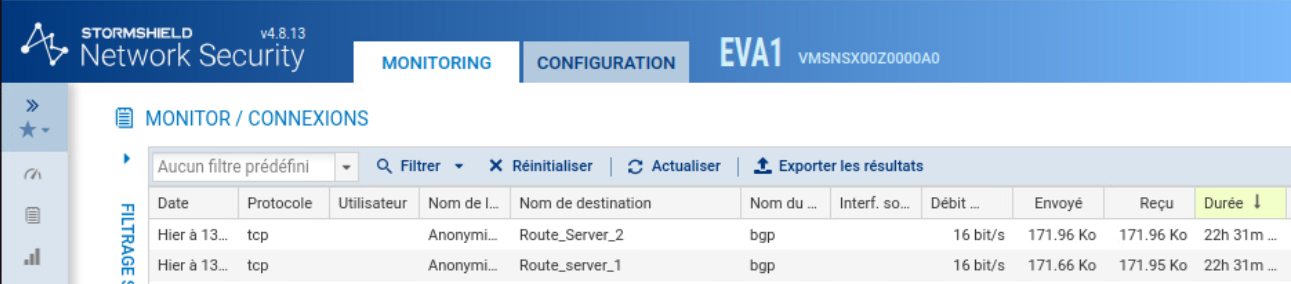
From the web interface, open Monitoring > Connections. The two sessions to the route servers appear there with protocol tcp, service bgp, with traffic exchanged in both directions and an increasing duration: the sessions are established.
The verification can also be done in the console: birdc then show protocols. The state should display Established for RS1 and RS2.

Step 7 — Configure Filtering
Filtering is performed in Configuration > Security Policy > Filtering and NAT, Filtering tab.
Create the security rules as shown in the screenshot below.
The policy is evaluated from top to bottom: the rules allowing firewall administration and BGP sessions must be placed before the Internet access rules.
Finally, the Block all rule must remain in the last position to block all traffic not explicitly allowed.
The rules allowing BGP sessions to both route servers are essential for proper peering establishment.
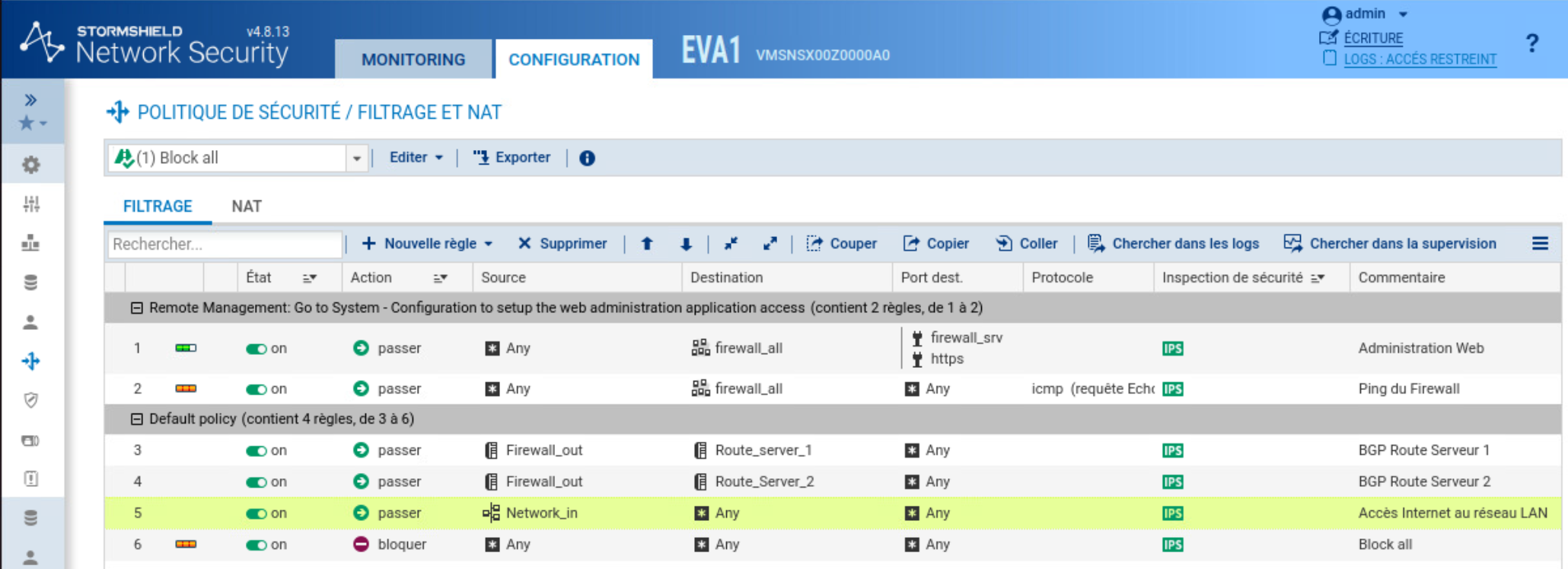
The Block all rule must remain in the last position. Rules 3 and 4 are necessary for BGP sessions to be established.
Step 8 — Configure NAT
In the same menu, open the NAT tab.
Configure the rules as shown in the screenshot below.
The order is essential: the first two rules exclude BGP traffic from any address translation, while the next two perform the translation of Internet flows coming from the LAN and the firewall.
For the Internet access rules, use the Internet object as the destination rather than Any.
This object automatically excludes the networks directly connected to the firewall, thus avoiding NATing administration communications or BGP sessions.
The BGP exclusion rules use the same source address before and after translation. This configuration addresses the SNS constraint, which does not allow a NAT rule without translation, while leaving BGP traffic unchanged.
Once the rules are created, enable the policy (Edit > Enable this policy).
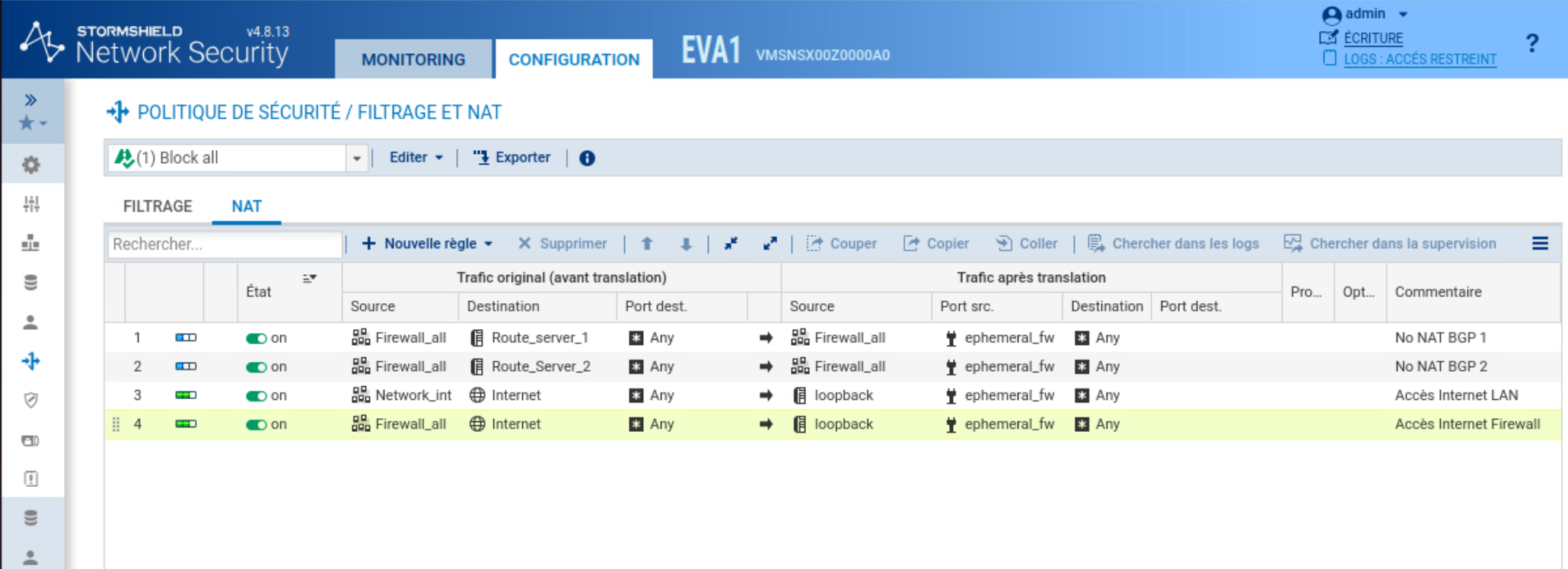
For the destination of the Internet access rules (3 and 4), use the Internet object and not Any: the Internet object excludes the networks directly attached to the firewall, which avoids NATing administration traffic and BGP traffic.
For rules 1 and 2, the translated source is identical to the original source: SNS does not accept a NAT rule without translation, so this workaround effectively leaves BGP traffic unmodified while satisfying this constraint.
After entering the rules, enable the policy to make it effective (Edit > Enable this policy).
Step 9 — Test connectivity
From the firewall console:
birdc show protocols     # les sessions aux route serveurs doivent être Established
ping 1.1.1.1             # le firewall accède à Internet
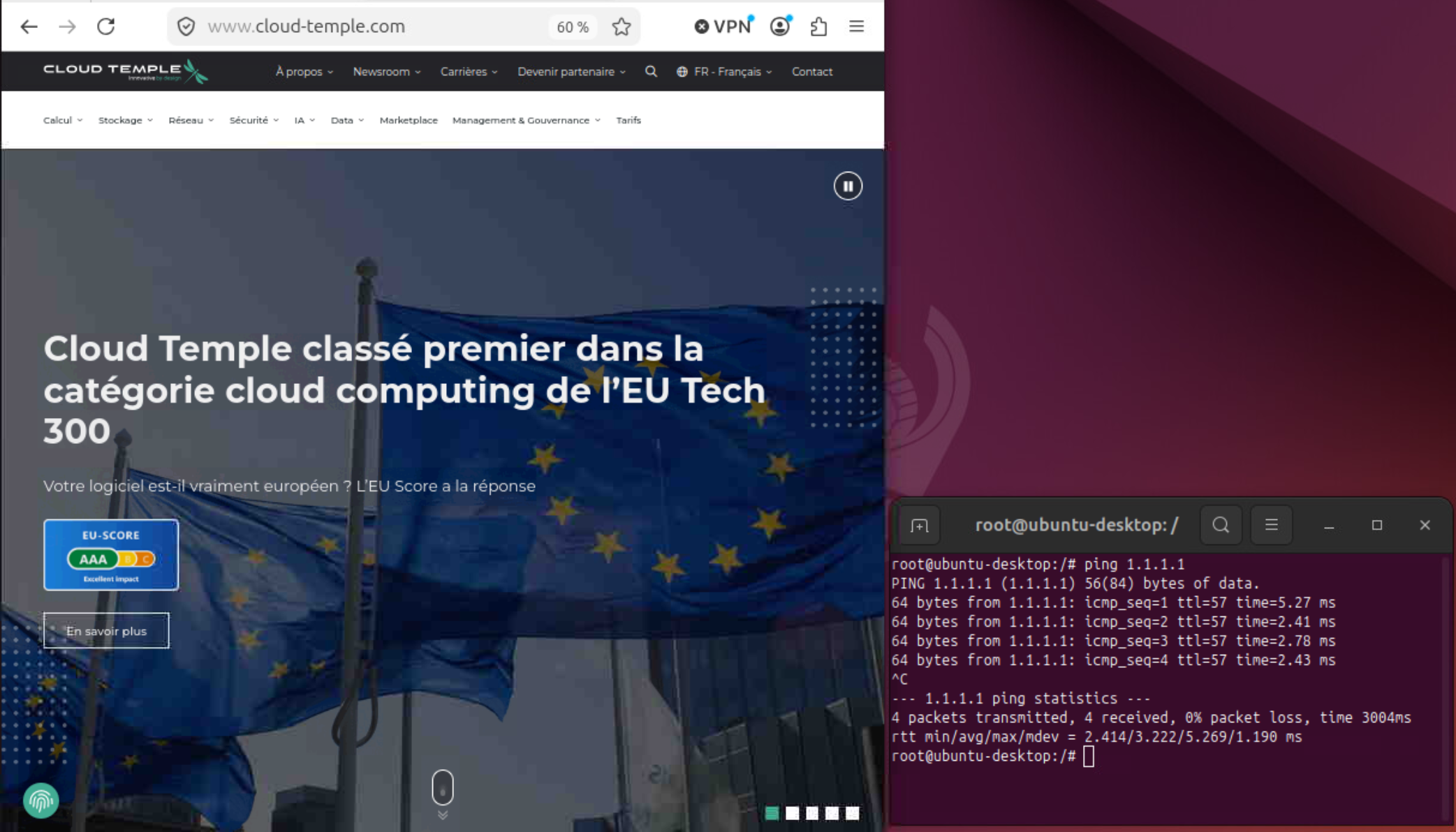
From the management machine:
Conclusion
The Stormshield SNS EVA firewall is deployed, BGP sessions are established via BIRD, and your public prefix is announced.
If needed, the official Stormshield documentation.
https://documentation.stormshield.eu/SNS/v4/fr/Content/Home.htm