Deploy an open-source firewall OPNsense
Prerequisites
Before getting started, you need an active Cloud Temple account and the associated permissions:
- having subscribed to the Cloud Temple offer;
- having permissions on the Compute module.
Once these elements are in place, deployment takes only a few minutes.
What is OPNsense
OPNsense is an open source firewall and router built on FreeBSD. It is a fork of pfSense created in 2014. Its key strengths:
- a clear and modern web interface;
- updates twice a week;
- a modular architecture with a plugin system;
- native support for OpenVPN, WireGuard and IPsec.
All administration is done from a browser. Once the network is set up, you never need console access again.
The deployment principle
We set up two virtual machines:
- the firewall itself, deployed from the OPNsense template;
- a management VM with a graphical interface, placed in the same network as the firewall's LAN interface. It is from this VM that we perform the initial configuration of the firewall.
The firewall has two interfaces: LAN (internal network side) and WAN (Internet side).
We will configure the LAN interface to access the firewall's web interface in order to then set up Internet access.
Step 1 — Retrieve network parameters in Shiva
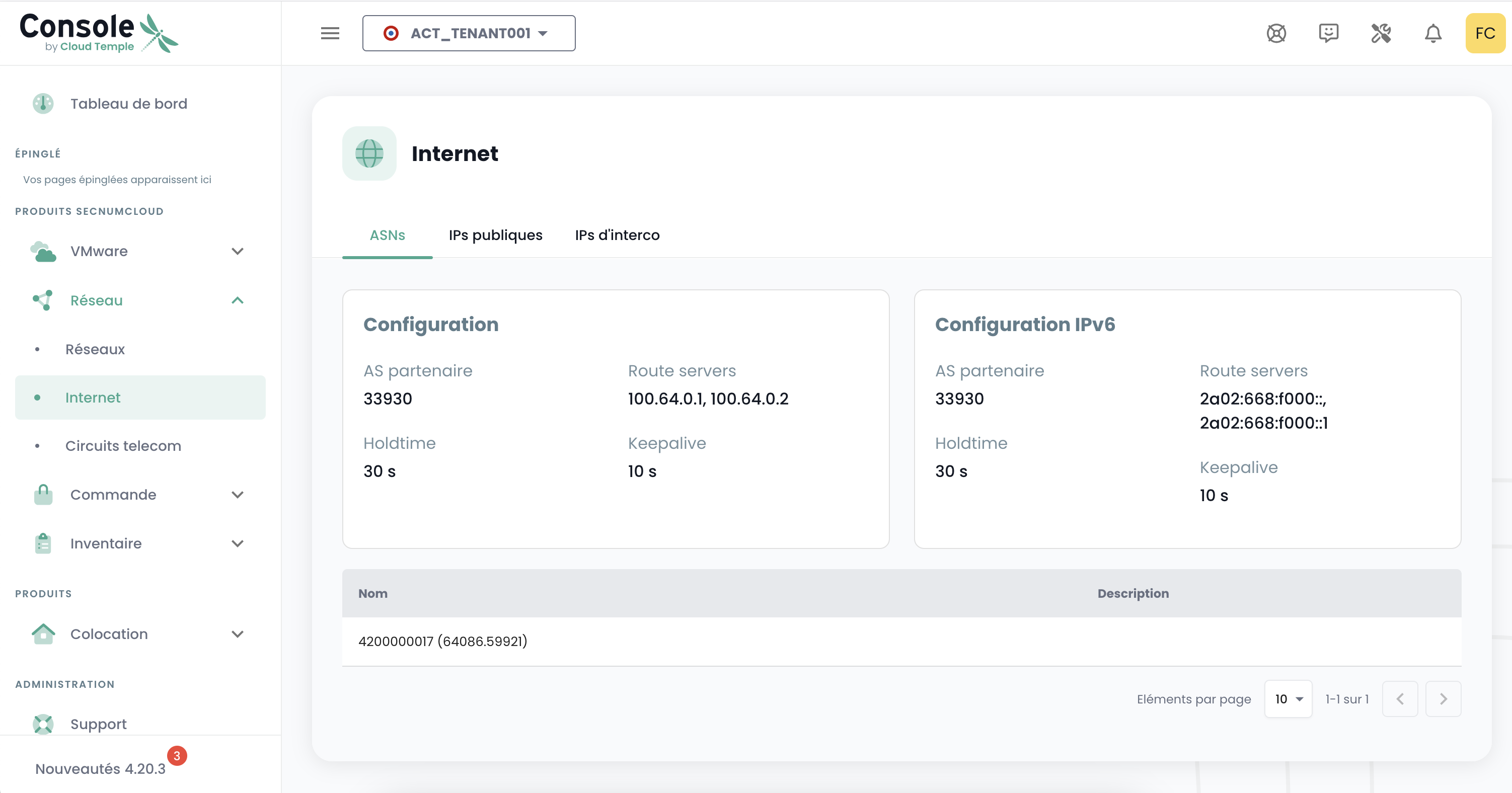
In the Shiva interface of Cloud Temple, you will need to retrieve the following elements to configure the BGP session that provides access to the internet:
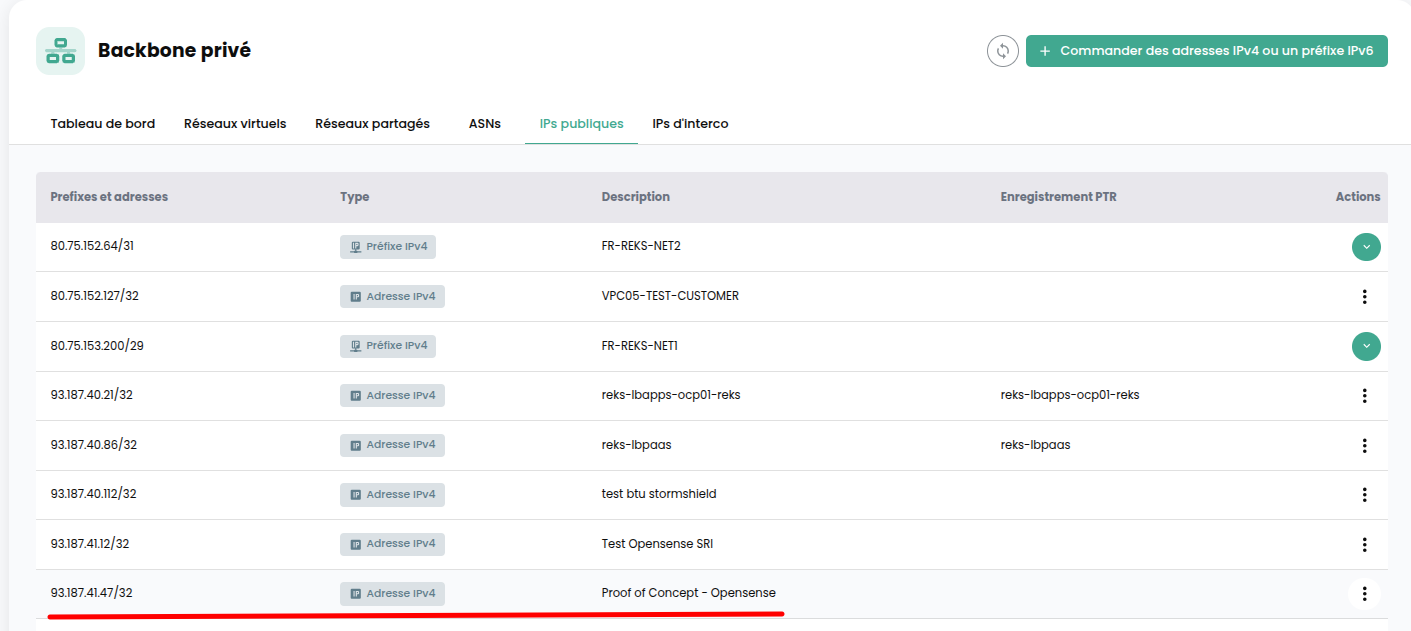
- Public prefix: your block of public IPs (tab "Public IPs")
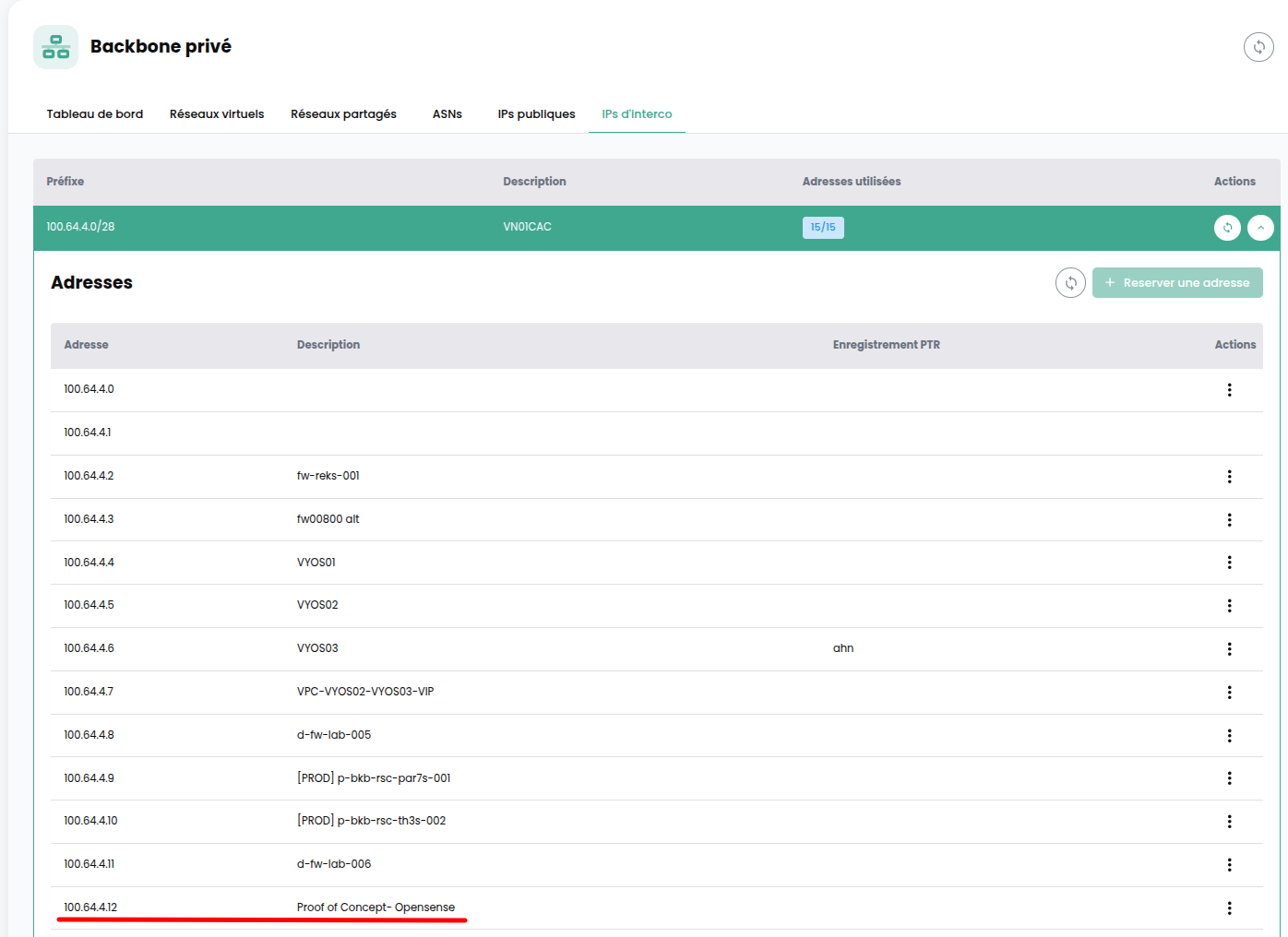
- Interconnection prefix: the point-to-point subnet that carries the BGP link (tab "Interco IPs")
- Shared gateway address (tab "Interco IPs")
- Local AS: the AS number of your organization
- Partner AS: the AS number of Cloud Temple
- Keepalive timer: the interval that keeps the BGP session alive
- Hold-time timer: the delay before the session is declared down
- Route server addresses: the servers with which routes are exchanged
Keep this list in mind, we will come back to it at the WAN step.
Step 2 — Deploy the two VMs
From Shiva :
- deploy the firewall from the OPNsense template;
- deploy the management VM with a graphical interface, here we use the Ubuntu 26.04 LTS image available on the Marketplace.
The WAN interface of your firewall must be configured in your Internet VLAN with an IP taken from the interconnection prefix provided by Shiva.
Step 3 — Configure the LAN and access the web interface
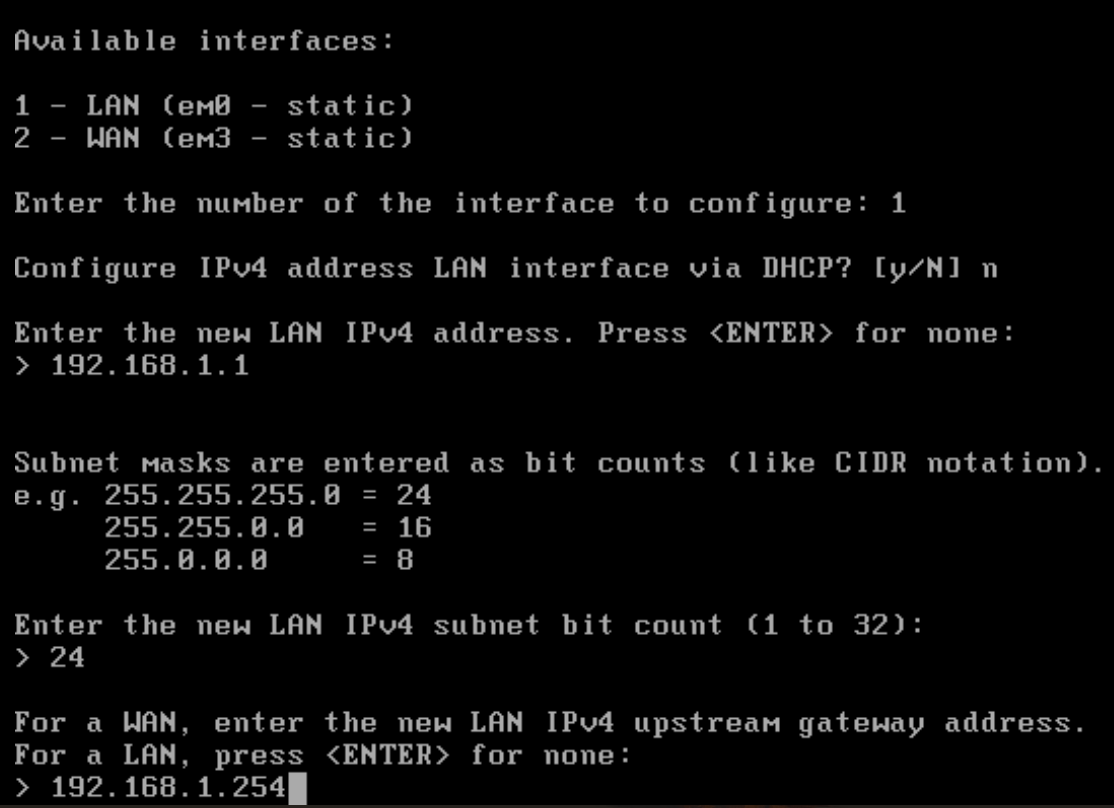
On the firewall's LAN interface, set an IP from your internal network, along with its subnet mask and gateway.
Then place the management VM on the same network.
For the demonstration, we use Ubuntu 22.04, with an IP from the same subnet assigned via Netplan.
Open a browser on the management VM and enter the firewall's LAN IP.
You should now be able to access the OPNsense administration interface.
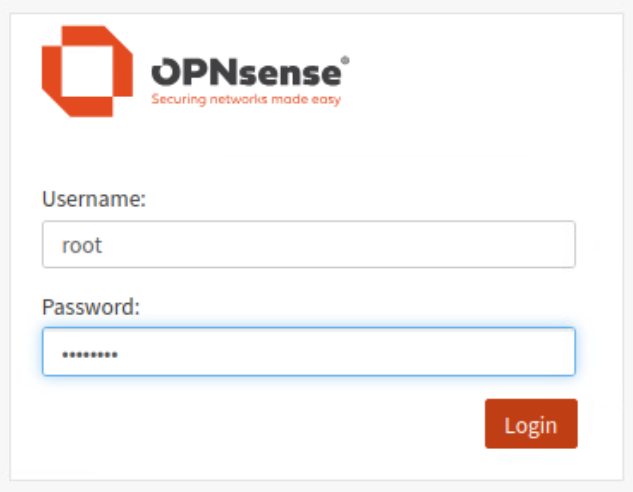
Default credentials Username : root Password : opnsense
Before proceeding, replace the default root password.
Step 4 — WAN Interface Configuration
Everything now takes place in the web interface.
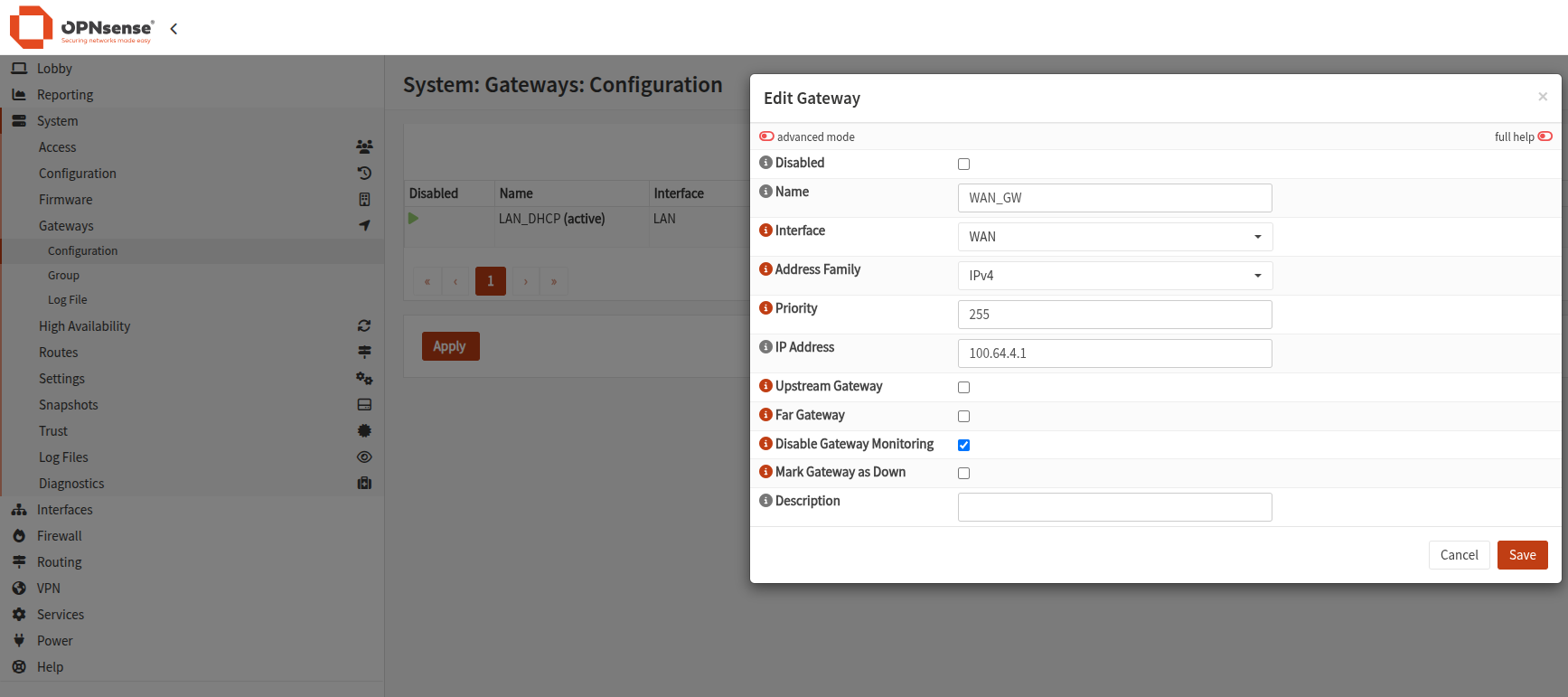
4.1 — The Gateway
First, set the gateway WAN with the shared gateway address noted in step 1.
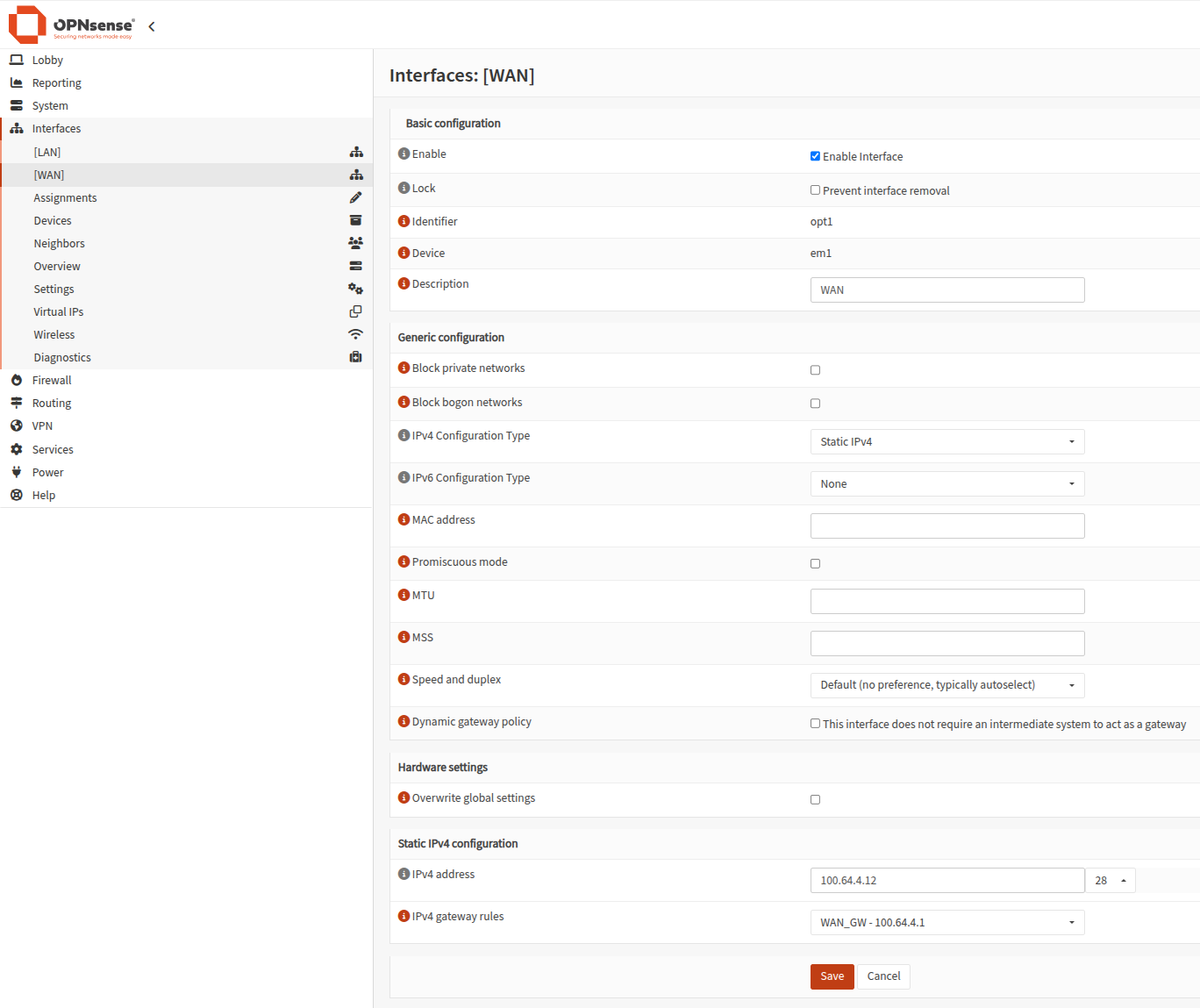
4.2 — The WAN Interface
Configure an IP on the WAN interface taken from the interconnection prefix, and associate the interface with the gateway you just created.
Step 5 — Establish the BGP session
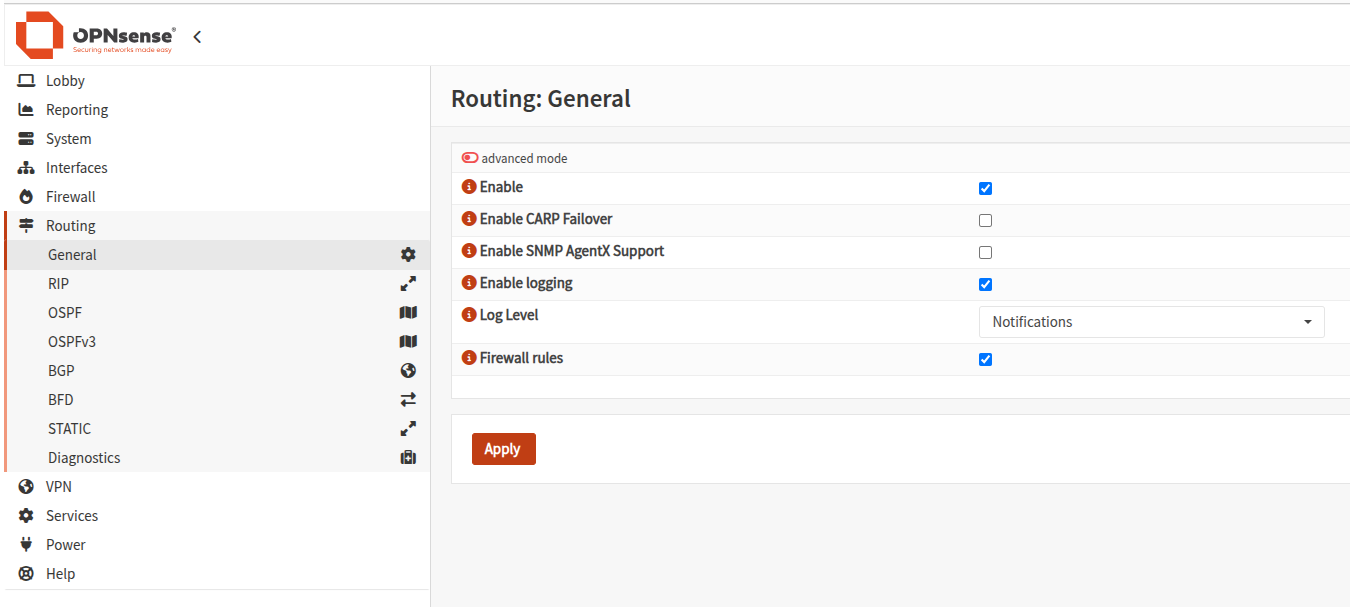
5.1 — Enabling Routing
Go to Routing > General and check Enable.
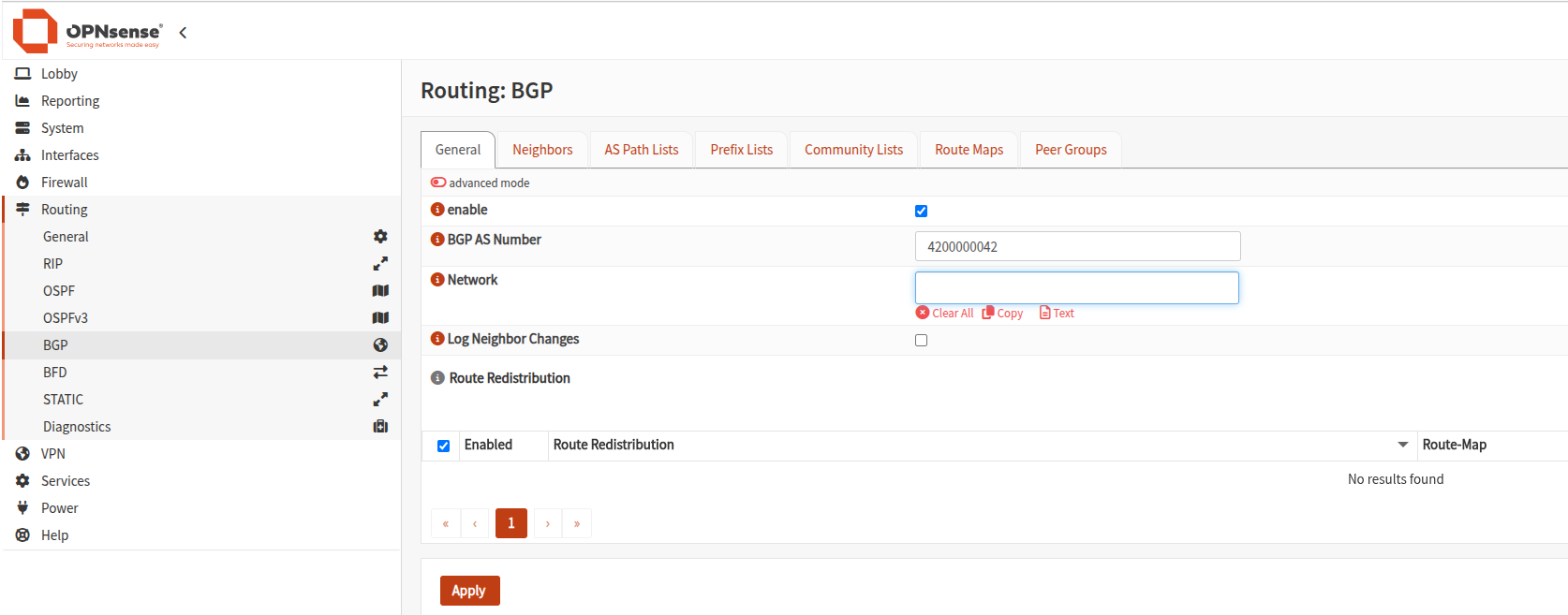
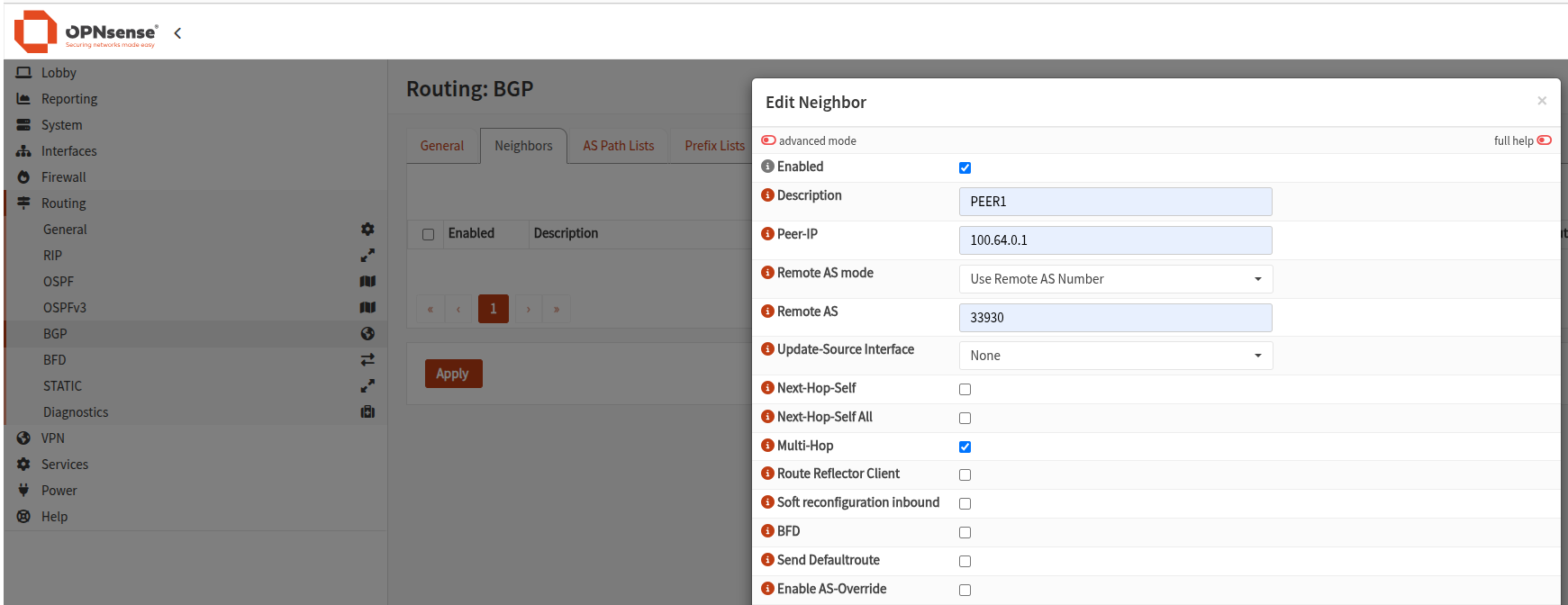
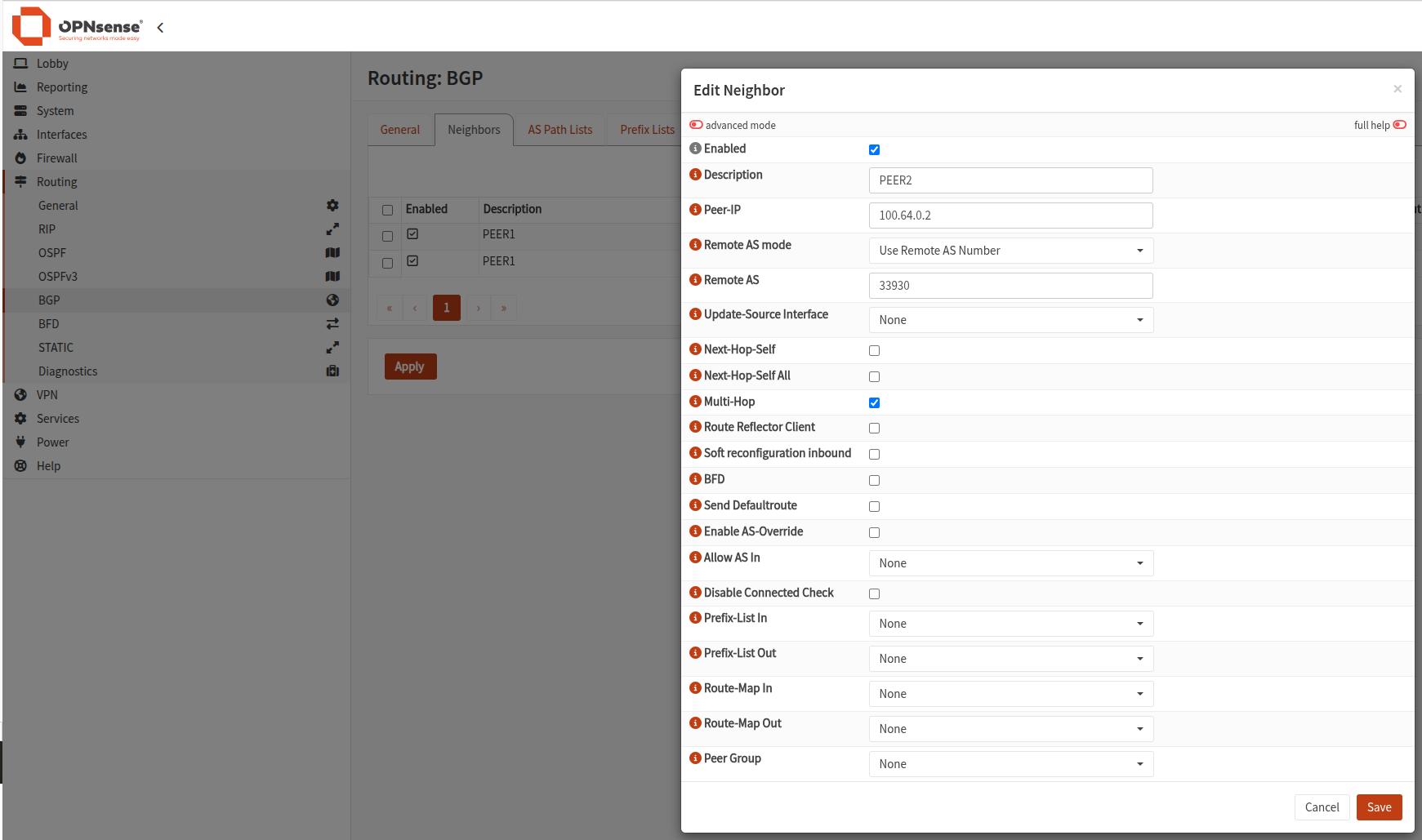
Then enter the connection information to the route servers:
- the IPs of the route servers;
- the partner AS number.
Check the multi-hop box. Route servers are more than one hop away, and an eBGP session has a TTL of 1 by default: without multi-hop, packets would never reach the servers.
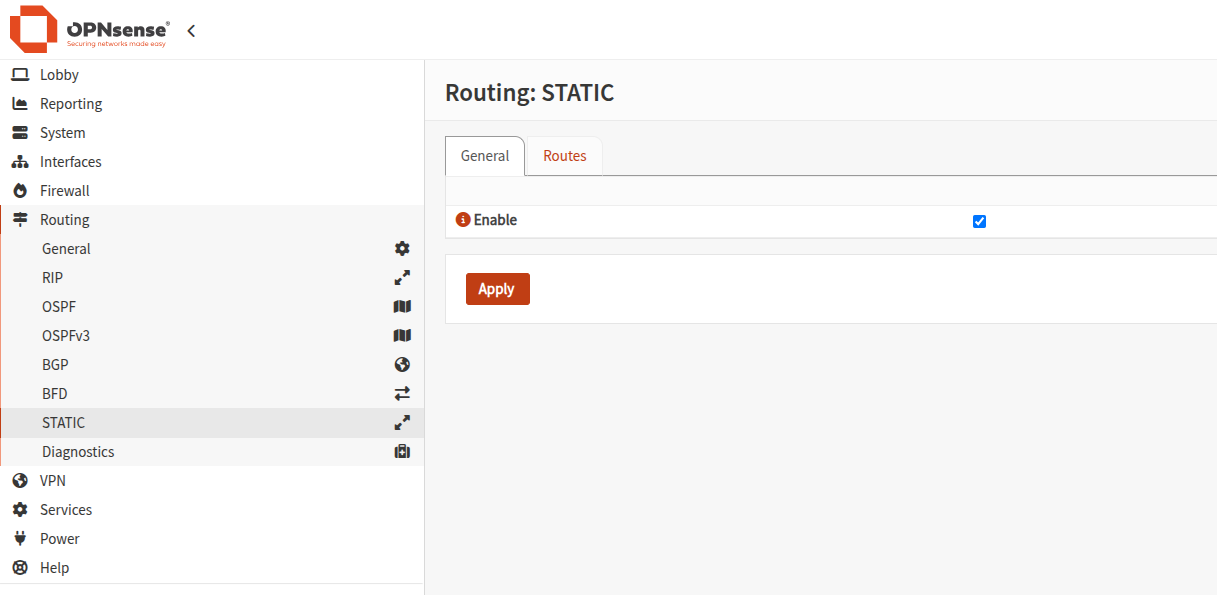
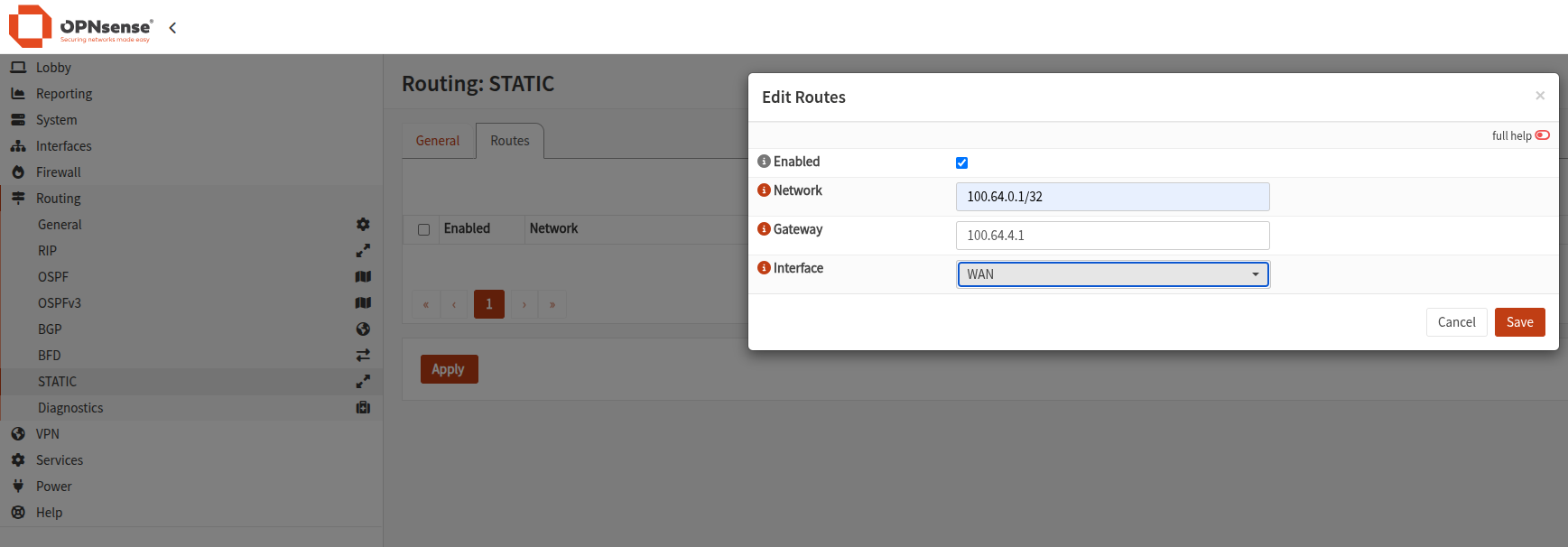
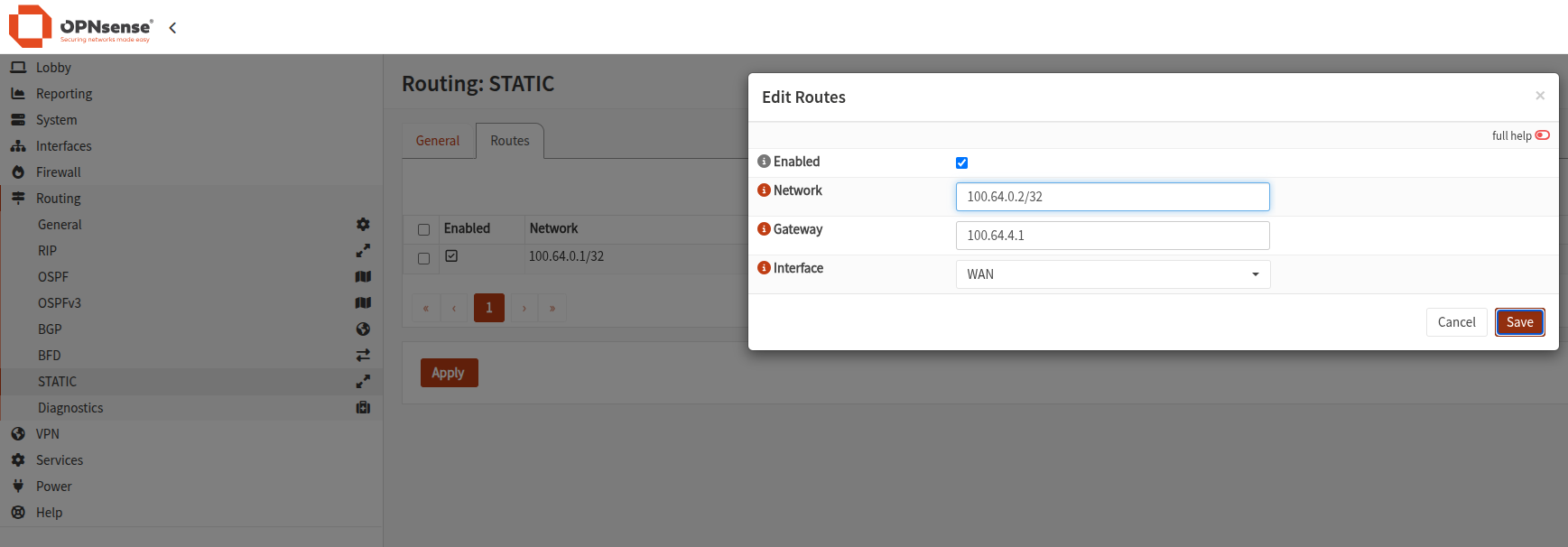
5.2 — Static routes to the route servers
In Routing > Static, add the routes to reach these servers (each as /32).
5.3 — Route Redistribution
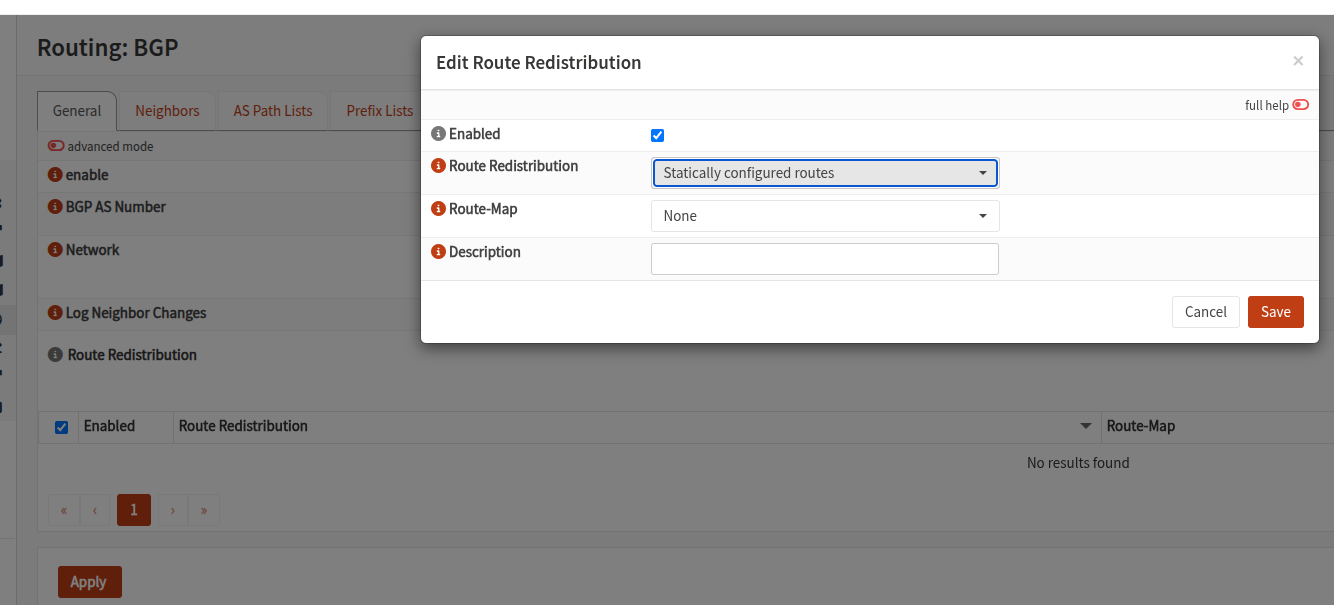
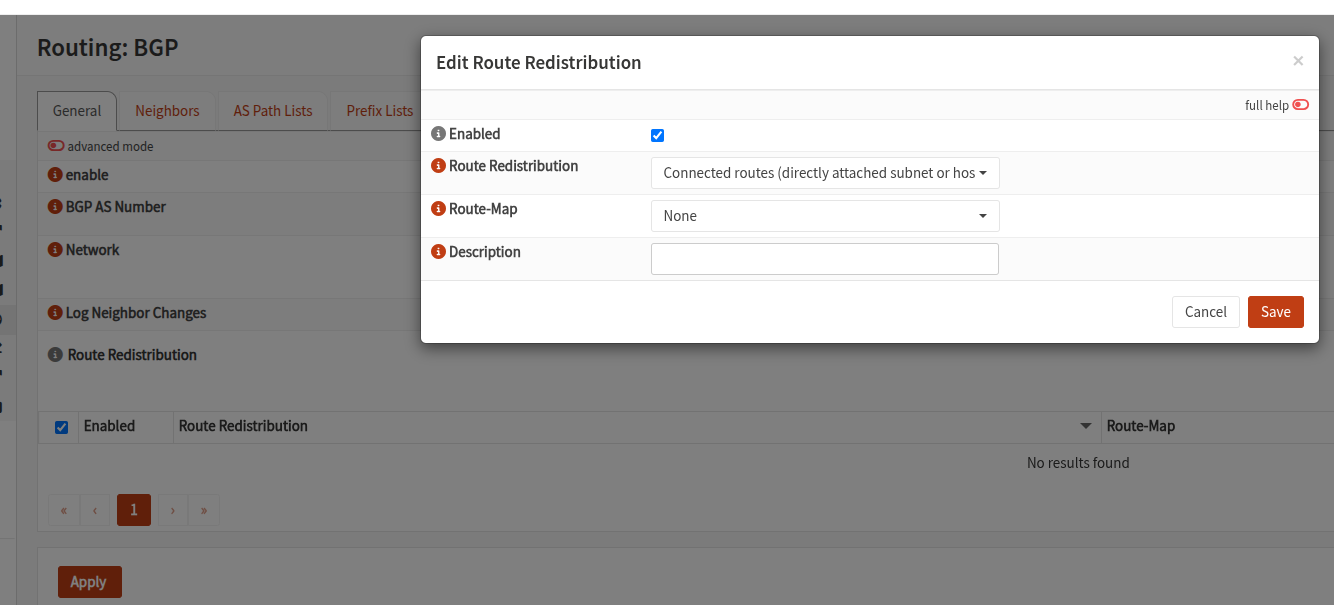
Enable redistribution of static and connected routes to advertise your public prefix.
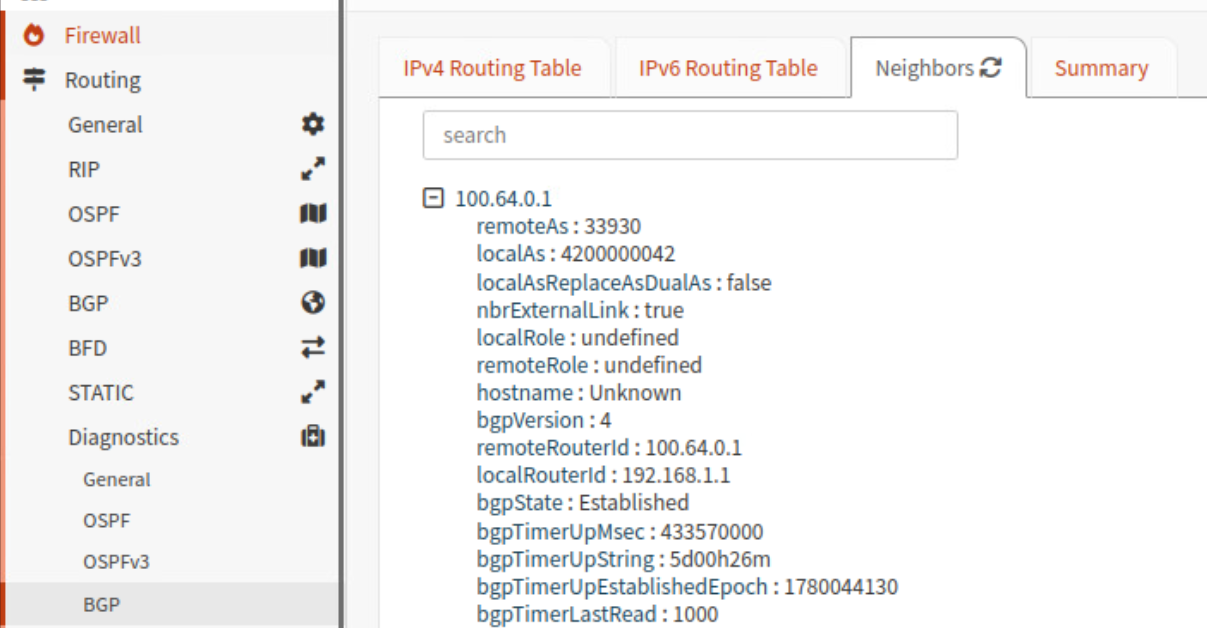
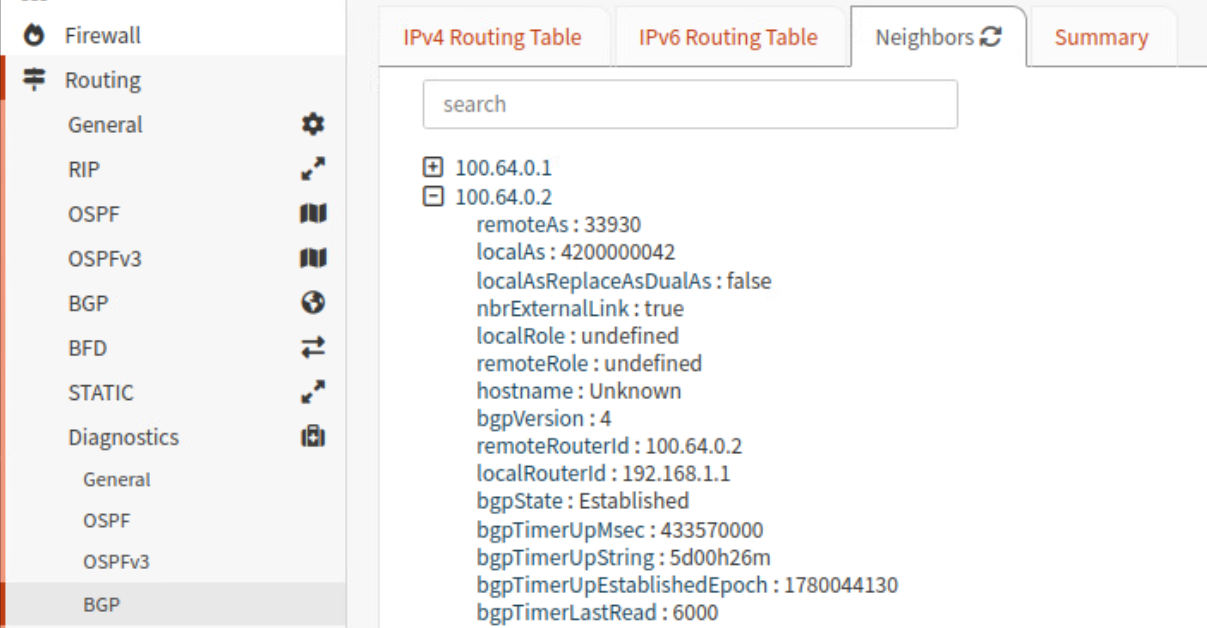
5.4 — Verify the session
Go to Routing > Diagnostic > BGP.
If the parameters are correct, the BGP State displays established.
Step 6 — Announce the public prefix
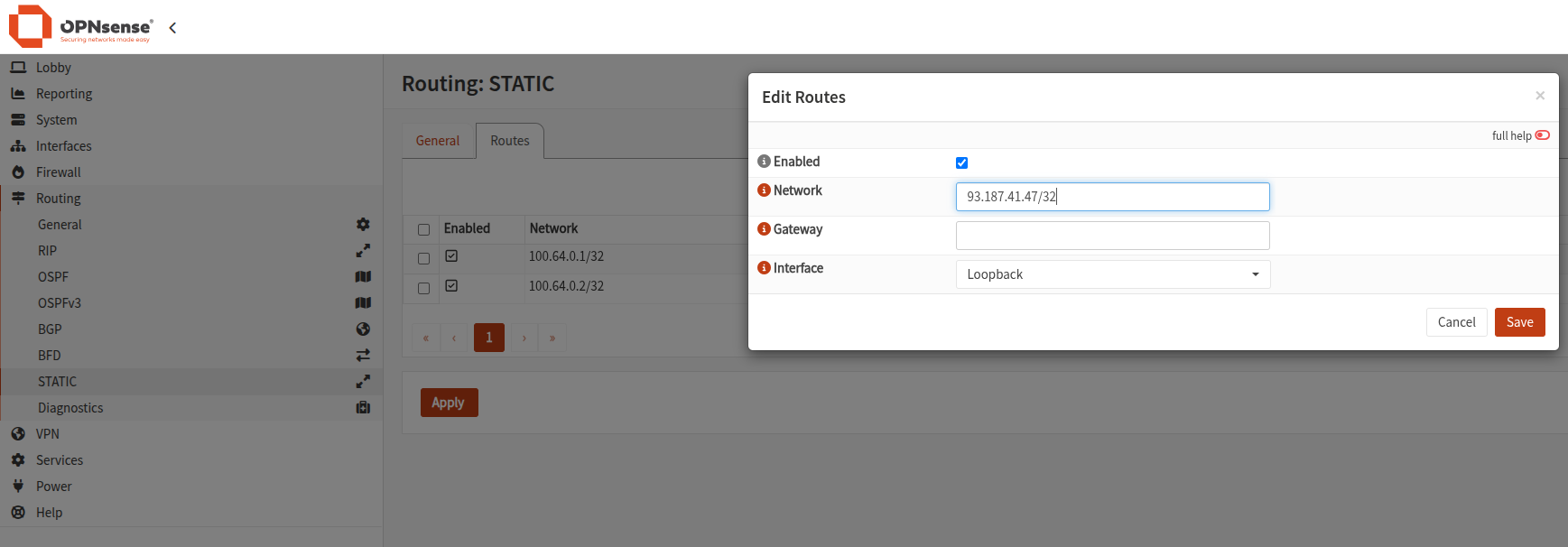
Still in Routing > Static, create a route that points to the loopback of the firewall, this creates a "blackhole" route.
This route allows you to announce your public prefix to the route servers.
Step 7 — Configure NAT
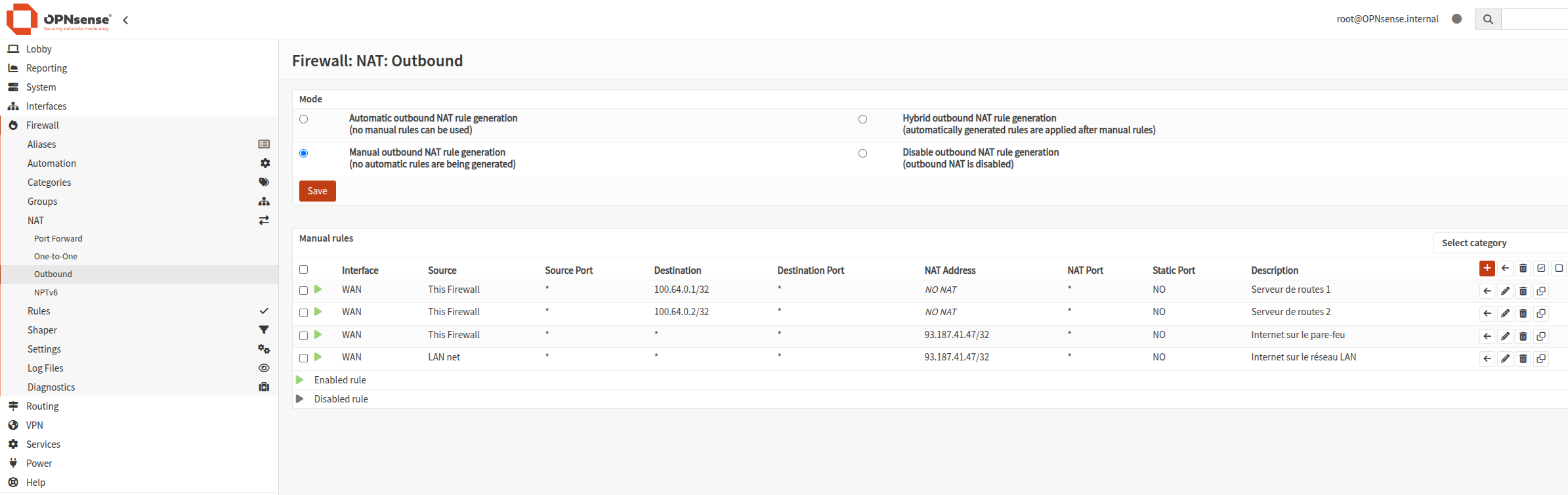
To finish, a few NAT rules to enter manually.
Order matters: the "no NAT" rules must come before the Internet access rules, otherwise NAT will be applied to BGP traffic and the session will drop.
Do not NAT with BGP peers (this one first of all):
Give Internet access to your LAN network:
Give Internet access to the firewall itself, for its updates:
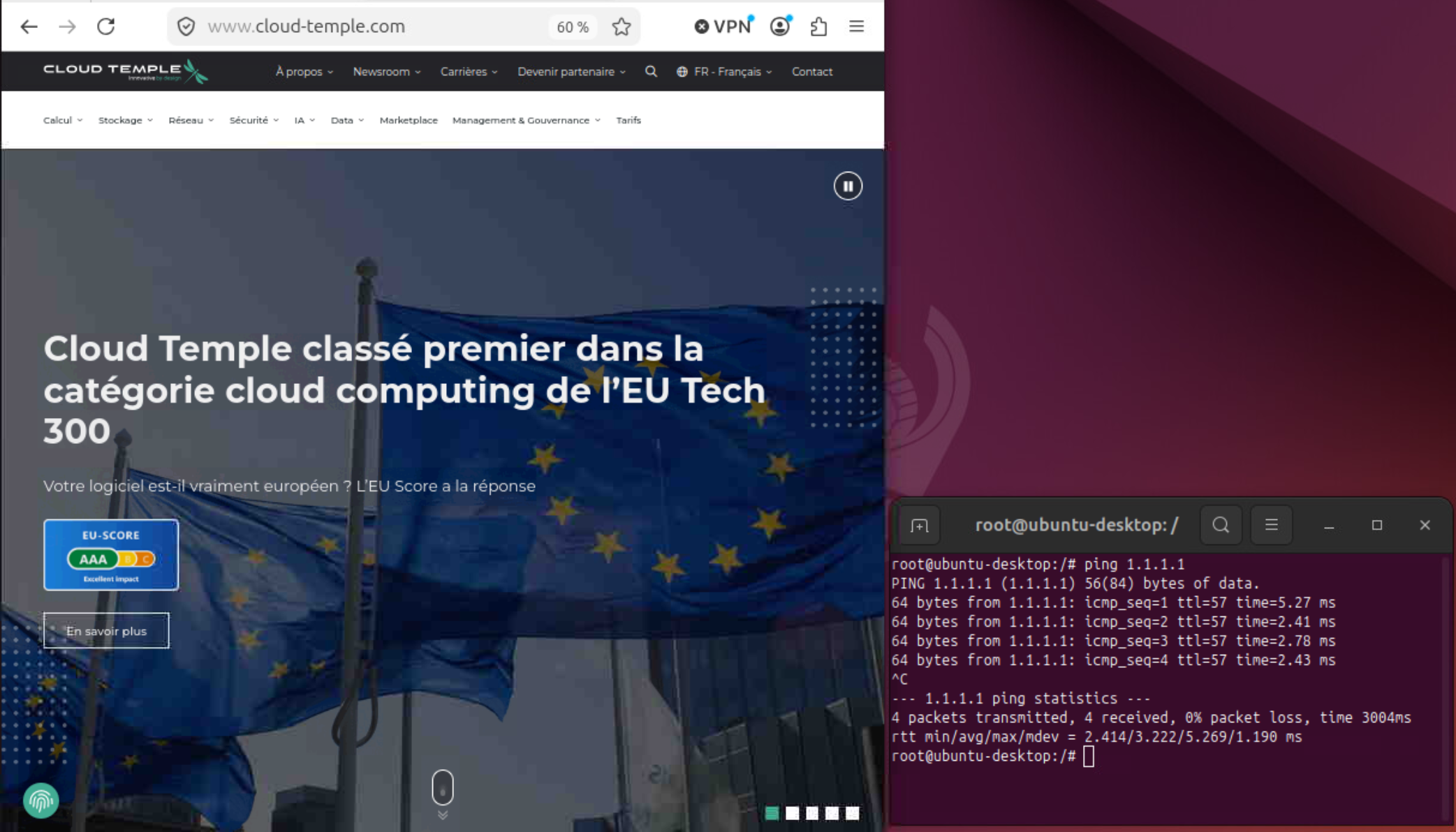
All that's left is to test connectivity to the Internet from the management machine:
Conclusion
The OPNsense firewall is deployed, BGP sessions are established, and your public prefix is announced.
If needed, the official OPNsense documentation.