Deploy an image on VMware
This tutorial guides you through deploying a virtual machine image from the Cloud Temple Marketplace to your VMware environment.
Prerequisites
- Have a configured VMware environment
- Have permissions to create virtual machines
- The image must have VMware in its compatible targets
Deployment Steps
1. Selection and deployment
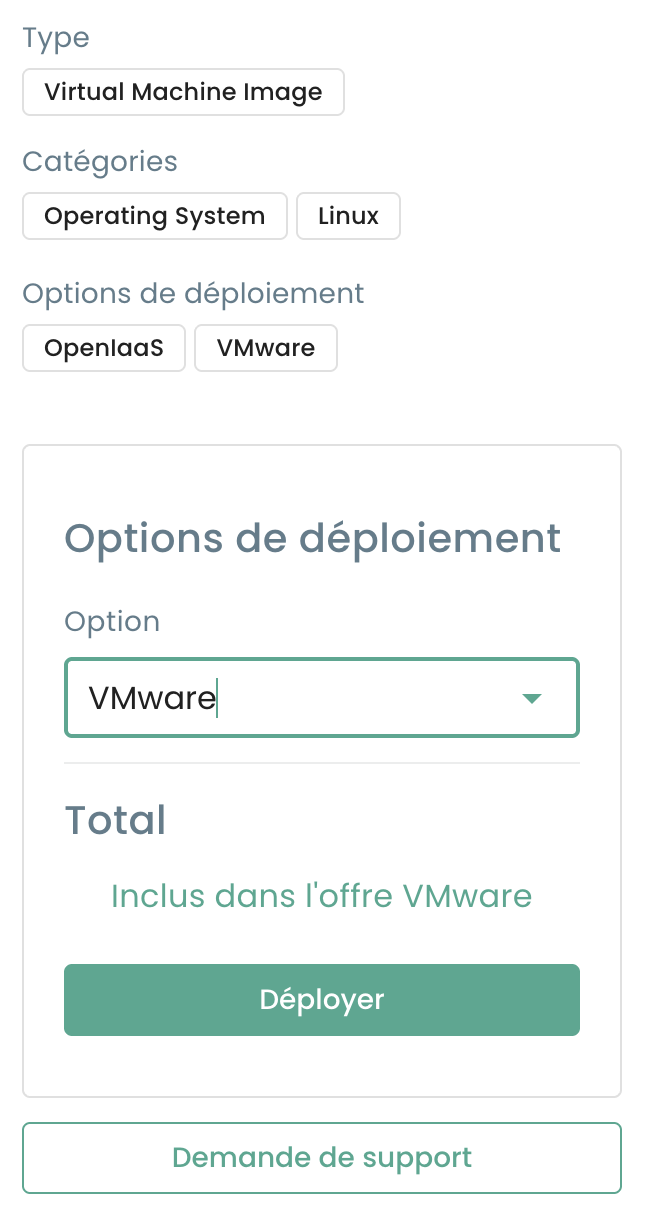
From the details page of a VMware-compatible solution, select your target environment and click Deploy :
2. Virtual Machine Configuration
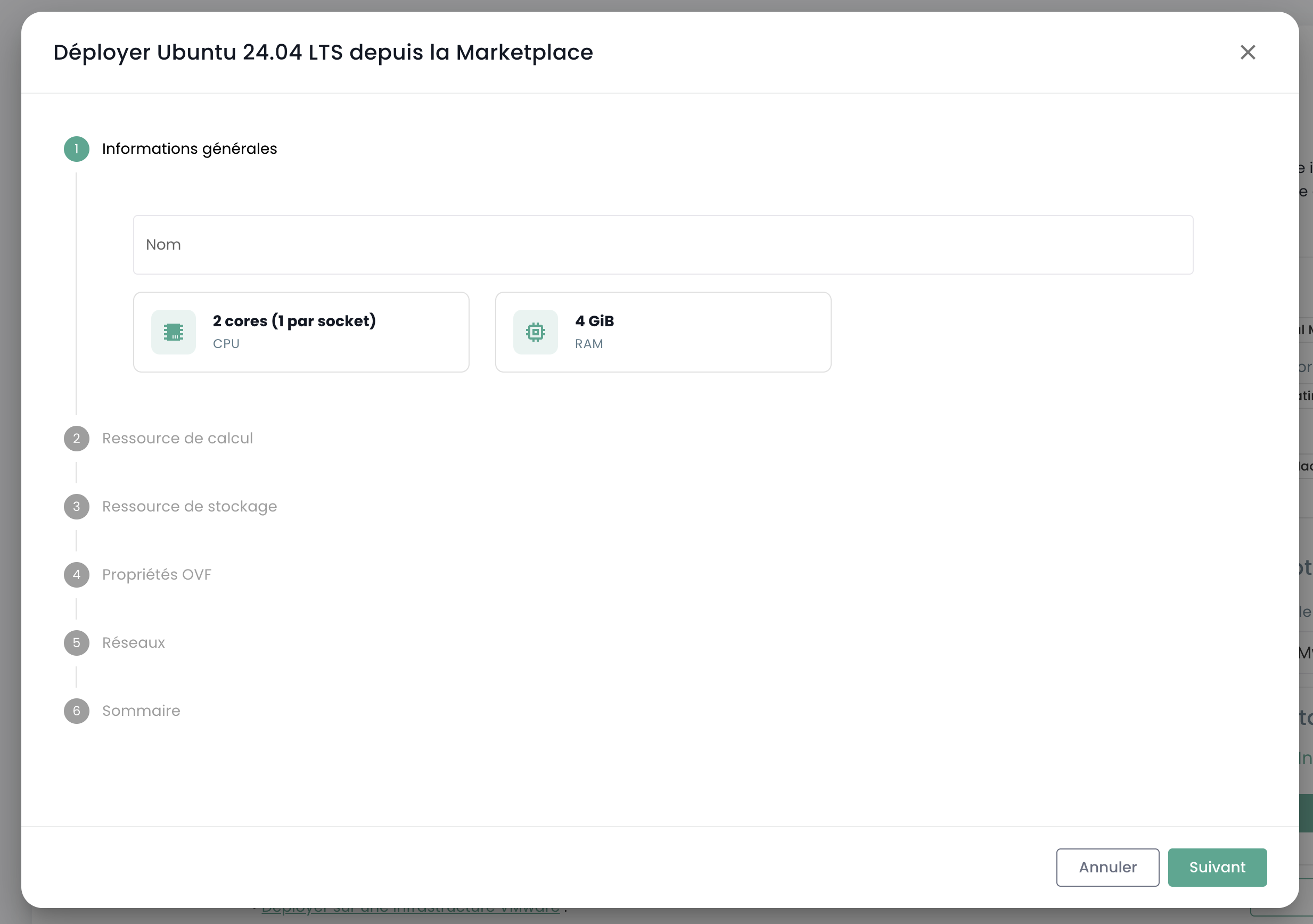
Configure the basic settings of your virtual machine:
- Name of the VM
- Resources (CPU, RAM)
- Storage
- Network
Deployment typically takes less than 10 minutes depending on the image size.
Alternative Access
You can also access Marketplace templates directly from the VMware interface:
- Navigate to vSphere > Deploy a VM
- Select Template Marketplace as the source
- Browse the available images in the built-in catalog
Deployment Tracking
Once the deployment has started:
- Track progress from the VMware console
- The VM will appear in your vSphere inventory