Customize a VMware image
This tutorial explains how to customize a VMware virtual machine image (VMI) provided by the Marketplace to create your own reusable templates.
General Principle
The Marketplace provides generic operating systems (OS). Deploying from the marketplace gives you a solid foundation that can be quickly and easily deployed, avoiding manual uploads and accelerating your deployments.
Once the image is deployed, it becomes a virtual machine that you can configure. You can then export it as a reusable template for all users in your tenant.
Customization Steps
- Deploy the base image from the Marketplace.
- Configure the virtual machine according to your needs.
- Create a template from the configured virtual machine.
- Deploy a new virtual machine from your custom template.
Step 1: Deploy the base image
Follow the Deploy an image on VMware tutorial to get started.
Step 2: Configure the virtual machine
Once the virtual machine is deployed, configure it according to your needs (software installation, security configuration, etc.).
Step 3: Create a template from the virtual machine
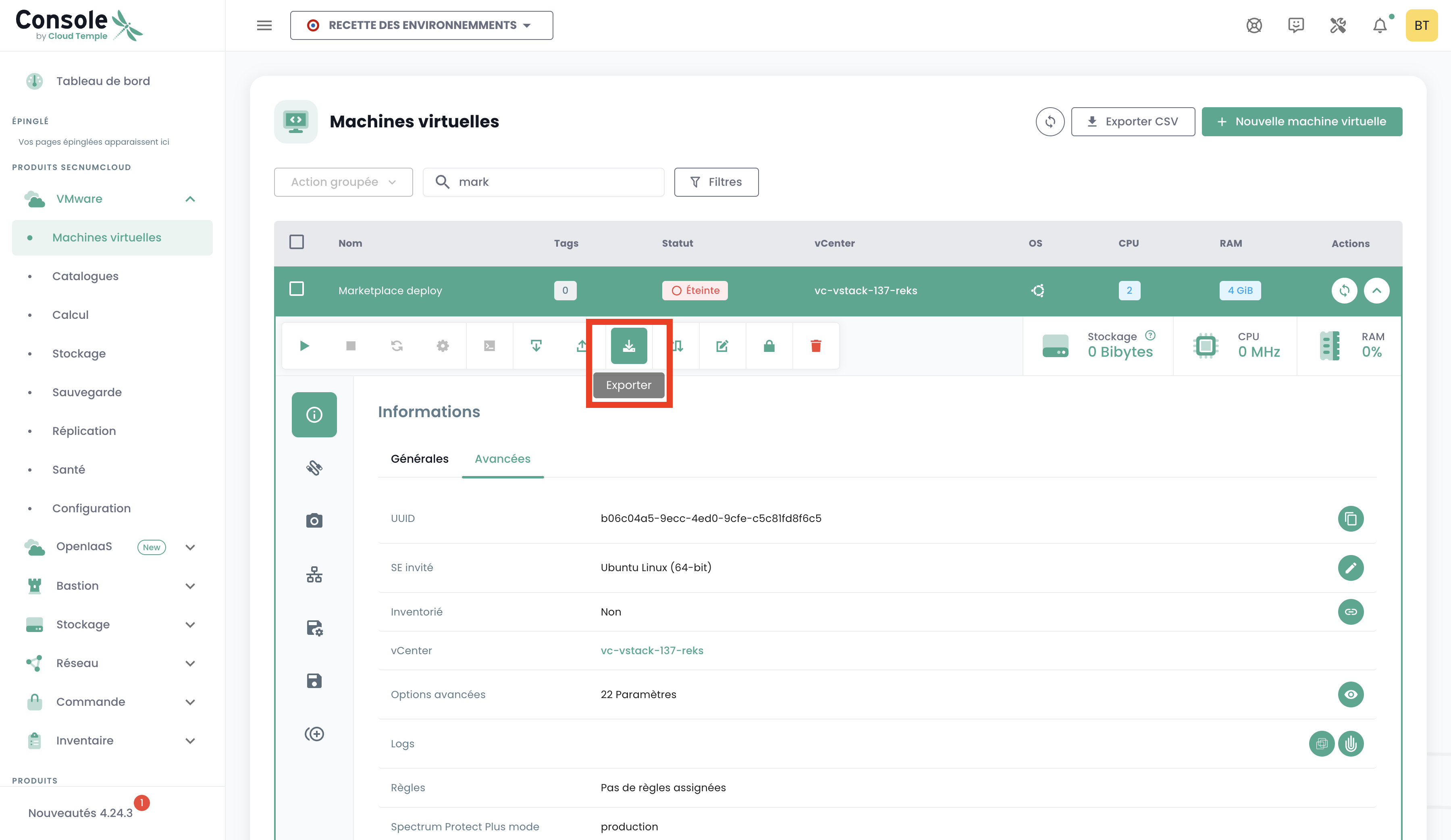
- From your virtual machines list, select the configured virtual machine.
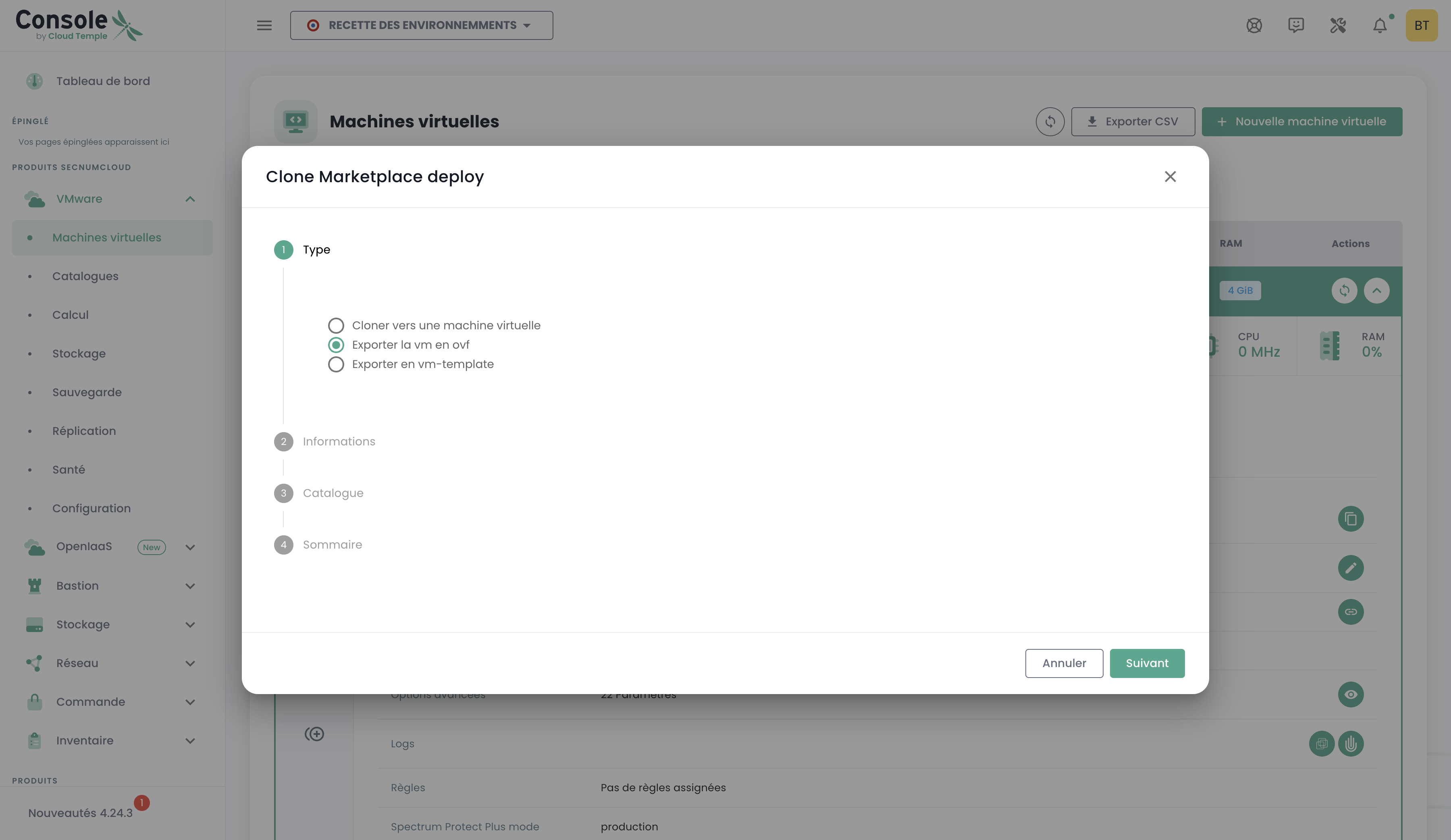
- Select "Export" from the action bar.
- Follow the Console steps to export the template.
Step 4: Deploy from your new template
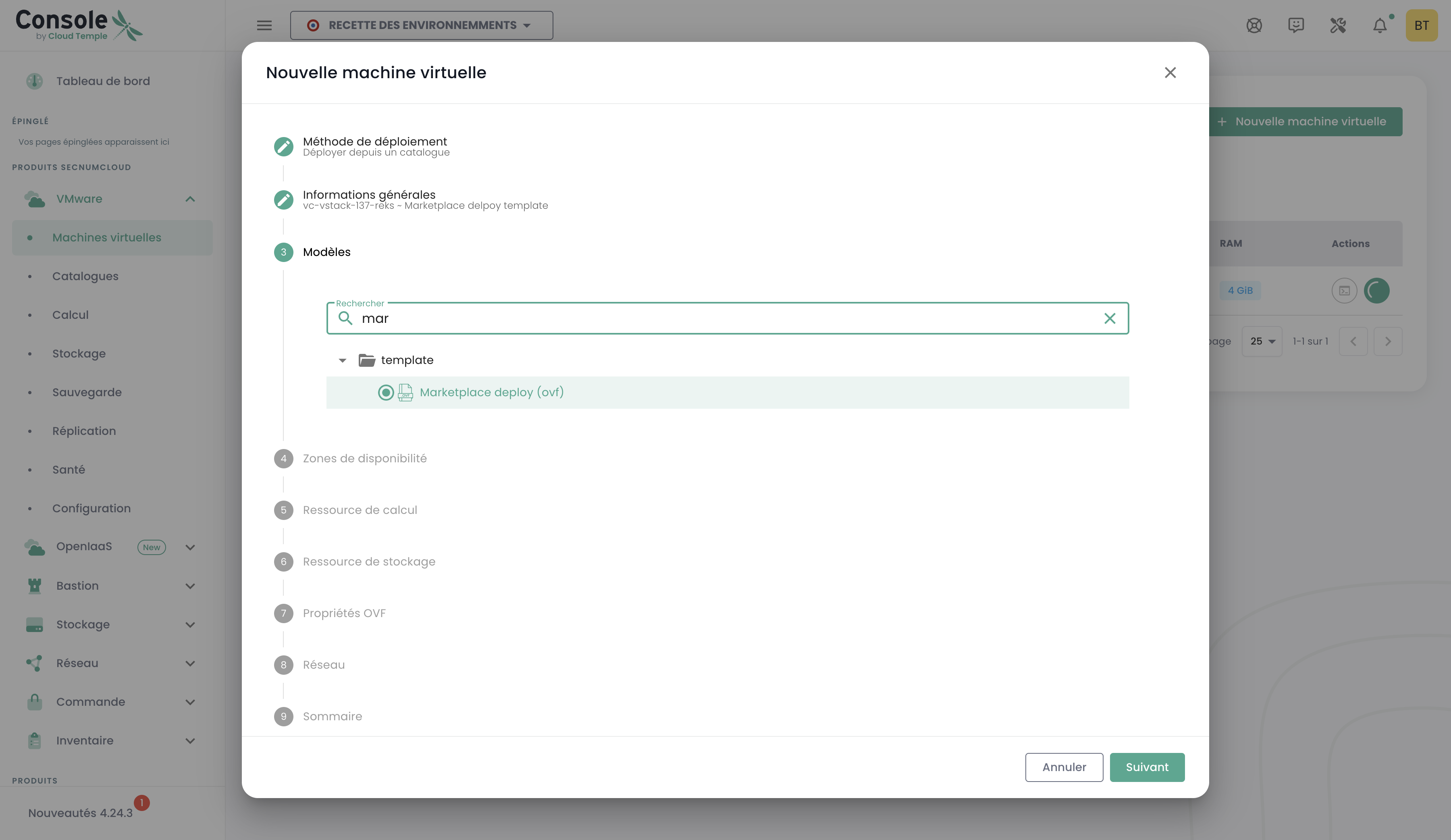
You can deploy from the "Catalog" page or from the "Virtual Machines" page.
To deploy from the Virtual Machines page:
- Click "Create a virtual machine".
- Select "Deploy from a template".
- Select your new template from the list.