Customize an OpenIaaS image
This tutorial explains how to customize an OpenIaaS virtual machine image (VMI) provided by the Marketplace to create your own reusable templates.
General Principle
The Marketplace provides generic operating systems (OS). Deploying from the marketplace gives you a solid foundation that can be quickly and easily deployed, avoiding manual uploads and accelerating your deployments.
Once the image is deployed, it becomes a virtual machine that you can configure. You can then export it as a reusable template for all users in your tenant.
Customization Steps
- Deploy the base image from the Marketplace.
- Configure the virtual machine according to your needs.
- Create a template from the configured virtual machine.
- Deploy a new virtual machine from your custom template.
Step 1: Deploy the base image
Follow the Deploy an image on OpenIaaS tutorial to get started.
Step 2: Configure the virtual machine
Once the virtual machine is deployed, configure it according to your needs (software installation, security configuration, etc.).
Step 3: Create a template from the virtual machine
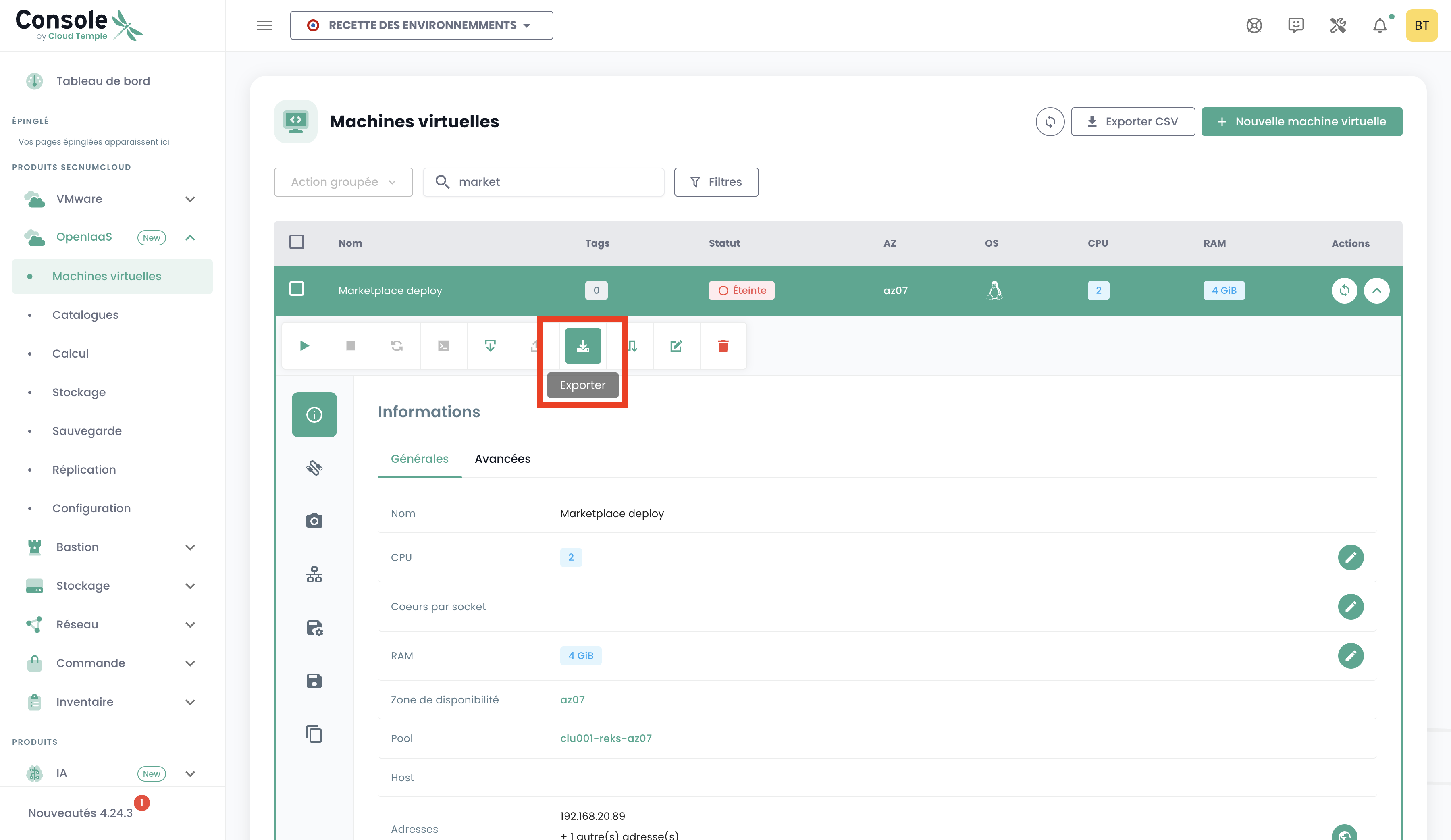
- From your virtual machines list, select the configured virtual machine.
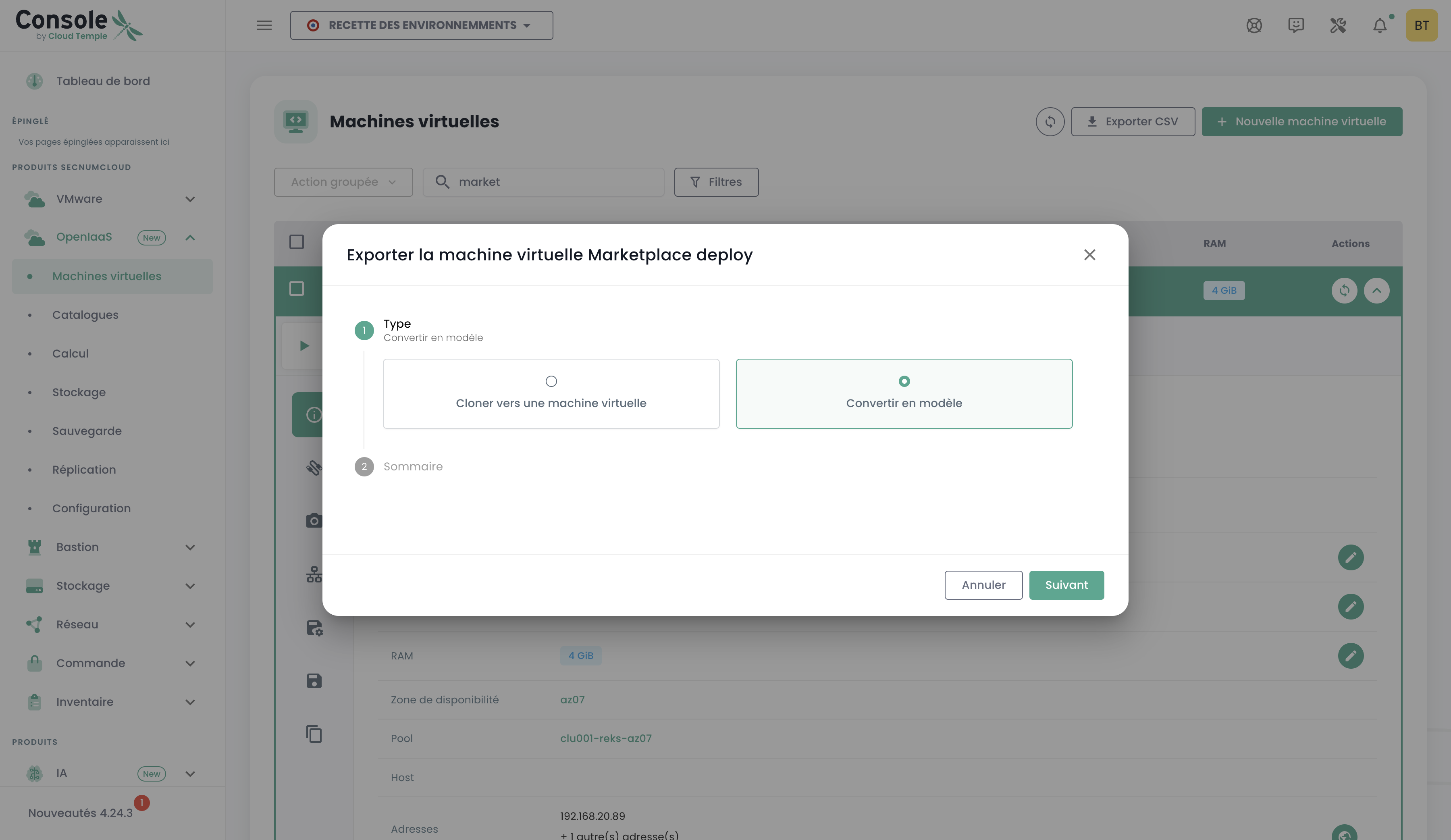
- Select "Export" from the action bar.
- Follow the Console steps to export the template.
Step 4: Deploy from your new template
You can deploy from the "Catalog" page or from the "Virtual Machines" page.
To deploy from the Virtual Machines page:
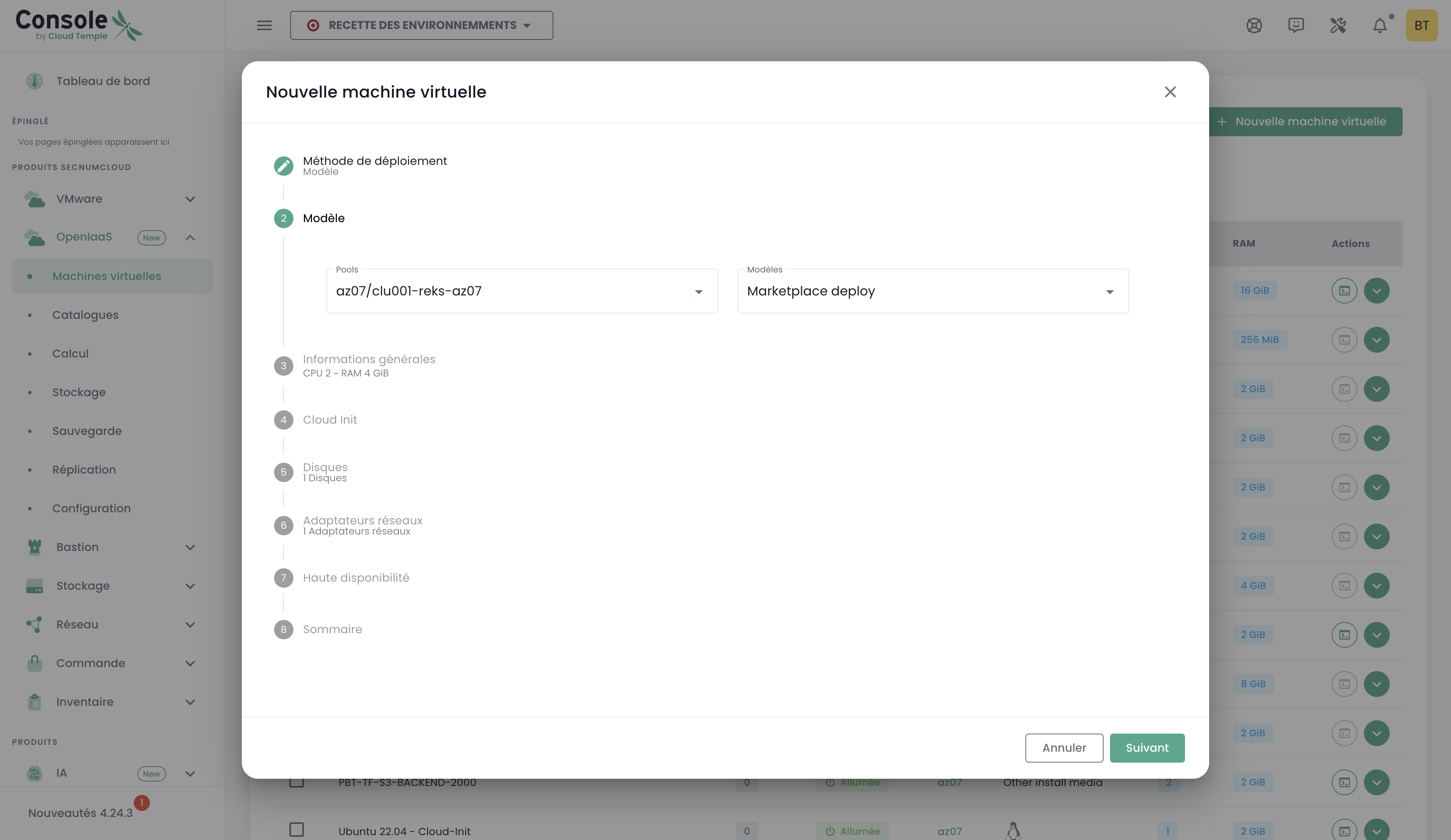
- Click on "Create a virtual machine".
- Select "Deploy from a template".
- Select your new template from the list.