Track costs with OpenCost
Objectives
This tutorial introduces OpenCost, the cost monitoring and optimization tool integrated into your Managed Kubernetes cluster. By the end of this guide, you will be able to:
- Access the OpenCost interface.
- Understand the interface structure and available views.
- Analyze the cost breakdown of your applications and infrastructure.
What is OpenCost?
OpenCost is an open-source, CNCF (Cloud Native Computing Foundation) standard solution that provides real-time visibility into the costs of your Kubernetes environments. It helps you understand exactly what is consuming resources in your cluster and how that translates into costs.
In the Managed Kubernetes product, OpenCost is pre-installed and configured to give you a clear view of your spending. It is directly configured with the actual costs of the Cloud Temple infrastructure.
Accessing the OpenCost Interface
The OpenCost interface is exposed on a secure URL, specific to your cluster. To access it, use the following URL by replacing identifiant with your cluster's identifier (for example, ctodev) :
https://opencost.external-secured.identifiant.mk.ms-cloud-temple.com
ℹ️Access to this URL is restricted to the IP addresses you have registered with Cloud Temple support. If you are unable to access it, please contact support to verify the firewall rules.
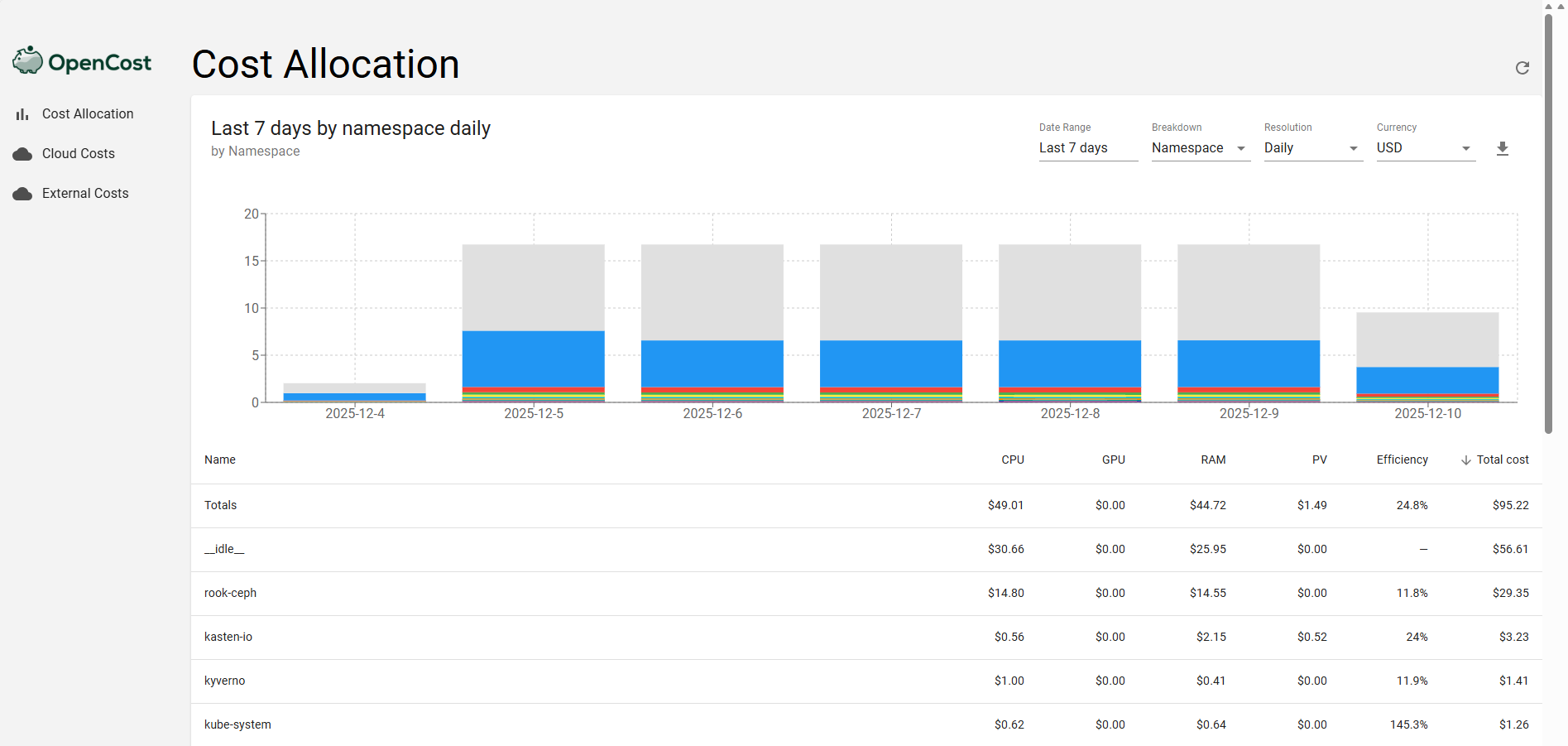
Exploring Cost Allocations (Allocations)
The main and most detailed view in OpenCost is the Allocations dashboard. This is where you can visualize your resource consumption in real time.
This view allows you to break down costs by native Kubernetes concepts. The "Aggregate by" dropdown is the primary tool for your analysis, allowing you to group costs by:
- Namespace: To get a view by environment or by team.
- Deployment, StatefulSet, etc.: To analyze the cost of a specific application.
- Controller: For a more technical view.
Aggregation by Labels
For even more granular cost analysis, OpenCost can aggregate costs based on Kubernetes labels. There is no direct "Label" option in the menu, but OpenCost ingests your labels and allows you to create custom aggregations. For this, a consistent labeling strategy is essential. For example, by using labels such as team: backend or product: api-gateway, you will be able to analyze costs that precisely align with your organization.
For this type of analysis, you must use the OpenCost AI integration.
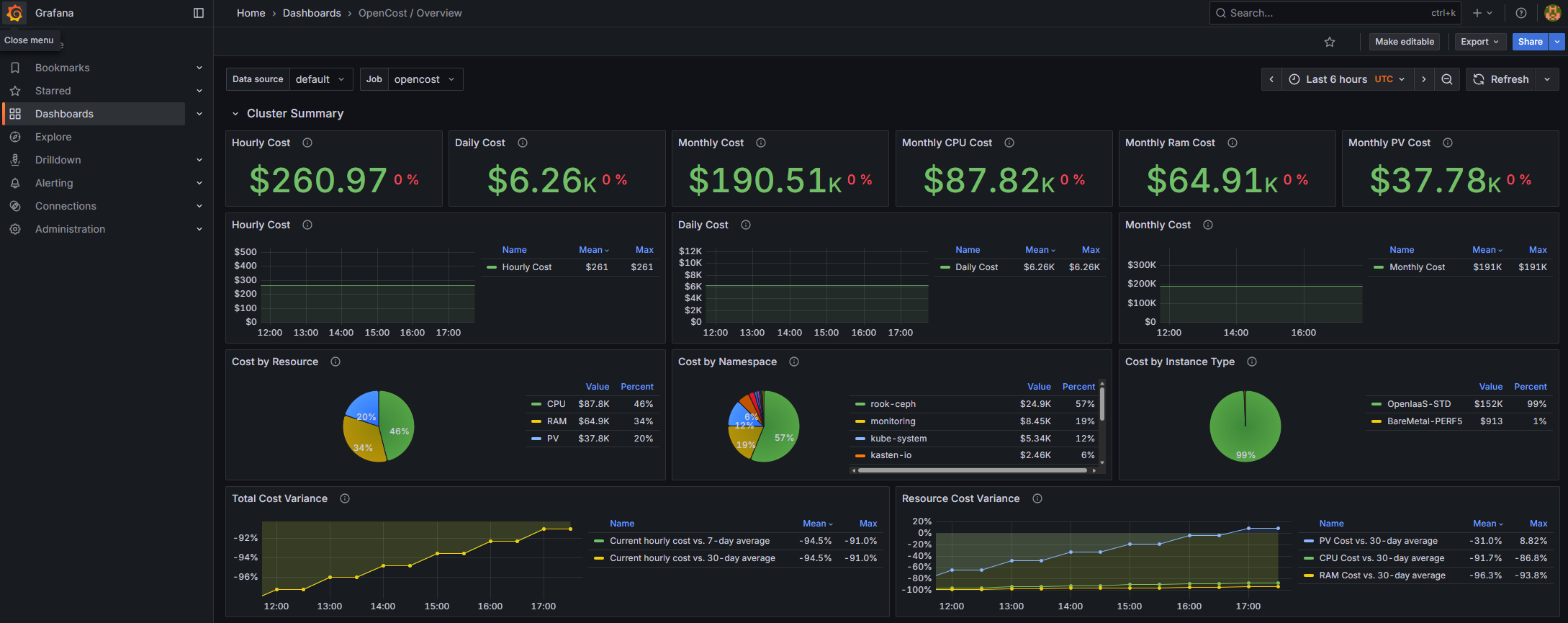
Grafana Dashboard
A Grafana dashboard is also available to visualize OpenCost data. This dashboard provides an alternative and complementary view to the OpenCost interface, and it retains the complete history of cost metrics, allowing you to analyze long-term trends.
Advanced Usage: Integration with an AI (MCP Server)
For advanced users, OpenCost can be directly queried from the Cline conversational assistant (or others) using the MCP (Model Context Protocol) servers system. This allows you to script queries and retrieve cost data directly within your conversations.
1. Configuring OpenCost MCP in Cline
To connect Cline to your OpenCost instance, you must add the following configuration to your cline_mcp_settings.json file. This file is typically located in the Cline configuration directory.
We recommend creating an MCP server named "opencost-xxxxx" where xxxxx is the name of your managed Kubernetes cluster.
The MCP server URL follows the format https://opencost-mcp.external-secured.identifiant.mk.ms-cloud-temple.com
For example, for the "bestie" cluster:
{
  "mcpServers": {
    "opencost-bestie": {
      "disabled": false,
      "timeout": 60,
      "type": "streamableHttp",
      "url": "https://opencost-mcp.external-secured.bestie.mk.ms-cloud-temple.com",
      "headers": {
        "Authorization": "Basic <TOKEN>"
      }
    }
  }
}
To generate the <TOKEN> value from your credentials, use one of the following commands:
For Linux/macOS:
echo -n 'finopsadm:VOTRE_MOT_DE_PASSE' | base64
For Windows (PowerShell):
$credentials = [System.Text.Encoding]::UTF8.GetBytes("finopsadm:VOTRE_MOT_DE_PASSE")
[System.Convert]::ToBase64String($credentials)
Once this file is saved, Cline will automatically load the opencost-xxxxx MCP on startup.
2. Querying OpenCost with the MCP
ℹ️[Prerequisites] To interact with the MCP using natural language, the underlying AI must have access to language models (LLMs), either locally (LMStudio, etc.), via a connection to public services like GPT-5 or Gemini, or by using our sovereign LLM-as-a-Service product.
After configuration, you can use LLM tools to run natural language queries on this MCP server.
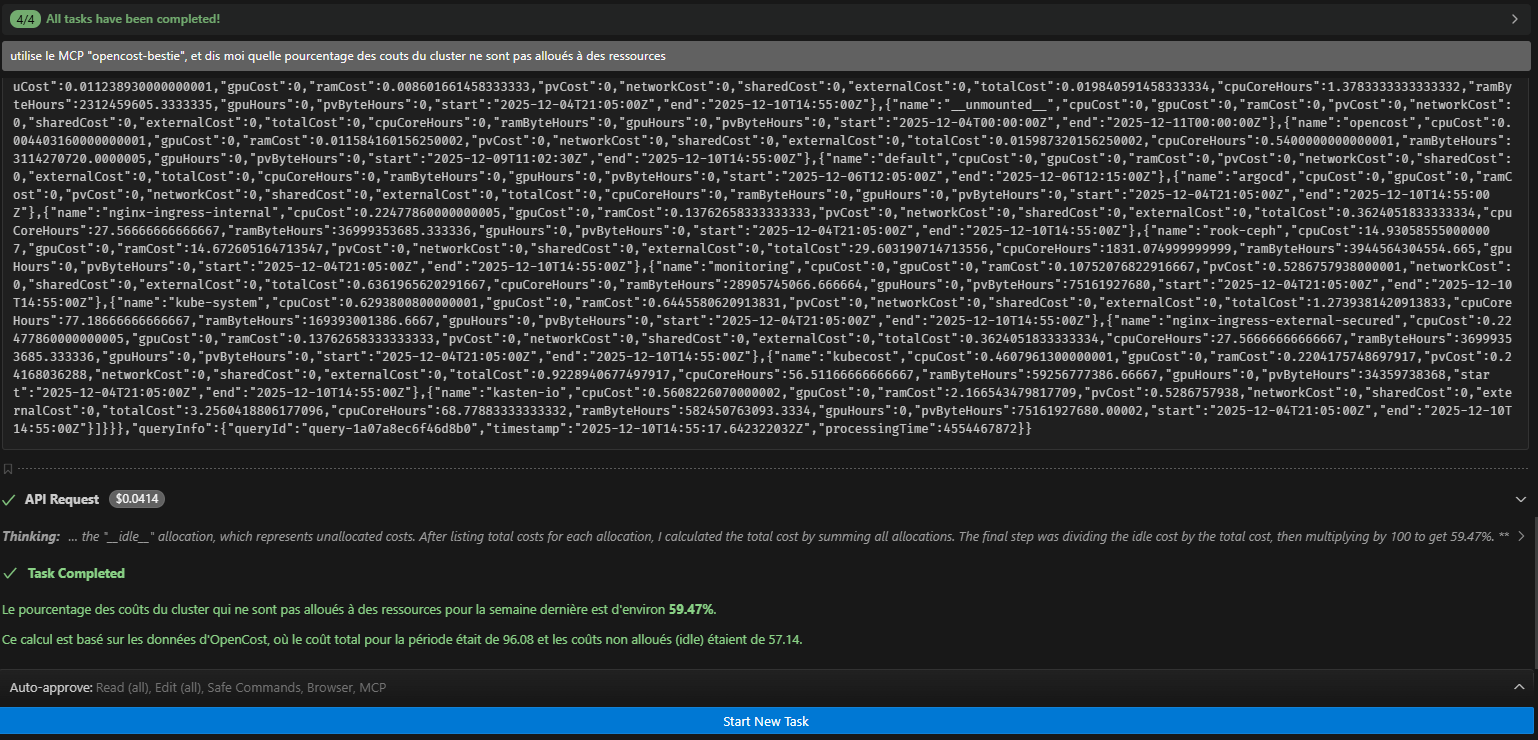
Example
"use the MCP "opencost-bestie", and tell me what percentage of the cluster costs are not allocated to resources" You will get this:
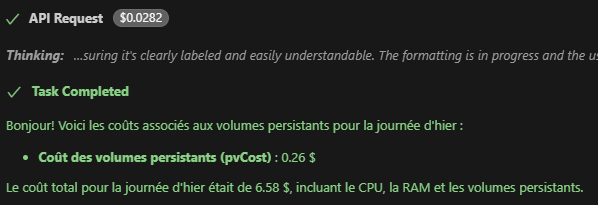
Example 2
"use the MCP "opencost-bestie", and list the costs associated with persistent volumes for yesterday"
Example 3
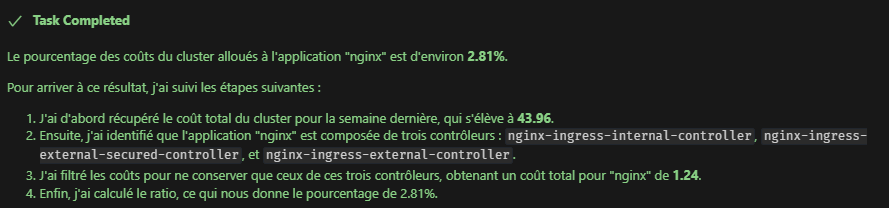
"use the opencost-bestie MCP, and tell me what percentage of the cluster costs are allocated to the application with the label "nginx". (filter in the format filter: "label:app:frontend")"
Conclusion
OpenCost provides you with powerful tools for fine-grained, real-time cost analysis of your Kubernetes cluster. By primarily using the Allocations view and combining it with a robust labeling strategy, you can gain a clear overview of your spending, aligned with both your technical deployments and your internal organization. Leveraging LLMs and the OpenCost MCP server allows you to take data utilization even further.