Frequently Asked Questions about Backup
How to clone a virtual machine?
There are 2 ways to clone a virtual machine:
- The first option allows you to clone a virtual machine directly from the 'Clone' icon of your virtual machine:
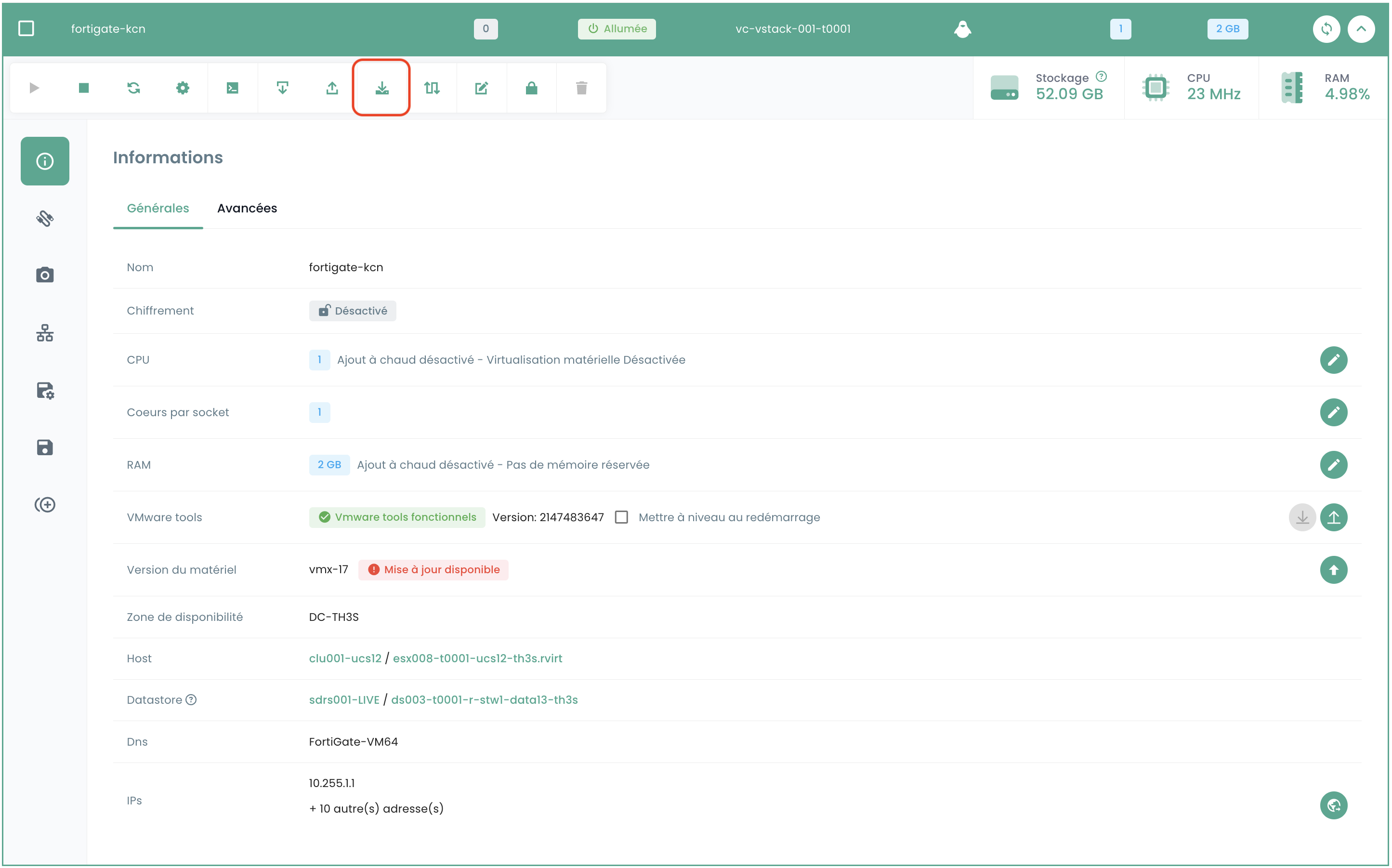
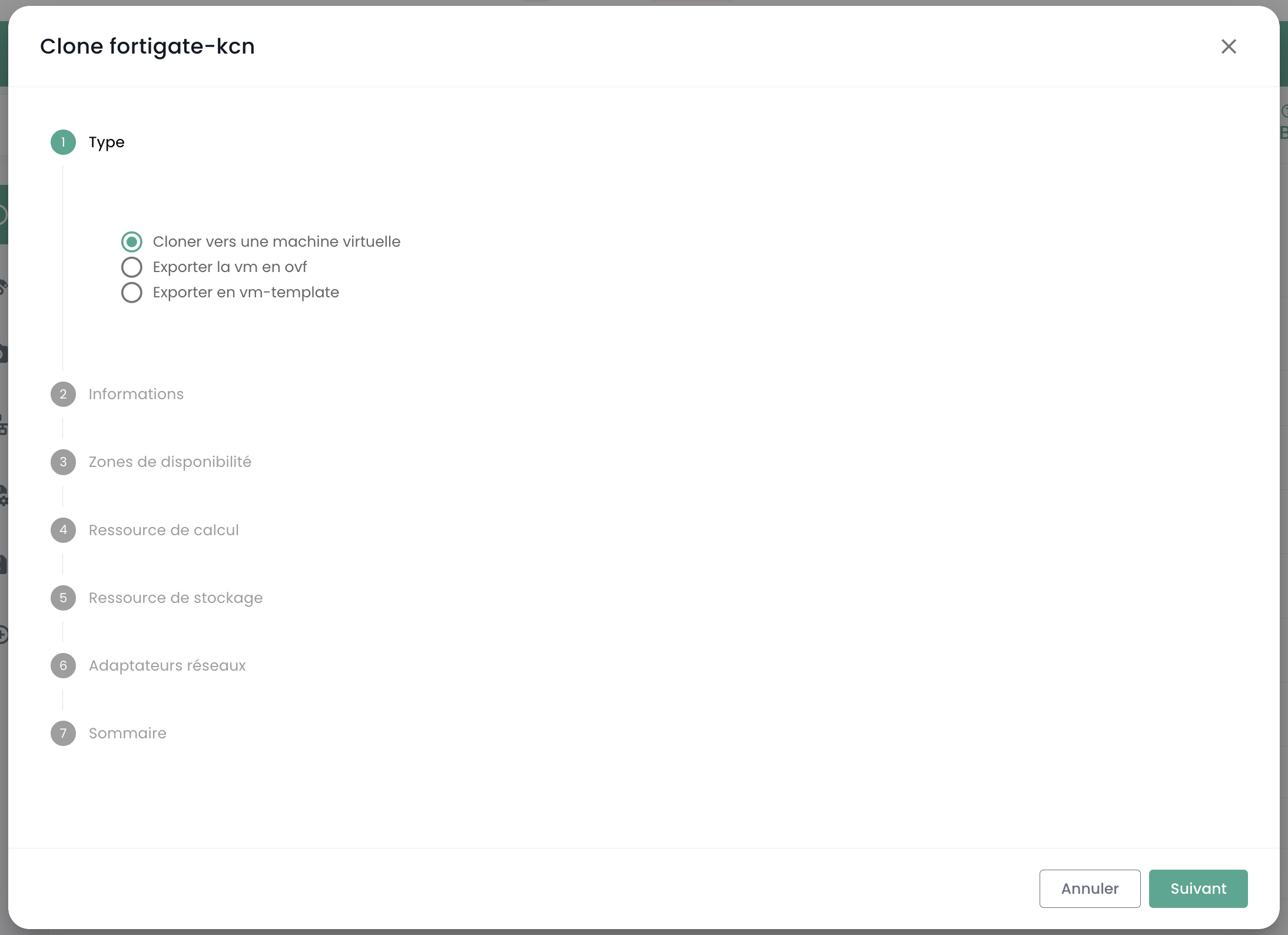
- The second method involves cloning the virtual machine by using a backup of the virtual machine, then using restore in clone mode on a backup. Navigate to the 'Backup' section of your virtual machine and select the 'Restore' action:
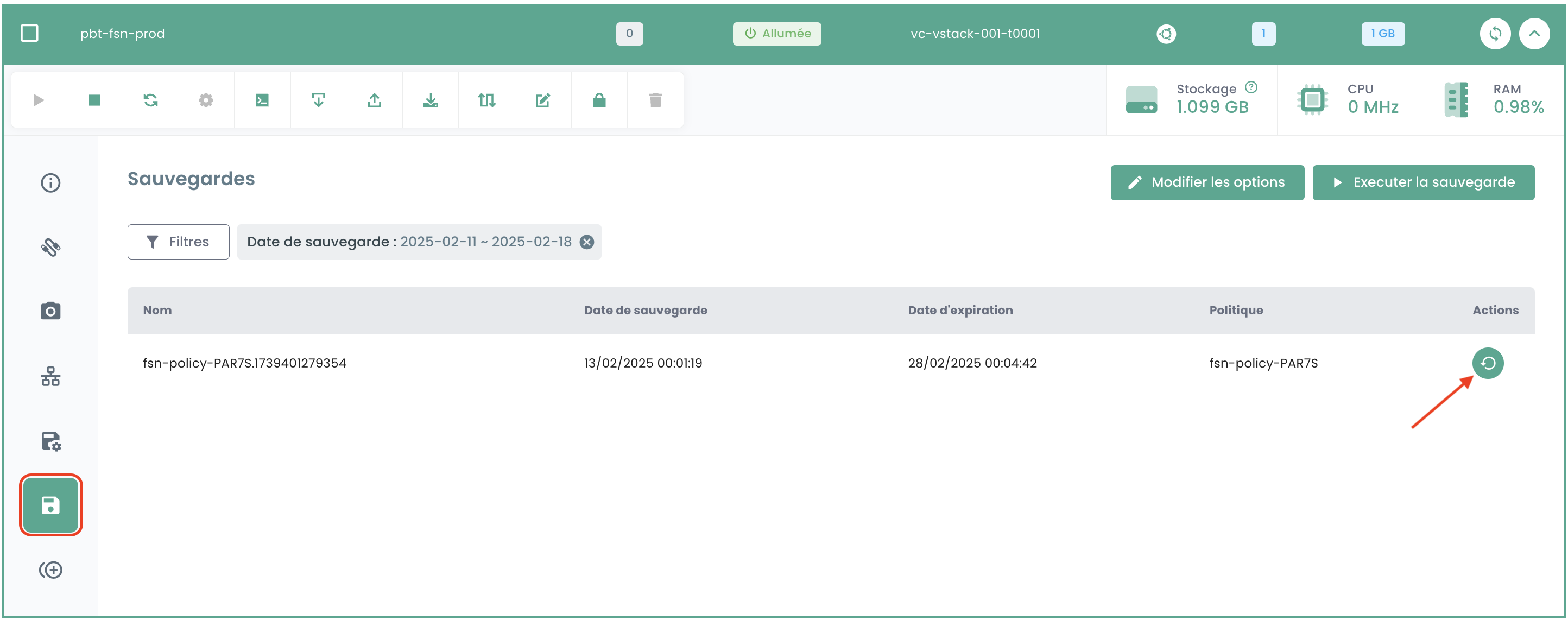
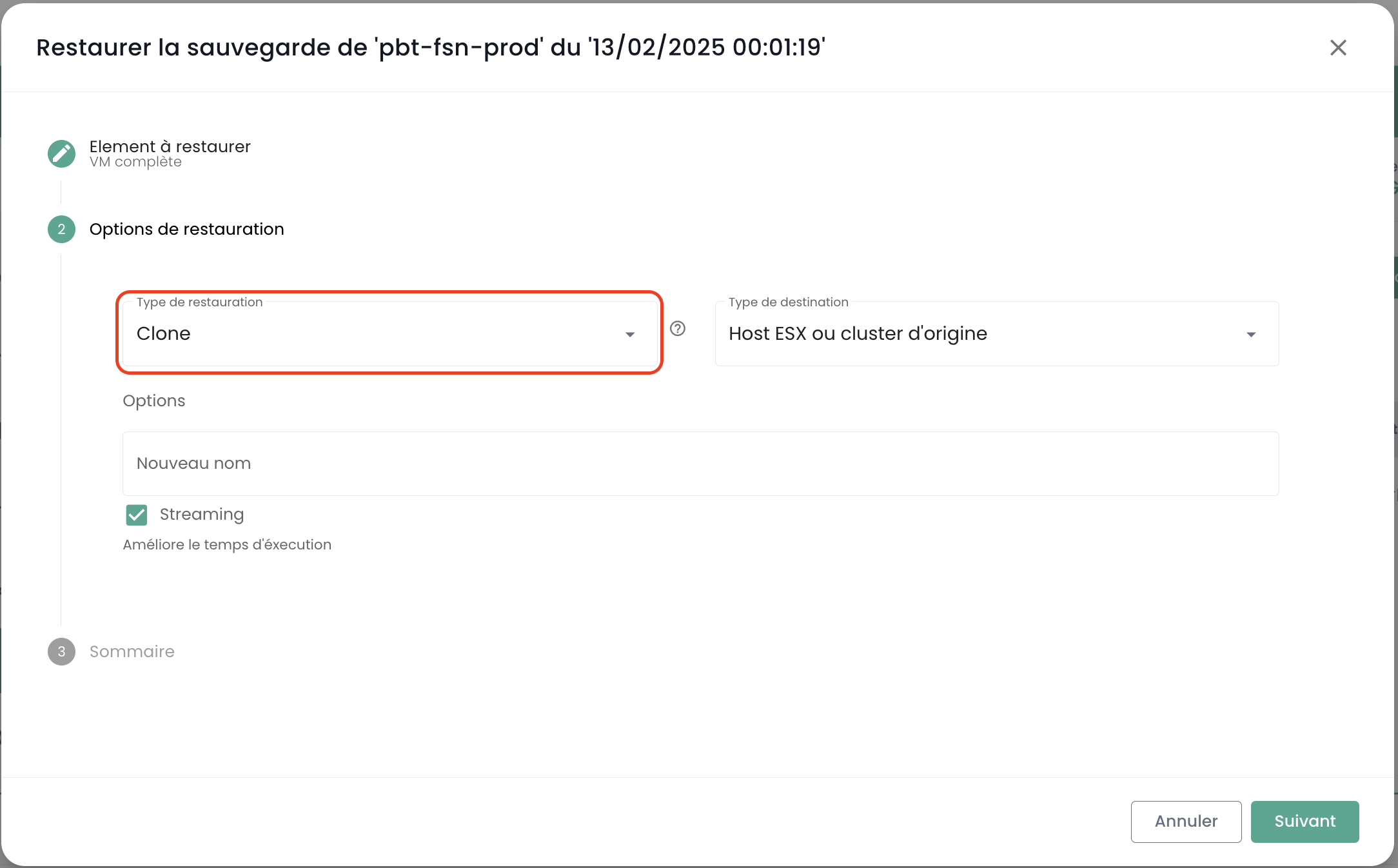
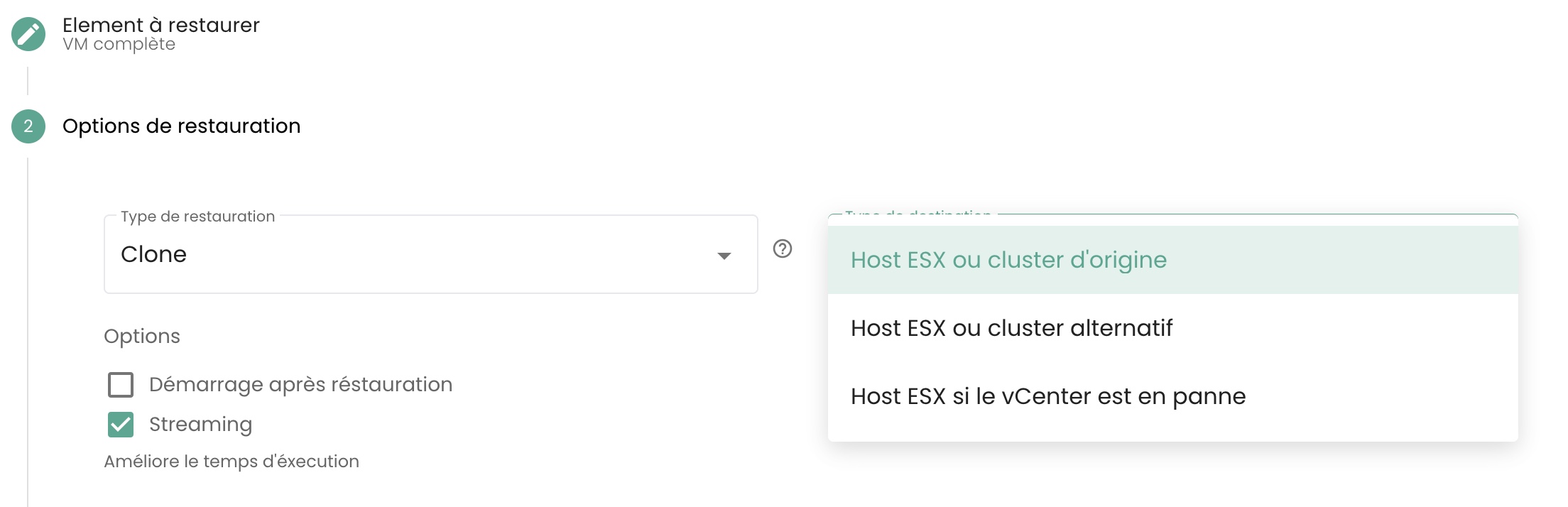
Then select the 'Clone' restore option:
Why, when I go to the "backup policies" page and select a policy, do I not see the same virtual machines as when I go to "backup reports" and select the same policy?
This means that the missing virtual machines had the policy in question assigned to them for a period of time (explaining their presence in the backup reports) but that this is no longer the case currently.
How to add a backup policy to a virtual machine?
Navigate to the 'Virtual Machines' page in the 'IaaS' section of the green menu bar on the left side of the screen.
Select a virtual machine and then the 'Backup Policies' tab for that machine:
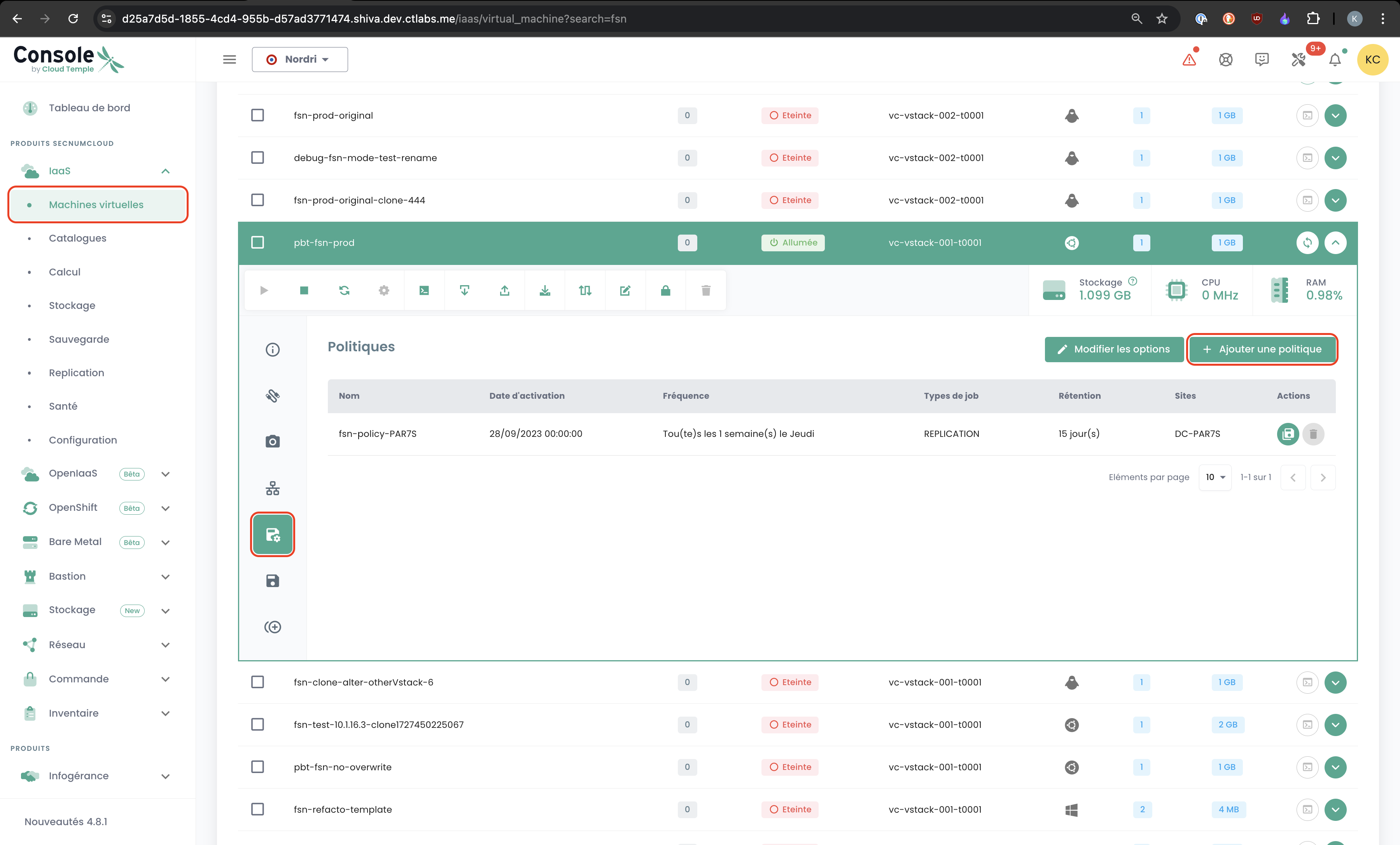
Add the desired backup policy:
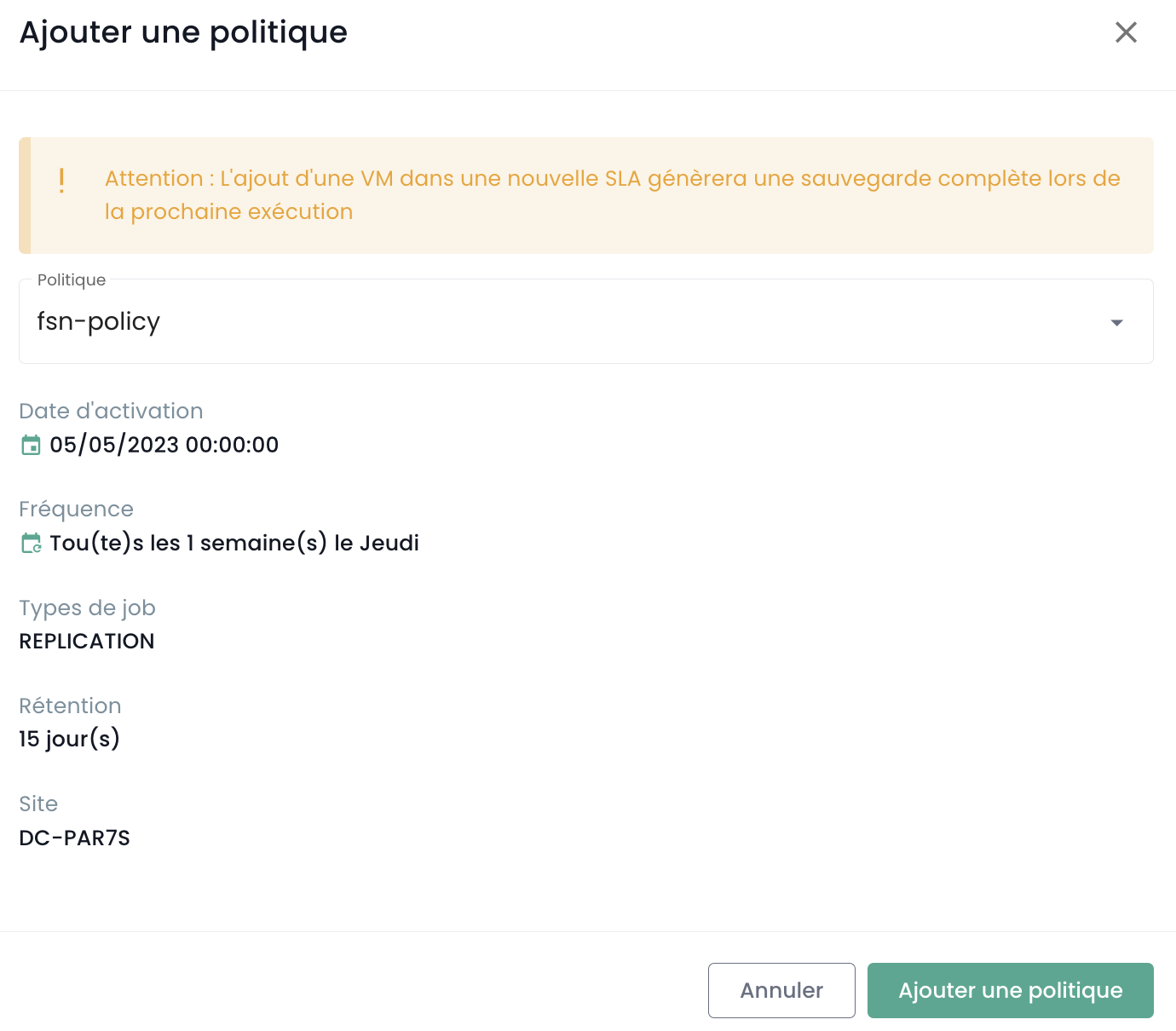
How to delete a backup policy from a virtual machine?
Go to the 'Virtual Machines' page, select a virtual machine, and then the 'Backup Policies' tab for that machine.
Delete the desired backup policy and confirm the deletion:
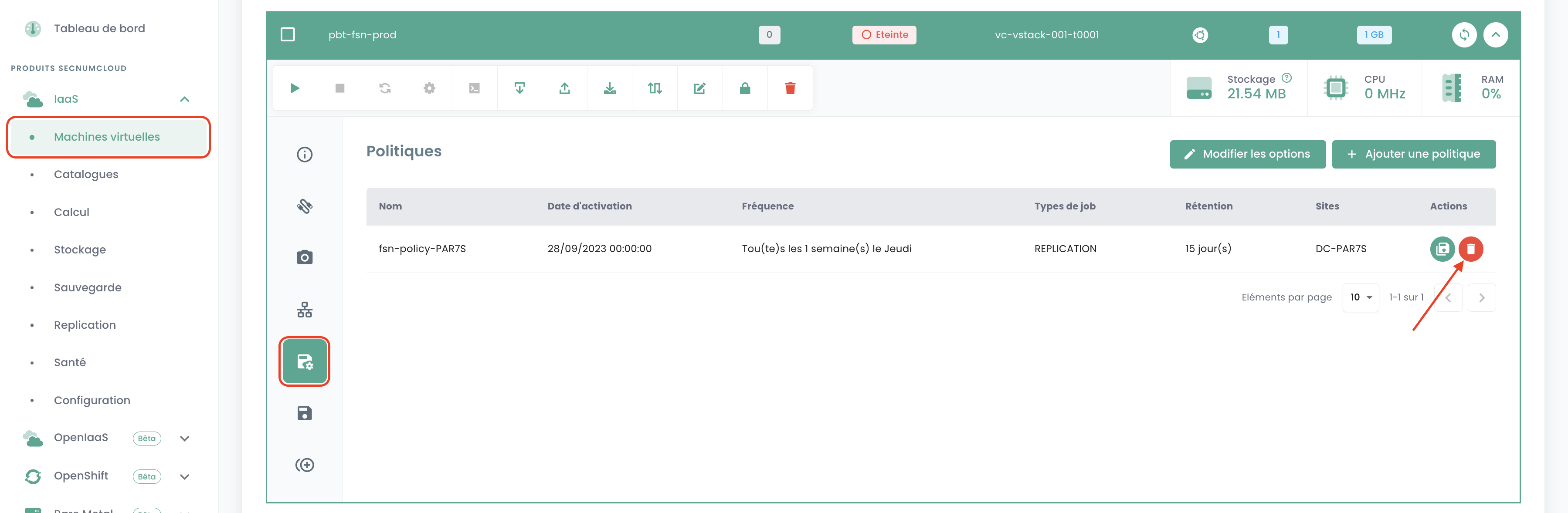
Note: Caution! Secnumcloud requires at least one backup policy for each virtual machine.
How to verify if a backup was executed successfully?
There are 2 possible solutions:
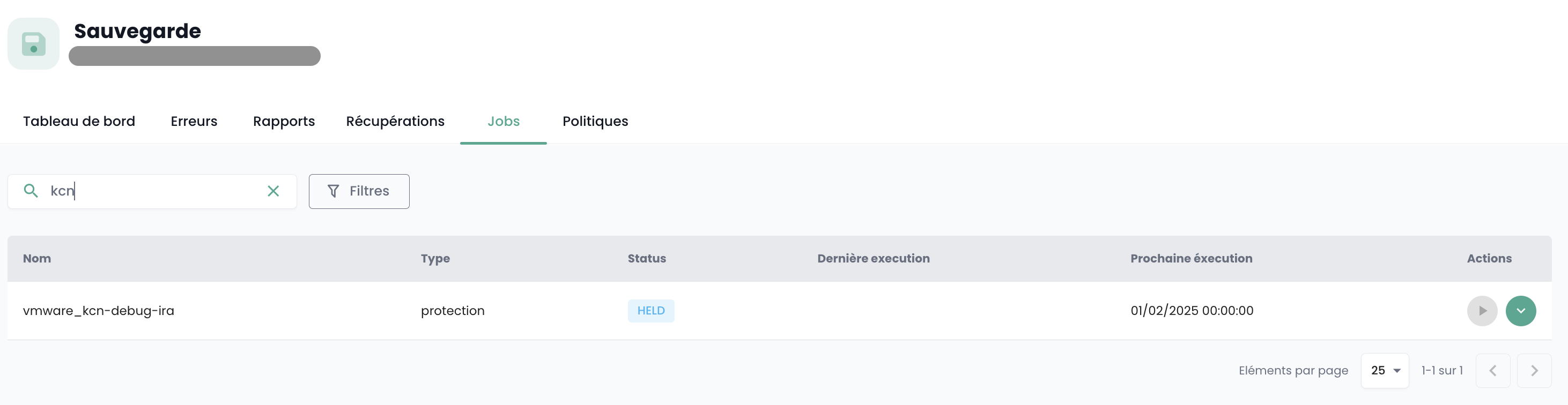
- Go to the 'Jobs' page under the 'Backup' menu in the green banner on the left side of your screen. Choose the job corresponding to the backup and select it. Then, find the job session corresponding to your backup, and select it using the 'Actions' menu.
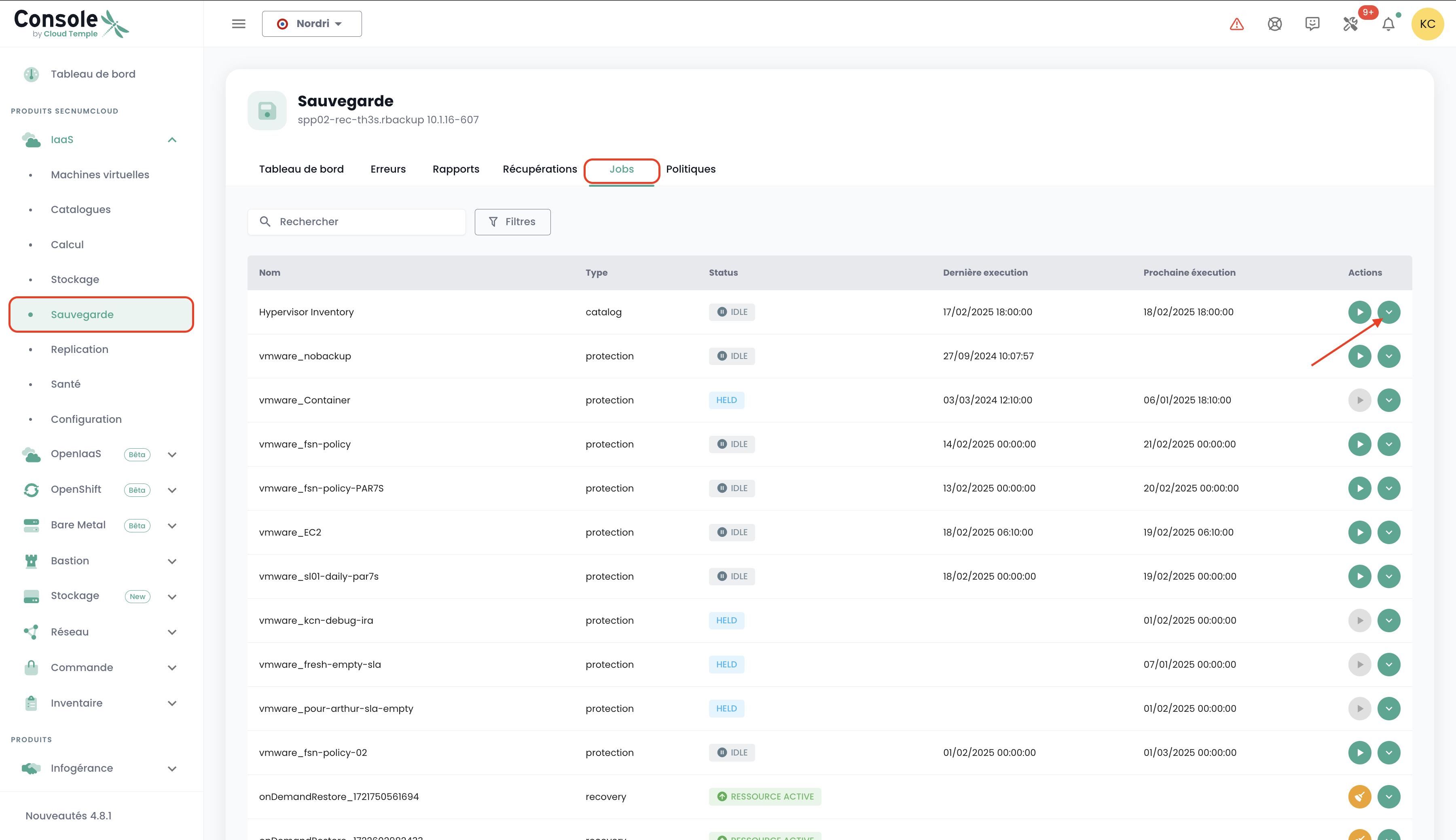
These actions allow you to view the detailed logs of the backup execution. You can search within the backup logs:
- Go to the 'Backup Reports' page and select the policy you are interested in:
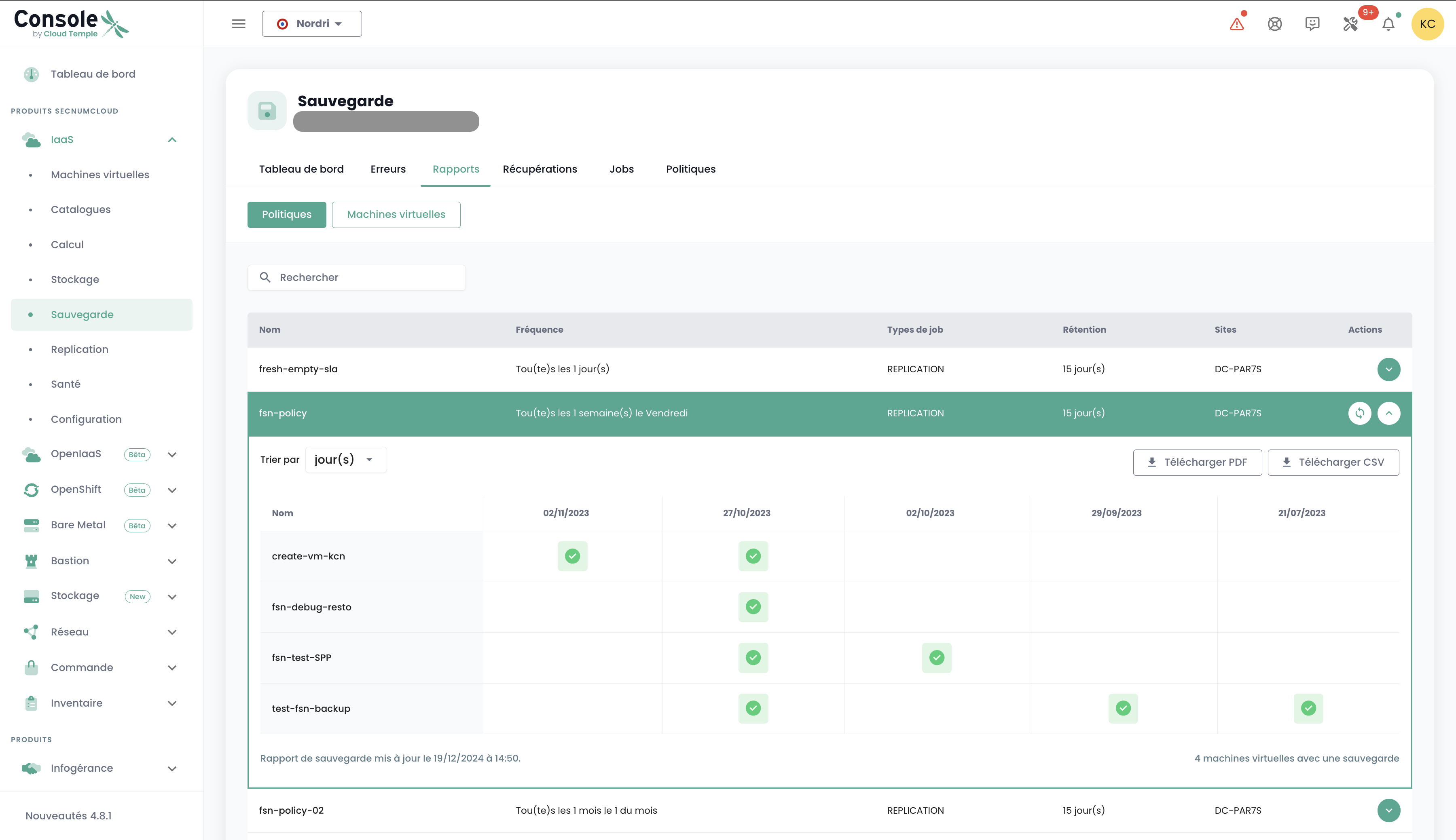
You can then filter by date, download the report in PDF or CSV format to process it in third-party tools.
How to perform a restore?
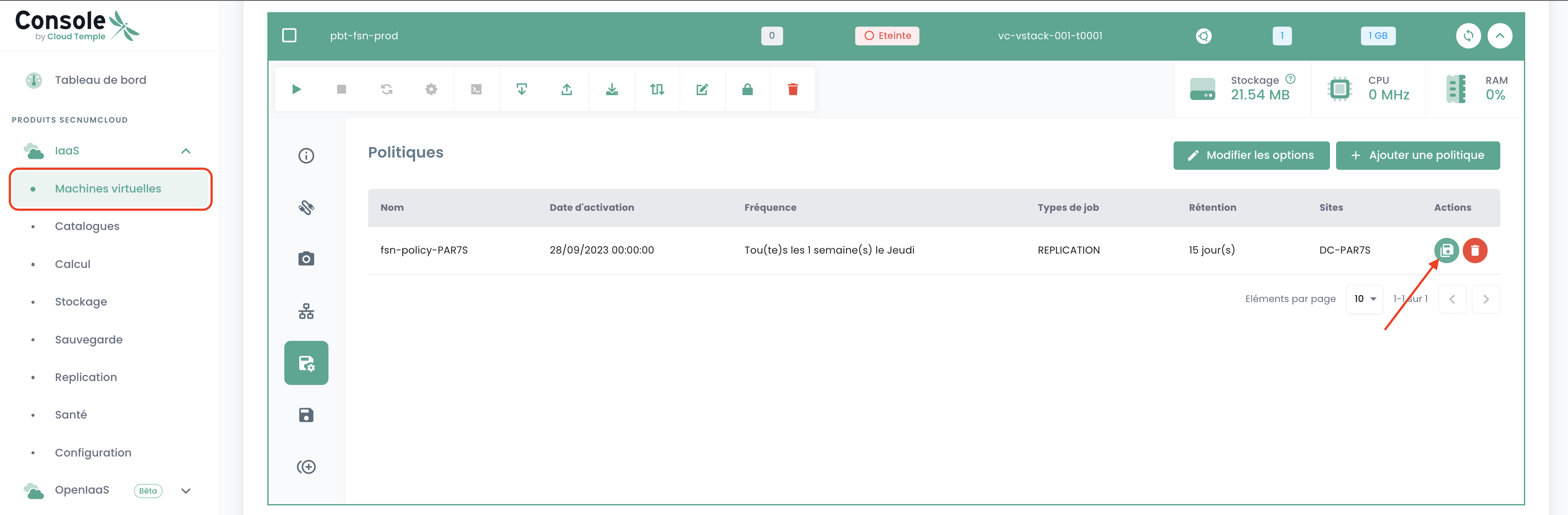
Navigate to the 'Virtual Machines' page, select a virtual machine, then the 'Backups' tab for that machine. To start the restore, select the backup to restore.
What is the quiescing option?
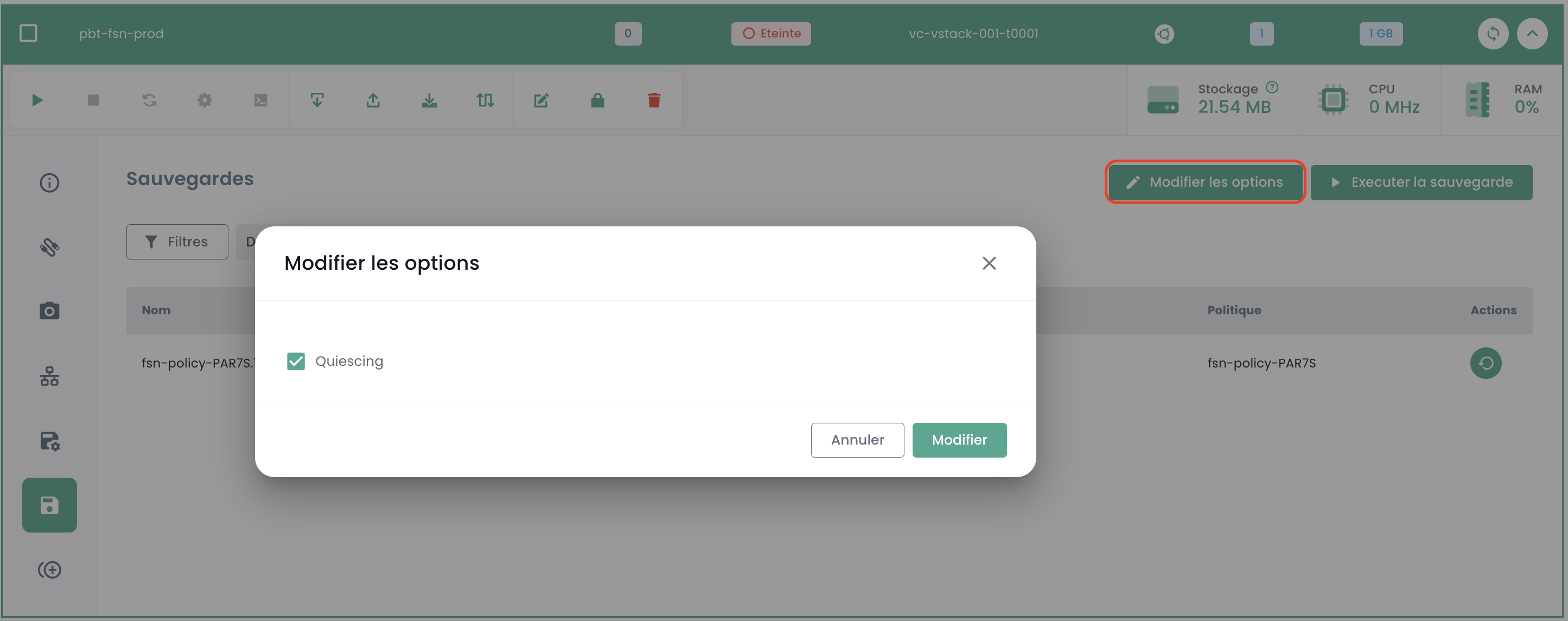
quiescing is a process that prepares the system to enter an appropriate state before the snapshot begins. By default, quiescing is enabled. It can be manually disabled if the system handles the snapshot poorly or if the hypervisor agent is not installed on the virtual machine.
To do this, in the 'Backups' section of your virtual machine, click 'Edit options' and disable quiescing :
What are the restoration options for a virtual machine?
3 main options to restore a VM, either to its original target or to a different target:
- 'CLONE' : Restores the virtual machine by renaming it, without replacing the original virtual machine.
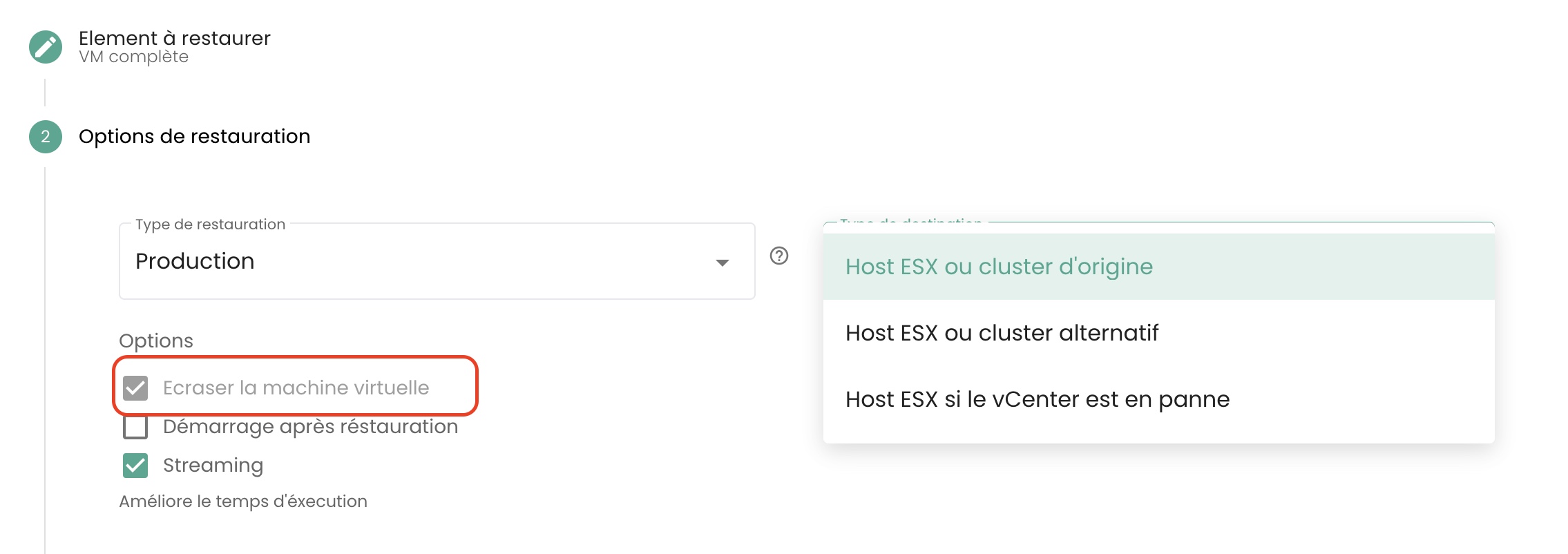
- 'PRODUCTION' : Restores and replaces the production virtual machine (the currently running production virtual machine is destroyed)
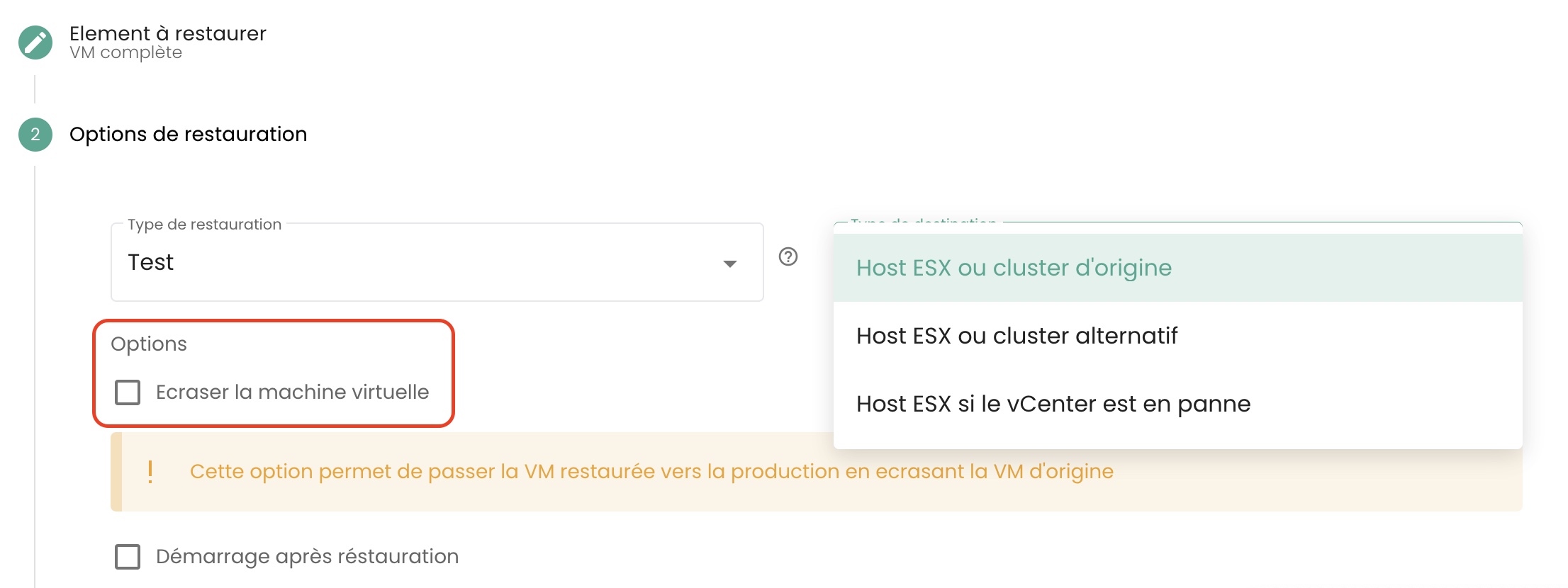
- 'TEST' : Restores the production virtual machine without overwriting it.
How to restore and replace the production virtual machine, without keeping the currently running production virtual machine?
Select the 'Production' restore mode. The 'overwrite virtual machine' option is selected by default.
Why is the number of virtual machines different between the backup and compute modules?
The difference in the number of virtual machines may be due to the backup module not having discovered the most recently created machines.
To update the backup module, you must request the backup software layer to re-inventory the virtual machines. To do this, in the 'Infrastructure' menu of the green banner on the left side of the screen, navigate to the 'Spectrum Protect Plus' submenu and use the 'Action' button for the inventory:
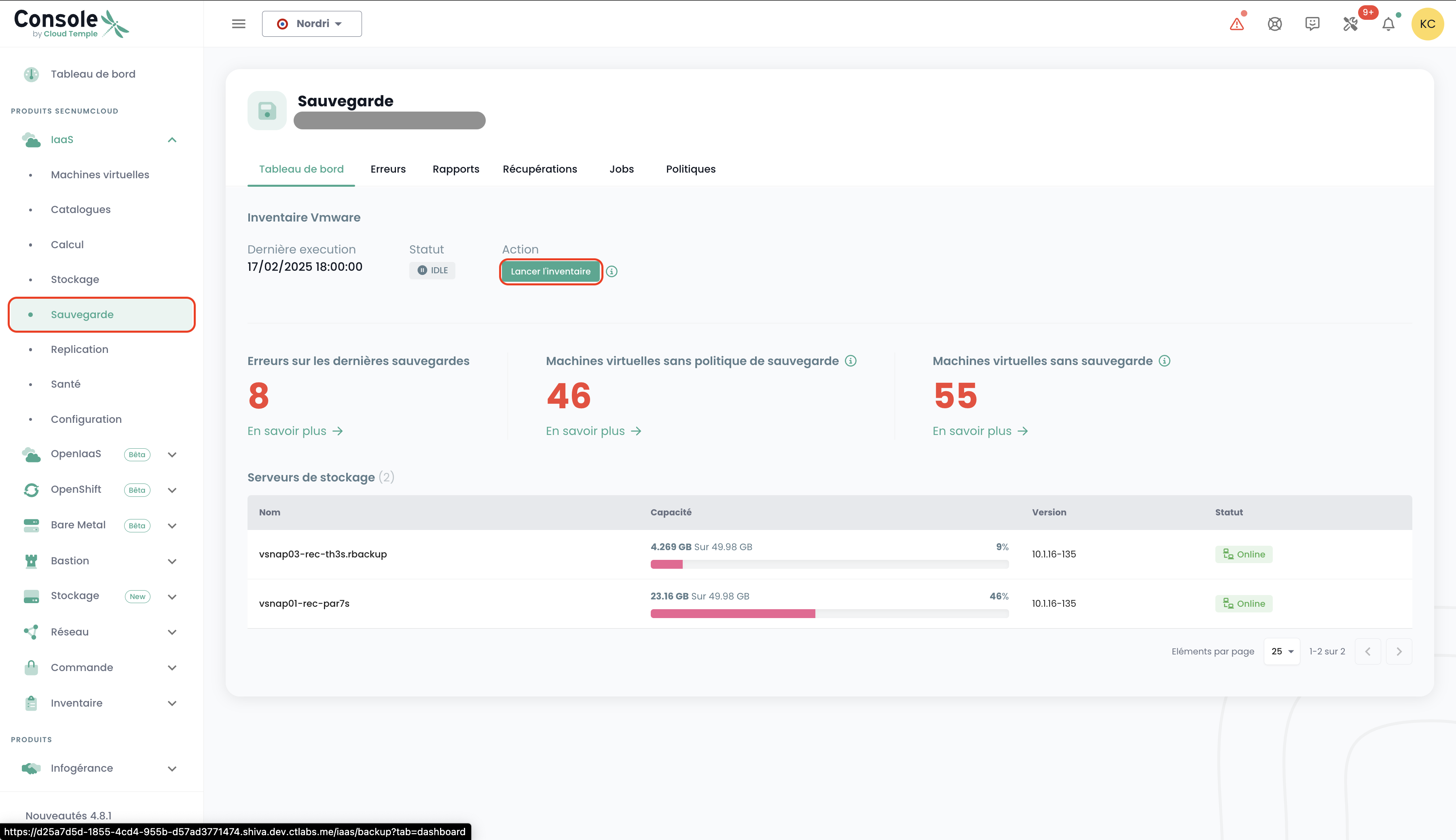
Note that the date of the last inventory is displayed.
If a virtual machine discrepancy persists, it may be due to the virtual machines hosting the backup system. Indeed, they do not count themselves toward the machine count on the backup module.
How to inventory virtual machines on the backup module?
To launch an inventory of virtual machines on the backup module, in the 'Infrastructure' menu of the green banner on the left side of the screen, navigate to the 'Spectrum Protect Plus' submenu and use the 'Action' button for the inventory:
Note that the date of the last inventory is displayed.
Why does my virtual machine backup fail with a snapshot issue?
This error indicates that this is the first time your machine is attempting to be backed up.
When performing the first backup of a virtual machine, no snapshots should be present on the machine.
How to restore and replace the production virtual machine, while retaining and renaming the original production virtual machine?
Here is how to proceed:
- Select the 'CLONE' mode (clone mode changes the virtual machine's MAC address and UUID),
- Rename the restored virtual machine with its final name (the production VM name),
- Rename the old production virtual machine (to _OLD).
How to restore a virtual machine without replacing the original virtual machine?
Here is how to proceed:
- Select the 'CLONE' mode (clone mode changes the virtual machine's MAC address and UUID)
- Set the clone name (_REST or other)
Why can't I delete a disk in instant access mode on my virtual machine?
Run the backup inventory: in the 'Infrastructure' menu of the green banner on the left side of the screen, navigate to the 'Spectrum Protect Plus' submenu and use the 'Action' button of the inventory:
Perform the disk deletion once the inventory is complete. Refresh the virtual machine to verify that the disk has been successfully deleted.
Why can't I start a virtual machine with a policy in Held status (suspended policy)?
A policy in "Held" status is a feature that allows temporarily suspending data retention and deletion actions, ensuring that data remains intact and available beyond its standard retention period for specific reasons such as compliance or legal requirements.
Assume a company has a 30-day backup retention policy for certain production data. Due to a legal investigation, they receive a request to preserve all relevant backups for an indefinite period. You have the option to suspend the associated backup policy via the "Held" status to prevent the automatic deletion of these backups after 30 days, ensuring that the data remains available throughout the duration of the investigation.
A suspended backup policy (in Held status) will not execute the backups from its assigned schedule, meaning the virtual machine can no longer be considered protected, which does not comply with SecNumCloud standards.
Do not hesitate to ask our support team for advice on this matter.