Deploy resources
Concept
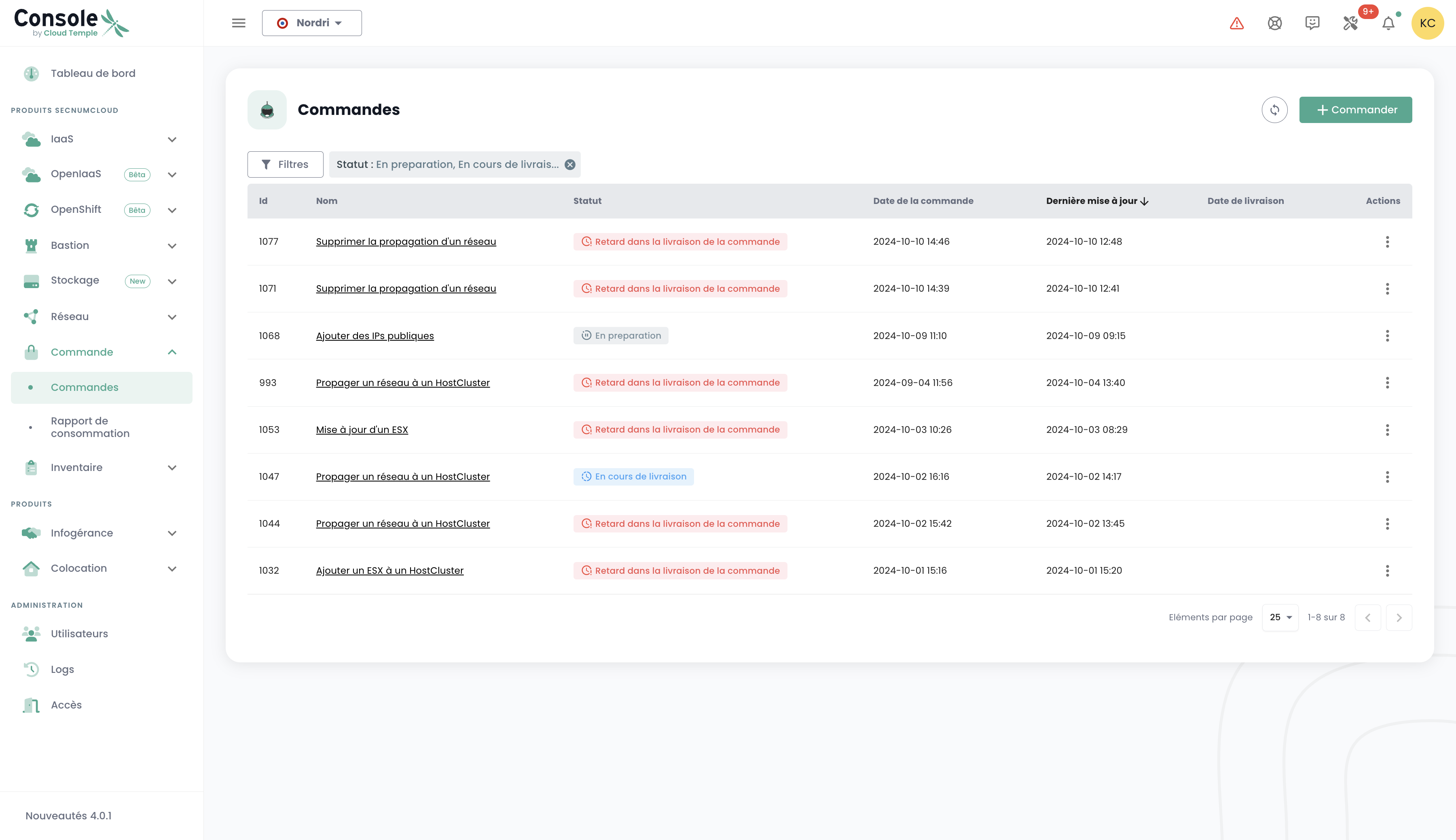
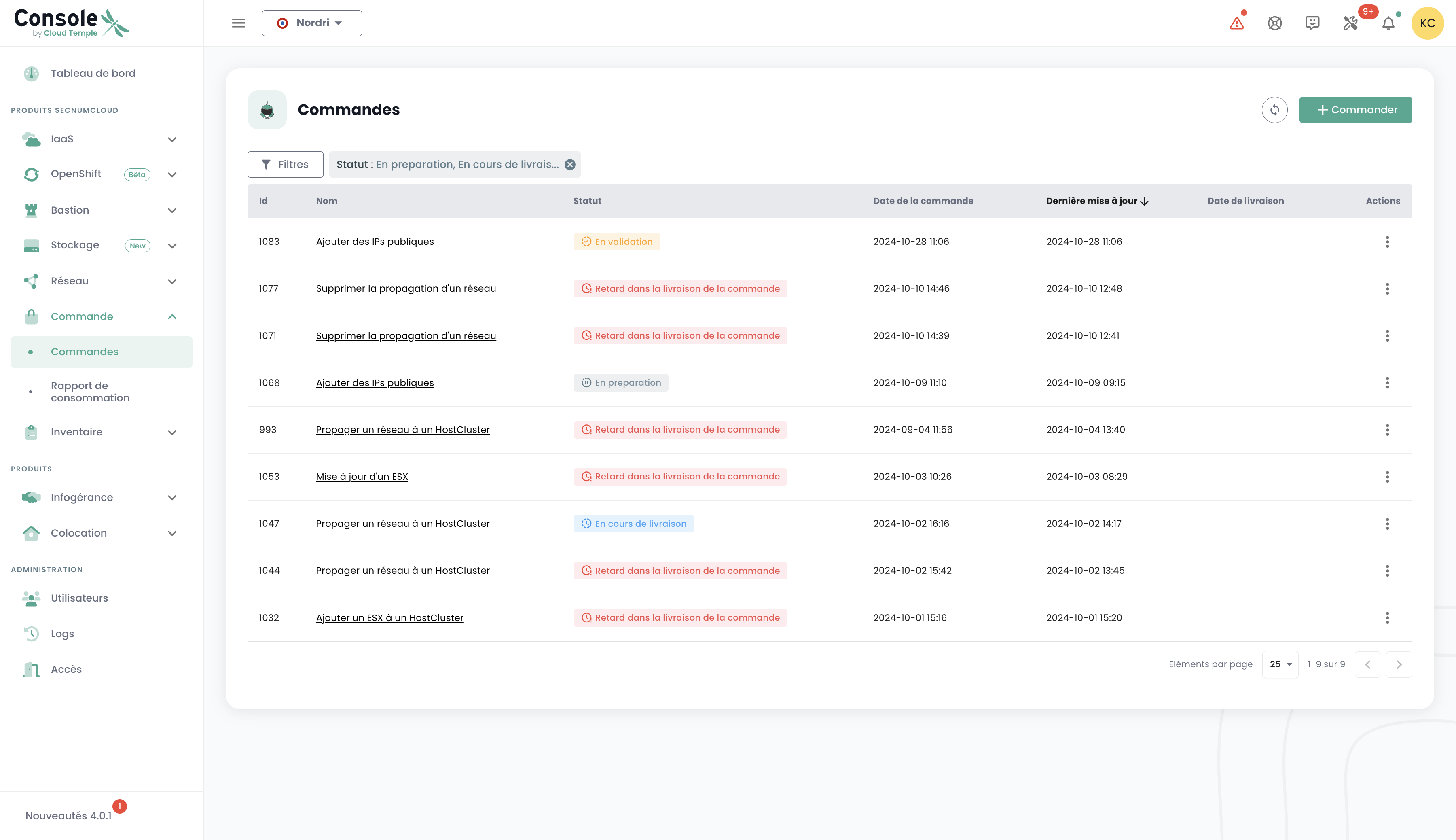
Deployment tracking for new resources is performed in the 'Orders' menu accessible in the green banner on the left side of the screen.
It allows you to view ordered Cloud resources, those currently being deployed, and any errors within a Tenant of your Organization.
Note: At this time, a global view at the organization level of all resources deployed across different tenants is not yet available. This topic will be addressed later through the implementation of a dedicated portal for the sponsor (in the signatory sense) and the management of their organization.
Resource deployment or deletion is performed in each product via the 'IaaS' and 'Network' menus on the left side of the screen in the green banner.
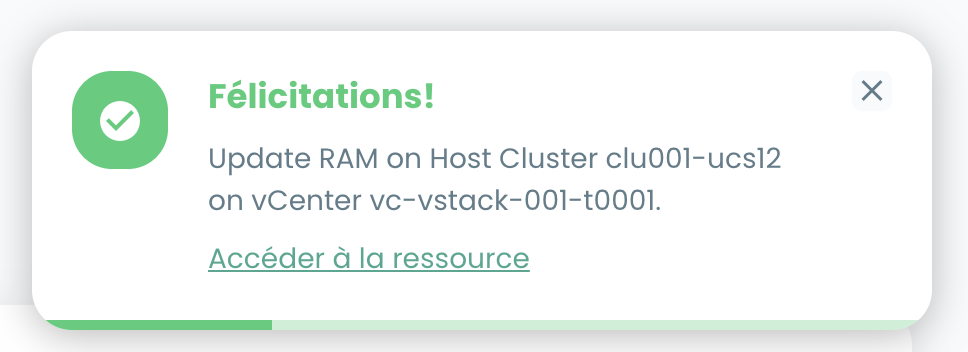
It is also possible to view deliveries directly in the notifications of the Cloud Temple console:
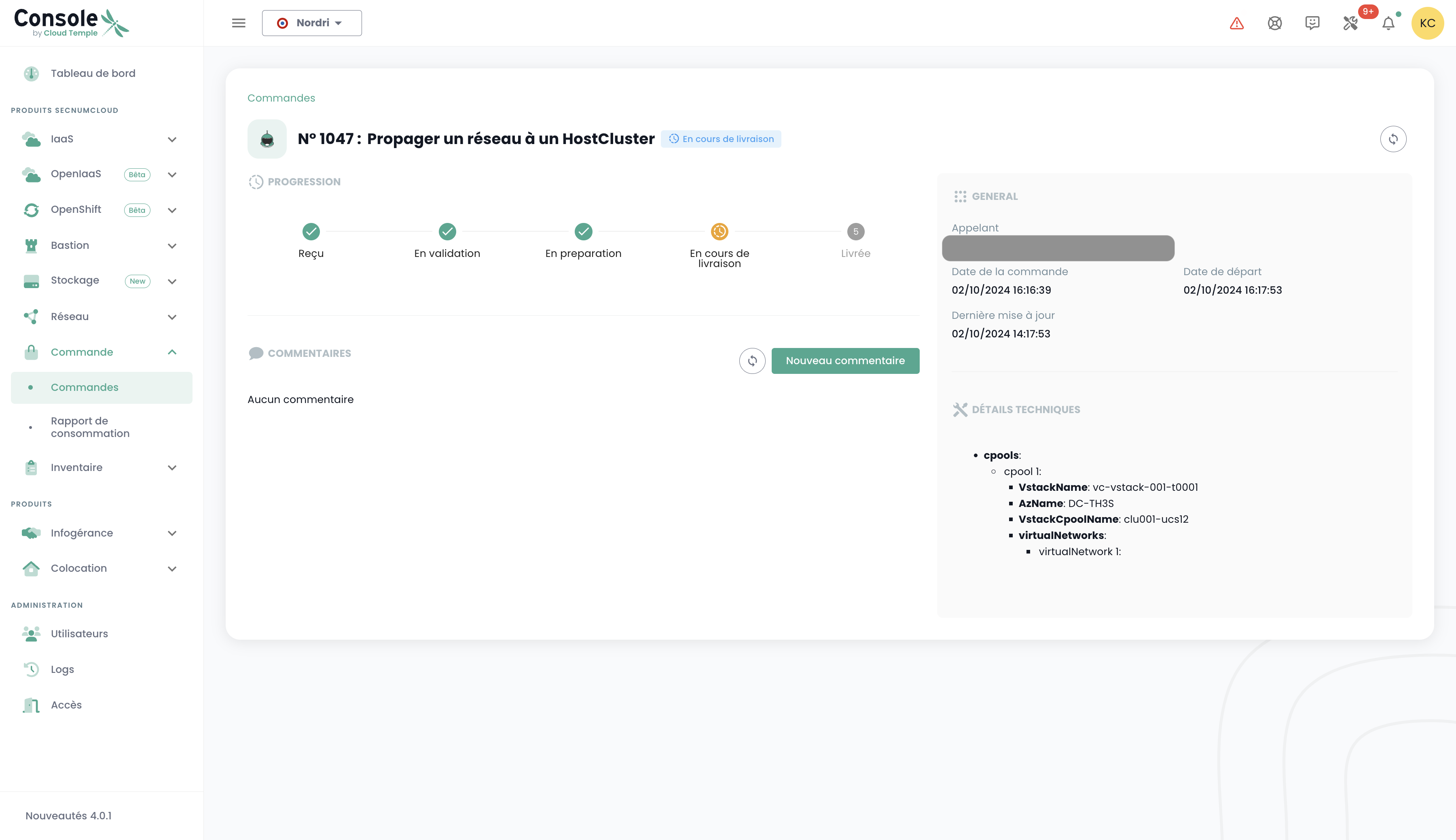
From the orders page, you can view the progress status of a delivery and potentially communicate with the team by providing comments or clarifications:
Note : It is not possible to launch multiple orders for the same resource type simultaneously. You must therefore wait for the current order to be processed and finalized before placing a new one. This ensures efficient and orderly management of resources within your environment.
Order a new availability zone
You can add a new availability zone by accessing the "Order" menu. This option allows you to scale your resources and improve the availability and resilience of your applications with just a few clicks:
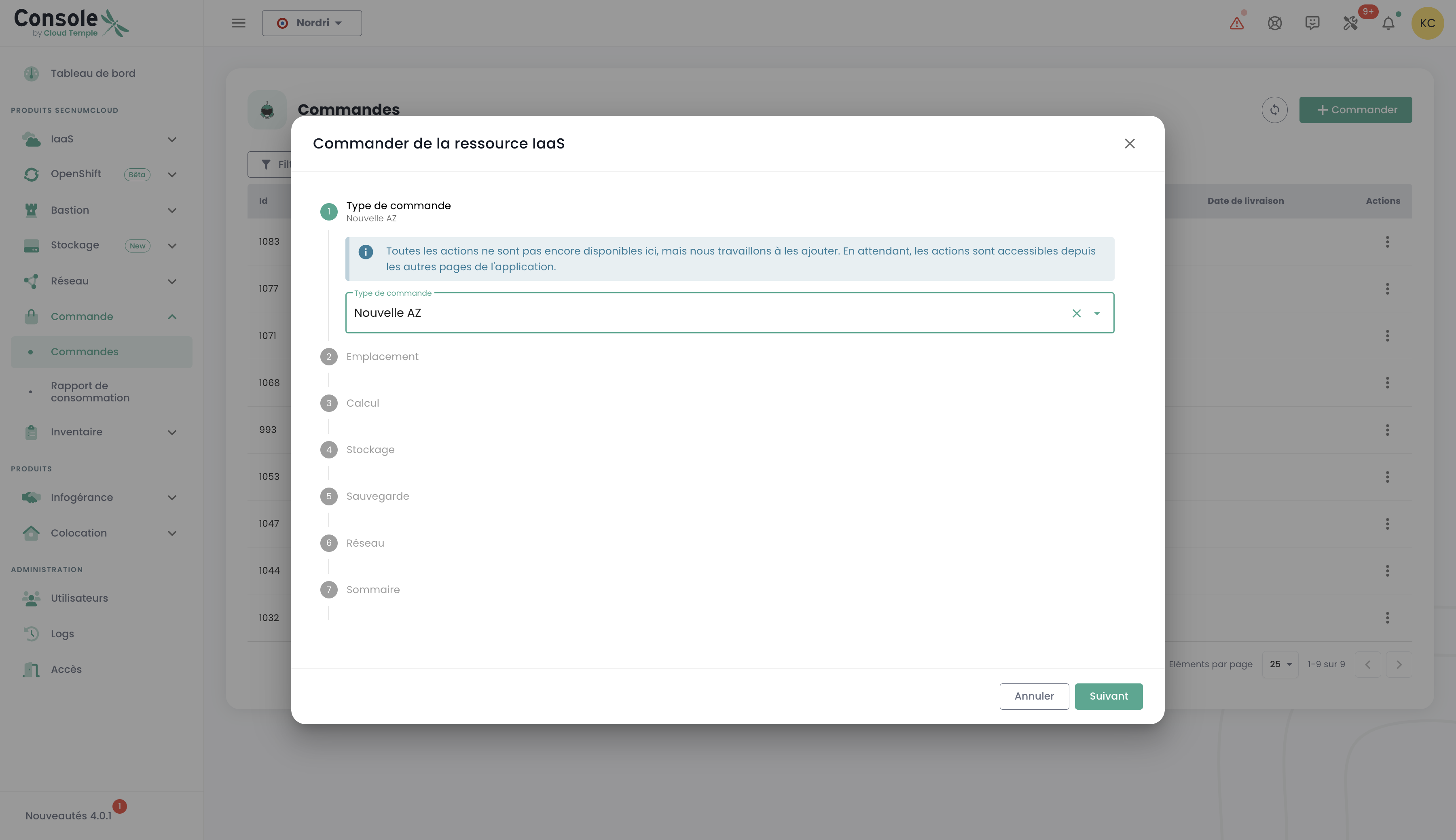
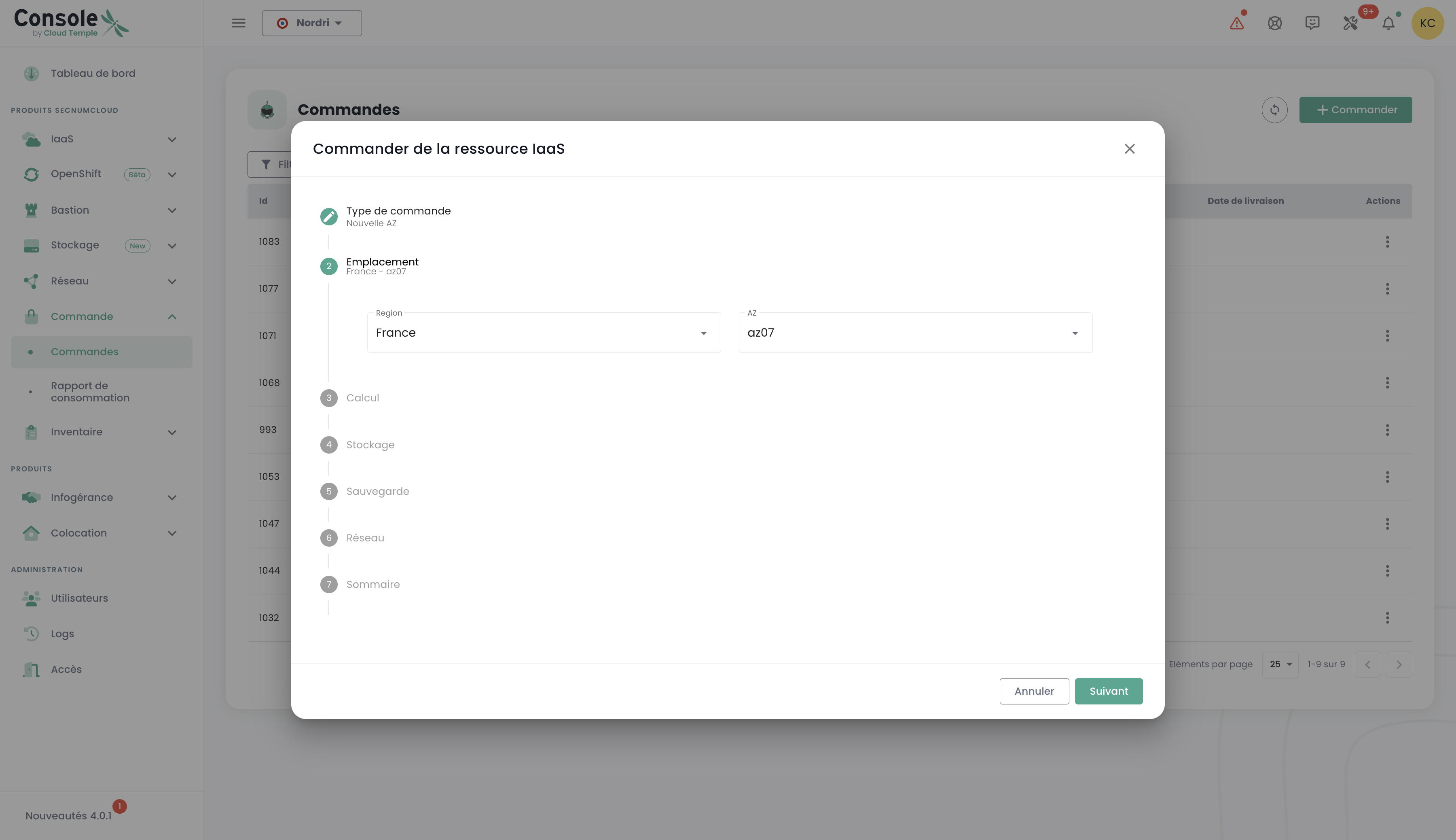
Start by selecting the desired location, first choosing the geographic region, and then the corresponding availability zone (AZ) from the available options. This step allows you to tailor the deployment of your resources based on location and your infrastructure requirements:
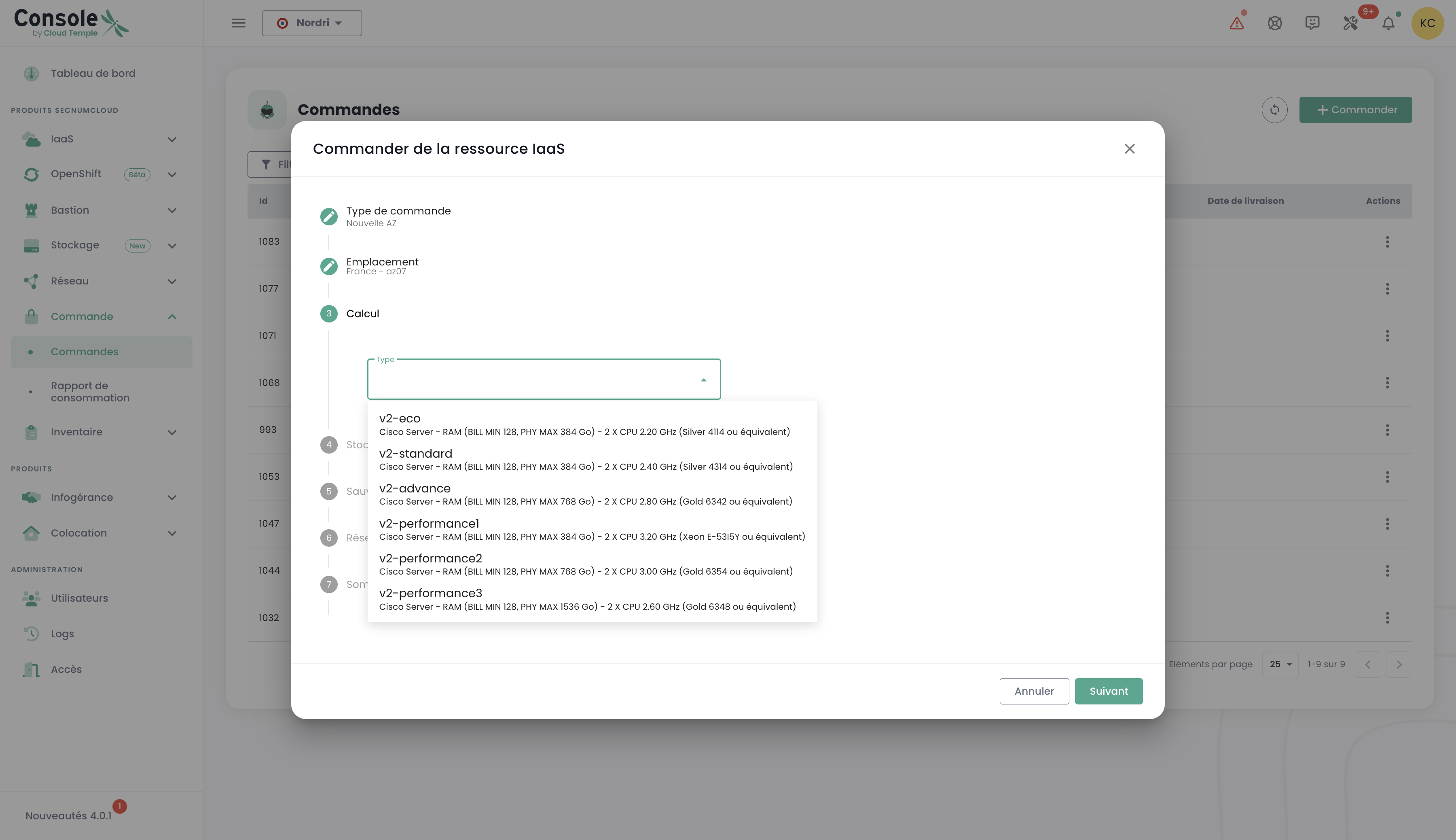
Next, proceed to select the desired hypervisor cluster type, choosing the one that best meets the performance and management needs of your cloud infrastructure:
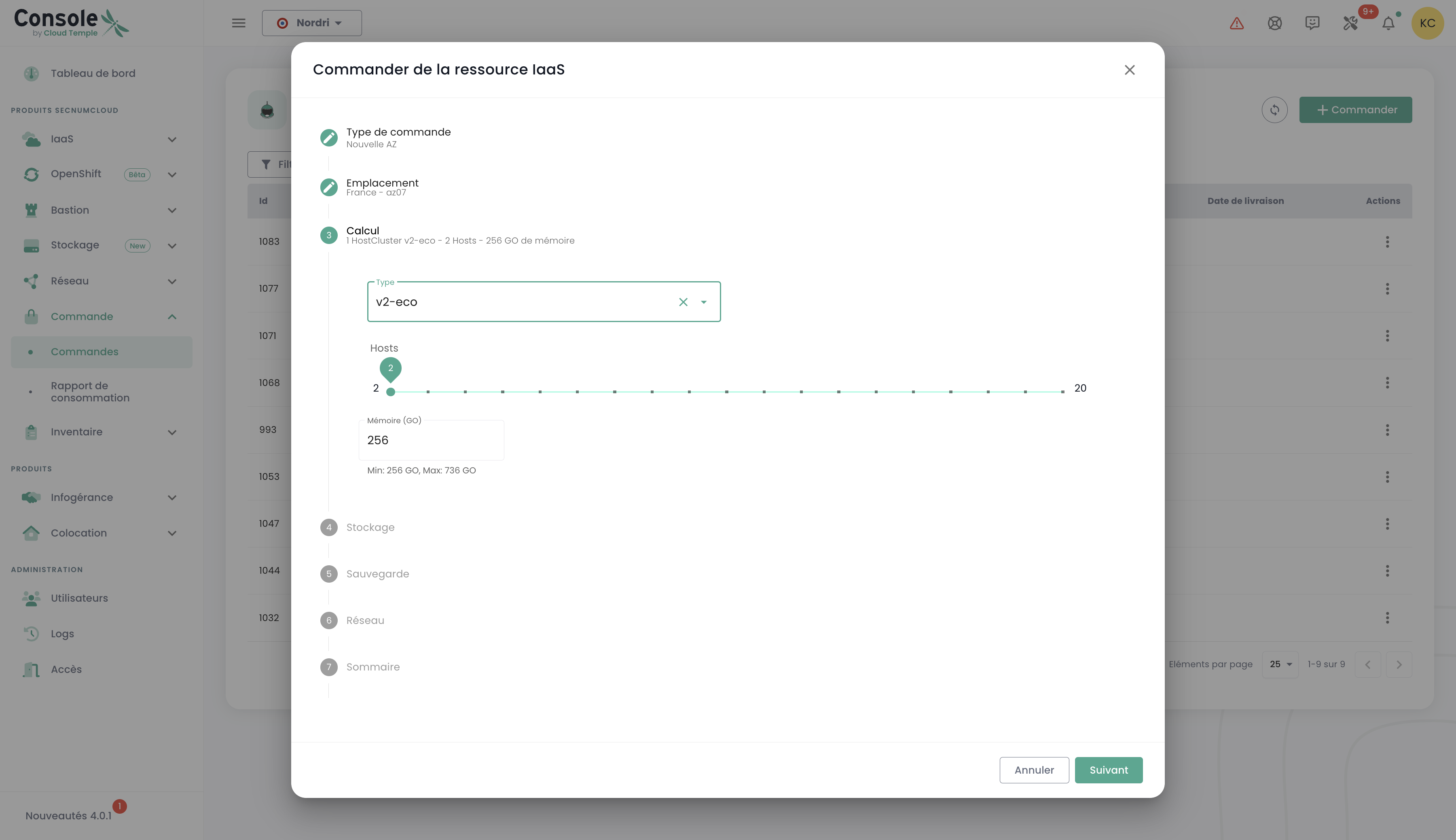
Next, select the number of hypervisors as well as the desired amount of memory, to tailor the resources to the workload and specific requirements of your cloud environment:
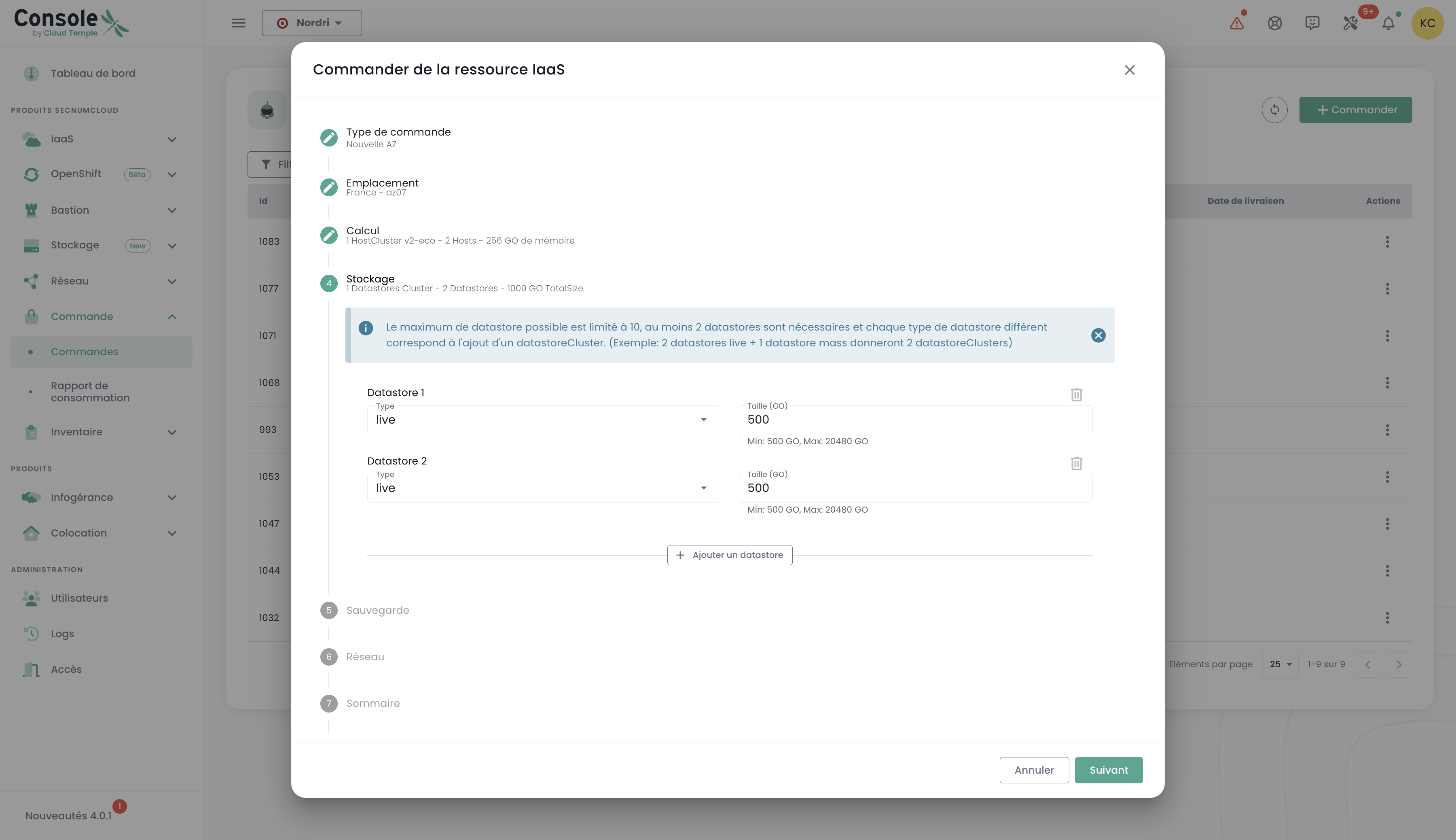
Next, select the number of datastores to provision in the cluster as well as their types. Please note that the maximum number of allowed datastores is 10, with a minimum of 2 required datastores. Each different datastore type will result in the creation of an additional datastoreCluster. For example, if you choose 2 "live" type datastores and 1 "mass" type datastore, this will result in the formation of 2 distinct datastoreClusters:
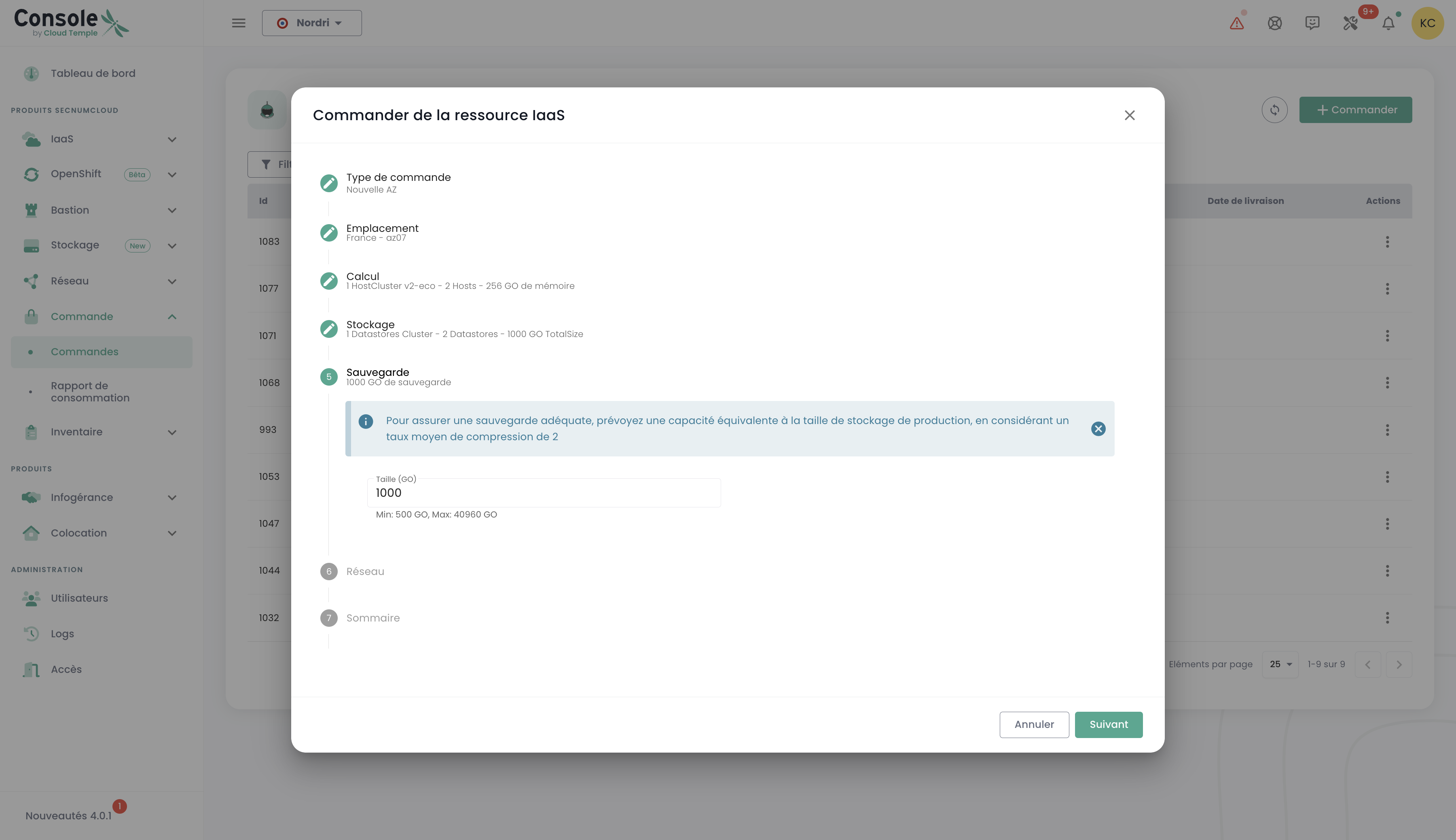
Define the storage size required for backup, ensuring you allocate a capacity equivalent to that of your production storage. Consider an average compression ratio of 2 to optimize backup space and ensure effective data protection:
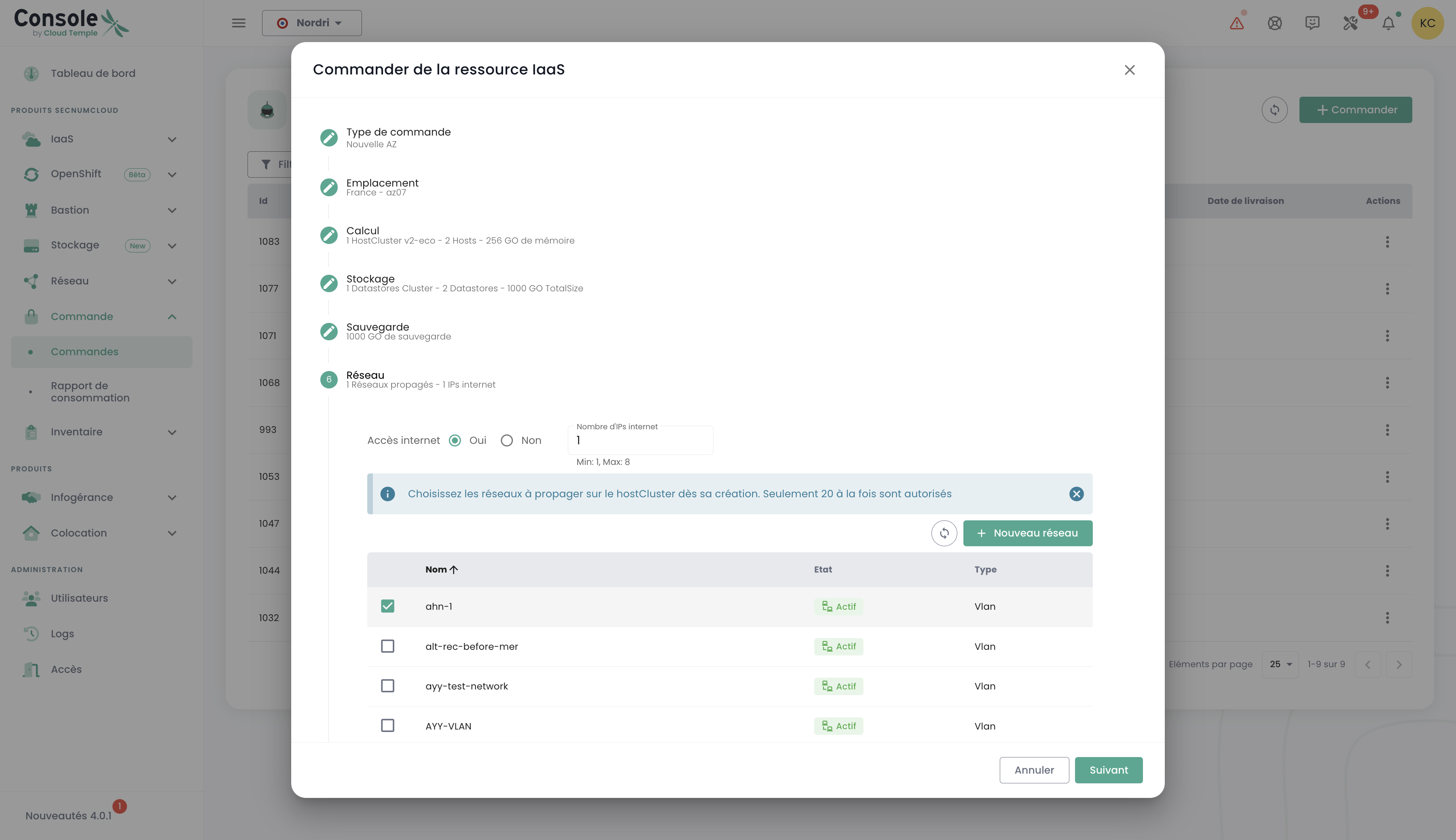
Select the networks to propagate based on your needs. You also have the option to enable the "Internet Access" feature if necessary, by specifying the desired number of IP addresses, with a choice ranging from 1 to a maximum of 8:
You will then see a summary of the selected options before validating your order.
Ordering additional storage resources
The block storage allocation logic on compute clusters relies on IBM SVC (San Volume Controller) and IBM FlashSystem technologies. Storage is organized into LUNs of at least 500 GiB, presented according to the technology used :
- For VMware : in the form of datastores grouped into SDRS clusters (Storage Distributed Resource Scheduler)
- For Bare Metal : in the form of volumes
- For Open IaaS : in the form of Storage Repository (SR)
Each datastore inherits a performance class defined in IOPS/TiB (from 500 to 15,000 IOPS/TiB for FLASH, or without guarantee for MASS STORAGE). IOPS limiting is applied at the datastore level (and not per VM), which means that all virtual machines sharing the same datastore share the allocated IOPS quota.
Key points to remember :
- Minimum size : 500 GiB per LUN
- Performance : Proportional to the allocated volume, up to an absolute physical ceiling per LUN (e.g., 2 TiB in Standard class = 3,000 IOPS, but a 10 TiB LUN will cap at a maximum of 30,000 IOPS). This ceiling varies by class (10,000 IOPS / 512 MiB/s for the Essential class, and 30,000 IOPS / 1024 MiB/s for higher classes).
- Organization : Datastores of the same type are automatically grouped into datastore clusters
- Availability : 99.99% measured monthly, maintenance windows included
- Required space : Always allow 10% free space for backup snapshots and the equivalent of the sum of VM RAMs for .VSWP files
Deploy a new compute cluster
Proceed to order a hypervisor cluster by selecting the options that best suit your virtualization needs. Define key features such as the number of hypervisors, cluster type, memory capacity, and required compute resources:
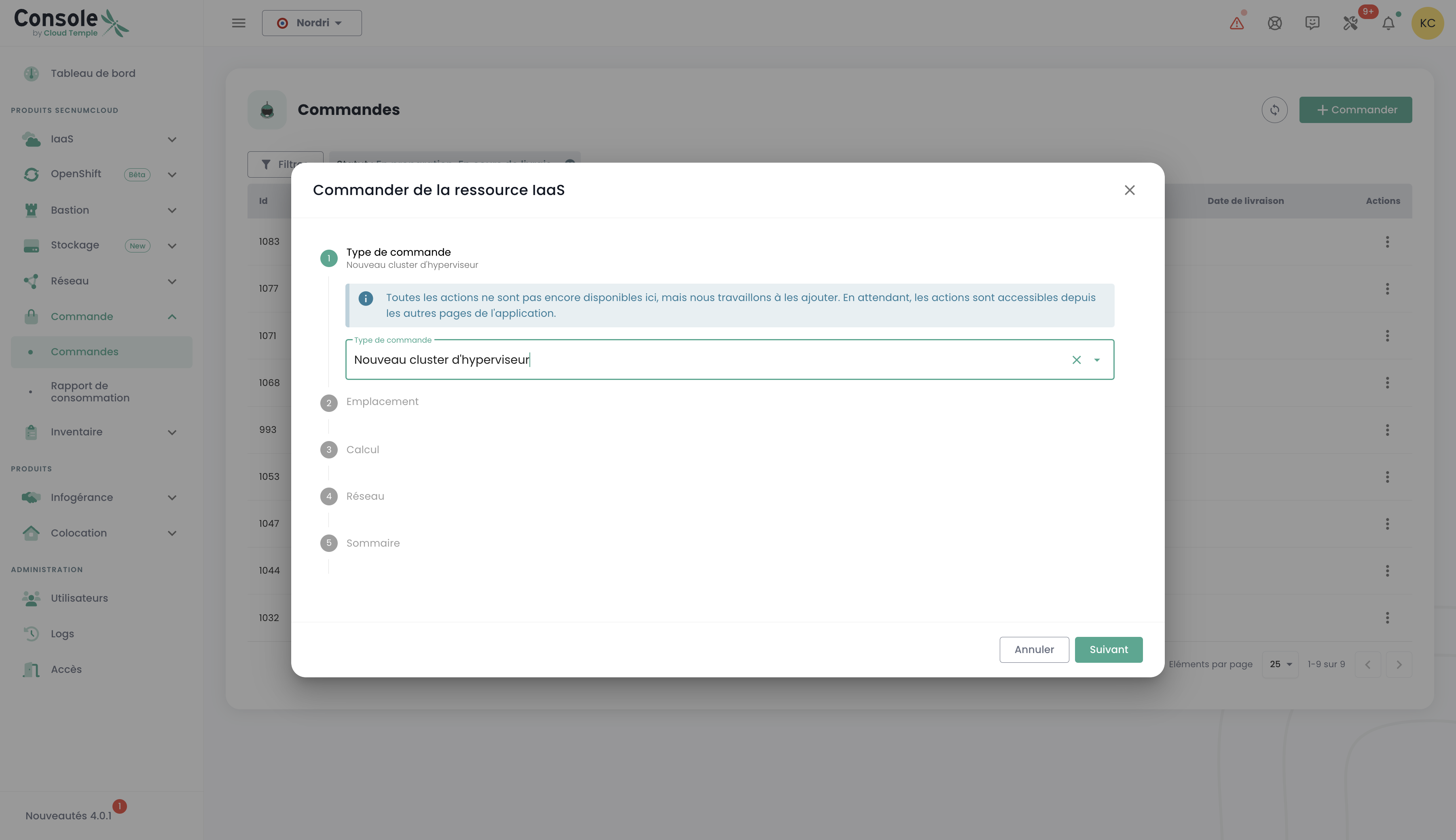
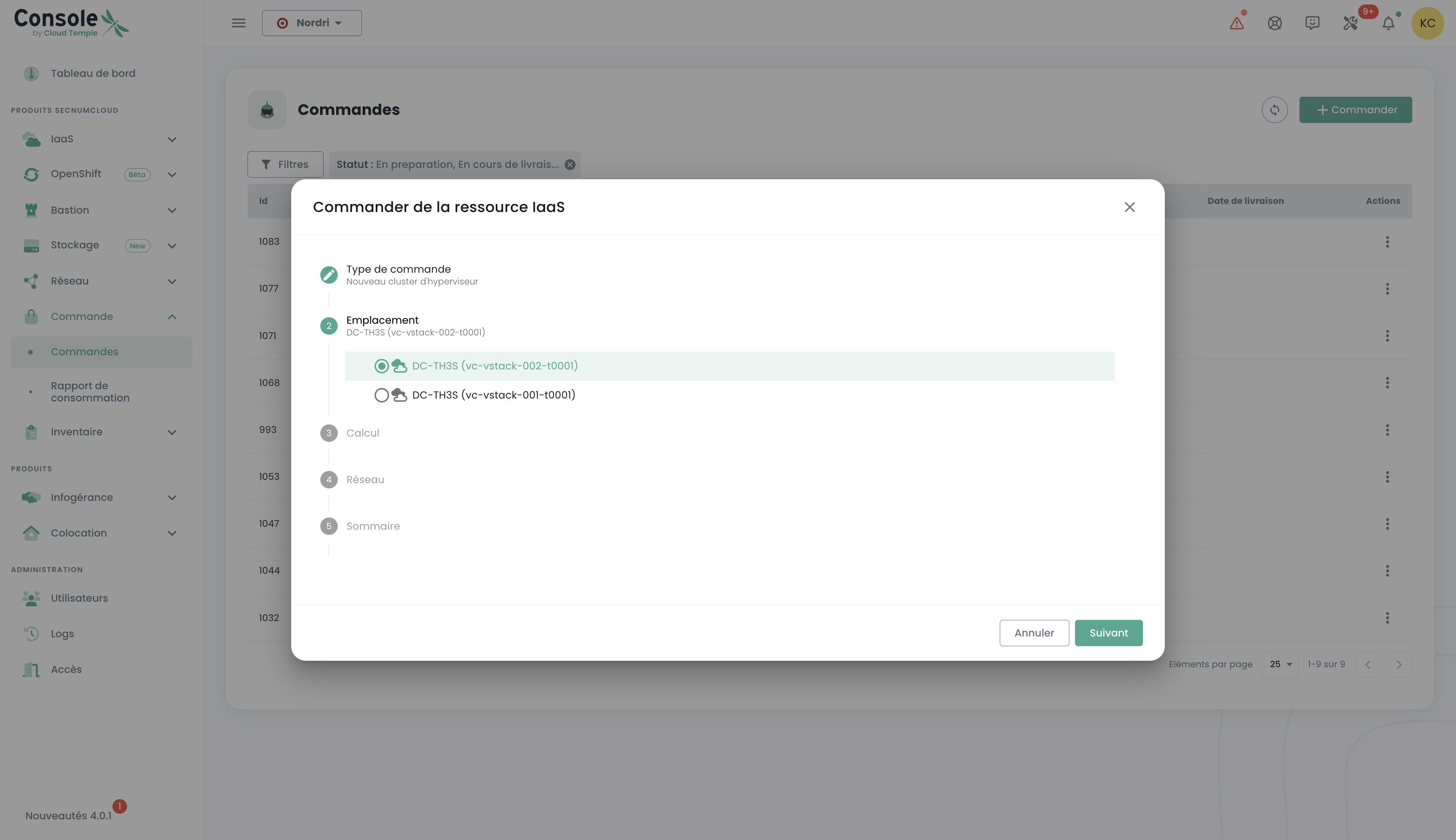
Select the availability zone:
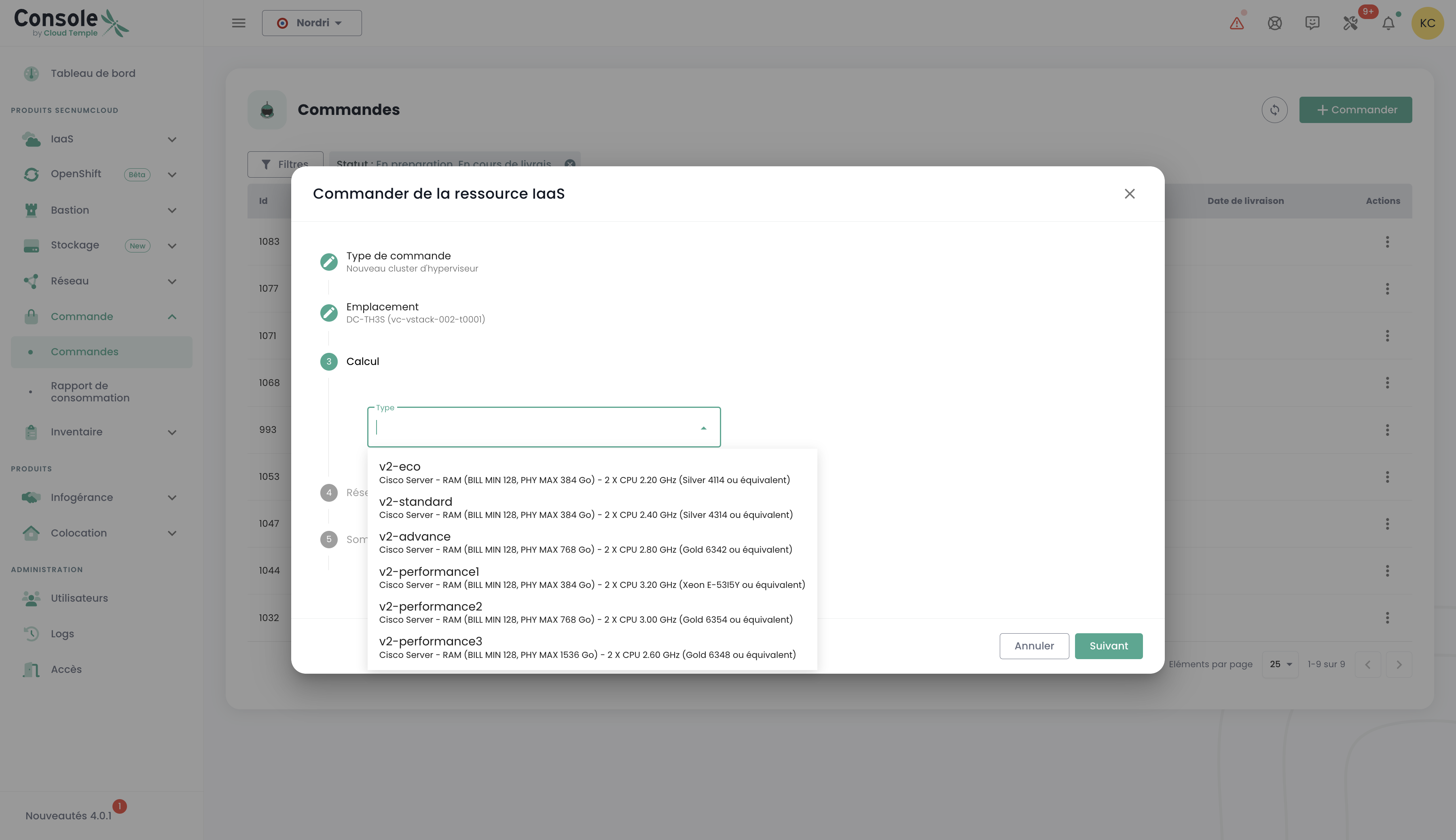
Choose the compute blade type:
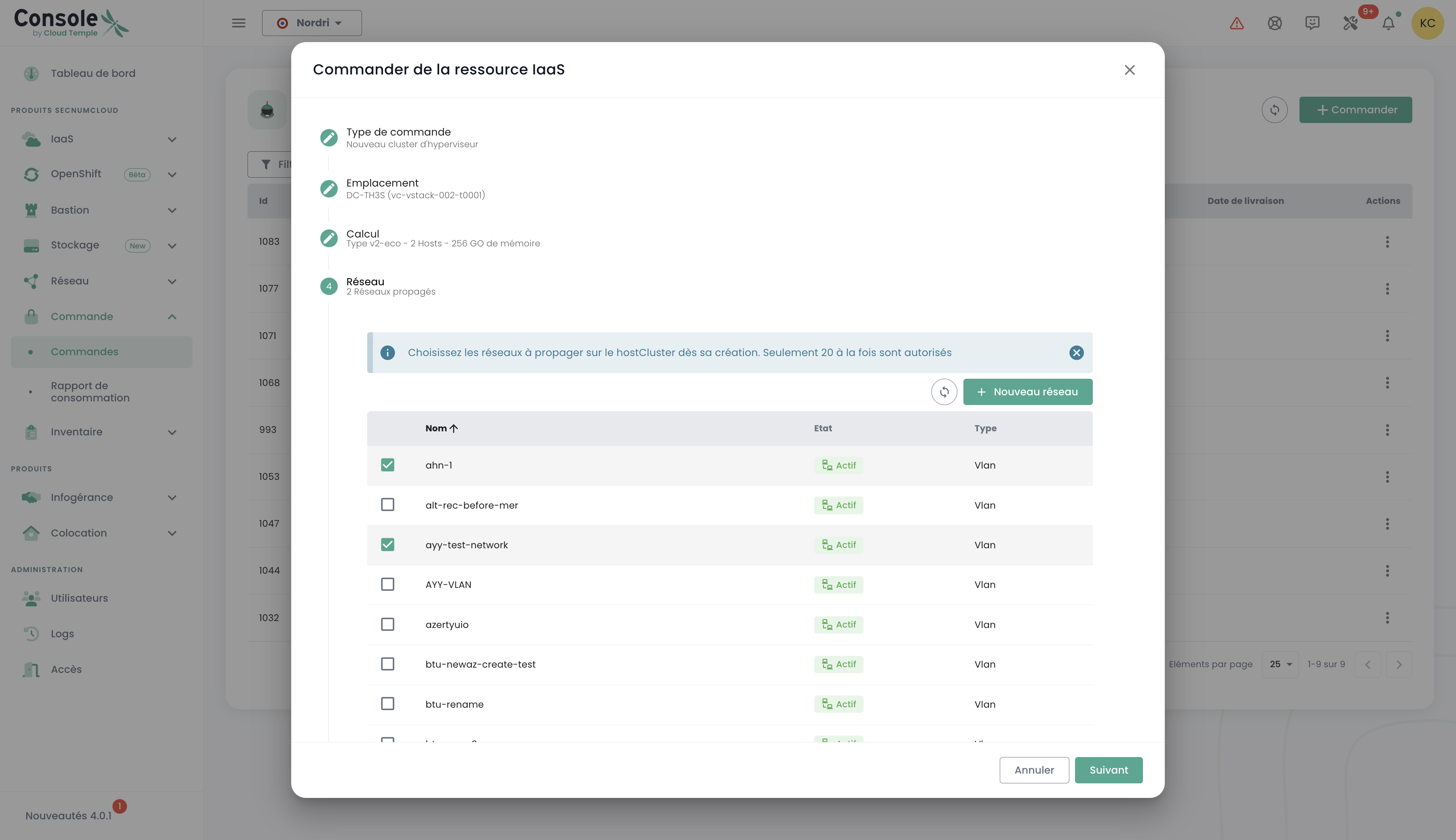
You can then select existing networks to propagate, or create new ones directly at this step, depending on your infrastructure requirements. Note that the total number of configurable networks is limited to a maximum of 20:
You will then receive a summary of the selected options before validating your order, and you can subsequently view your order in progress:

Deploy a new storage cluster
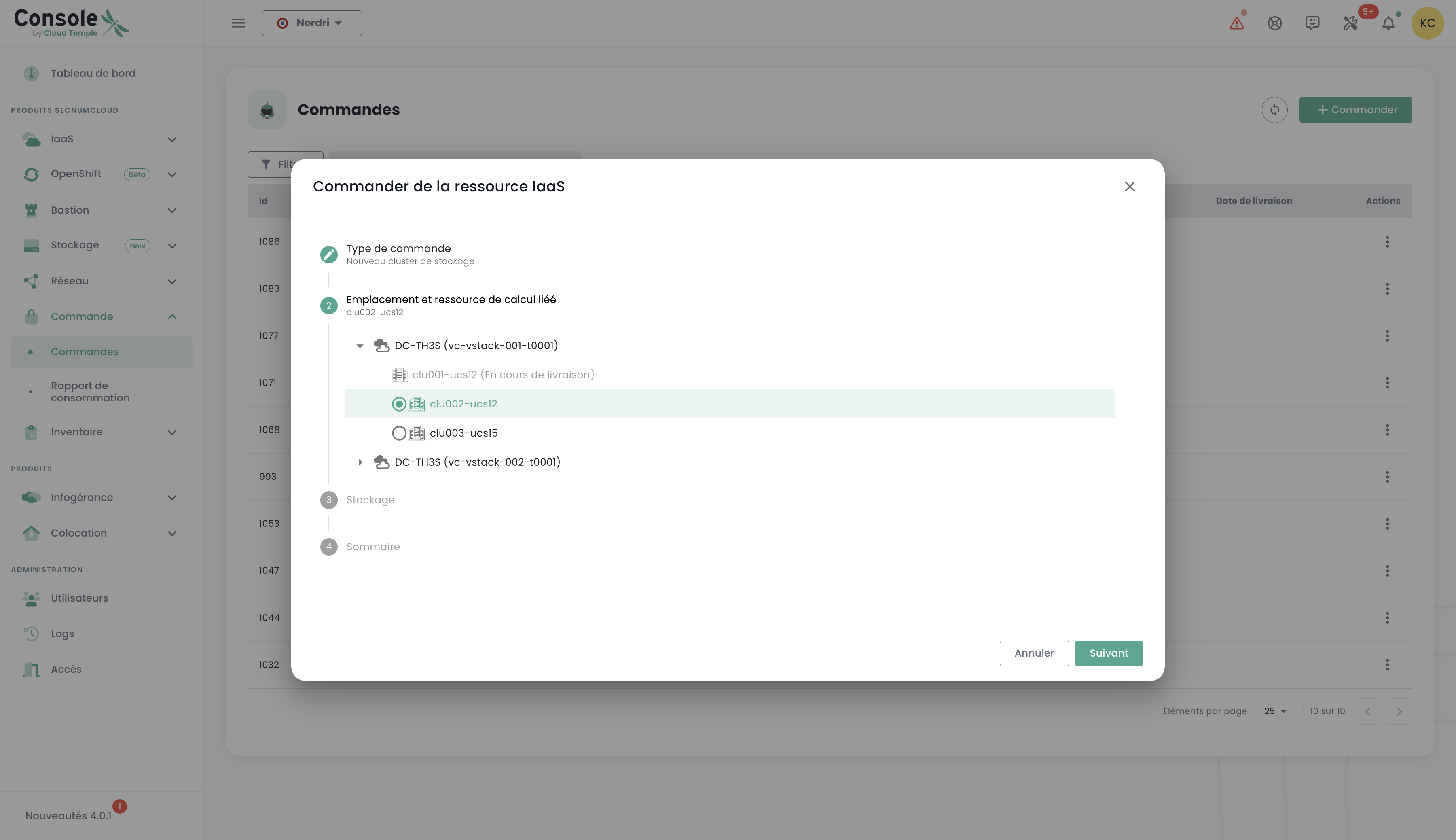
In the "command" menu, proceed to order a new storage cluster for your environment by selecting the options that match your capacity, performance, and redundancy requirements. Select the location:
Define the number of datastores to provision in the cluster as well as their type, respecting the following limits: a minimum of 2 datastores and a maximum of 10 can be configured. Choose the datastore types that best meet your performance, capacity, and usage requirements to optimize your environment's storage:
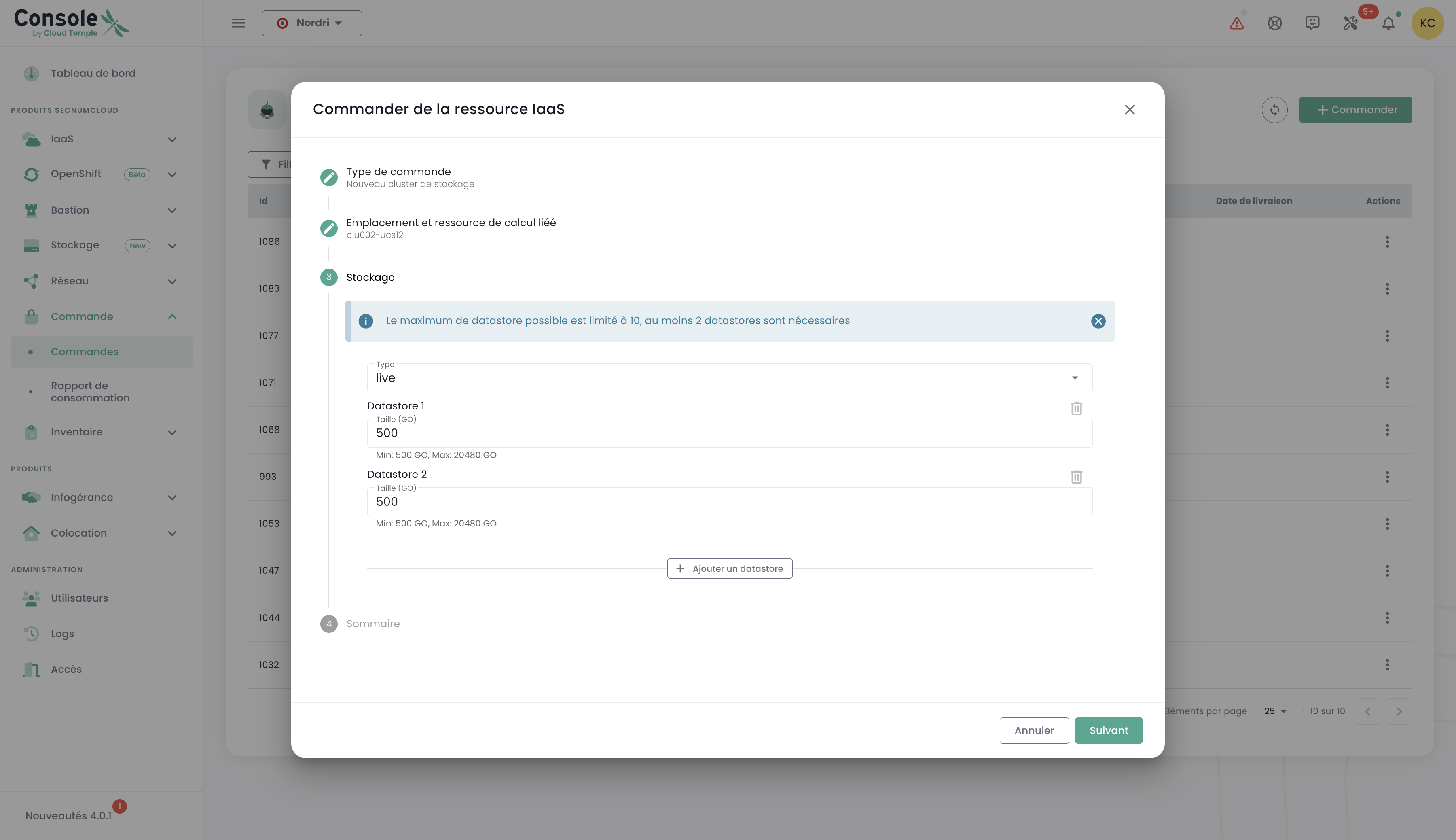
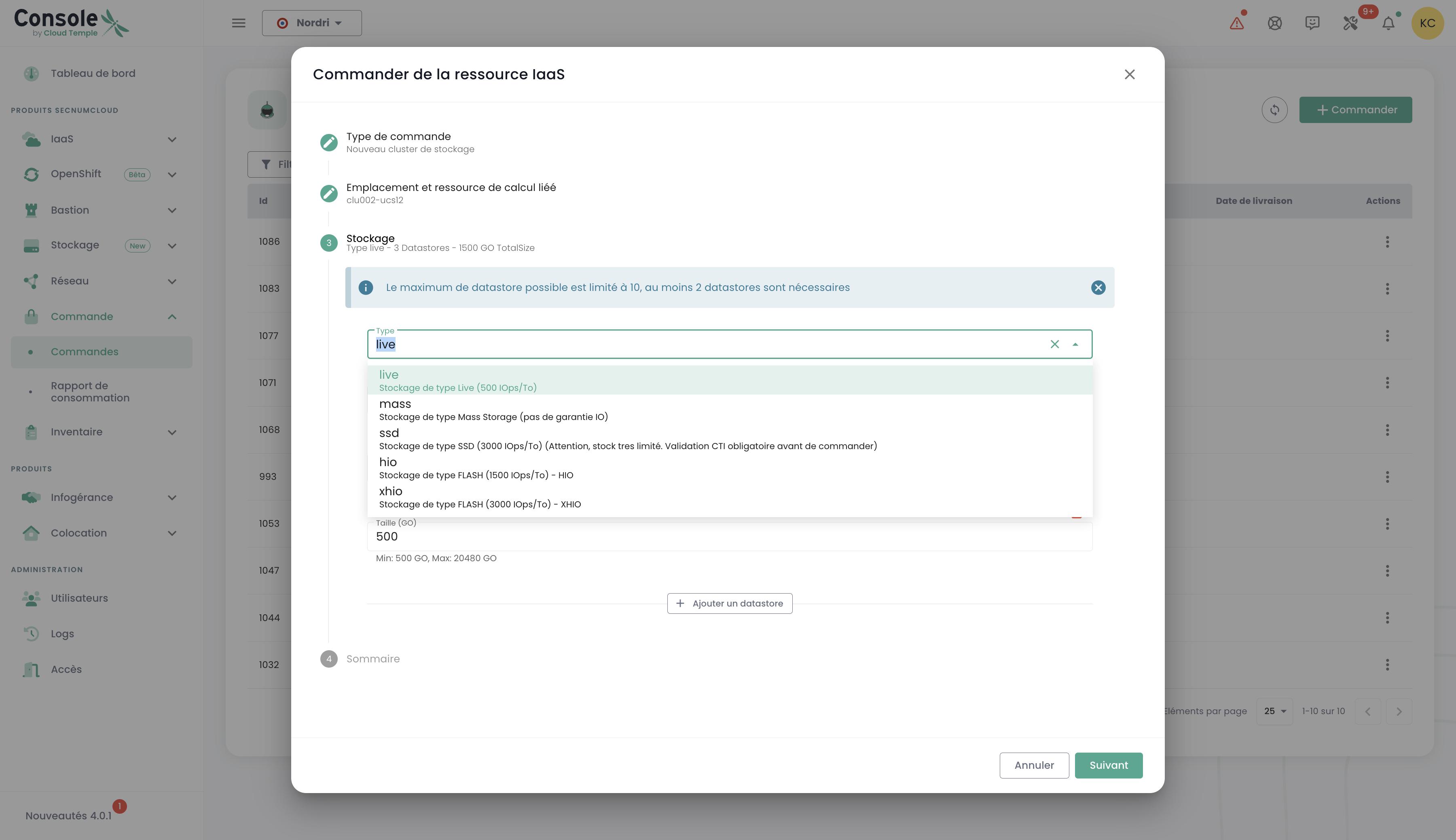
Select the desired storage type from the available options:
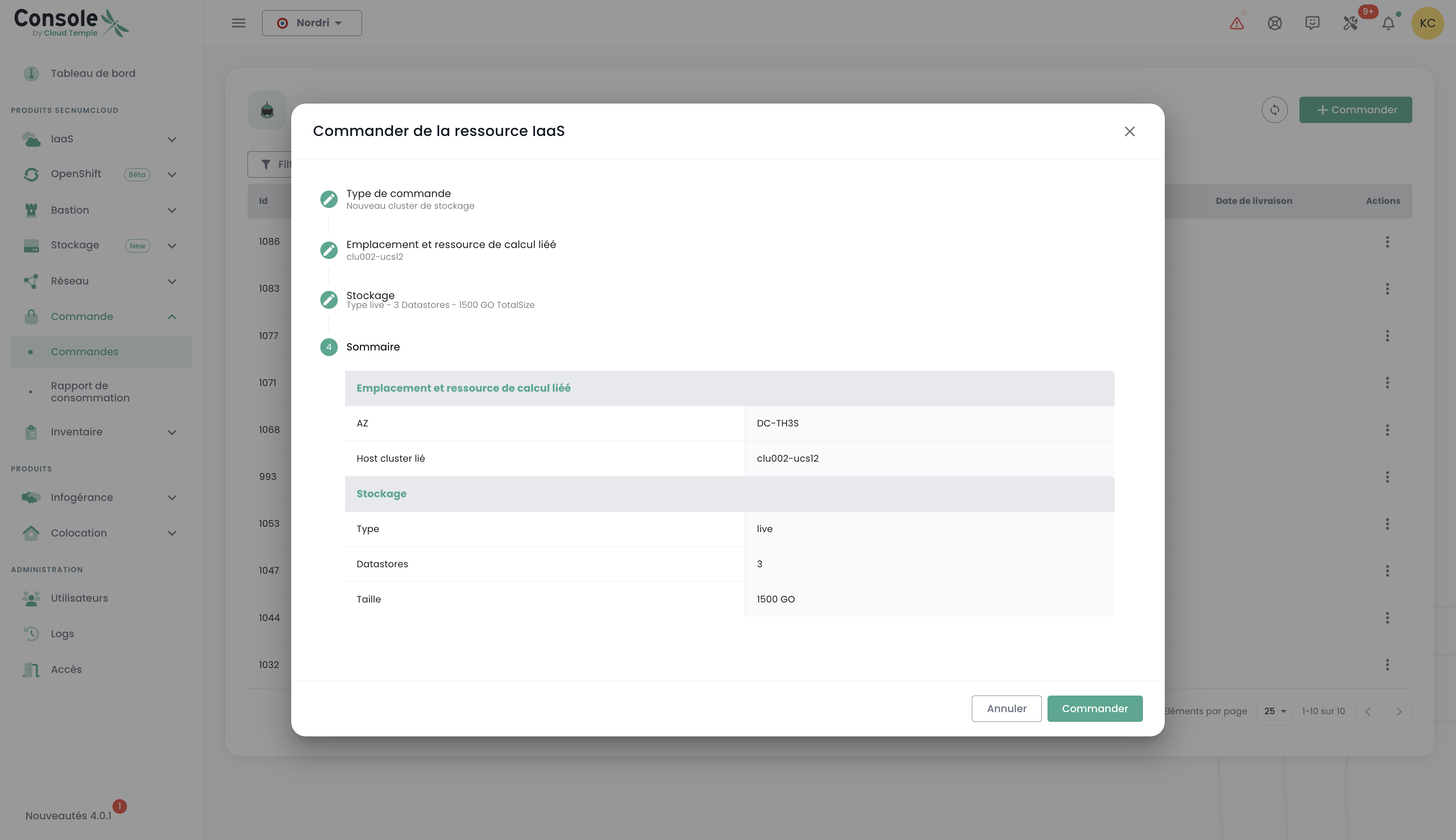
You will then access a complete summary of the options you have selected, allowing you to verify all parameters before finally confirming your order:
Deploy a new datastore within a VMware SDRS cluster
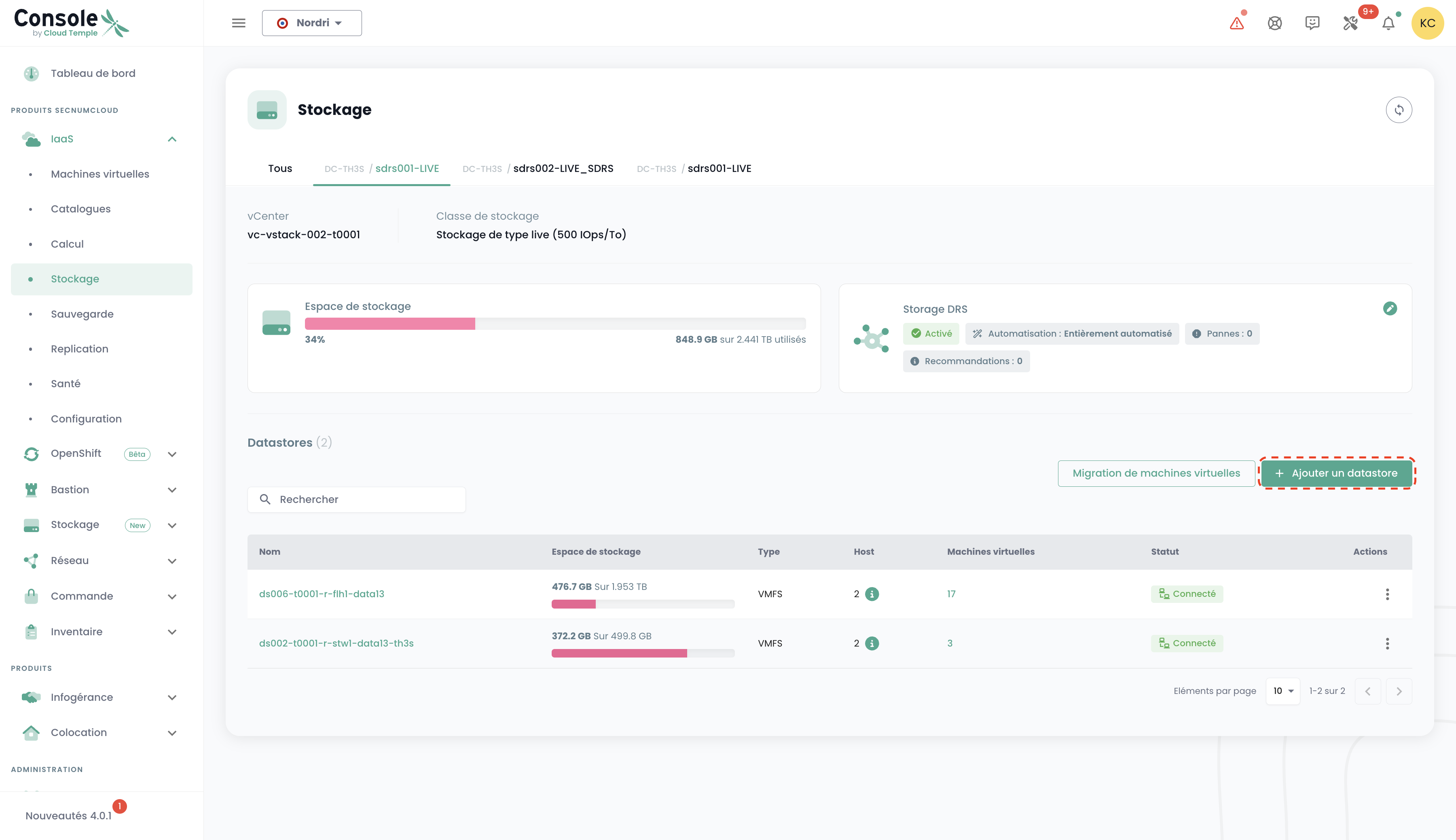
In this example, we will add block storage for a VMware infrastructure. To add an additional datastore to your SDRS storage cluster, go to the 'Infrastructure' submenu and then 'VMWare'. Then select the VMware stack and the availability zone. Next, go to the 'Storage' submenu.
Select the SDRS cluster that matches the performance characteristics you want and click the 'Add a datastore' button located in the table with the list of datastores.
note :
- The minimum size of an activatable LUN on a cluster is 500 GiB.
- Datastore performance ranges from an average of 500 IOPS/TiB up to an average of 15,000 IOPS/TiB. This is a software limit enforced at the storage controller level, subject to an absolute hardware limit of 30,000 IOPS and 1,024 MB/s maximum per LUN.
- The disk volume accounting for your organization is the sum of all LUNs across all used AZs.
- The 'order' and 'compute' permissions are required for the account to perform this action.
Order new networks
The network technology used on the Cloud Temple infrastructure is based on VPLS. It allows you to have continuous level 2 networks between your availability zones within a region. It is also possible to share networks between your tenants and terminate them in a hosting zone. Basically, you can imagine a Cloud Temple network as an 802.1q VLAN available at every point of your tenant.
Networks on the Cloud Temple platform are level 2 (VLANs) based on VPLS (Virtual Private LAN Service) technology. This technology allows you to benefit from network continuity between your availability zones within a region, with guaranteed performance:
- Intra-AZ Latency: < 3 ms
- Inter-AZ Latency: < 5 ms
Network Flexibility:
- A network can be shared between multiple clusters within the same availability zone
- A network can be propagated across multiple availability zones within the same region
- A network can be shared between different tenants of your organization
- A network can be terminated in a hosting zone for your physical equipment
- Limit: Maximum of 20 networks per order. You can place multiple successive orders to extend this number according to your needs
Ordering a new network and making sharing decisions between your tenants are performed in the 'Network' menu of the green banner on the left side of the screen. Networks will first be created, then a separate order will be generated to propagate them. You can track the progress of ongoing orders by accessing the "Order" tab in the menu, or by clicking on the information labels that redirect you to active or processing orders.
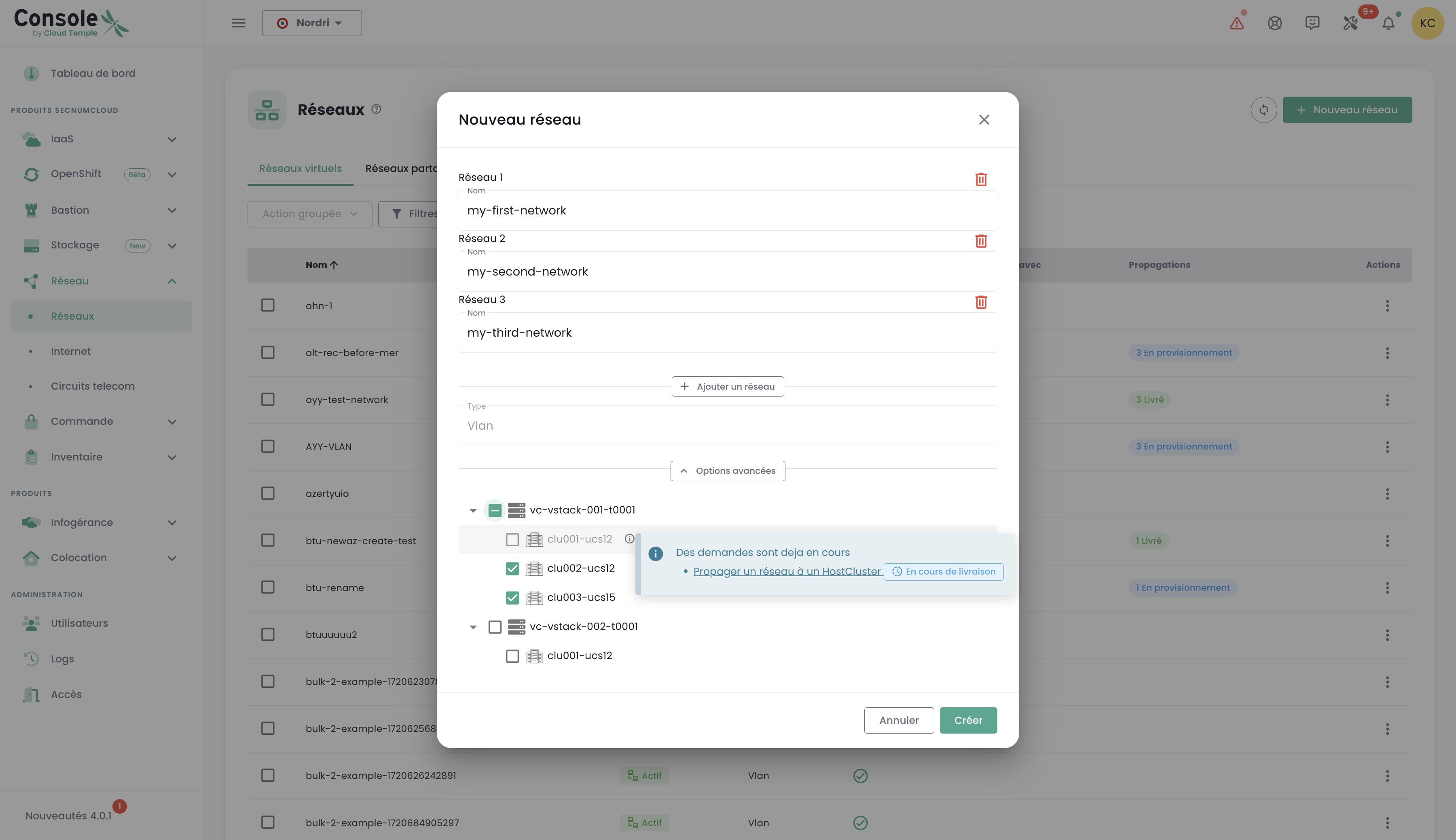
It is also possible to propagate already existing networks or to separate the two steps, starting with network creation, then proceeding with propagation later as needed. The propagation option is located in the options for the selected network:
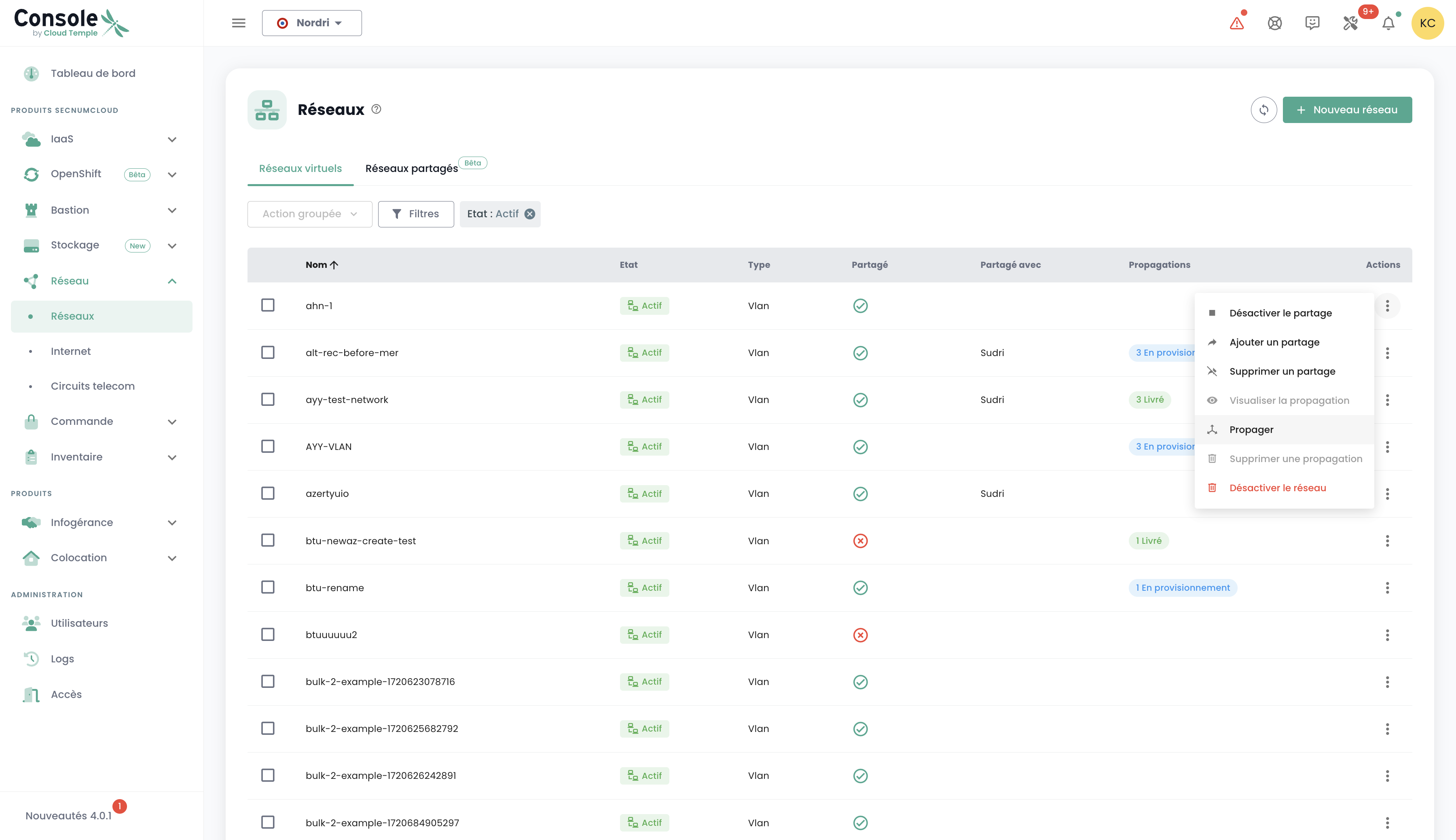
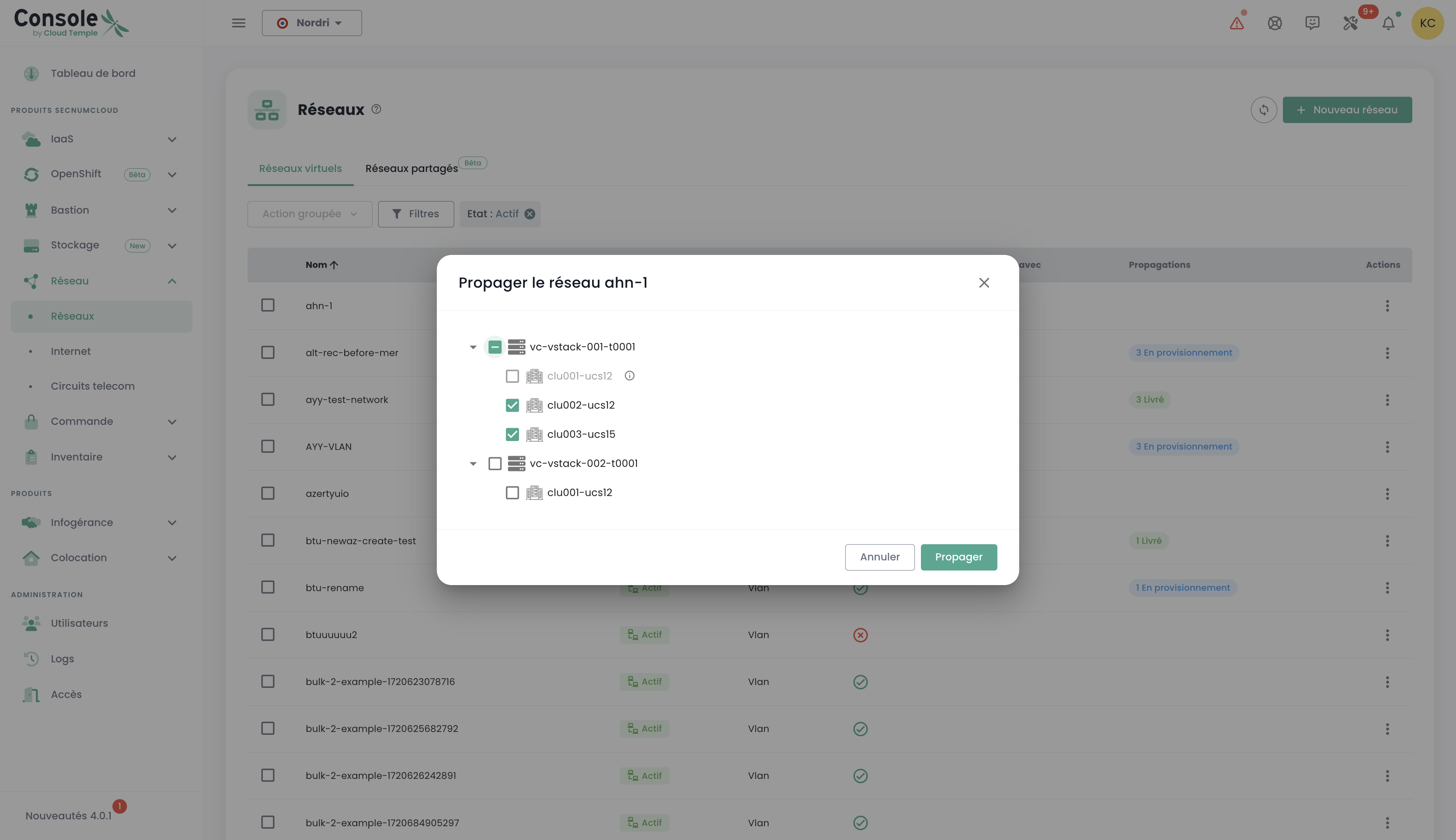
Click the "Propagate" option for an already existing network, then select the desired propagation target. This step allows you to define the location or resources where the network must be propagated:
Disabling a network
A network can also be disabled if necessary. This option allows you to temporarily pause access to or use of the network without permanently deleting it, thereby providing flexibility in managing your infrastructure according to your needs.
The disable option is located in the options for the selected network. '
Add additional hypervisors to a compute cluster
A compute cluster is a grouping of hypervisors that must comply with the following rules:
For VMware ESXi clusters
Homogeneity rules :
- All hosts in a cluster must be of the same blade type (ECO, STANDARD, ADVANCE, PERFORMANCE, etc.)
- All hosts must belong to the same tenant and the same availability zone
- Limit : Maximum of 32 hypervisors per cluster
Memory allocation :
- Each blade is delivered with all physical memory enabled from the start
- Example : A cluster of 3 STANDARD v3 blades (384 GB physical each) = 3 × 384 GB = 1152 GB available
- Recommendation : Do not exceed 85% memory consumption per blade to avoid VMware compression mechanisms and ballooning
High availability :
- Recommended minimum : 2 hypervisors per cluster to benefit from the 99.99% SLA
- Enable the VMware HA (High Availability) feature for automatic VM restart in case of host failure
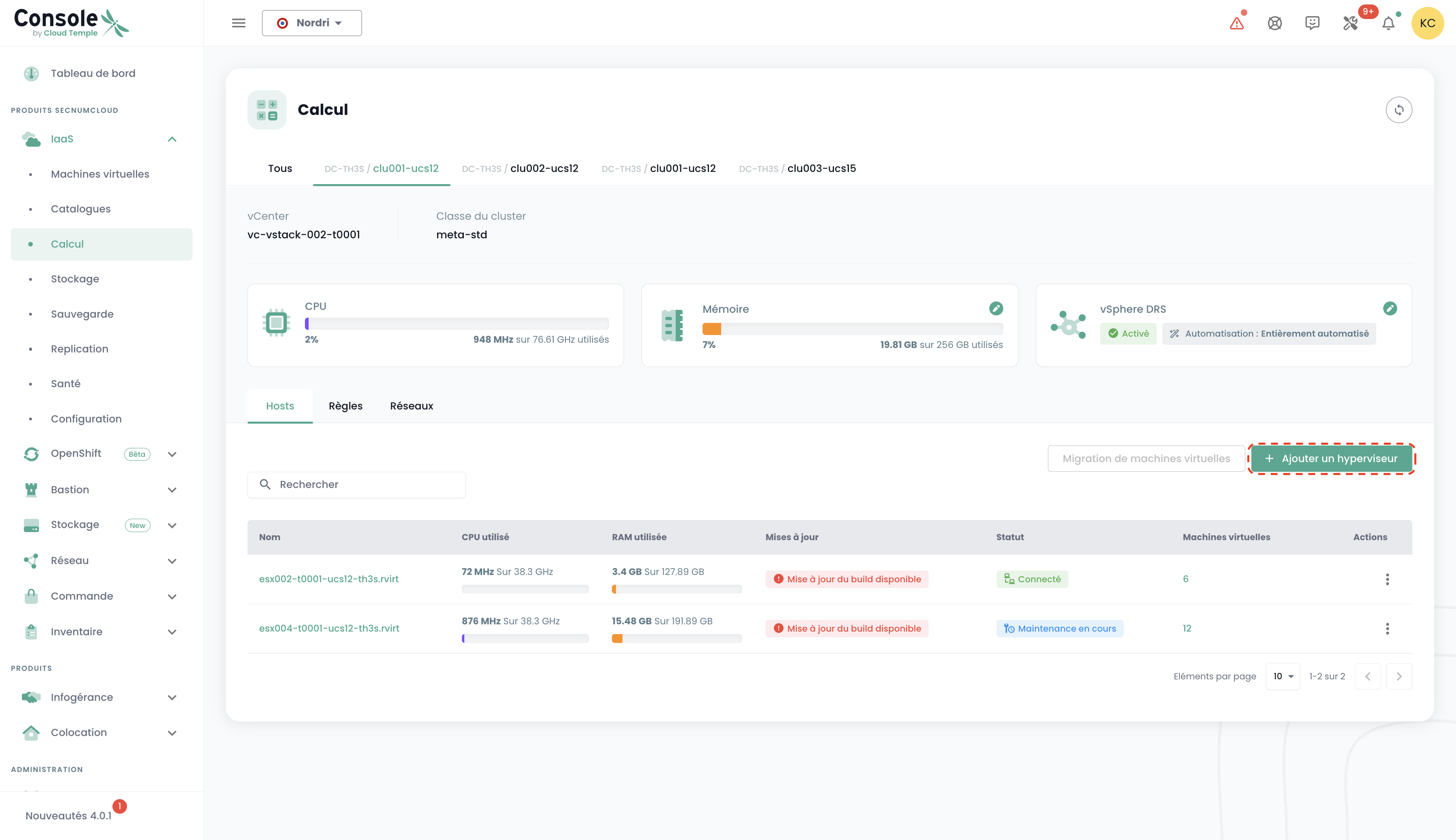
Adding hypervisors to a compute cluster is done in the 'IaaS' menu in the green banner on the left side of the screen. In the following example, we will add compute resources to a hypervisor cluster using VMware technology.
Navigate to the 'Infrastructure' submenu, then 'VMWare'. Then select the VMware stack, availability zone, and compute cluster. In this example, it is 'clu001-ucs12'. Click the 'Add a host' button located in the hosts list table, at the top right.
note :
- A cluster's configuration must be homogeneous. Therefore, mixing hypervisor types within a cluster is not allowed. All blades must be of the same type.
- The 'order' and 'compute' permissions are required for the account to perform this action.
For Open IaaS clusters
Open IaaS clusters follow similar rules regarding homogeneity and high availability. Compute resource management is also handled via the 'OpenIaaS' menu, with the same access rights prerequisites.
Adding additional memory resources to a compute cluster
Memory allocation on compute clusters works as follows:
Memory allocation principle:
- All compute blades are delivered with the maximum physical memory installed
- A software limitation is applied at the VMware cluster level to match the billed RAM
- Each blade has the full amount of physical memory enabled within the cluster
Cluster sizing:
- Minimum: number of hosts × 128 GB of memory
- Maximum: number of hosts × physical memory quantity of the blade
Example: For a cluster of three STANDARD v3 type hosts (384 GB physical per blade)
- Total available memory: 3 × 384 GB = 1152 GB
Important recommendations:
- Do not exceed 85% average memory consumption per blade to avoid VMware ballooning and compression
- Allocate disk space for swap files (.VSWP) created at each VM startup (size = VM memory)
To add RAM to a cluster, simply navigate to the cluster configuration (as for adding a compute host as previously seen) and click on 'Modify memory'.
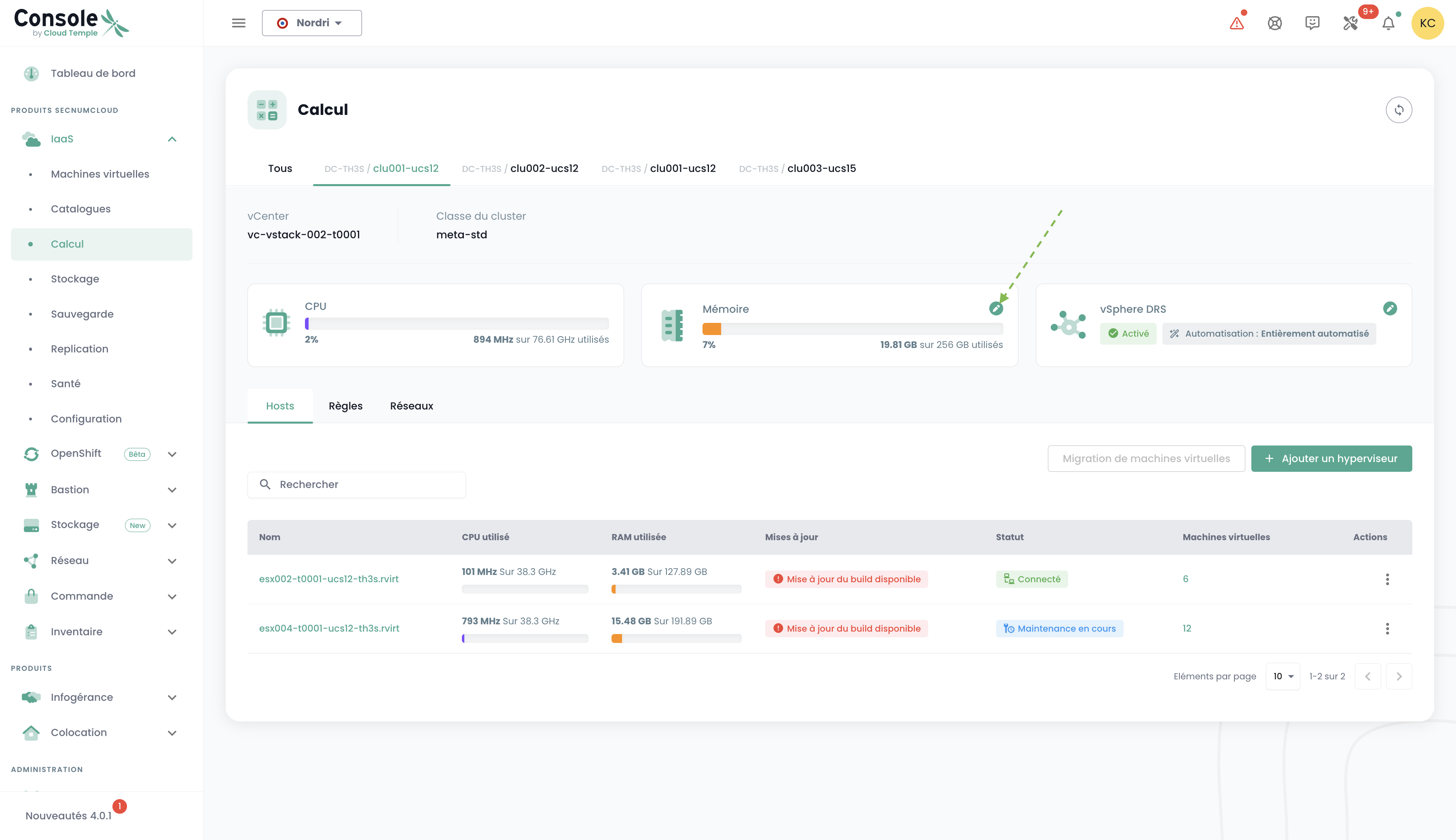
note:
- Machines are delivered with the full physical memory. Enabling the memory resource is merely a software activation at the cluster level.
- It is not possible to modify the physical memory quantity of a blade type. Be sure to take into account the maximum capacity of a blade when creating a cluster.
- The 'order' and 'compute' permissions are required for the account to perform this action.