Onboarding
At Cloud Temple, you don't wait for your cloud: you create it.
You create your organization from an online form, in just a few minutes. Your environments are then created with a single click from the Console. You can enable and disable products with full autonomy, billed on a pay-as-you-go basis. All on a sovereign infrastructure, operated in France. The Console indicates, tenant by tenant and product by product, what falls under the SecNumCloud qualification.
What you get when you sign up
- No waiting : a single form is all it takes. Your organization is created automatically, in a few minutes, without any intervention from our teams.
- No volume commitment : self-service products are billed on a pay-as-you-go basis.
- No amendment : open new environments under your existing contract, under the terms it provides.
- Sovereign by design : infrastructure operated in France, and a SecNumCloud qualification scope identified in the Console.
The three workflows
This page describes this setup, end to end.
Create your organization
The online registration form, and what gets triggered behind the scenes.
Get started →Evolve an environment
Enable a product, open an access, delegate management to a third party.
Explore →The vocabulary, in two words
The entire platform is built on two levels.
Your organization is you: your company. It holds your contract and your billing.
A tenant is a working environment within your organization. You can have several, isolated from one another.
Votre organisation
├── Tenant « production »
├── Tenant « recette »
└── Tenant « lab »
In practice: you sign one contract, and you open your environments under the terms it provides, without ever mixing your data between them. Isolating a staging environment, separating a subsidiary, or setting up a lab requires no contract amendment.
Two roles receive access:
- the organization owner has access to everything and invites other users
- the tenant owner has access to that environment
This can be the same person.
Path 1. Create your organization
This is your entry point to the platform. It happens only once, and it is done online.
The registration form
Your setup begins with an online registration form, to which your Cloud Temple contact will provide you with access.
It is short and completed in one go. It asks for four things.
Who you are. Your organization's name, its legal form, its country of establishment, and its SIREN number.
Who will manage the platform. The last name, first name, and professional email address of the person who will be the organization owner. This person will receive the access credentials and will then invite their colleagues.
What you will put in it. Your industry sector, and the nature of the data your project handles: health data, personal data, financial data, sensitive data.
Where you will connect from. The public IP addresses authorized to access your Console.
Only the addresses you declare will be able to access the Console.
Make sure to include all your sites and VPN exits. An oversight is not permanent: the list can be expanded later from the Console, independently.
You finish by attesting that you are authorized to bind your organization, and by accepting the general terms and conditions.
What happens next
Everything is automatic. Your organization is created from the information you provided, and your workspace is built within the following minutes: your identity directory, your first environment, your access credentials.
You have nothing to do during this time.
The environment created by your registration has no product activated: it is provisioned by our automation, without a form, so no selection is possible. This is deliberate: nothing starts being billed until you have activated a product yourself.
The four self-service products are available in your Console from the moment it opens. Available does not mean activated: you activate them when you decide to, see Les produits.
What you receive
An account creation email, addressed to the designated owner. You set your password and enable your second authentication factor.
Details: Les courriels que vous recevez.
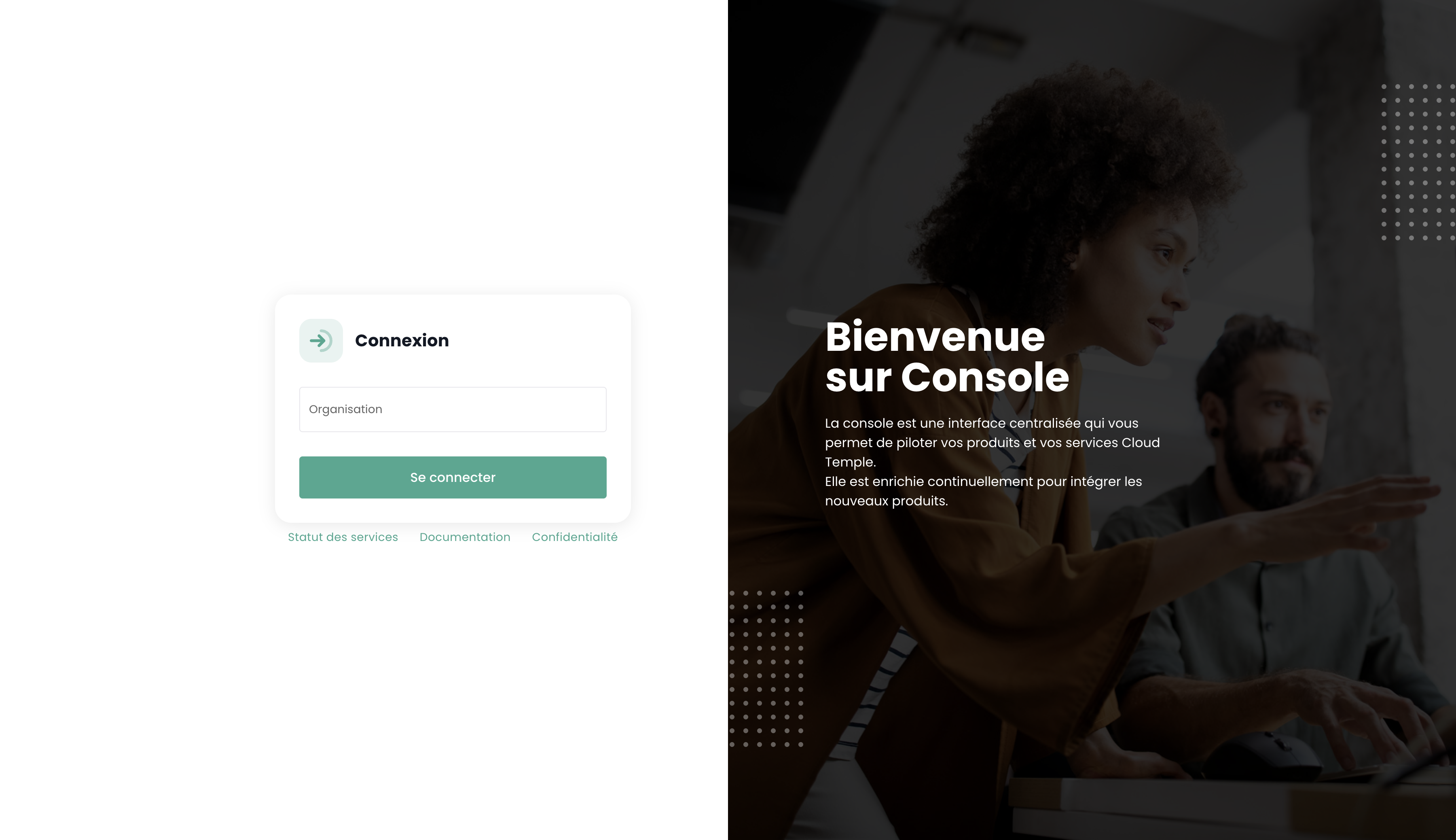
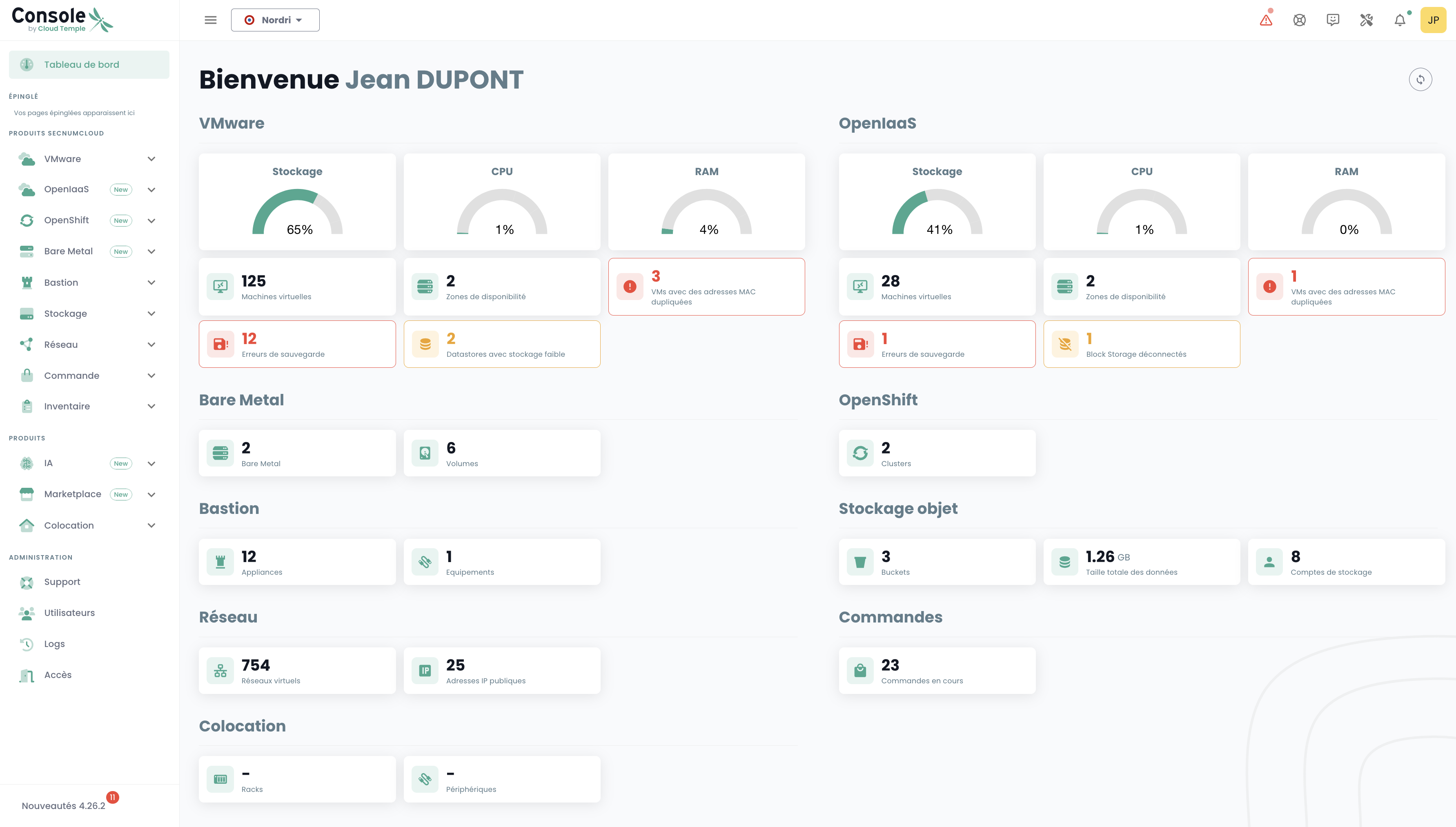
You are logged in
You arrive on the Console, at shiva.cloud-temple.com. You can now invite your collaborators and assign them permissions: see Identités et accès.
It does not block you. Administrative and billing information: billing details, payment method, purchase order reference are completed in parallel, with your Cloud Temple contact. You do not wait for them to be finalized to get started with the platform.
Path 2. Adding an environment
You already have an organization and you want a new environment, for staging, a new project, or a subsidiary.
You do everything from the Console, under the terms of your contract. No action on our side is required.
The steps
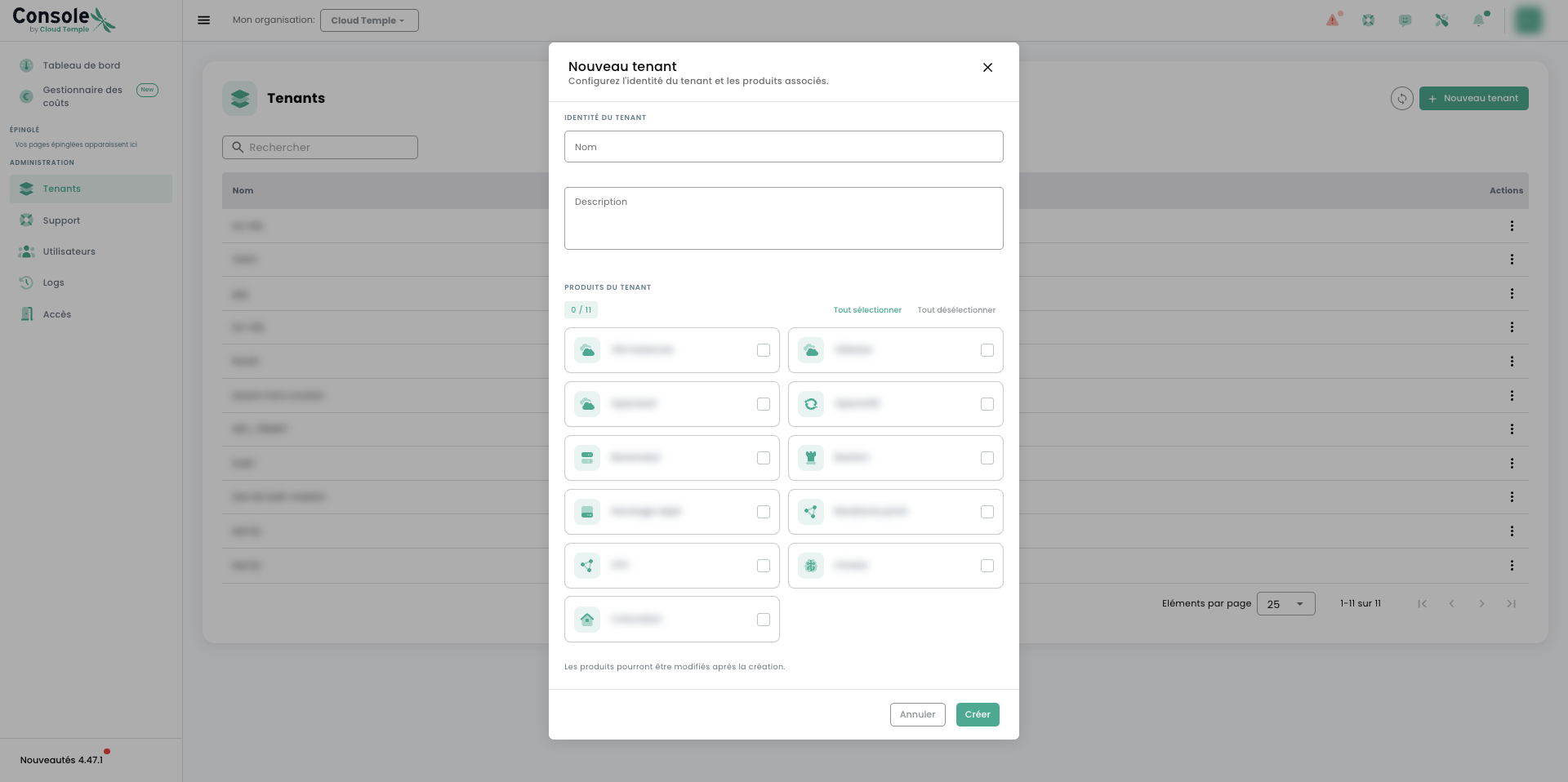
- From the Console, create a new tenant from the Tenants tab.
- Give it a meaningful name: production, staging, the name of a project.
- The tenant creator becomes the default owner. They can add other managers later, via the Users tab, once connected to the tenant.
- Choose the products to activate in it.
What happens next
Your environment builds itself automatically in a few minutes. You have nothing to do.
If the tenant owner does not yet have an account, they receive their account creation email. If they already have one, they access the new environment without a new invitation.
You choose the tenant's products from the creation form (step 4 above), and you can expand this scope at any time. No product is opened unless you have checked it: you only pay for what you consume.
Path 3. Evolving an environment
Your needs change. Here is how to evolve an existing environment.
Enable a product
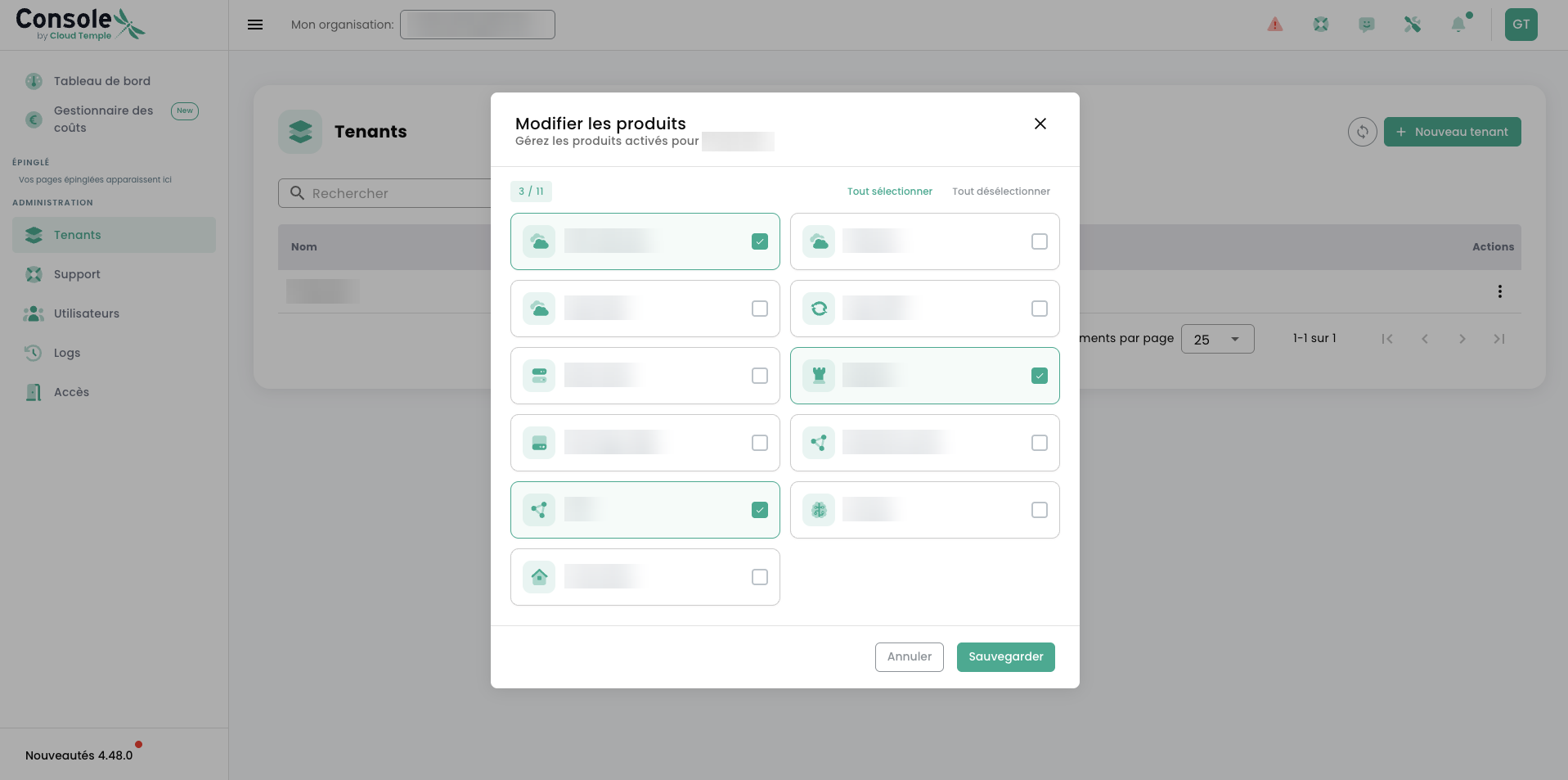
If the product is part of your catalog, it appears in the Console: enable it in full autonomy on the relevant tenant. Allow a few minutes before it becomes available.
From the list of your tenants, the action "Modify products" opens the catalog. Check the ones you want to enable, uncheck the ones you want to stop, then Save.
If it does not appear, it is not yet in your catalog: see Demander un produit supplémentaire.
Stopping a product
You can disable a product you no longer use, and billing stops with it.
A check is performed beforehand: if resources are still being consumed, the deactivation is refused and the Console indicates what is blocking it. Delete these resources, then try again.
This is a safeguard: it prevents cutting off a service that is still in use and losing its data.
Adding an IP Address
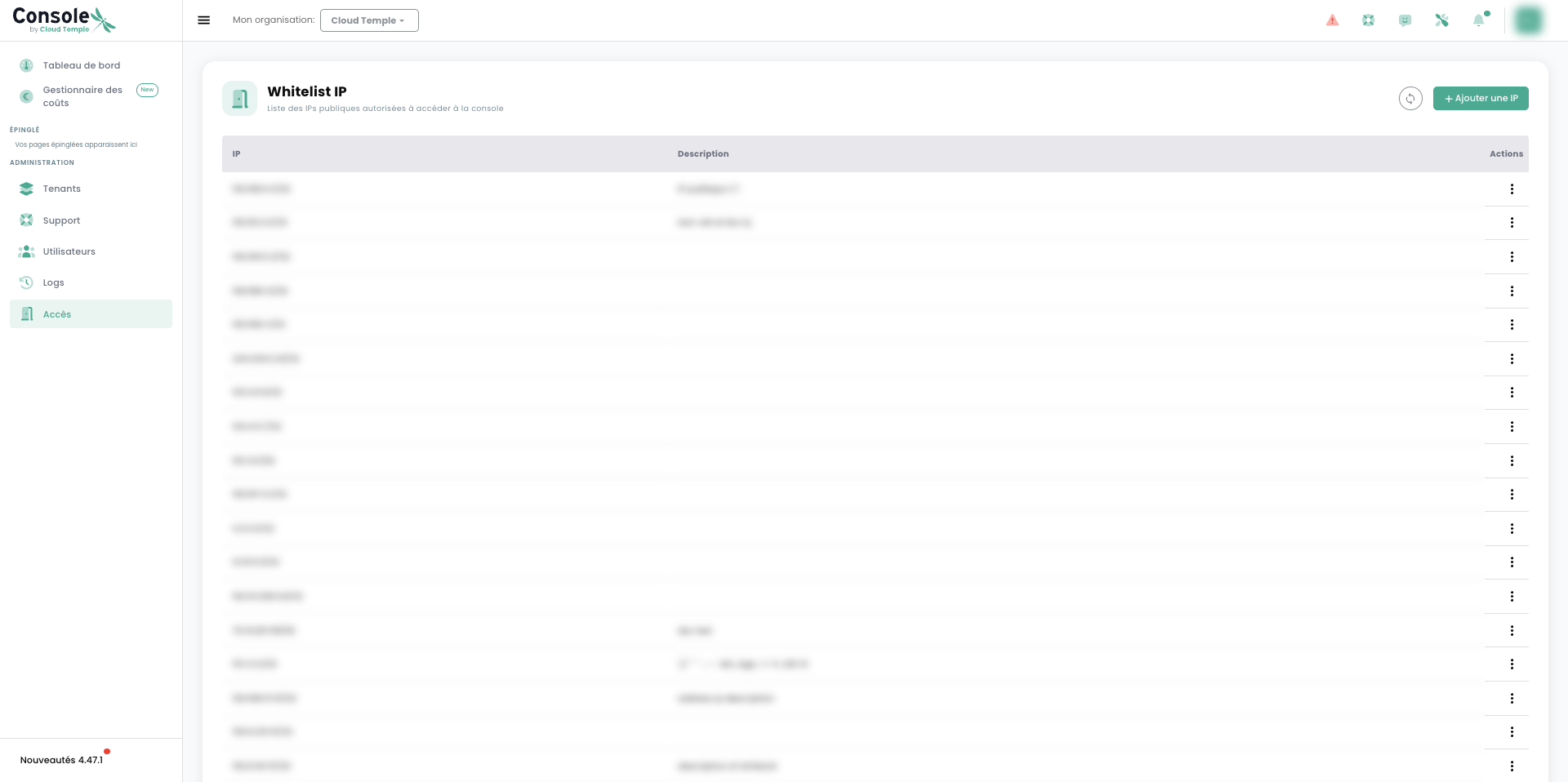
Adding is done from the Console, under Administration > Access. The page lists the authorized public addresses; the "Add an IP" button declares a new one, in CIDR notation, with a description.
You need the console_public_access_read permission to view the list, and console_public_access_write to add to it.
Allow approximately ten minutes before the new address becomes effective.
There is only one list for the entire organization. The page is accessible from a tenant, but an address added there grants Console access for the entire organization, not just for that tenant.
Deleting an address, on the other hand, requires a support request from the Console. This is deliberate: removing access is an irreversible operation for those connecting behind it.
Change a manager
The organization owner manages users and their permissions directly from the Console: see Identity and Access Management.
They can also delegate their permissions to an external partner or a Cloud Temple project manager: useful if you outsource operations to a third party.
The emails you receive
Only one email requires action on your part.
Account creation email
| Sender | shiva.support@cloud-temple.com |
| Who receives it | The organization owner, then any tenant owner who does not yet have an account |
| What it contains | A link to choose your password and enable your second factor (OTP) |
| When | A few minutes after creation |
| Validity | 96 hours |
After 96 hours, the link no longer works. This is a security measure, not a failure.
Write to shiva.support@cloud-temple.com: we will send you a new one.
This is the only channel available at this stage: without access to the Console, you cannot yet open a request there.
Check your spam folder: the message is sometimes filtered. It is sent from shiva.support@cloud-temple.com: allow this address in your email client. If you have not received anything within the following hour, contact us at the same address.
Products
What you enable yourself
No product is enabled by default, neither at the creation of your organization nor at the creation of a tenant. Four products are, however, available in your Console from the start: you enable them yourself, on the tenant of your choice. They are billed on a pay-as-you-go basis, with no volume commitment or tier to negotiate: you only pay for what you consume.
| Product | What it's for | Learn more |
|---|---|---|
| VM Instances | On-demand virtual machines | Documentation |
| VPC | A virtual private network | Documentation |
| LLMaaS | Sovereign AI models | Documentation |
| Object Storage | S3-compatible storage | Documentation |
The rest of the catalog
These products are opened within the scope of your contract, with your commercial contact:
- IaaS VMware and IaaS OpenSource
- Bare metal
- PaaS OpenShift and Kubernetes managé
- Managed databases: PostgreSQL, MariaDB
- Bastion
- Housing
- Backbone privé and Internet
- Marketplace
Overview: nos produits.
Request an additional product
The product you want doesn't appear in your Console? It's not yet in your catalog.
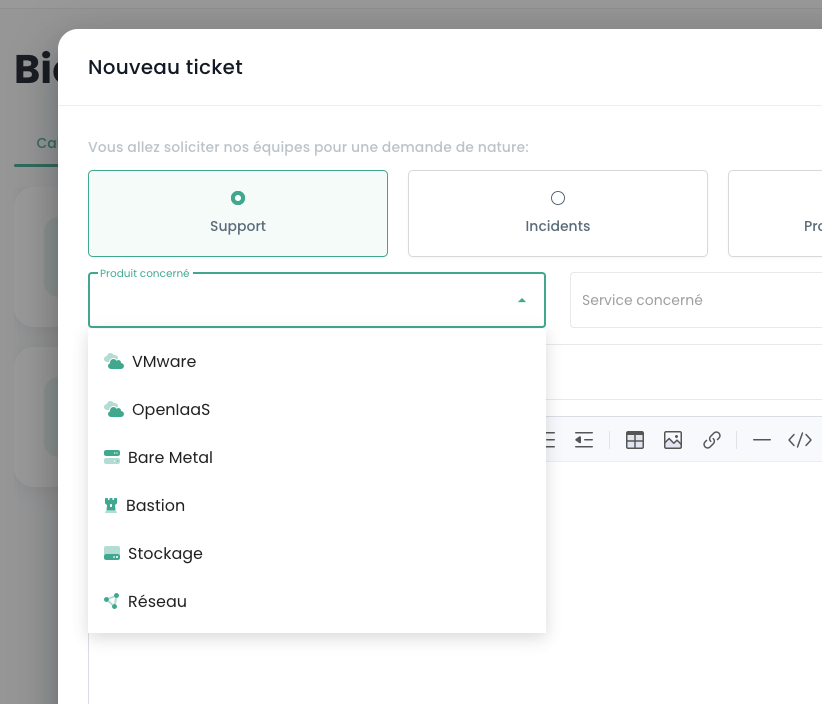
- From the Console, create a support request
- Specify the product concerned, and the expected volume if you know it
- We will get back to you with the terms
- Once approved, the product appears in your Console
- You can enable it on one or more tenants
Change support level
Three levels exist, presented on notre site.
You can upgrade or downgrade your level: make the request through support from the Console, or to your commercial contact.
Frequently Asked Questions
How long does it take to create an environment? A few minutes, in all three cases. Creation is automatic, whether it's your first arrival or a new environment.
How many tenants can I create? As many as needed, within the terms of your contract.
My project involves health data or sensitive data. Can I sign up online? Yes. Mention it in the form: your organization is created normally, and our teams will assist you with enabling the relevant services.
Can I delegate management to a third-party provider? Yes. The organization owner can delegate their rights to an external partner or a Cloud Temple project manager.
I forgot an IP address and can no longer log in.
If a colleague in your organization still has access to the Console, they can add the address from Administration > Access. If no one can access it anymore, write to shiva.support@cloud-temple.com: this is the fallback channel when the Console is unreachable.
I just activated a product but I don't see it yet. Please wait a few minutes. If it still doesn't appear, contact support.
Going further
Console Quickstart
A full tour of the interface: tenants, users, access, costs.
Launch the Quickstart →Identities and Access
Invite your collaborators and assign their permissions, tenant by tenant.
Explore IAM →Shared responsibilities
What Cloud Temple operates, what remains your responsibility.
Read the model →