Getting Started Guide
Tenant
Tenant Creation
Tenant creation is done in self-service from the Console, with no prior service request. From 'Administration > Tenants', the 'New tenant' button opens a two-part form: the tenant identity (name and description) and the products to activate on it.
The detailed procedure is described in the Console Quickstart.
Selecting a Tenant
Tenant selection is performed from the main page of the Console:
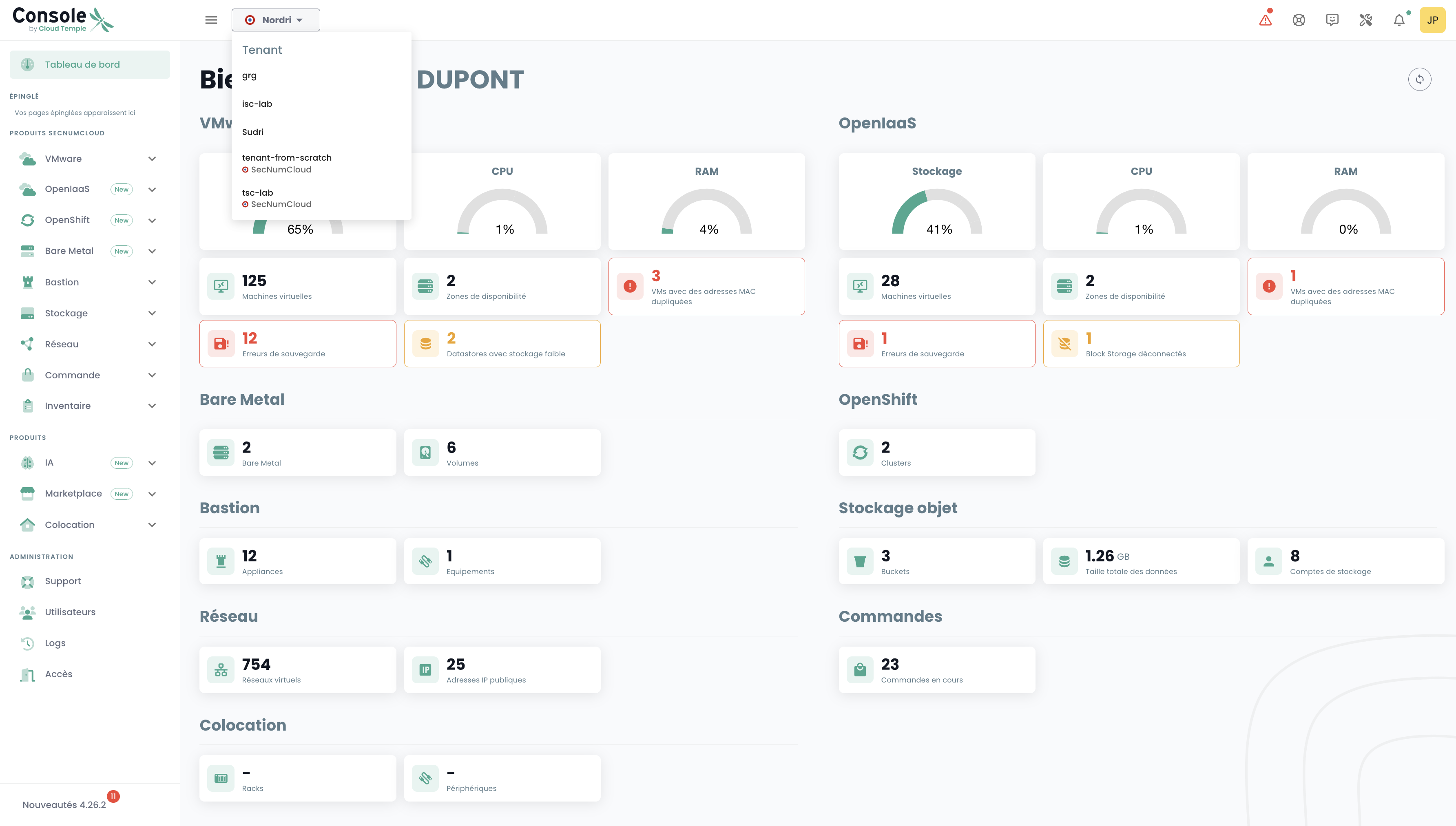
Note: A tenant's resources are exclusive to that tenant and cannot be mixed with those of other tenants.
Console Access Accounts
Console access accounts are created by the sponsor's master account upon invitation (regardless of the authentication repository).
Credentials are global to your Organization.
Note: Identity federation is managed at the organization level
Creating a User Account in Your Organization
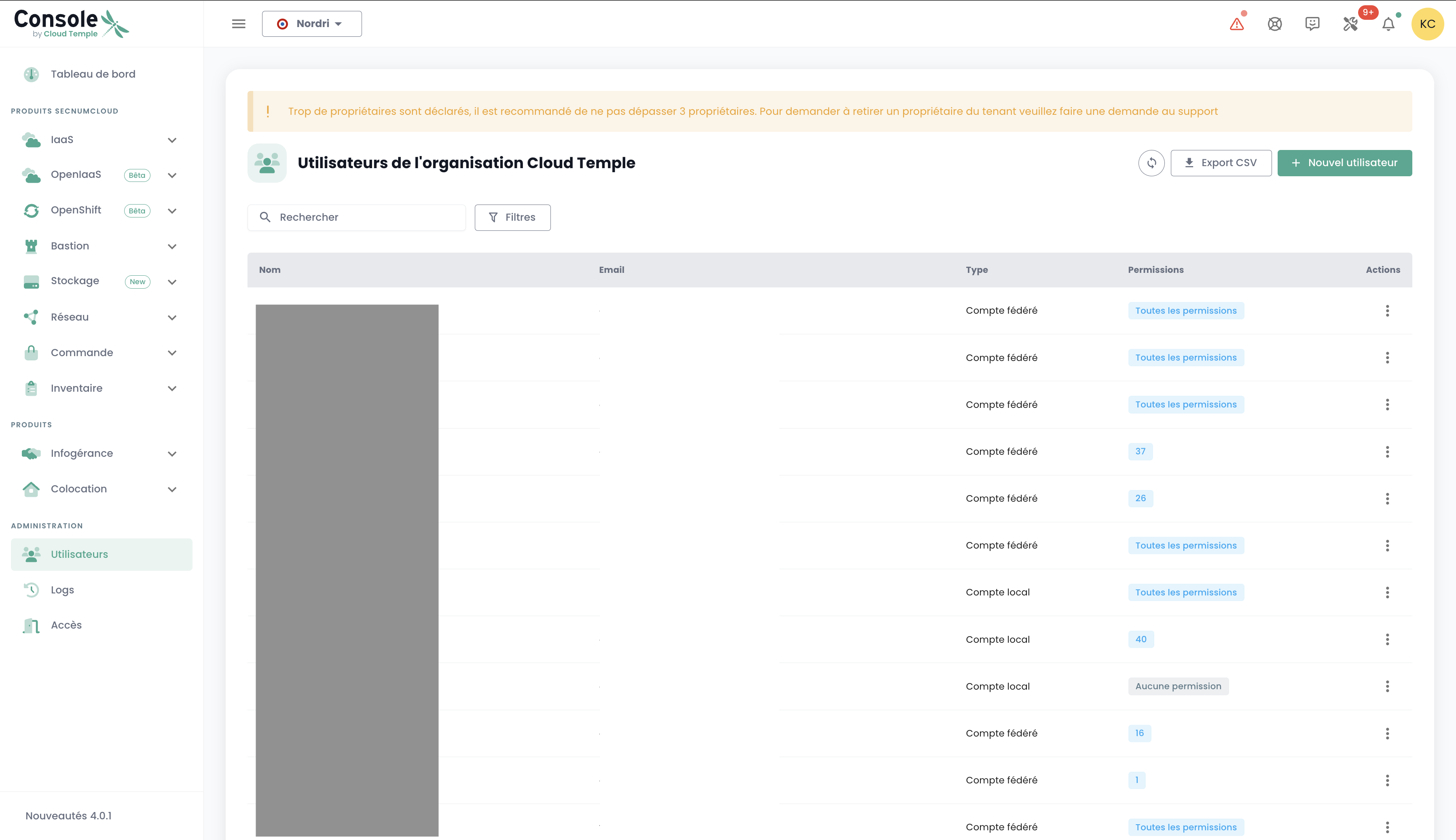
Creating a user account in your organization is done through invitation. To invite a user to an Organization, go to the 'Administration' menu on the left side of your screen, along the green banner, then select the 'Users' submenu.
Click the 'New User' button from the users page.
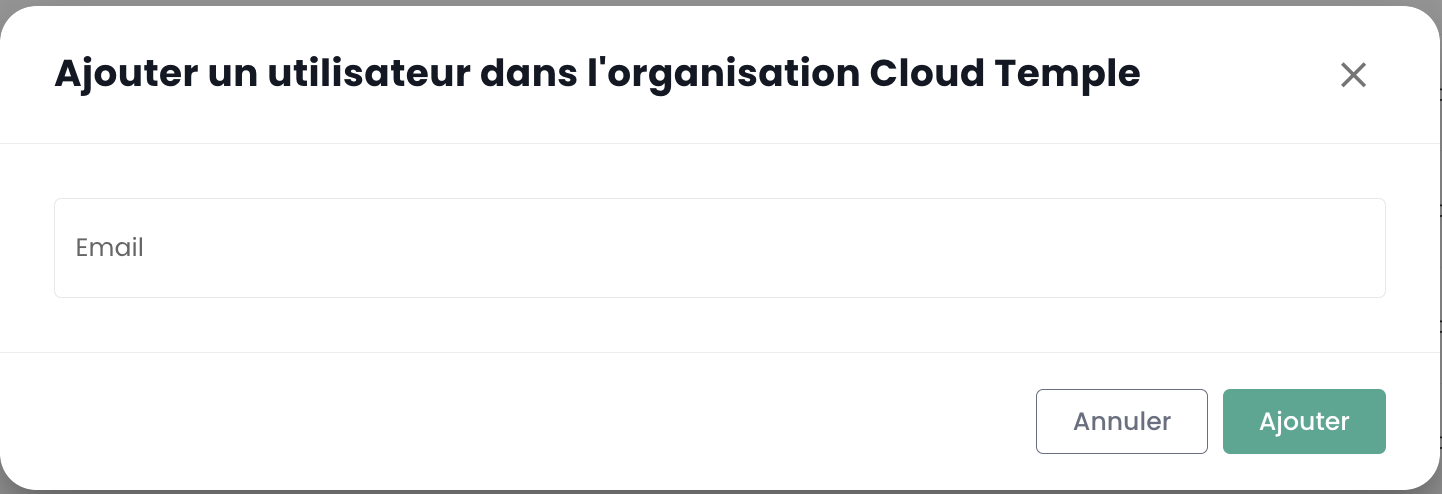
Next, enter the user's email address.
The user will then receive a verification email.
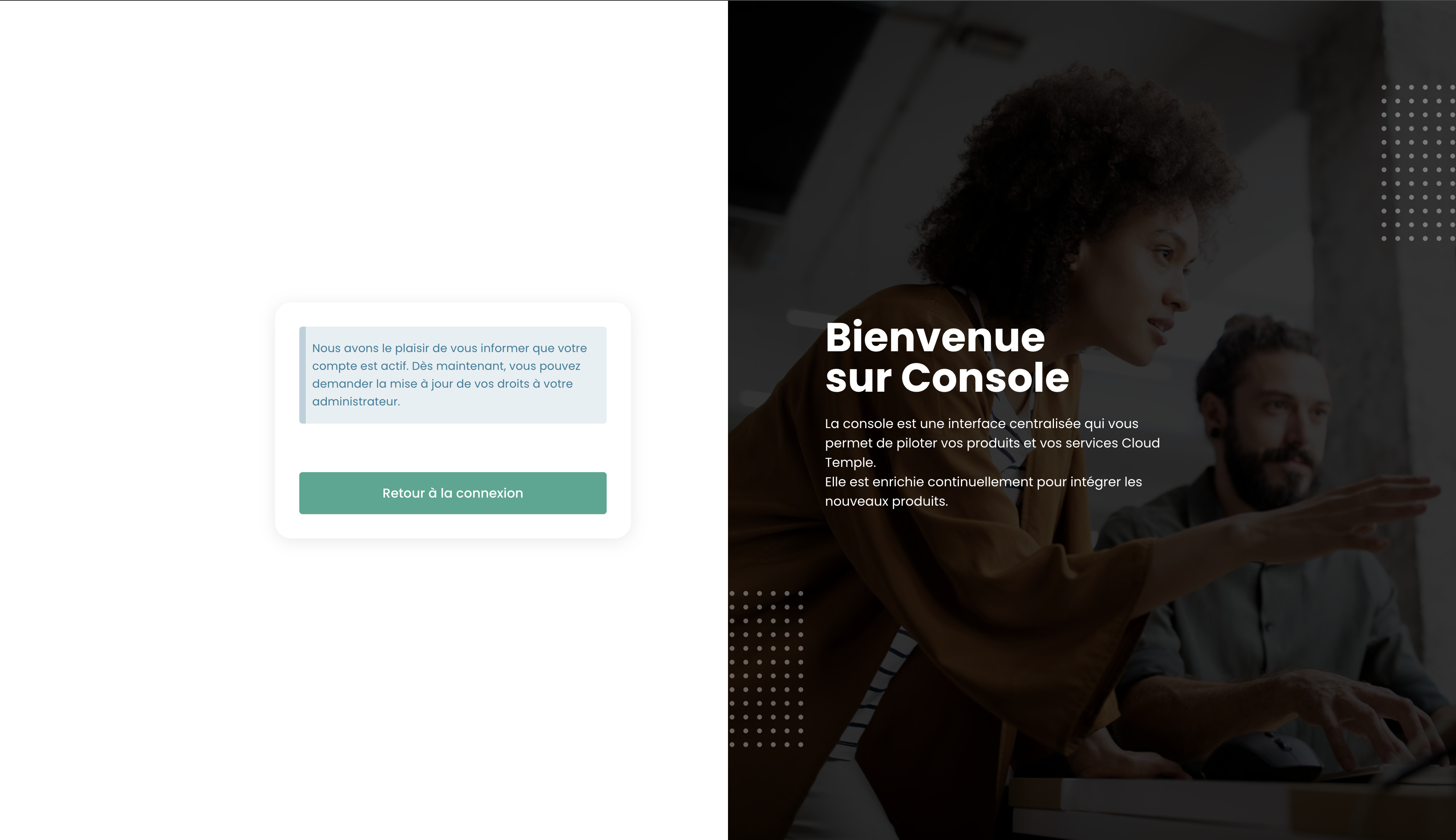
Once verification is complete, the user will be able to log in to the console.
Assigning Permissions to a User
User rights management is performed from the user page.
By default, a user has no rights. Therefore, the administrator who sent the invitation must assign the necessary rights for the user's activities. Simply click on the user's 'Actions' menu and select the 'Edit' option.
The rights activation menu then appears:
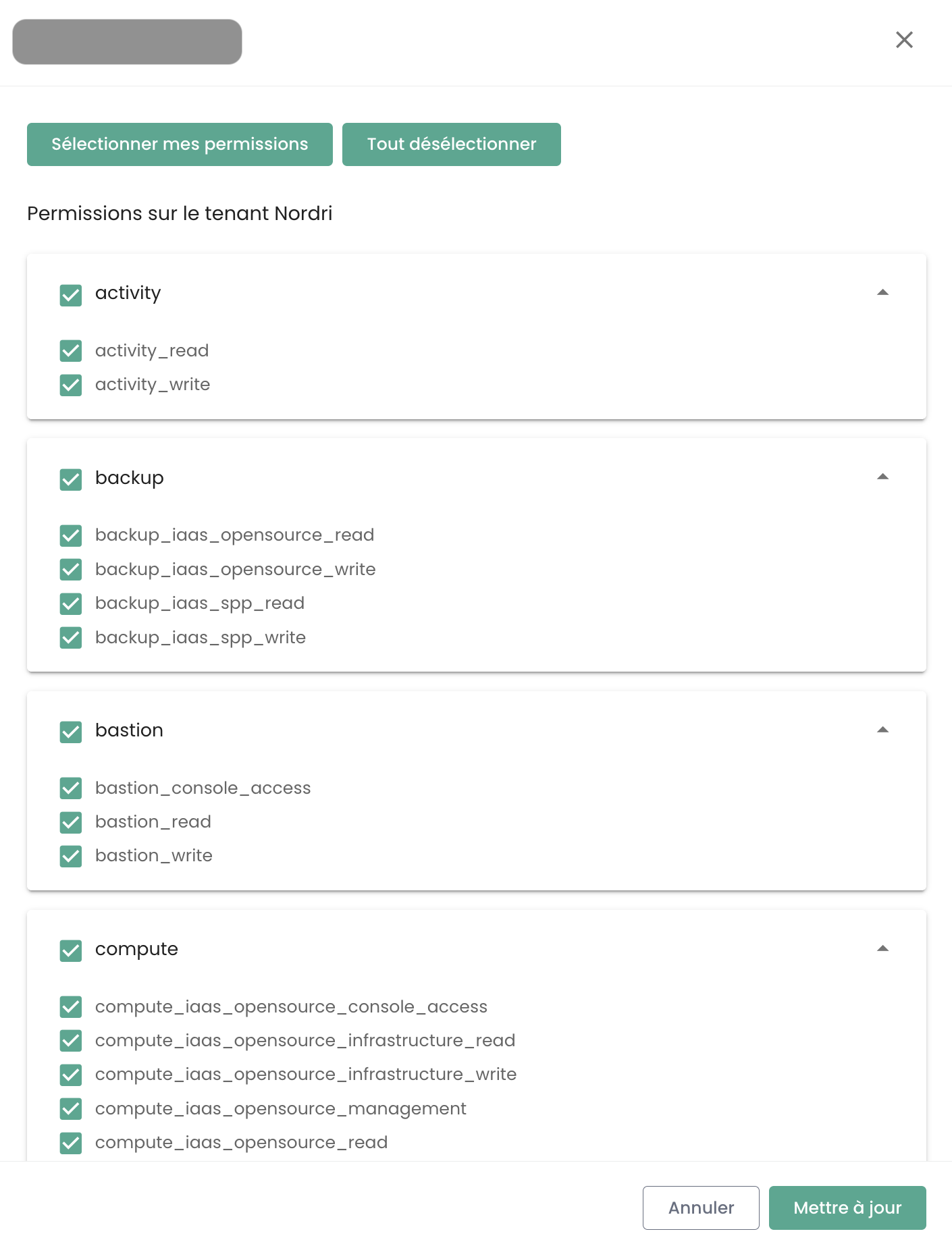
Permission configuration must be done for each Tenant within the Organization.
The list of permissions and their definitions is available here.
Change a user's language
Changing a user's language is done in their 'Profile', located in the top-right corner of the screen, under 'User Settings'.
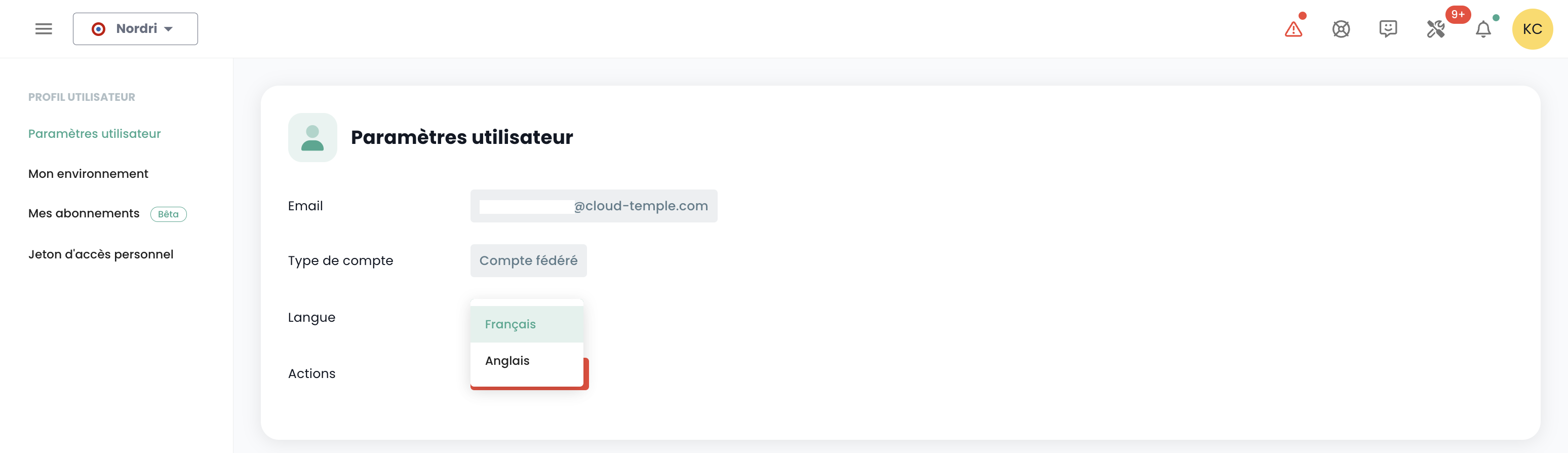
The configuration is set individually for each tenant Tenant.
Thematic Notifications Subscription
Managing subscriptions allows you to receive emails related to activated themes, automatically sent when corresponding events occur.
This feature is accessible in the user profile, under the "My Subscriptions" tab:
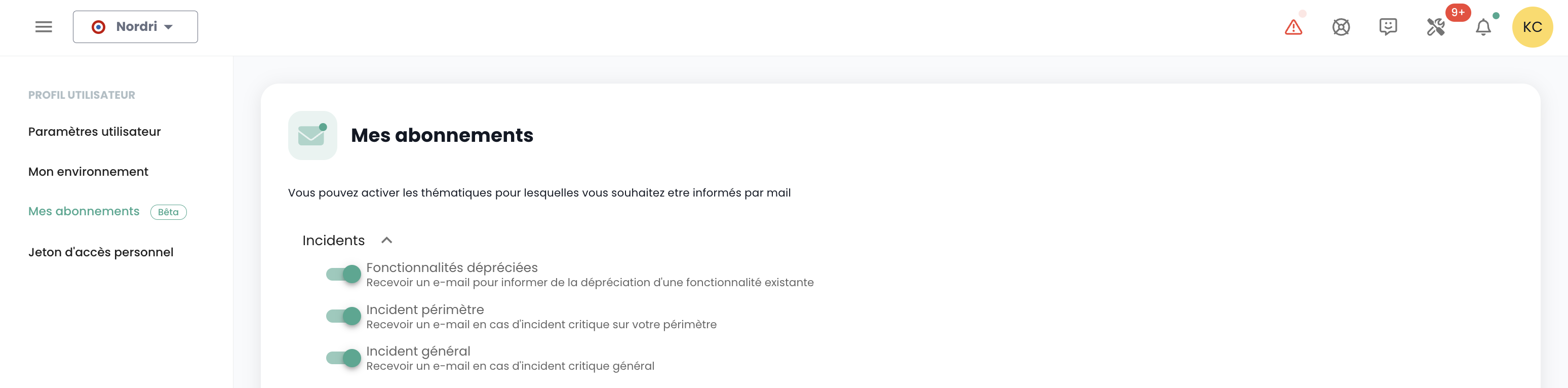
For example, in case of an incident, specific email notifications related to this theme will be generated.
The list of available themes may evolve and gradually expand to adapt to changing operational needs and environment requirements.
Permissions
What permissions are available for user accounts in the Console?
Here is the list of available permissions.
How to add a permission?
Here is the permission assignment procedure available here
Why can't I add a permission?
To add a permission, you need to have the 'iam_write' permission as well as the permission you wish to add.
How to add a user?
Note : To add a user, you must have the 'iam_write' permission.
How to audit user access/permissions?
Go to the users page and click the 'Export CSV' button:
How to delete a user?
In the 'Administration' menu on the green bar on the left side of the screen, under the 'User' submenu, click the 'Action' icon of the target user and select 'Delete'.
Note:
- To add a user, you must have the 'iam_write' permission.
- If this is a federated user, make sure the user has also been deleted from the identity repository.
How to reset your password?
You can reset your password from the Console login page by clicking on 'Forgot password?'.
Why are some users grayed out?
Grayed-out users are those who have not yet verified their account. Upon account creation, the user receives a verification email.
Once verification is complete, the user will be able to log in to the console.
The account remains grayed out until verification is finalized.
What is a Personal Access Token (PAT)?
Generating an API key, also known as a Personal Access Token (PAT), is a secure way to connect to the Console API without using a graphical interface.
What is MFA and is it mandatory?
MFA (multi-factor authentication) is an identity verification concept involving two steps, known as two-factor authentication.
The user must provide two distinct proofs of identity. In the case of the Console, two-factor authentication is mandatory and requires entering a one-time code after the user has entered their account password.
Access Management and Authentication
Console Access Authorization: Allowed IPs
Access to the cloud management console is strictly limited to previously authorized IP addresses, in compliance with the SecNumCloud certification requirements. This restriction ensures a heightened level of security by allowing access only from specified IP ranges, thereby minimizing the risk of unauthorized access and protecting the cloud infrastructure according to the highest security standards.
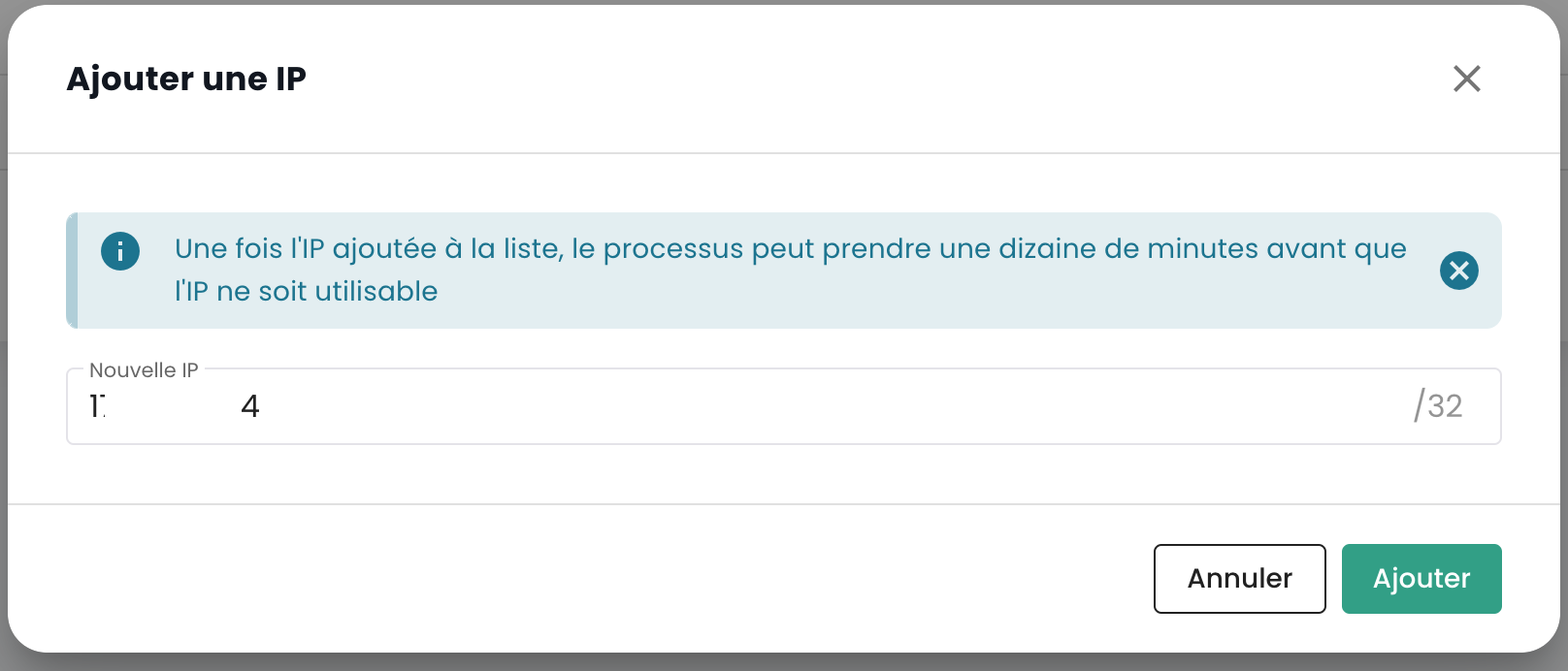
The list belongs to the organization: an address added from any tenant authorizes access to the Console for the whole organization. It can be viewed and extended from the 'Administration > Access' tab.
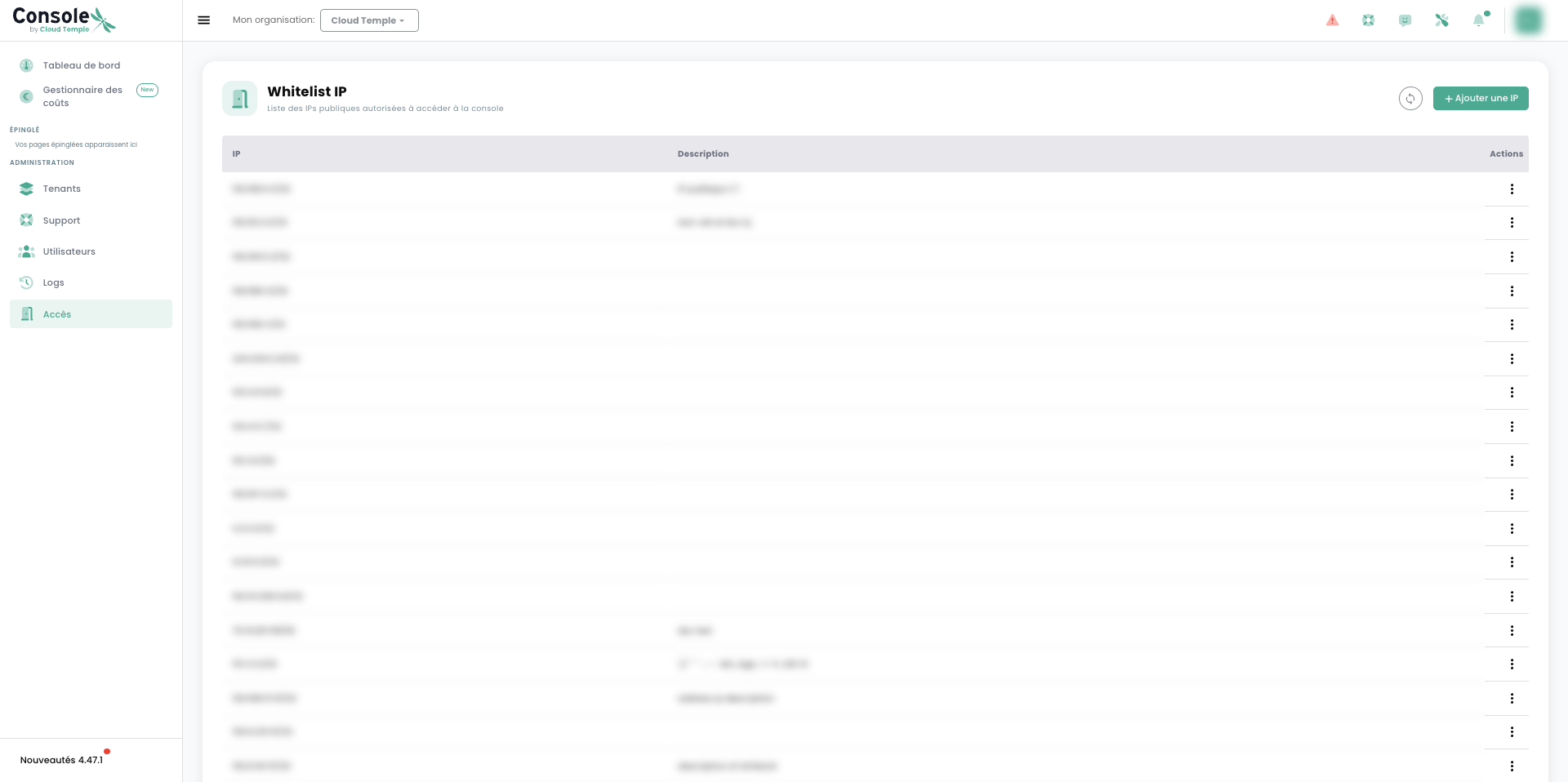
To perform these actions, the user must have the console_public_access_read permission to view the allowed IPs, and the console_public_access_write permission to add a public IP address to the list.
You can then add a new IP address:
Note: Removing an authorized IP requires submitting a support request via the Cloud Temple console.