Quickstart
Prerequisites
- Have subscribed to a Cloud Temple product. To subscribe easily, you can nous contacter or by email at contact@cloud-temple.com.
- Have access to the Console
- Have your public IPv4 address declared in the Cloud Temple trusted zone (Console access is limited to identified trusted addresses)
Connecting to your Cloud Temple tenant
The Console is accessible via the URL below: Console or via the direct URL that was communicated to you by email.
The first page allows you to select l'organisation in which your user was created. Once the company has been entered, please click on 'Log in'.
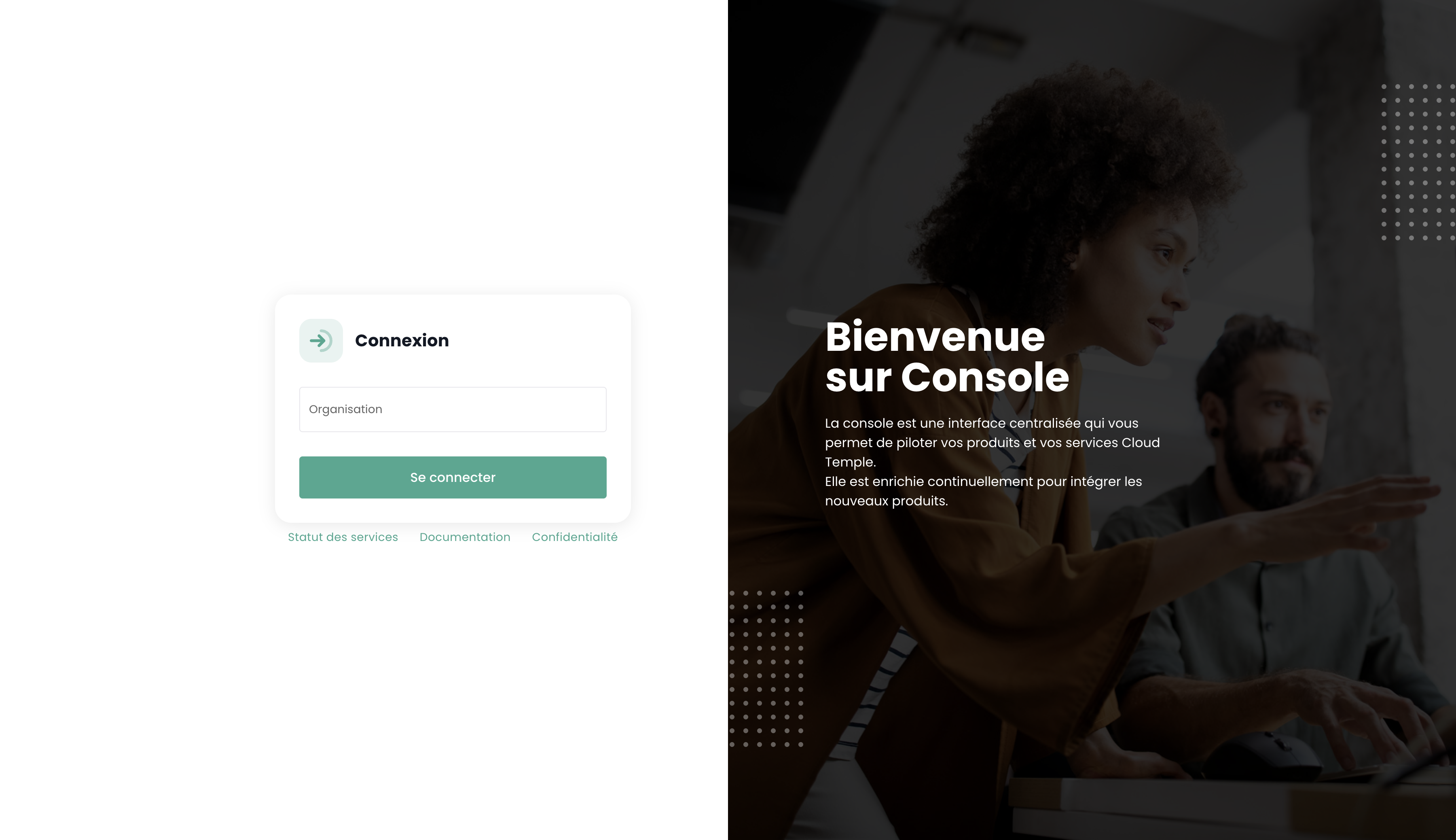
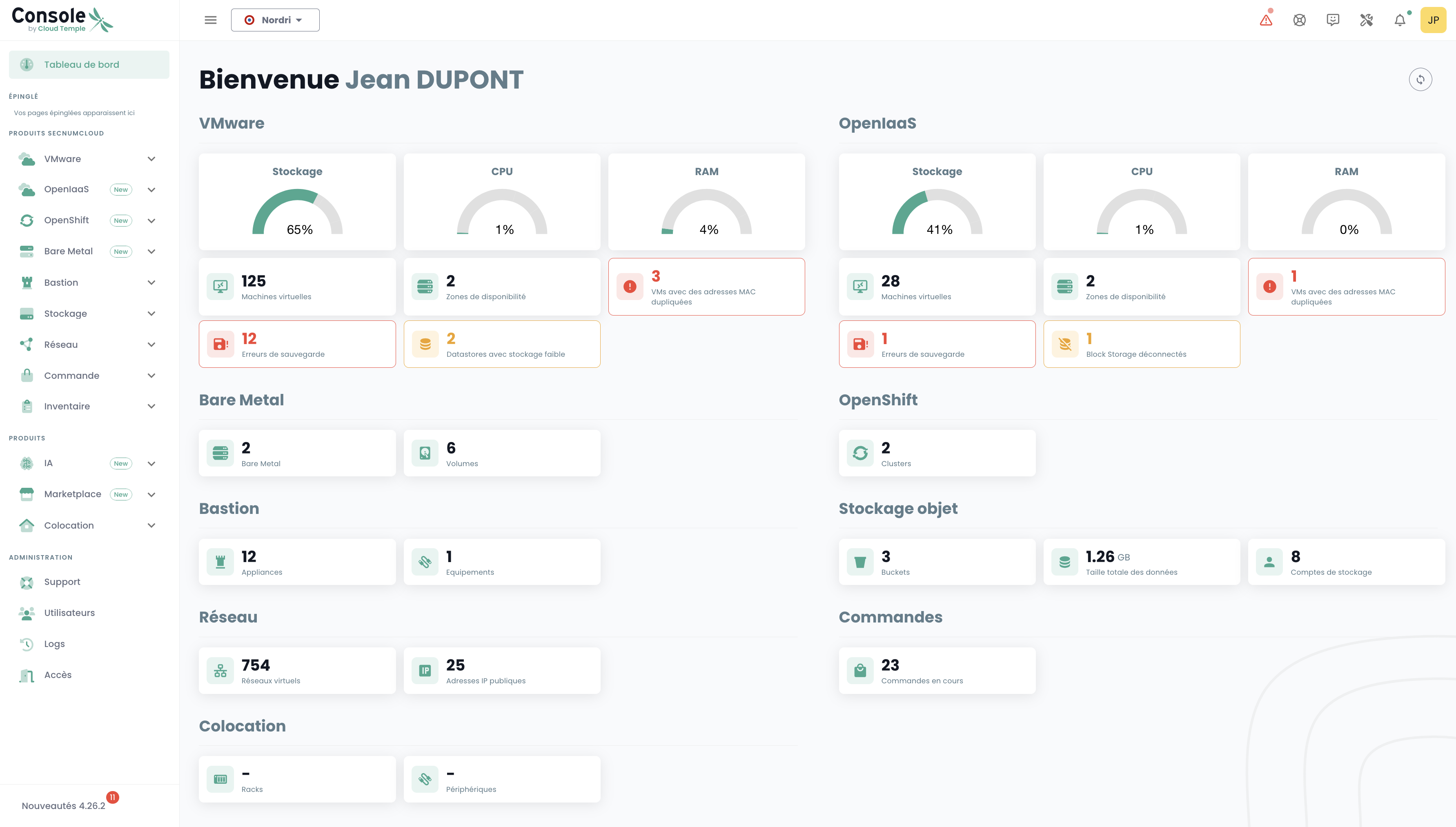
You will then be redirected to a page asking you to authenticate. Once logged in, you will arrive on this page.
You will find all the metrics regarding the products subscribed within your scope. In case of issue(s) with your VMware and/or OpenIaaS products, alerts will be visible; the color corresponds to their severity.
Organization View
The organization view is reserved for organization owners.
The organization view groups the management functions for your entity in the Temple Cloud Console: tenant management, user and permission management, access control, and usage monitoring. An organization groups one or more tenants (isolated cloud environments), and user permissions are subject to tenant segregation.
This section describes the interface: where to find each function and what it allows. The reference documentation for the organization / tenant model and permissions can be found in the IAM module.
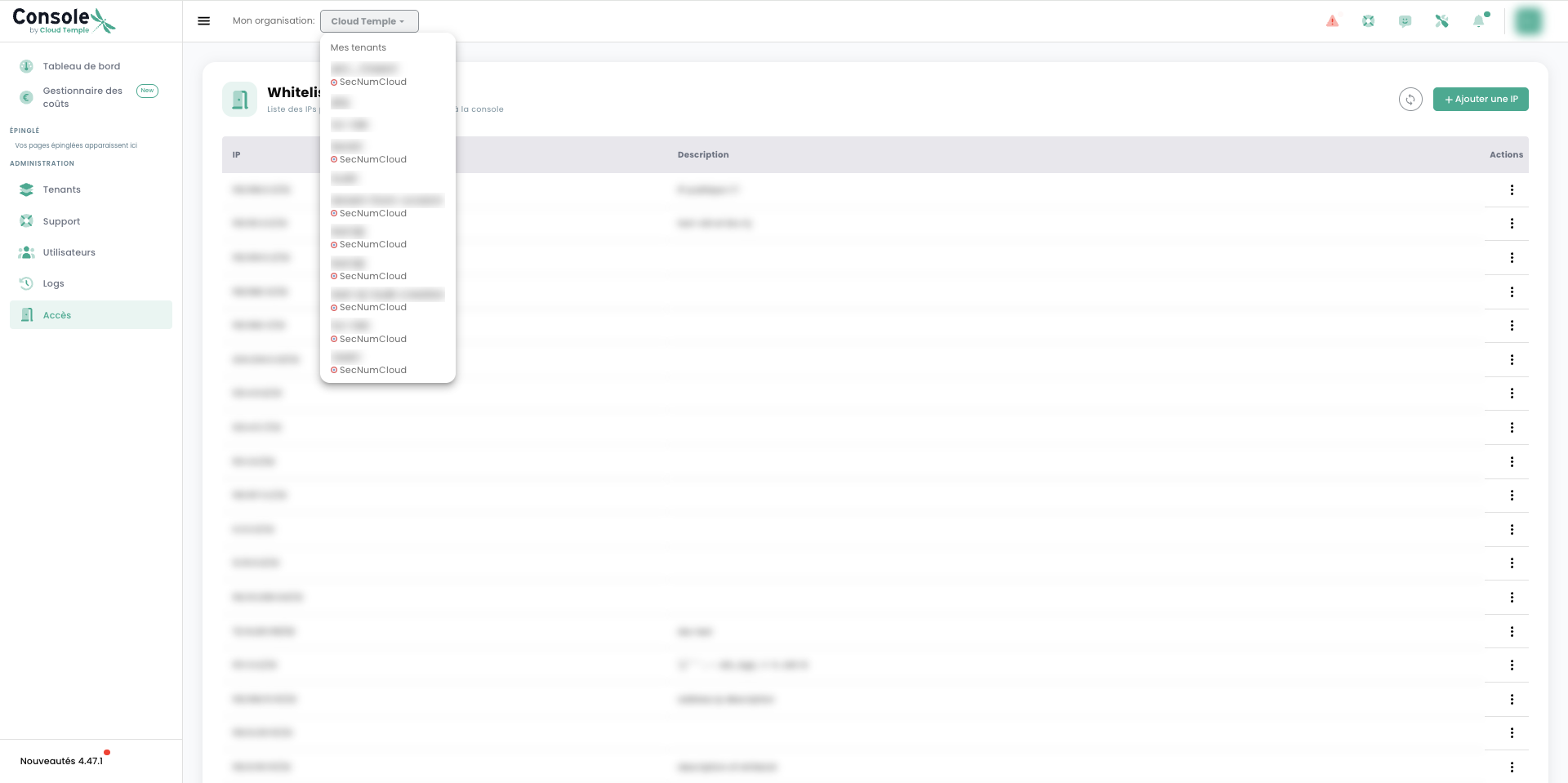
Header and active tenant selection
At the top of the Console, the header displays the current organization (« My organization »). The associated selector opens the « My tenants » list: each tenant is listed there, accompanied by the SecNumCloud badge where applicable.
To select the active tenant, there are two options:
- from the header, open the « My tenants » selector and click on the desired tenant;
- from the Tenants page, use the « Connect to tenant » action on a row.
Technical resources (compute, storage, network…) are specific to each tenant and are not shared between tenants.
Dashboard
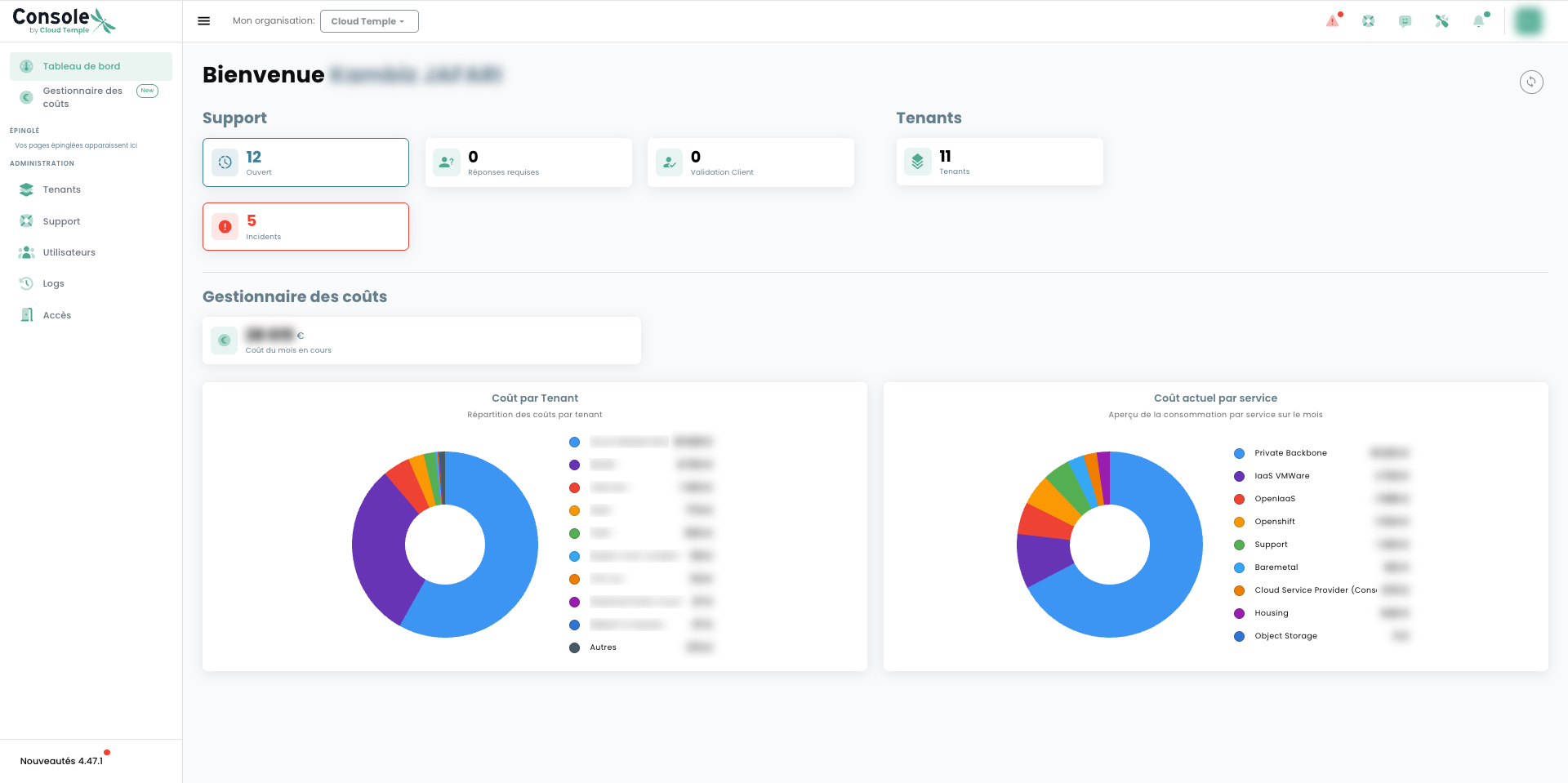
The Dashboard is the organization's home page. It provides a comprehensive overview:
- the status of support tickets (open, response required, client validation, incidents);
- the number of tenants in the organization;
- a cost overview (current month cost, breakdown by tenant and by service).
Organization Administration
The Administration section of the left navigation groups the organization governance pages.
| Page | Role |
|---|---|
| Tenants | Create and manage tenants |
| Users | Manage accounts and their permissions |
| Access | List of allowed public IPs (whitelist) |
| Logs | Activity log (traceability) |
| Support | Organization tickets |
The Cost Manager (outside the Administration section) provides consumption tracking.
Tenants
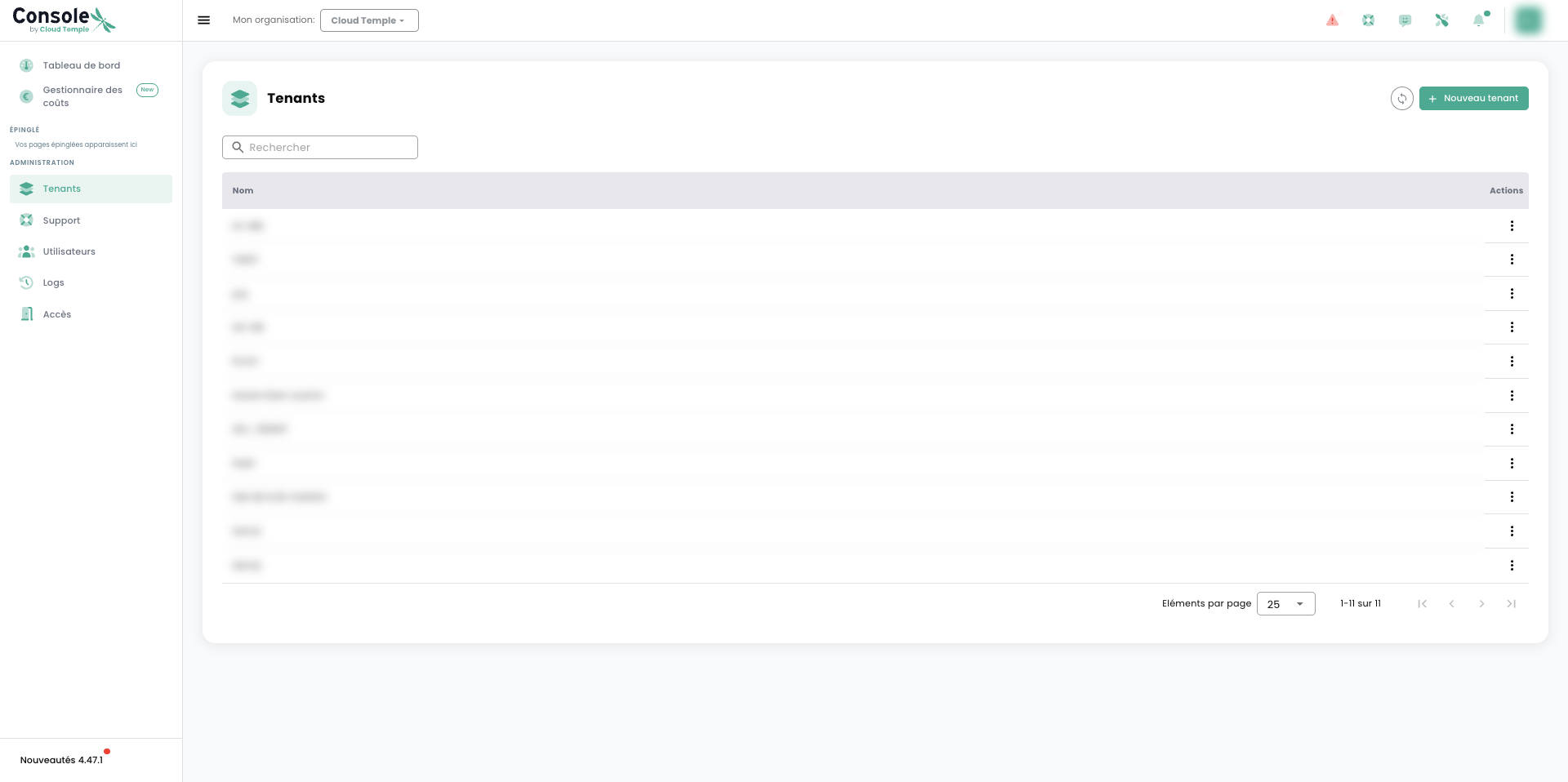
The Tenants page lists all the organization's tenants. A search bar and pagination facilitate navigation when there are many tenants.
Create a tenant
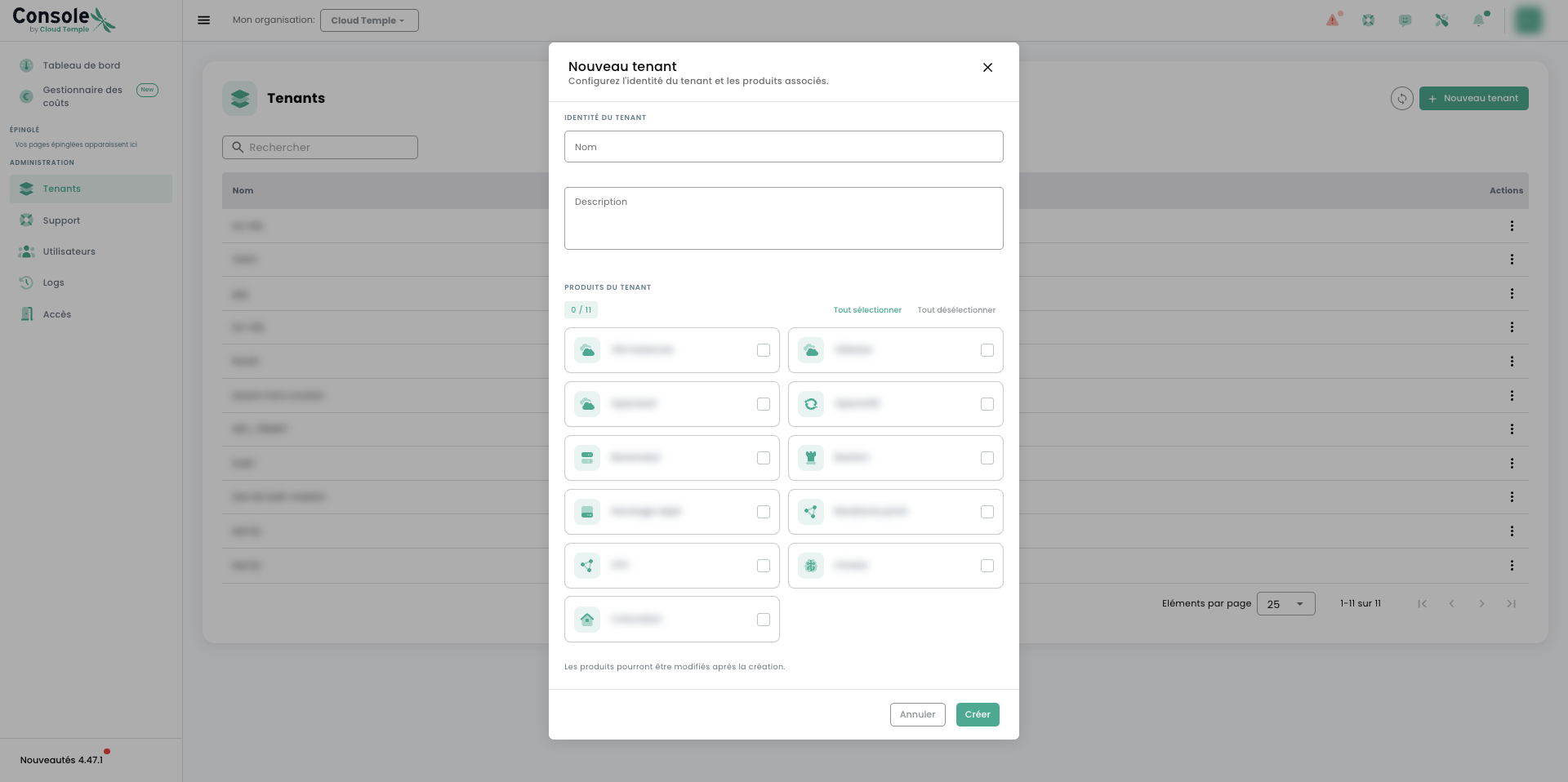
The "New tenant" button opens a two-part form:
- Tenant identity : the name (validated in real-time) and a description ;
- Tenant products : the products to activate on the tenant. The "Select all" / "Deselect all" buttons speed up data entry.
Confirm with "Create" : the tenant is initialized with the selected products.
Actions on a tenant
The action menu for each row provides:
- Connect to tenant — sets this tenant as the active tenant;
- Modify products — enables or disables products on the tenant to adjust its scope;
- Copy UUID — copies the technical identifier of the tenant (useful for the API or a support ticket).
Owners and Lifecycle
- Creation: self-service via "New tenant".
- Modification: adding or removing products via "Edit products".
- Tenant owners: each tenant has at least one owner. The rules (recommended number, propagation delay, removal upon support request, owner permissions) are detailed in the IAM module.
Tenant operations are logged on the Logs page (for example, "Creating tenant…" or "Updating features on tenant…").
Users and permissions
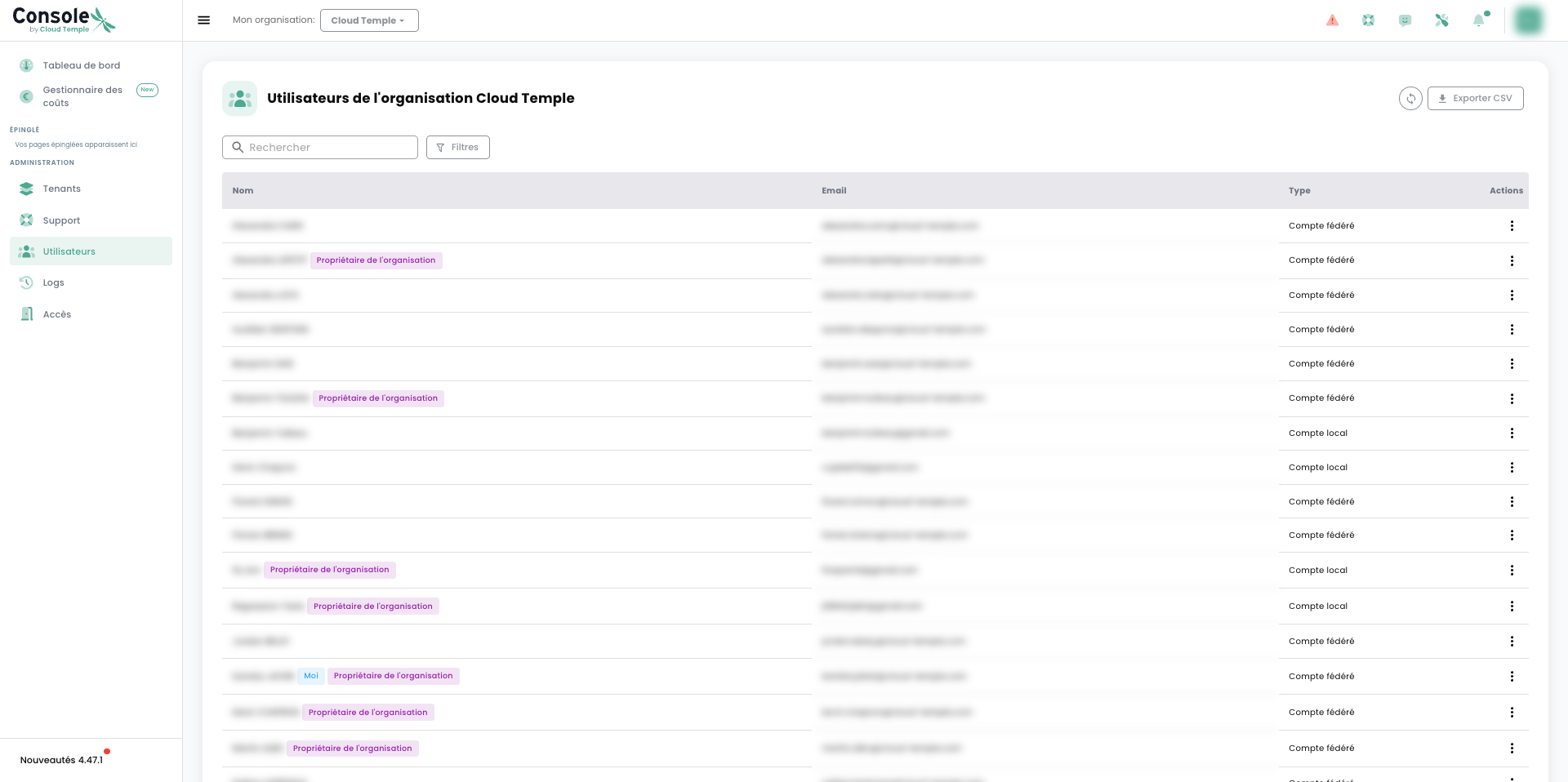
The Users page lists the organization's accounts. Credentials are organization-wide; permissions are defined per tenant.
For each account, the name, email, and account type are displayed — Federated account (référentiel d'identité externe) or Local account — along with visual indicators: Organization owner, Me, or Unverified email (compte non finalisé).
Page Tools
- Filters: by Organization Owners, Type, Source, and Status.
- Export CSV: exports the list of users and their access permissions, useful for auditing.
Actions on an account
The actions menu offers, depending on the account status:
- Add as organization owner ;
- Resend invitation — sends the invitation to an incomplete account ;
- Copy UUID ;
- Delete.
You cannot delete yourself. The invitation of a new user and the fine-grained permission assignment per tenant are described in the IAM module.
Organization owner and tenant owner
These are two distinct concepts:
- the organization owner is added from the Users page (action "Add as organization owner"); their removal requires a support request;
- the tenant owner is scoped to a tenant; its rules are described in the IAM module.
As an organization owner, you are by default the owner of all tenants in the organization. In this capacity, you have all permissions on each of these tenants. Conversely, if this role is revoked, you do not lose these permissions: they remain granted on the affected tenants.
Access — IP whitelist
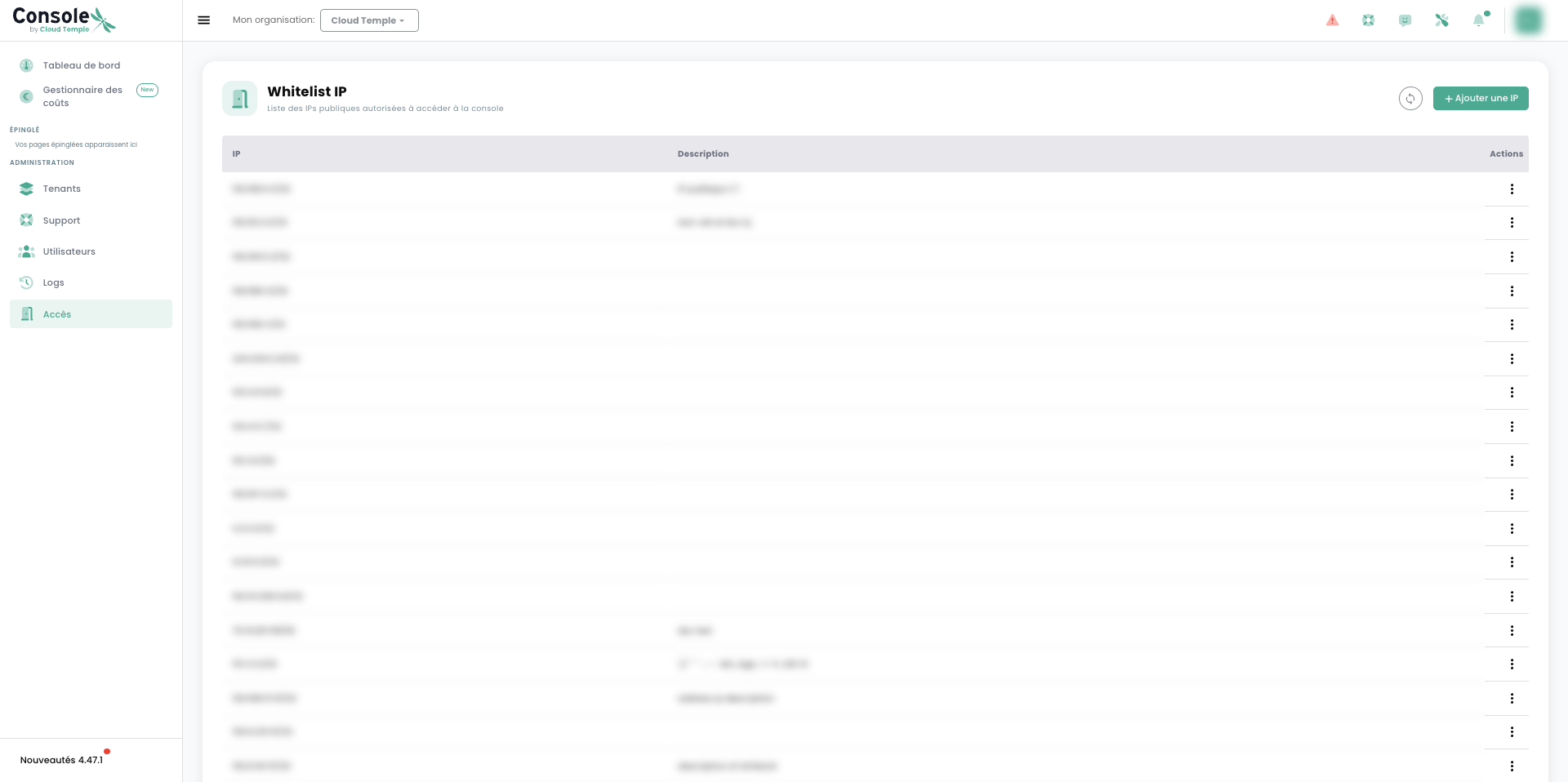
The Access page manages the list of authorized public IP addresses allowed to access the Console. In accordance with SecNumCloud requirements, only traffic originating from these addresses is accepted.
- Each entry associates an IP (CIDR notation) with a description.
- The « Add an IP » button allows you to add an address to the list.
The deletion of an authorized IP is performed upon support request.
Consumption Report — Cost Manager
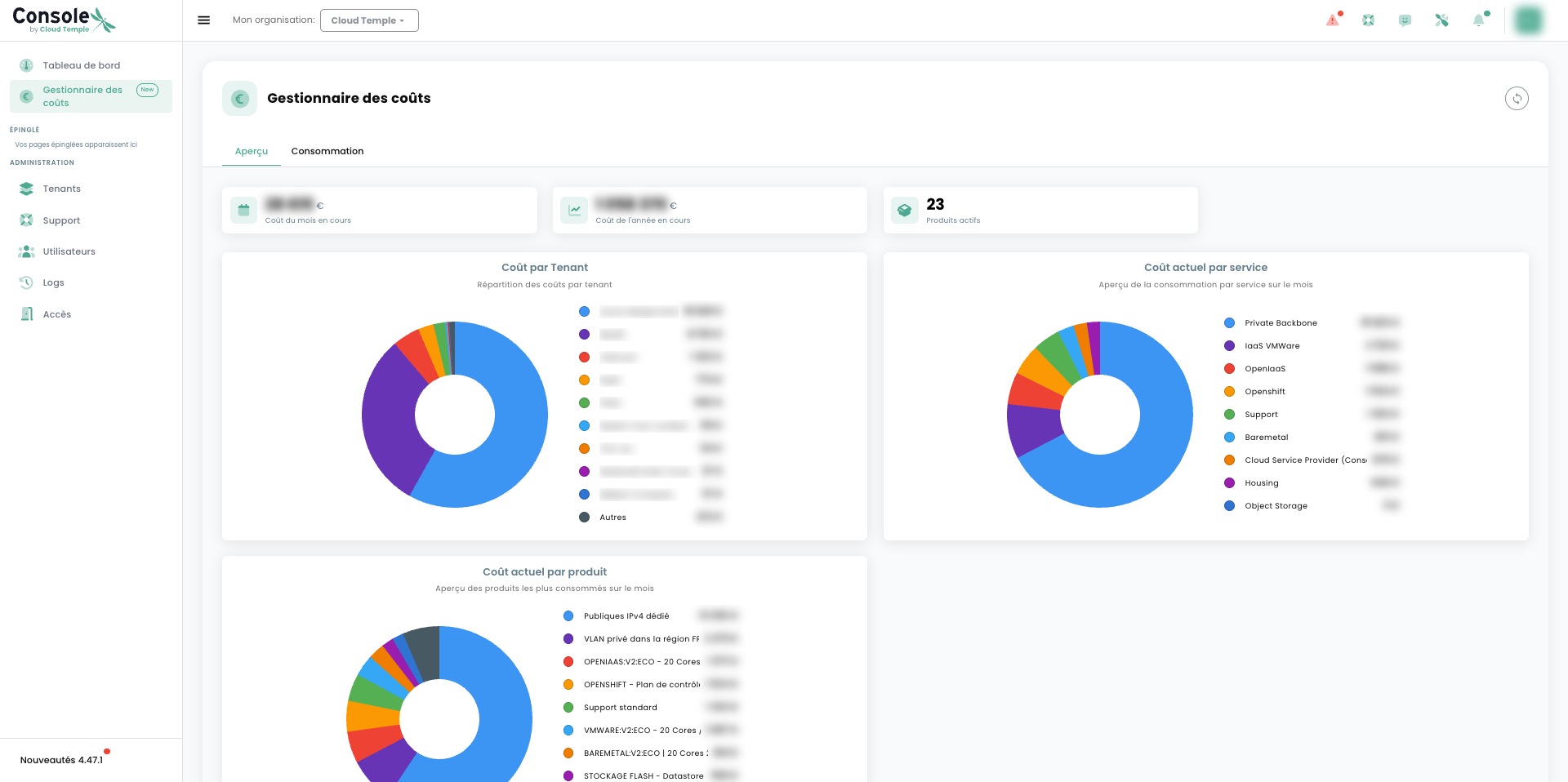
The Cost Manager provides a view of the organization's consumption, broken down by tenant. It offers two tabs.
Overview Tab
Summary view of the current month:
- key metrics: current month cost, current year cost, number of active products;
- Cost per tenant — cost breakdown across tenants;
- Current cost per service and Current cost per product — main consumption categories.
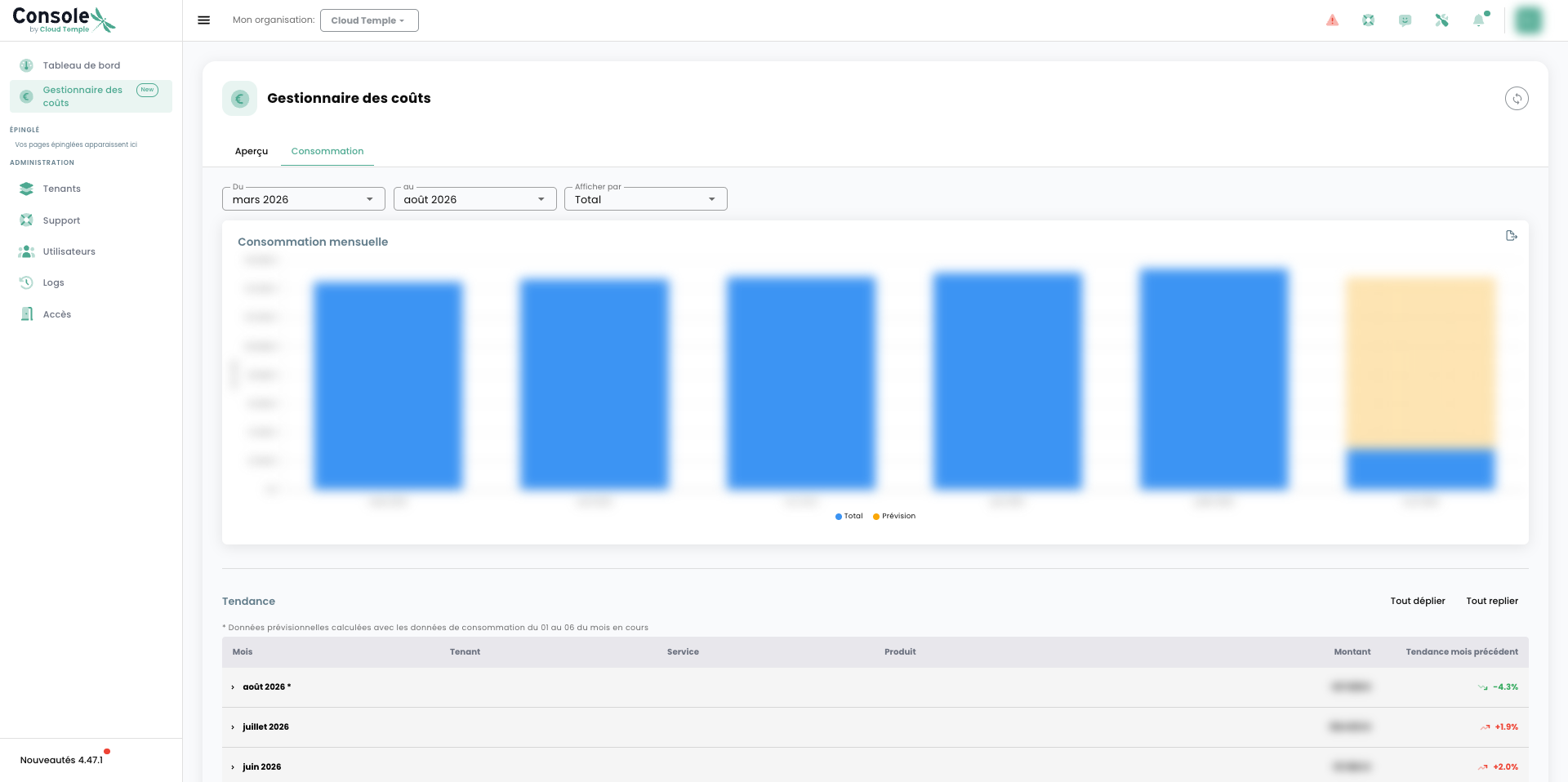
"Consumption" Tab
Detailed and historical report:
- selection of the period (start and end month) and the « Display by » axis;
- Monthly Consumption, Total, Forecast, and Trend views;
- expandable table by Month / Tenant / Service / Product / Amount, with the trend compared to the previous month.
The current month's amount is projected: it is estimated based on the days already consumed.
Logging and Support
- Logs — the Activities page tracks the organization's read and write operations (onglets Récents / Archivés, filtres, export CSV) for traceability purposes. See also the Journalisation — Suivi des Activités section below.
- Support — the Support page centralizes the organization tickets (indicateurs, création de ticket, filtres, export). Ticket creation and tracking are described in the Accès au support technique section below.
Language Management
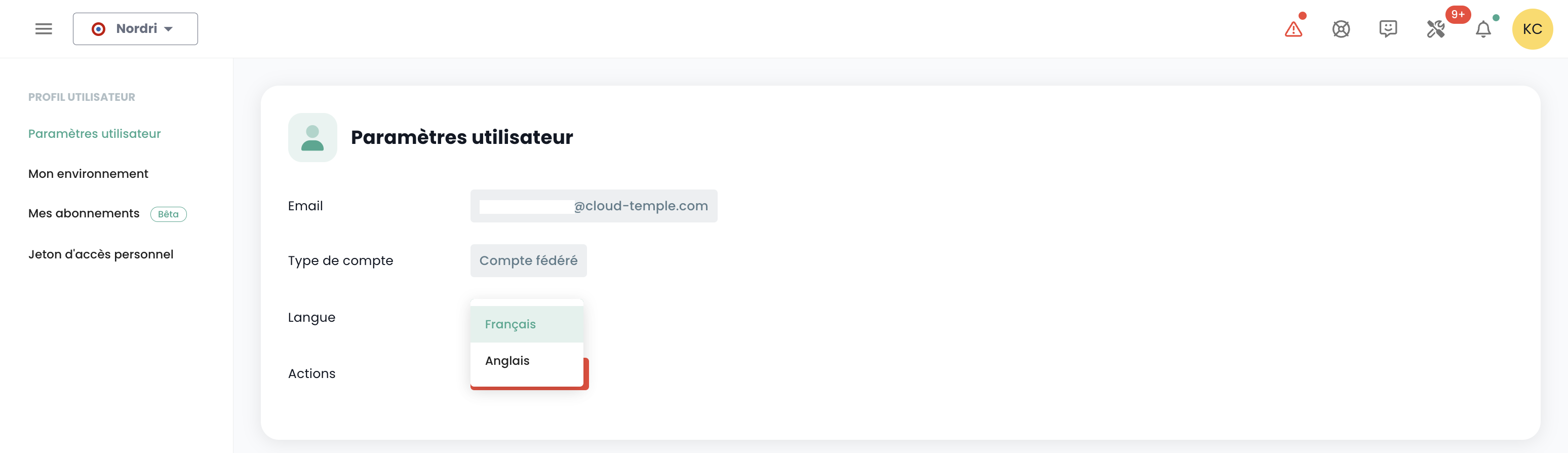
The console is available in French, English. You can change the interface language using the language icon located at the top right of the screen.
A user's language change must be made in their 'Profile', at the top right of the screen, under 'User Settings'.
The configuration is set for each tenant Tenant.
Access to Technical Support
At any time, you can contact the Cloud Temple support team via the 'help' icon located at the top right of the screen.
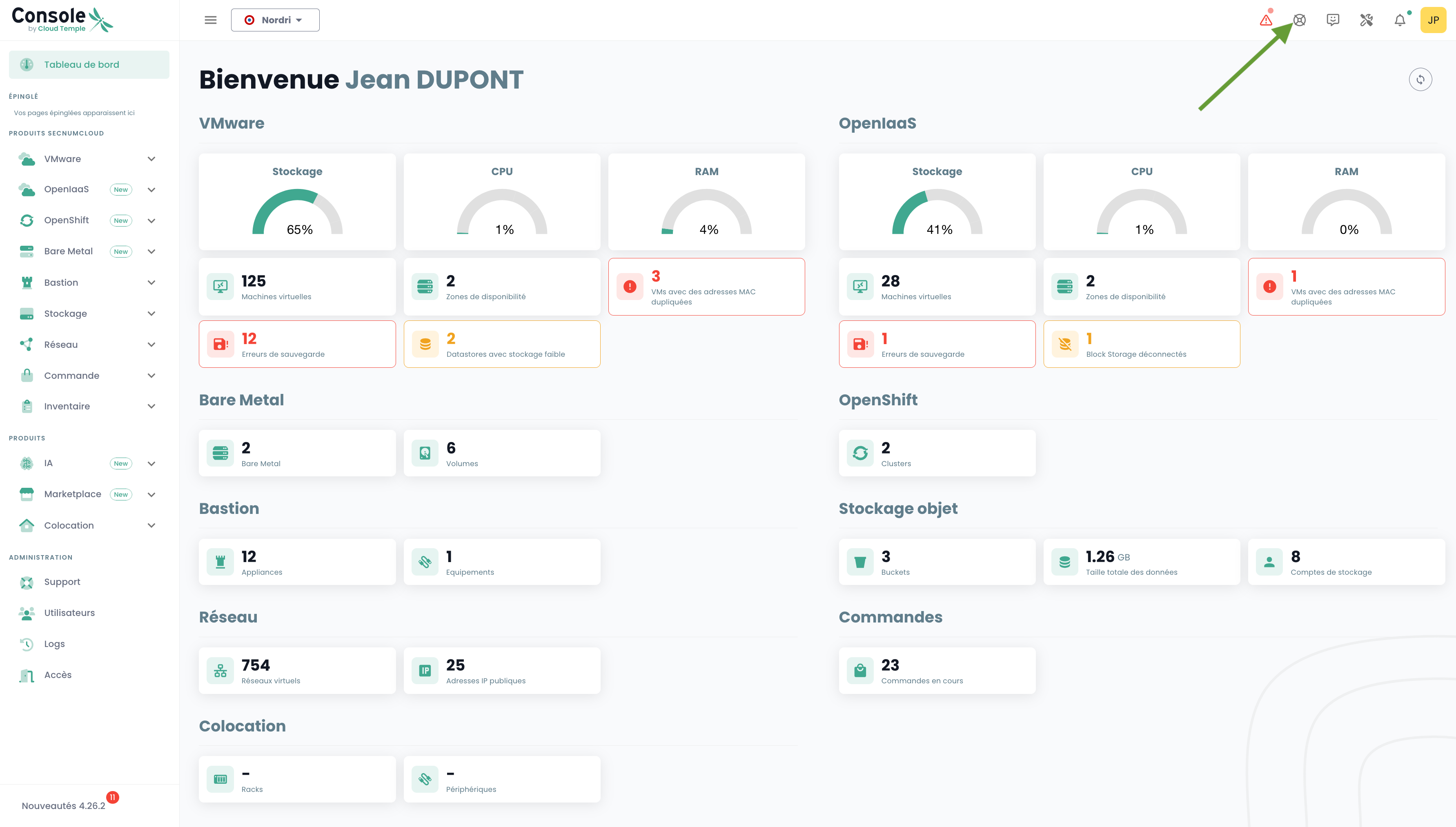
You will be guided throughout the entire support request process.
The first step is identifying the type of support request:
- Request advice on using a product (excluding incidents),
- Request assistance related to your customer account,
- Report an incident or request technical support.
- Request professional service assistance (provisioning of a Cloud Temple engineer for a specific issue).
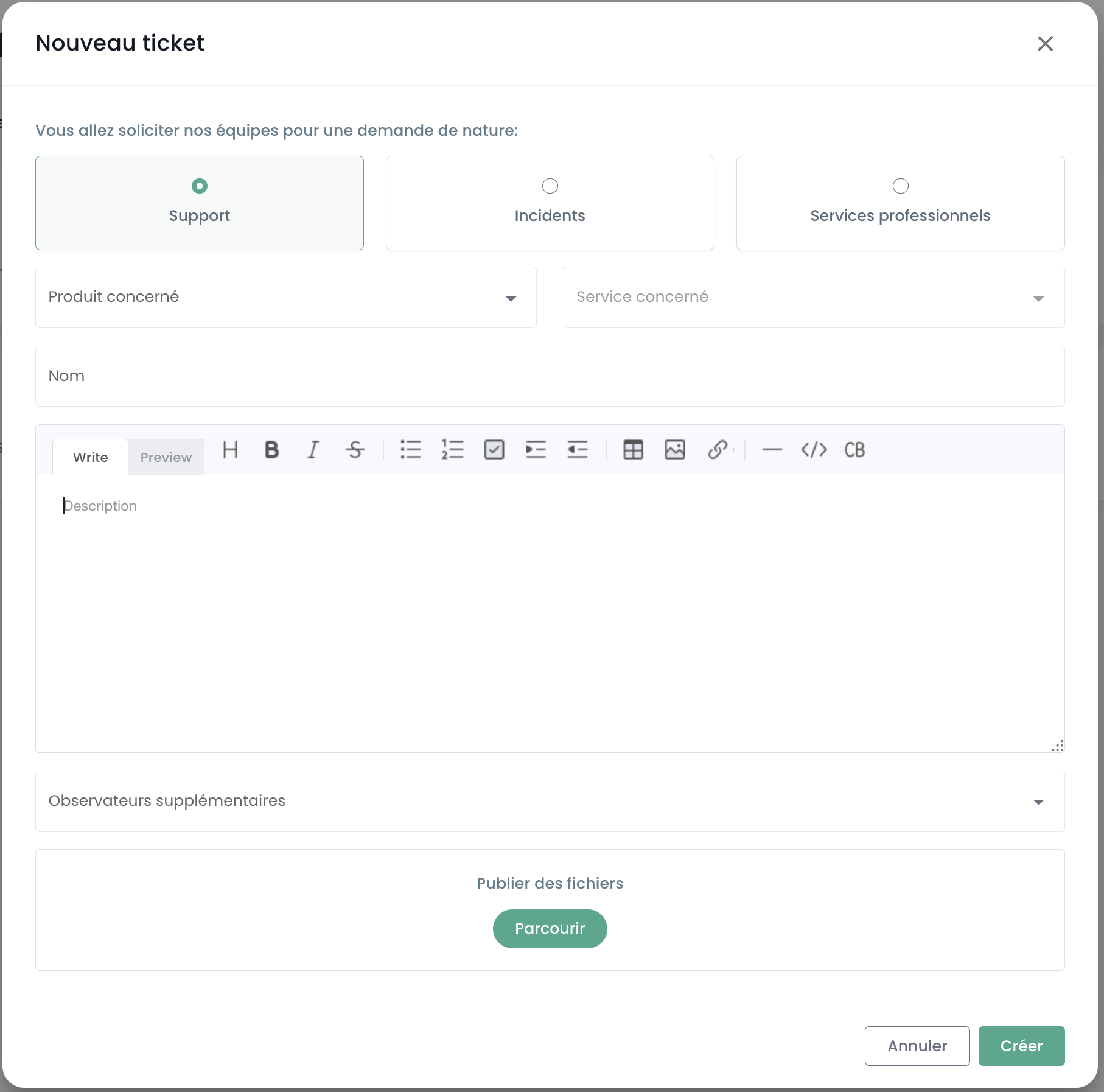
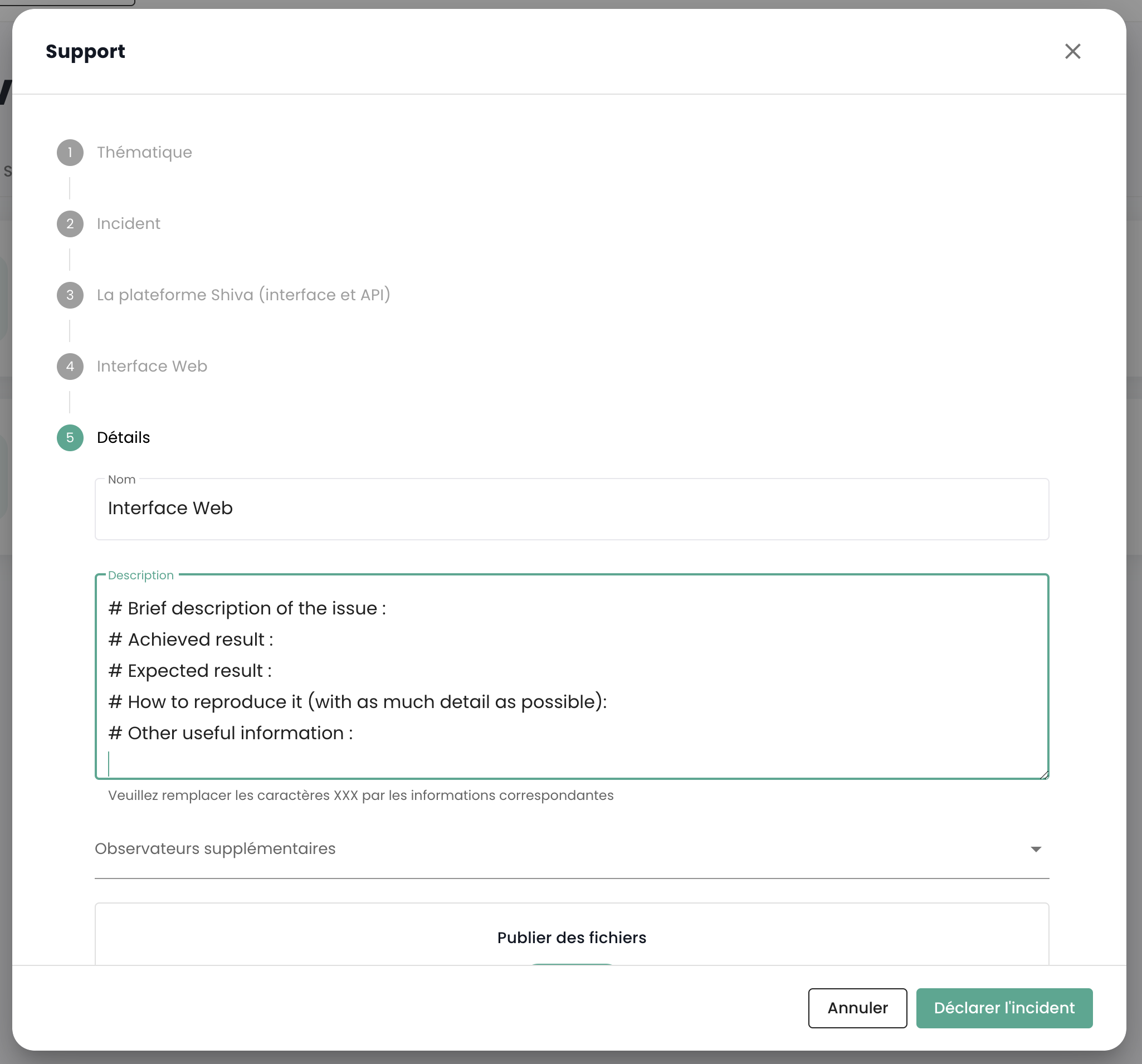
You can then provide additional details and attach files (such as images or logs).
The requester can also specify a severity level (P1 to P5) in the ticket description, in the case of a security incident, such as:
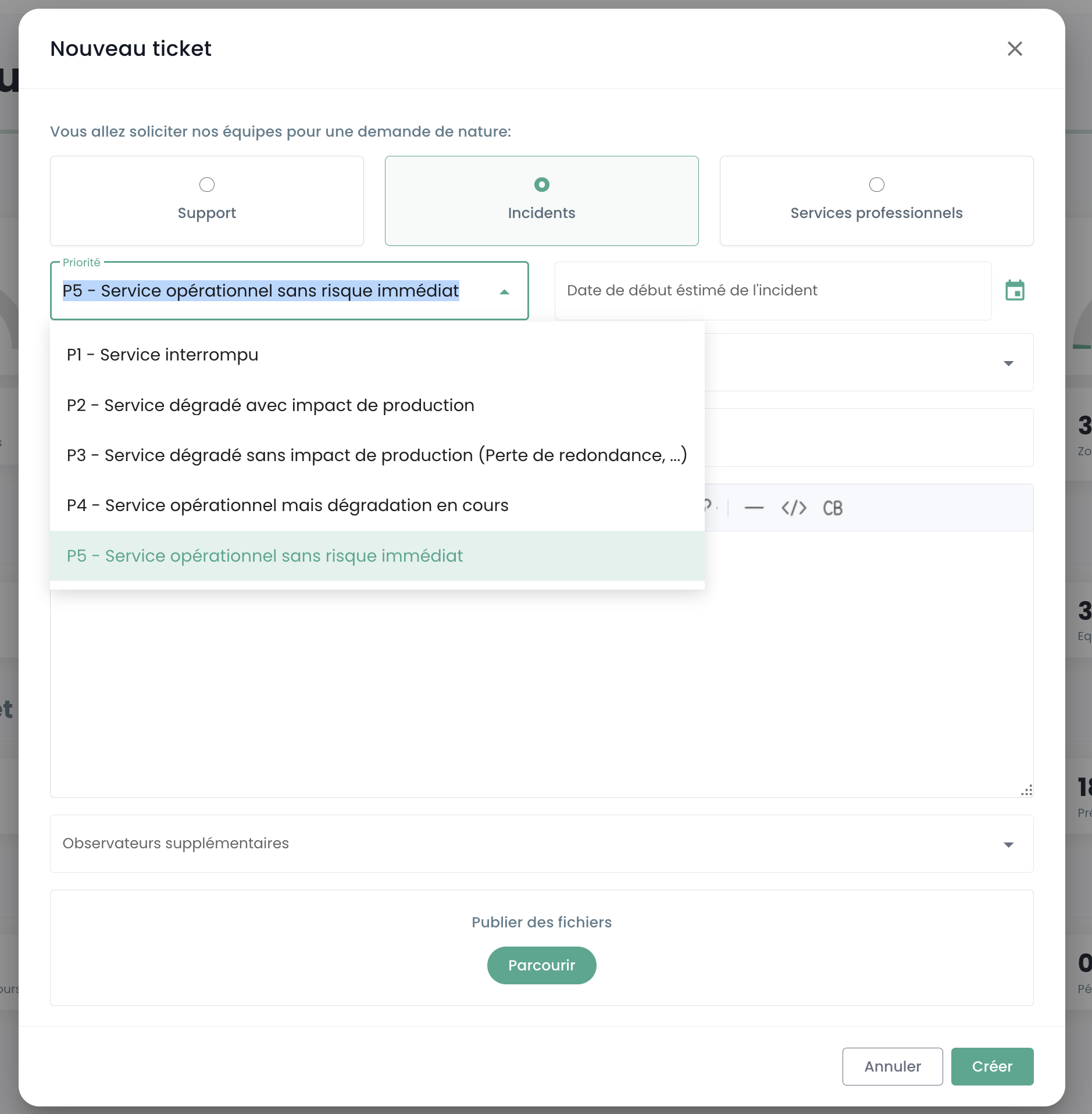
CRITICAL (P1):
- Suspected leak of sensitive data
- Detection of unauthorized access to your data
- Compromise of your administrative credentials
- Complete unavailability of your critical services
- Abnormal behavior involving sensitive data
- Personal data breach
HIGH (P2):
- Malfunction of user access
- Anomaly in your data encryption
- Loss of access to certain critical features
- Data inconsistency
- Major slowdowns impacting operations
MEDIUM (P3):
- Localized performance issue
- Incident on a non-critical function
- Configuration error with limited impact
- Occasional access difficulty
LOW (P4):
- Investigation request
- Anomaly with no direct impact
- Compliance question
- Need for technical clarification
OPERATIONAL SERVICE (P5):
- Operational service with no immediate risk
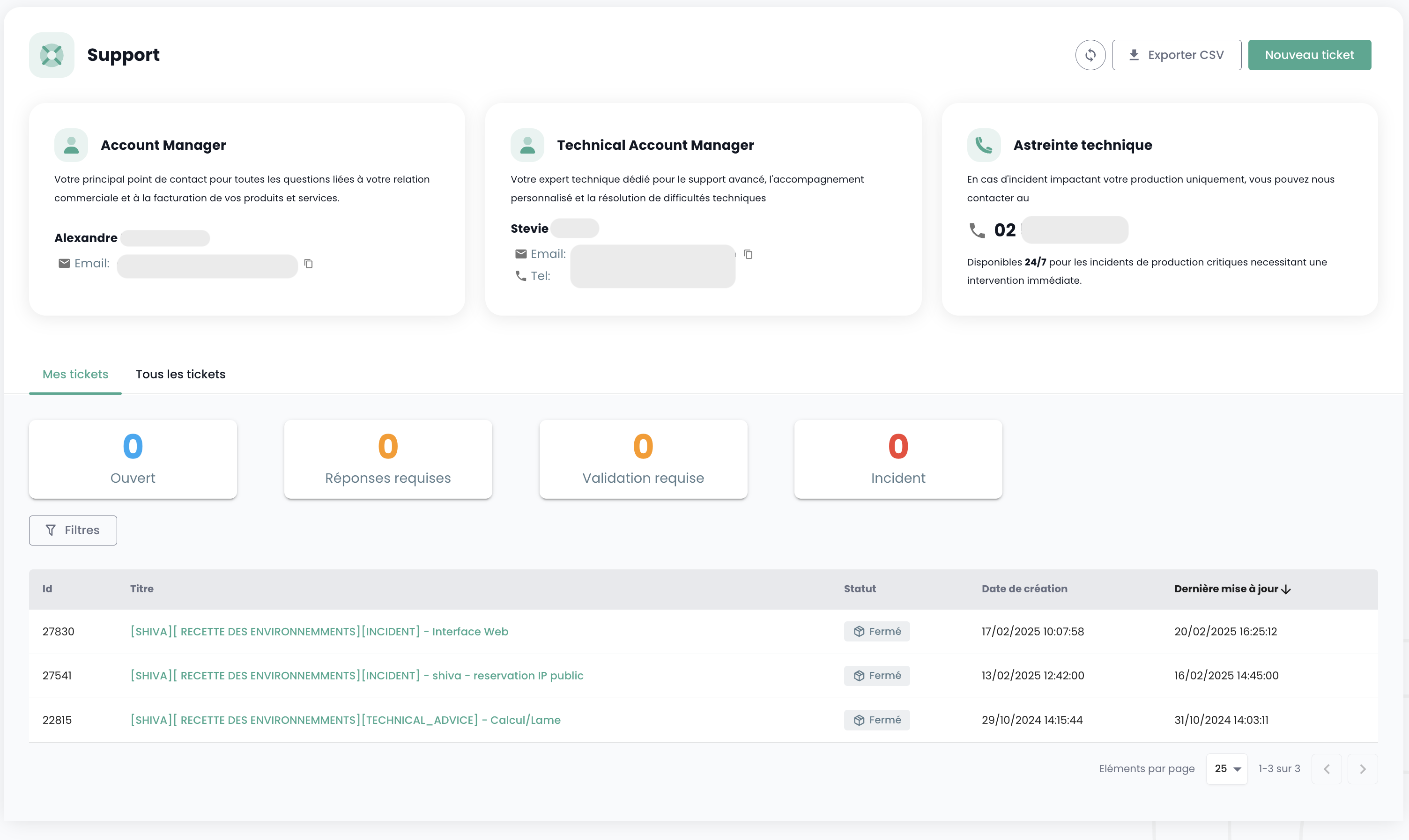
Once your request has been submitted, you can view your requests via the 'help' icon located at the top right of the screen:
Access to User Features via the Web Interface
All features accessible to your user (en fonction de ses droits) are located on the left side of the screen, in the green banner. Features are grouped by module. This primarily includes:
- The inventory of your resources,
- Operation tracking,
- IaaS resource management (Calcul, stockage, réseau, ...)
- OpenIaaS resource management (Calcul, stockage, réseau, ...)
- Access to ancillary services (Bastion, monitoring, ...)
- Organization administration (Gestion des tenants, des droits, ...)
Activating a module for a user depends on the user's permissions. For example, the 'Order' module will not be available if the user does not have the 'ORDER' permission.
Here is an overview of the available modules. New modules regularly enhance the console:
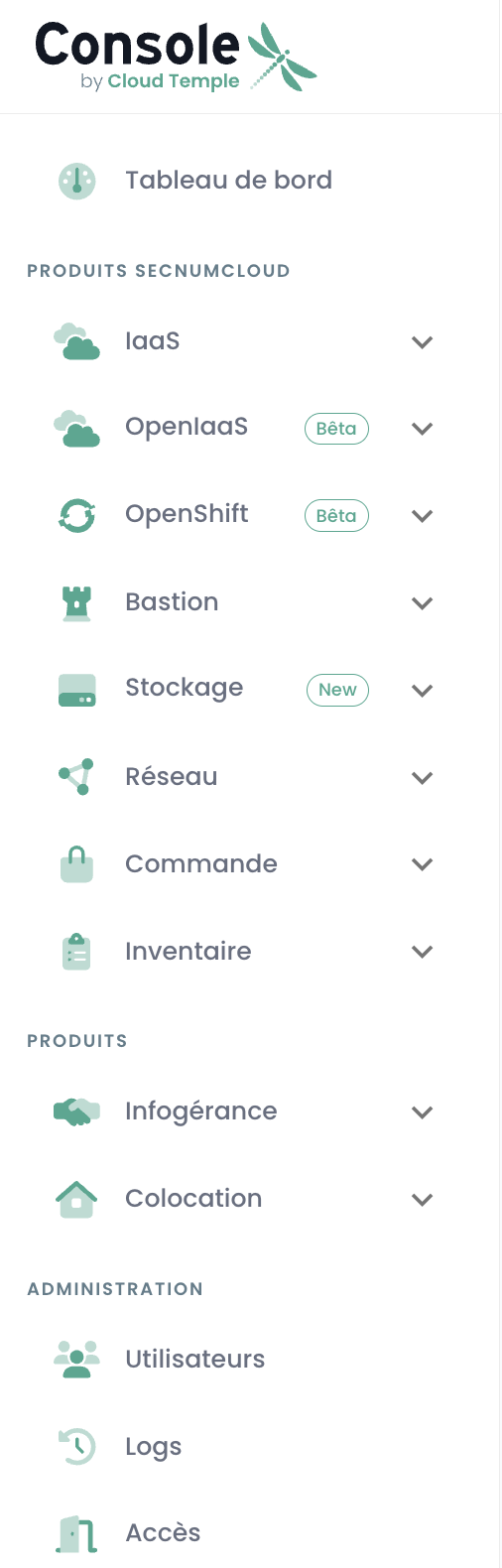
- Dashboard : provides a quick overview of the total compute and storage resources, backup statistics, and a summary of support tickets,
- Inventory : provides a view of all your 'virtual machines' resources. If tags are used, it allows viewing by tag (par exemple, vue métier, vue applicatif, ...),
- Managed Services : provides access to tracking your support requests and service metrics,
- IaaS : enables management of VMware IaaS infrastructure (Machines virtuelles, clusters, hyperviseurs, réplications, sauvegarde, ...),
- OpenIaaS : enables management of Xen Orchestra resources (Machines virtuelles, sauvegarde, ...),
- OpenShift : enables management of your RedHat OpenShift PaaS architecture and container management across the platform's 3 availability zones.
- Bastion : Allows deploying and managing SSH/RDP bastion appliances in your networks,
- Network : enables management of Layer 2 and Layer 3 networks, public IPs, and your telecom circuits,
- Colocation : Provides a view of equipment located in shared or dedicated colocation zones,
- Order : Enables resource ordering and deployment tracking,
- Administration : Groups user and tenant administration functions, as well as access to global logging.
The 'NEW' icons indicate that the product in question has been provisioned but is not yet certified as a SecNumCloud offer, and 'BETA' indicates that the product has been provisioned and has just been certified as a SecNumCloud offer.
Logging - Activity Tracking
The activity page is designed to provide complete visibility into all read and write operations performed within the console, ensuring enhanced traceability and security. It highlights the two main tabs: Recent and Archived.
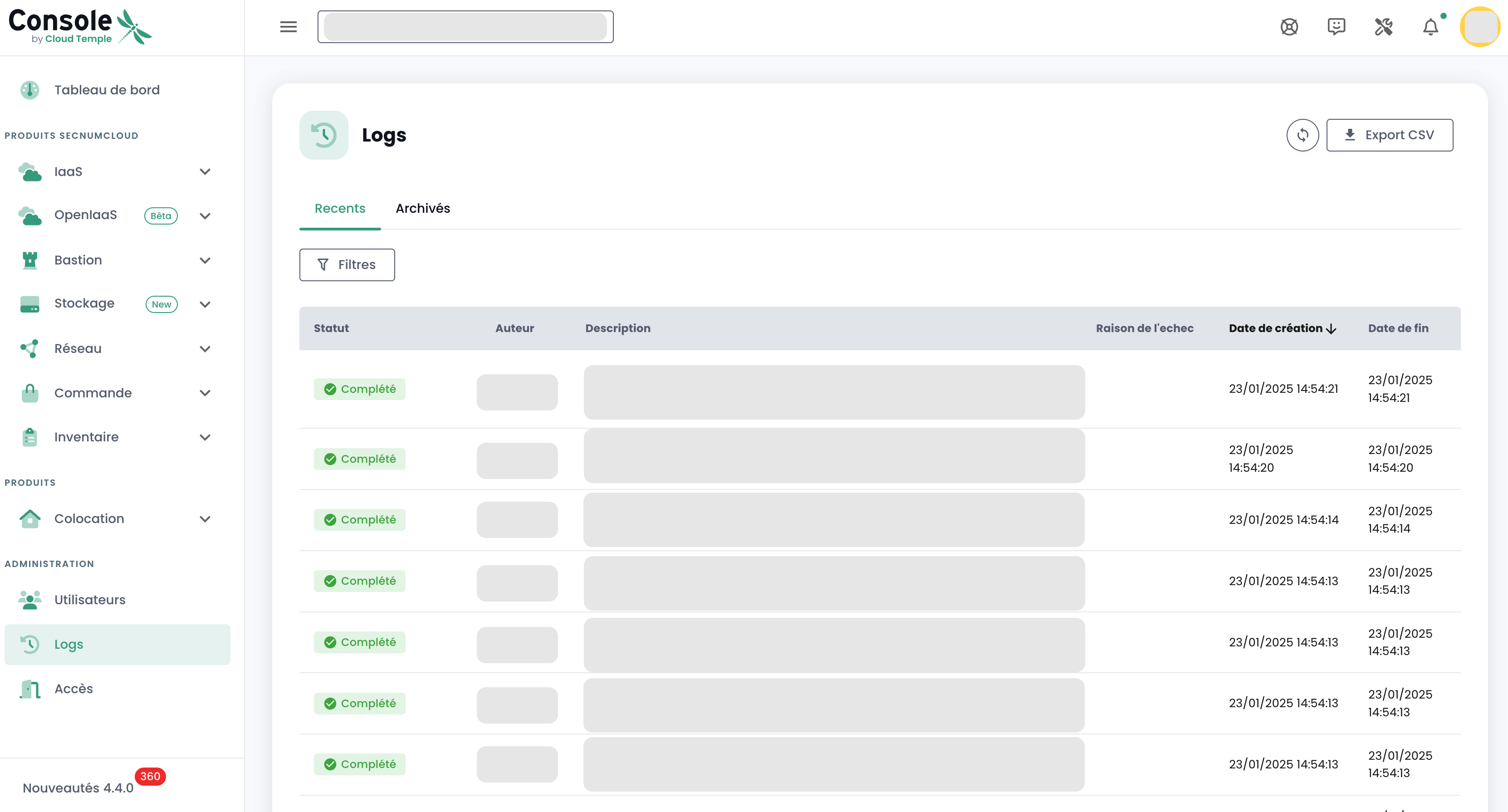
Page Structure
Tabs
-
Recent
-
Recent operations
-
Real-time tracking
-
Archived
-
Operations over a longer period
-
Archived operations for traceability and compliance
Displayed Information
-
Date and Time
-
Operation Type
- Status
-
User
-
Operation Description
Feature
- Search/Filtering for specific operations
Usage
- Access : permission
activity_read - Navigation :
- Select the "Recent" tab for real-time operations.
- Choose "Archived" to view history.
- Use search and filtering features to locate specific operations.
Compliance Note
In accordance with the SecNumCloud certification, the storage of Cloud Temple console events is for a minimum duration of 6 months, thereby ensuring compliance with security and traceability requirements.
Viewing the Latest Updates
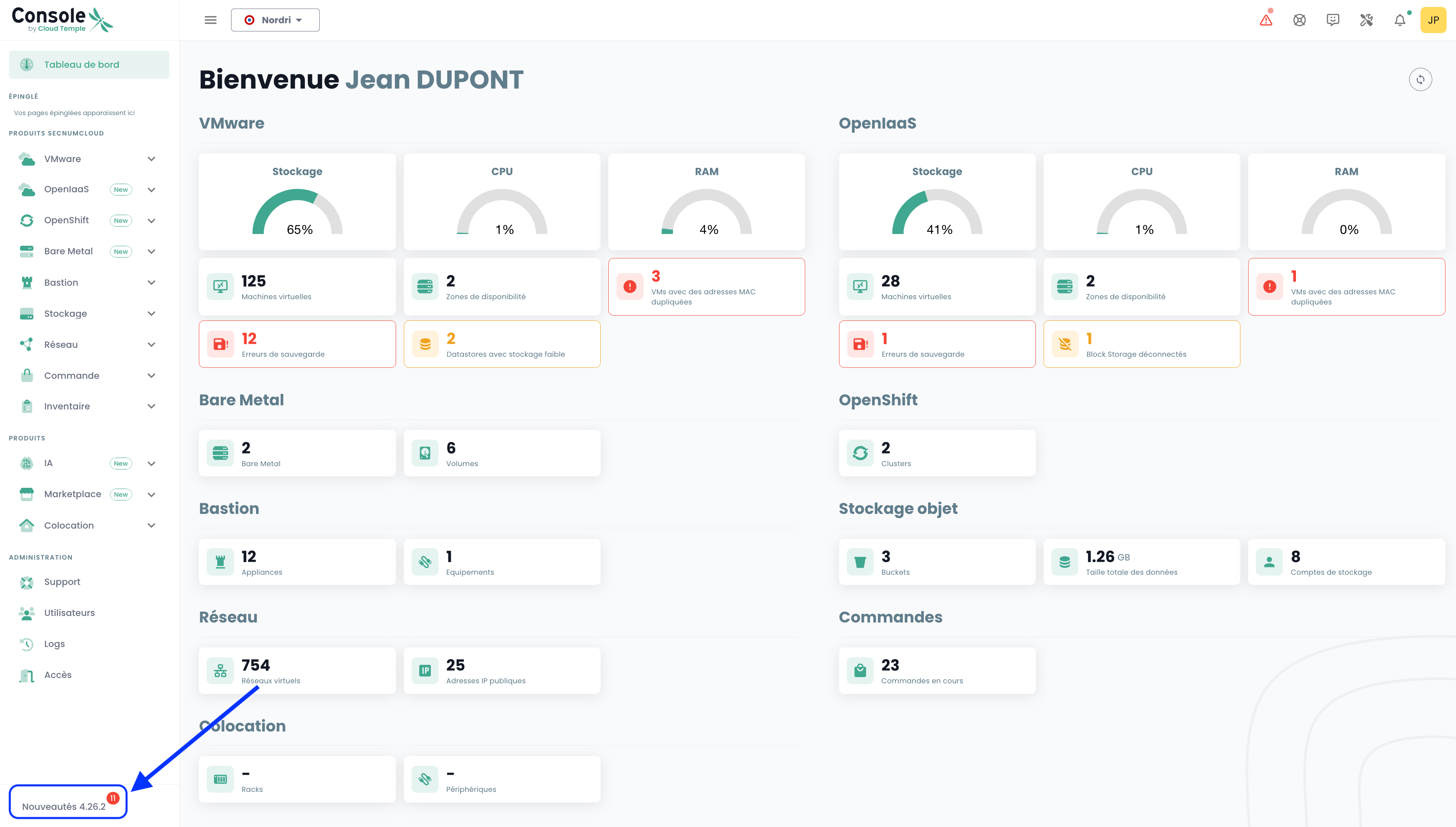
Click the 'What's New' icon at the bottom left of the green banner. You will see the detailed changes for each version of the Cloud Temple console.
Access to User Features via the API
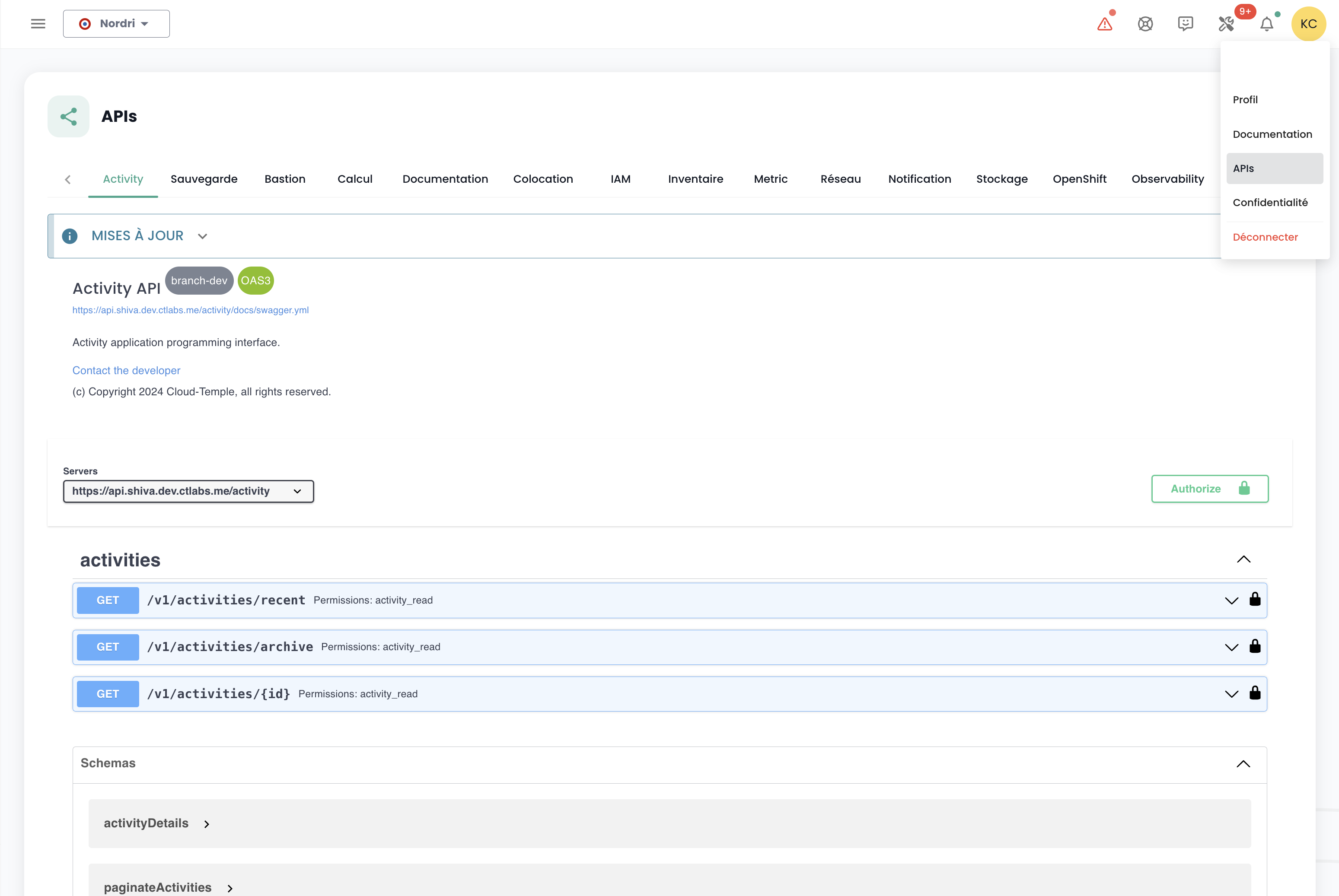
Access to all Console features is available via the Console API. You can view details of the verbs and configurations via 'Profile' and 'APIs' :
Terraform Provider
Cloud Temple provides a Terraform provider to manage your Cloud platform "as code".