Getting Started Guide
This getting started guide shows you how to request the creation of an Appliance and how to create a new session and connect to it.
Prerequisites
- Subscribe to the Cloud Temple product (Appliance Bastion subscription).
- The devices to be managed must be accessible from the network where the Appliance Bastion is deployed.
- Have permissions on the Bastion module.
- For an on-premise Appliance deployment, the corresponding traffic must be allowed.
Flows required for the Bastion product to operate
Several flows are required for the proper operation of the Bastion Appliance.
The bastion gateway
| Source | Destination | Protocol |
|---|---|---|
| Client bastion appliance | 91.223.207.71 (botg.shiva.cloud-temple.com) | UDP/4242 |
RDP Administration Flow
| Source | Destination | Protocol |
|---|---|---|
| Client bastion appliance | Instances to administer | TCP/3389 |
SSH Administration Flow
| Source | Destination | Protocol |
|---|---|---|
| Client bastion appliance | Managed instances | TCP/22 |
Requesting an Appliance
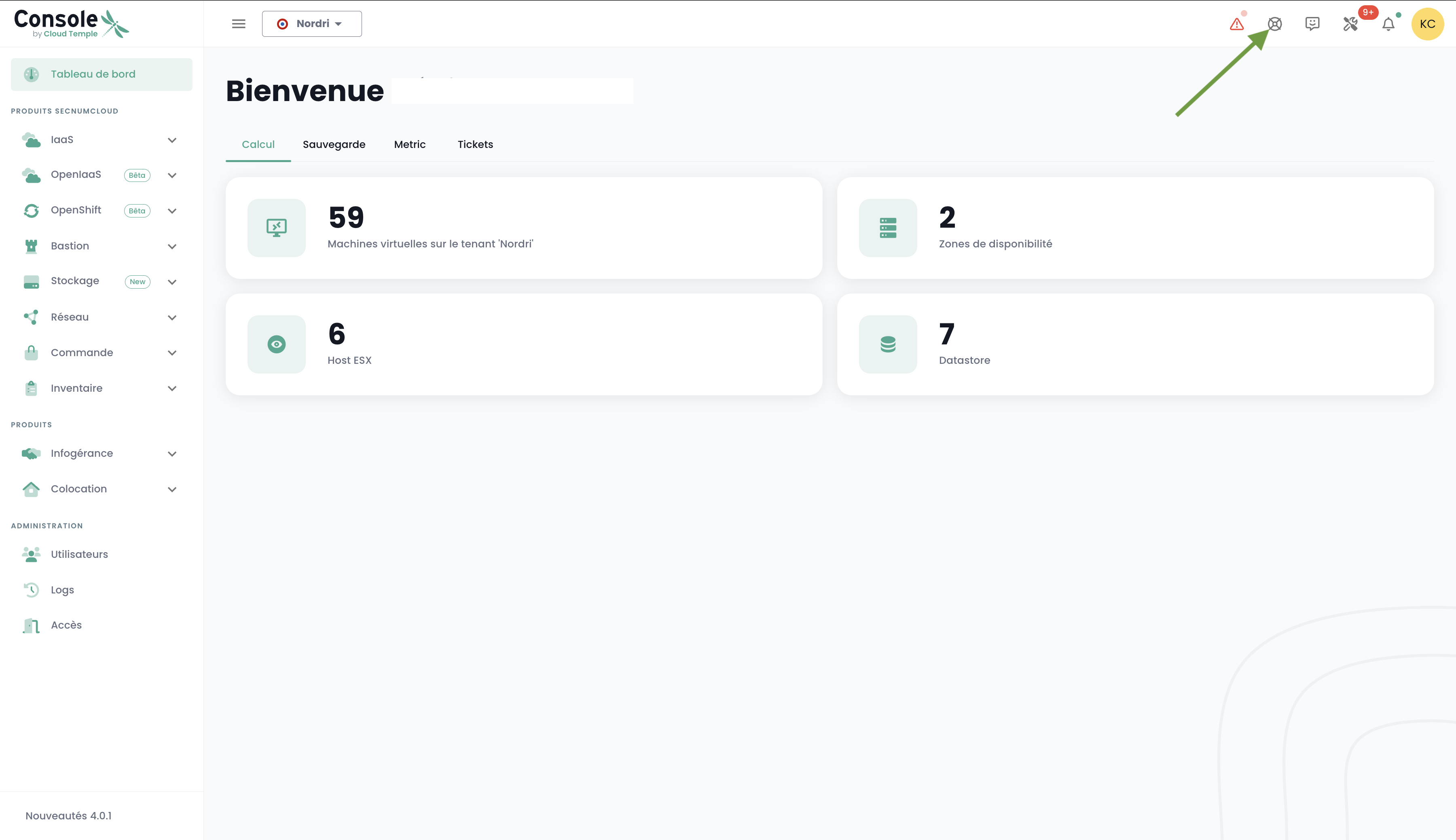
Before you can deploy an Appliance, you must submit an Appliance subscription request via a support request. Support is accessible in the Console via the lifebuoy icon on the top-right bar of the window.
Register a device
To regularly access a device for administration, it is more appropriate to create a session that will only require your username and password each time you log in.
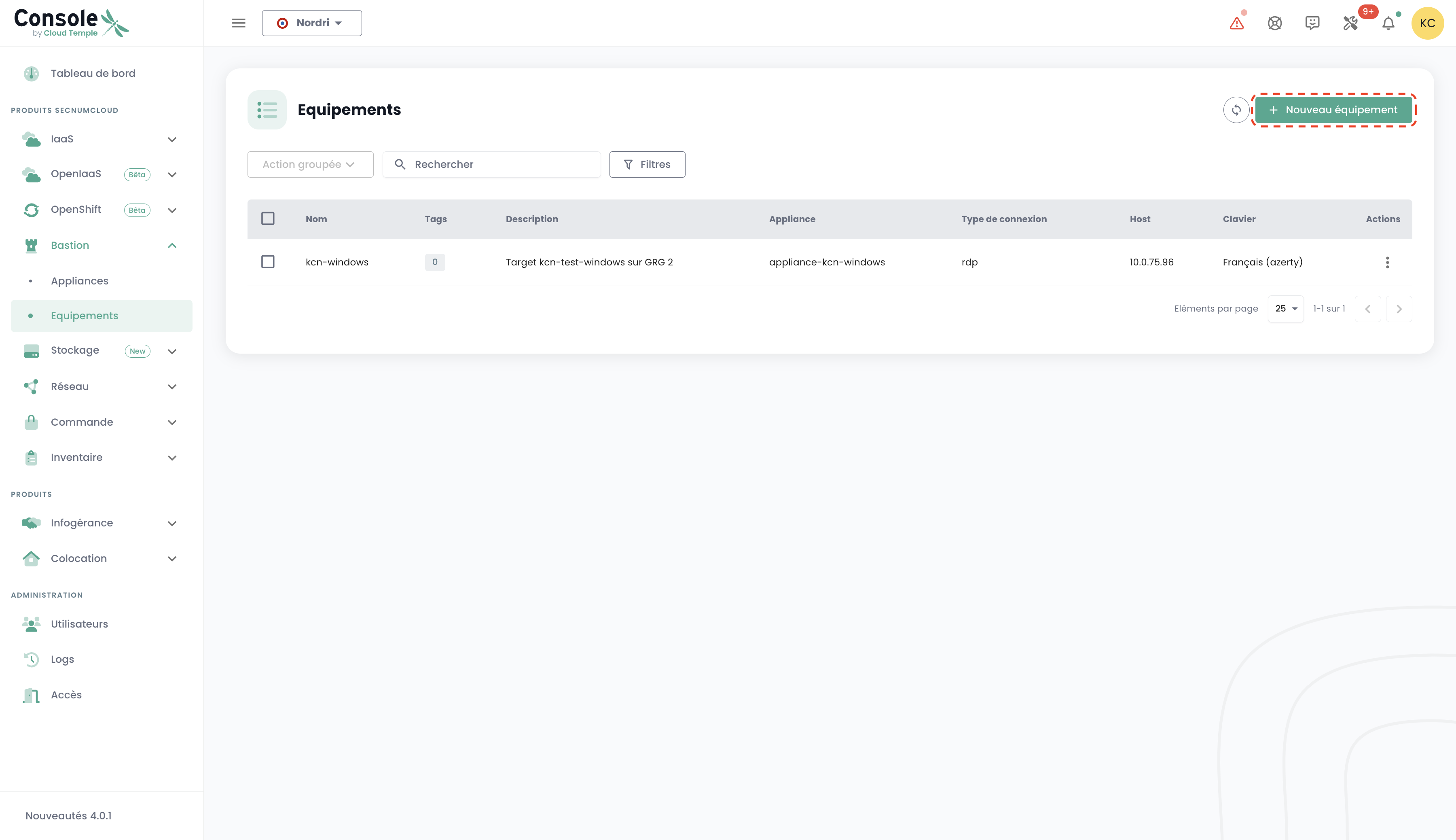
To do this, go to the "Devices" tab in the "Bastion" menu, then click the "New Device" button.
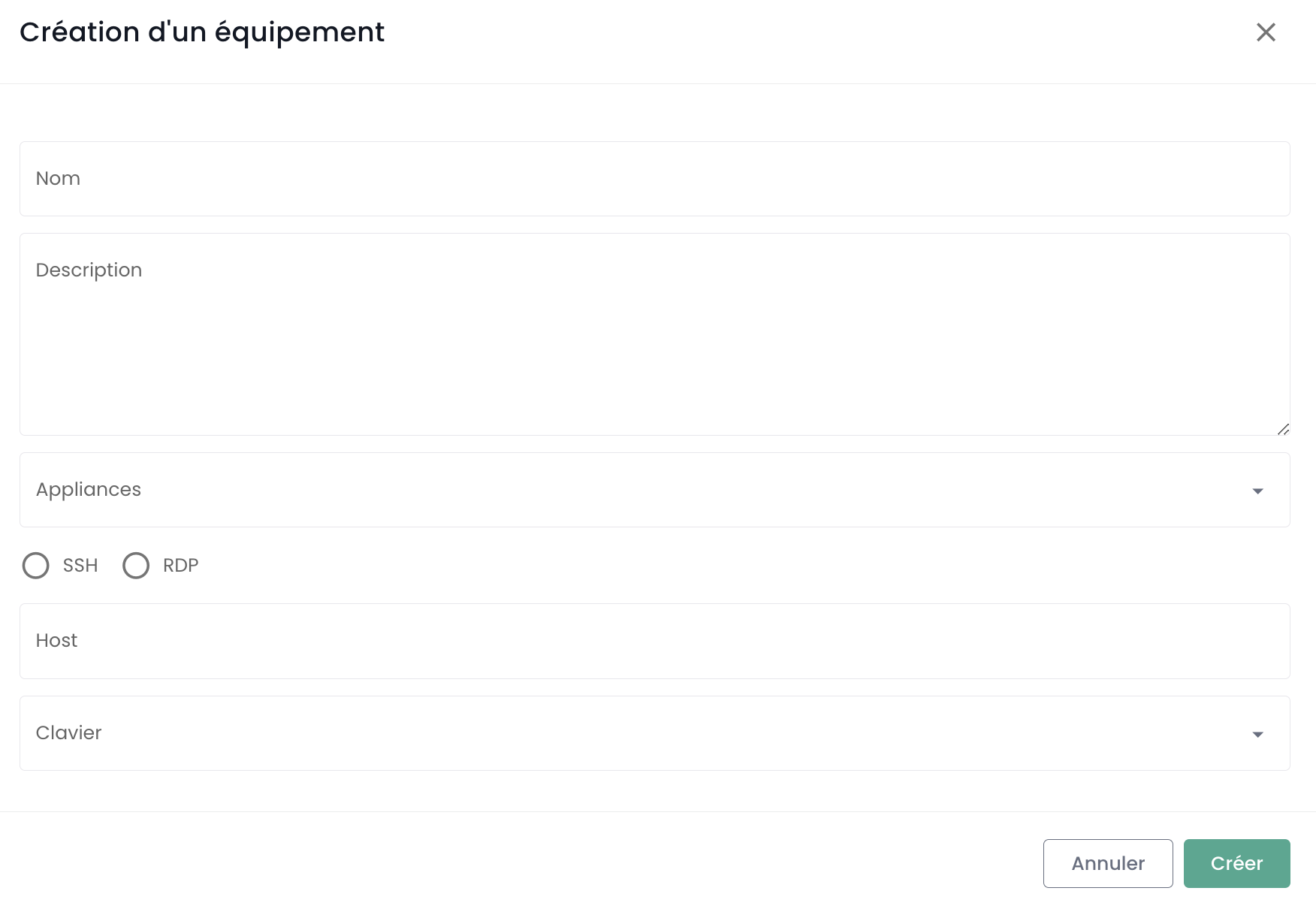
Then, fill in the information required to create your device:
- Device name;
- Description;
- Associated appliance;
- Protocol type (SSH or RDP);
- Host IP address;
- Keyboard layout.
A notification indicating the device has been created should appear in the top right corner of the page. The session is then added to your list of devices.
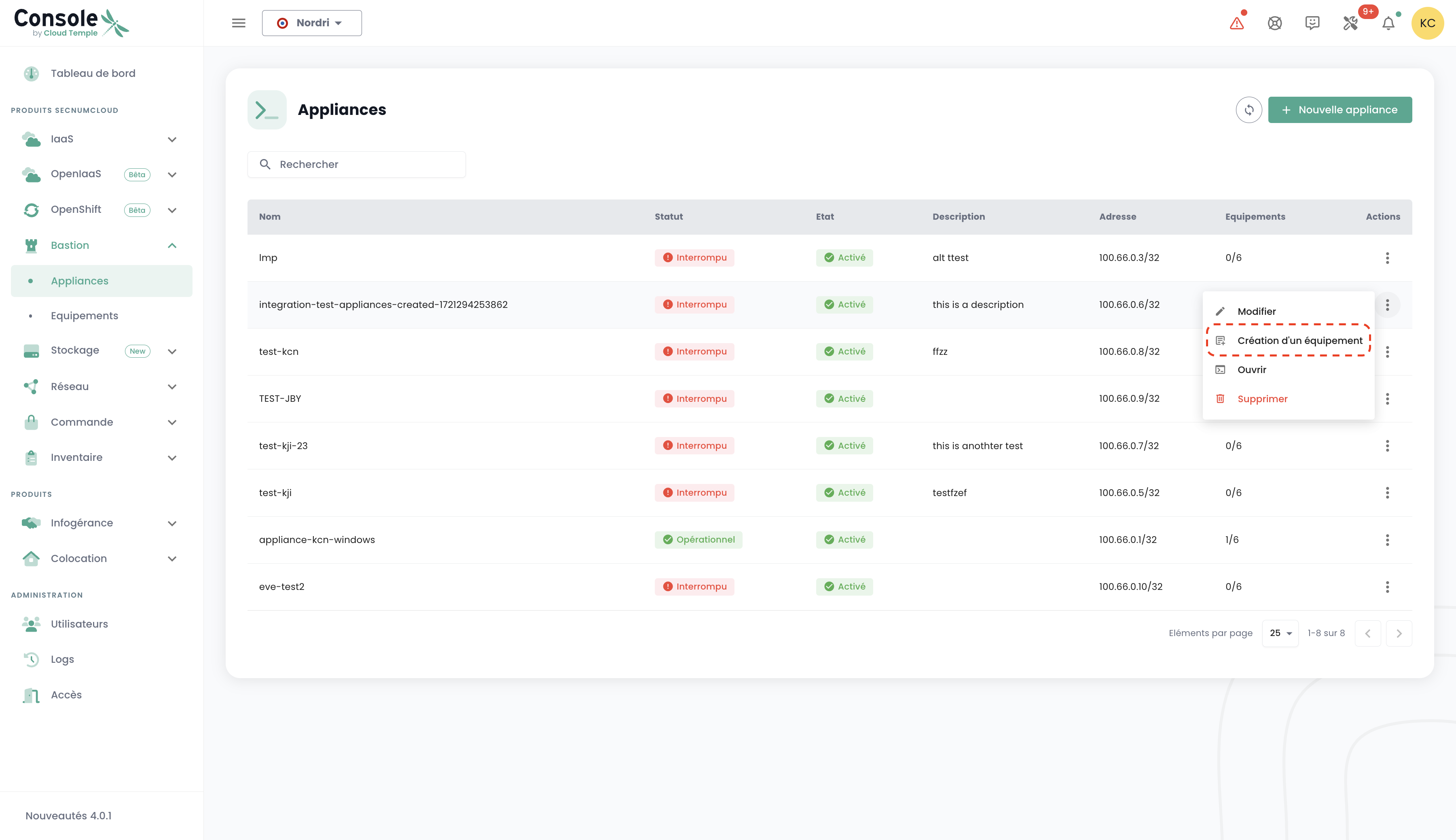
To create a new device, you can also go through the "Appliances" tab by clicking on the action bar of the appliance to which you want to associate a device.
Connect to a device
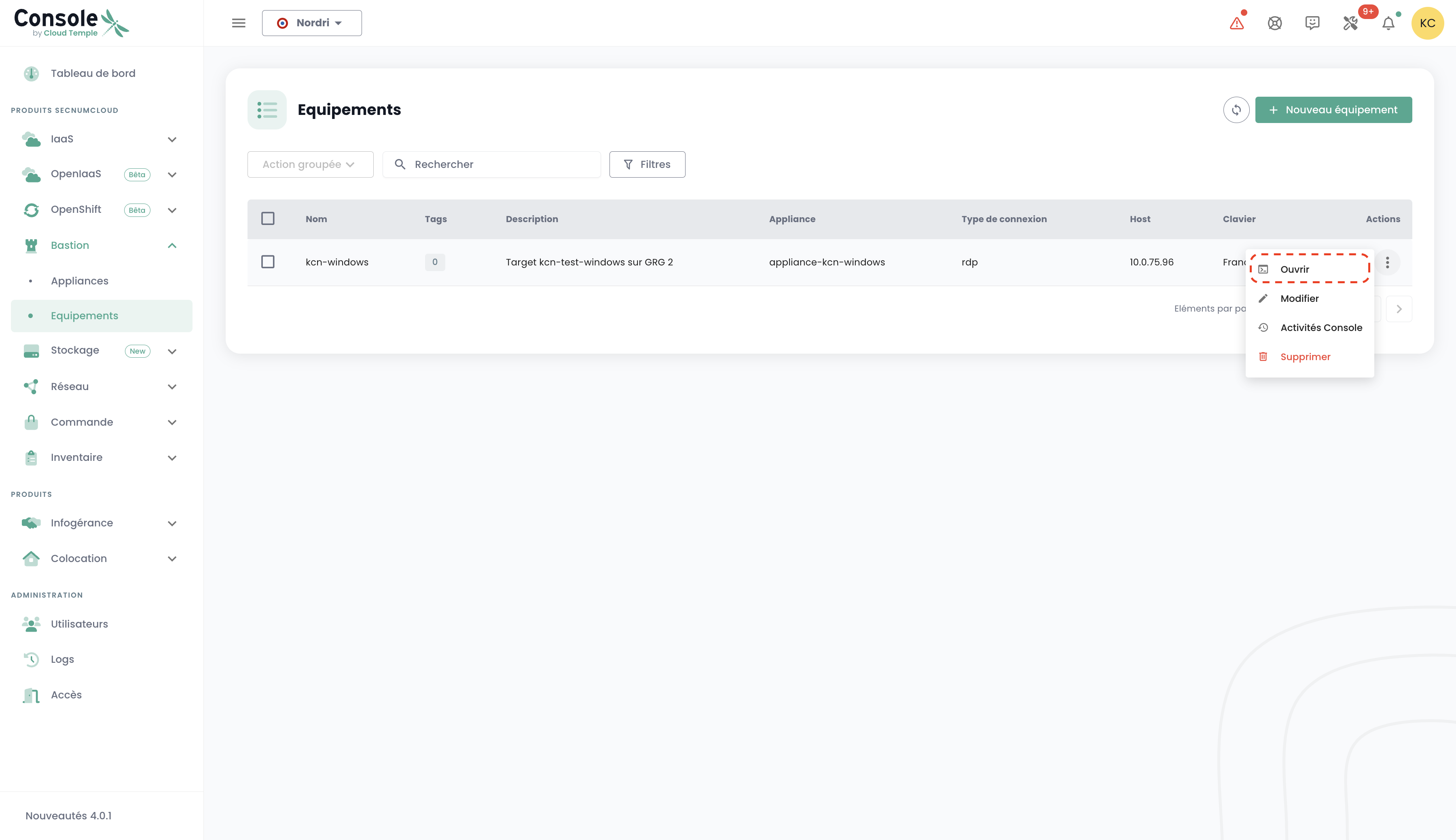
Navigate to the "Devices" tab in the "Bastion" tab. Click on the action bar of the device you want to open, and click the "Open" button.
Each time you connect to the device, you only need to provide your authentication credentials.
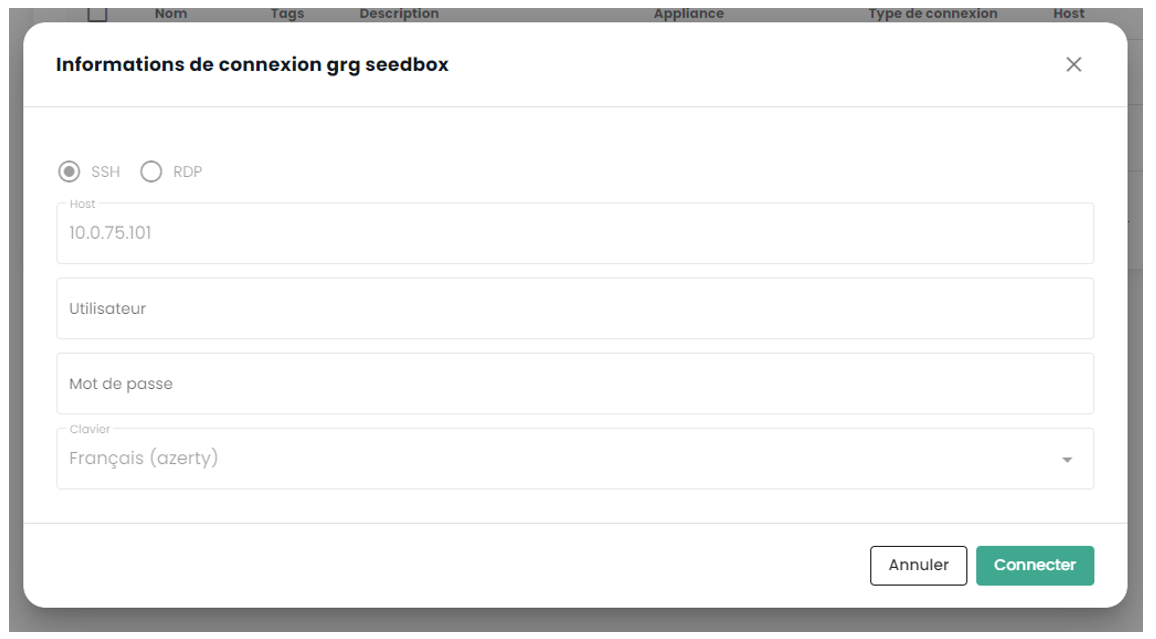
After entering your credentials, a notification confirming the start of the connection to your device appears, and the console to your virtual machine opens.