QuickStart for the OpenShift Offering
This page guides you through the initial steps to use the OpenShift offering from the Cloud Temple console. Follow these instructions to explore the available menus and features.
Voraussetzungen
Stellen Sie sicher, dass die folgenden Punkte erfüllt sind, bevor Sie beginnen:
- Aktivierte Abonnement: Ihre Organisation muss ein OpenShift-Abonnement abgeschlossen haben.
- Benutzerberechtigungen: Ihr Benutzerkonto muss über die erforderlichen Berechtigungen verfügen, um auf OpenShift-Ressourcen zuzugreifen und diese zu verwalten.
Erster Zugriff und Bestellung
Beim ersten Zugriff auf das OpenShift-Angebot nach Aktivierung der Subscription und Konfiguration der Berechtigungen wird folgende Startseite angezeigt:
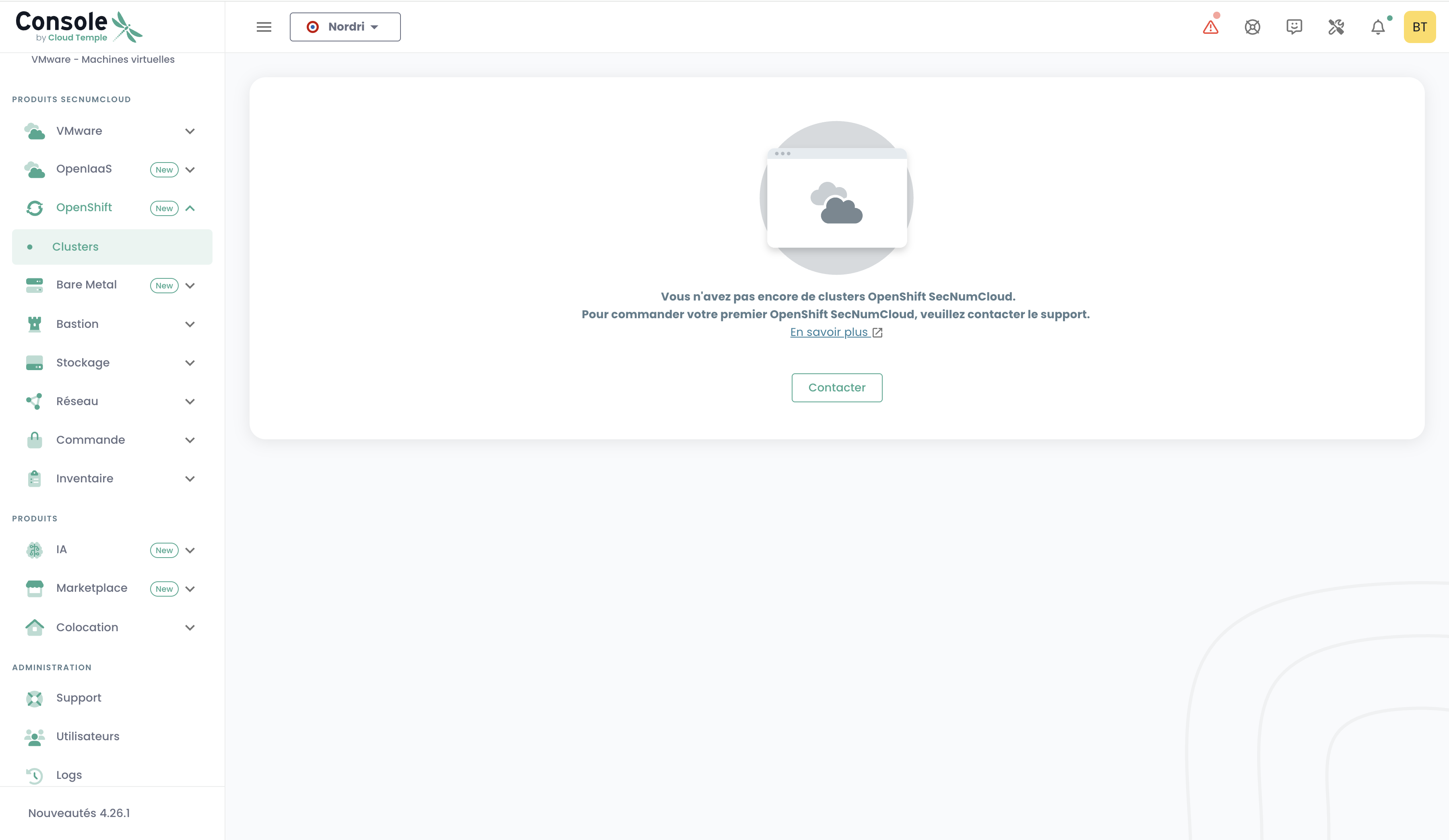
Diese Seite zeigt an, dass Sie noch keine OpenShift SecNumCloud-Cluster bereitgestellt haben.
Um Ihren ersten OpenShift SecNumCloud-Cluster zu bestellen, wenden Sie sich bitte an den Cloud Temple-Support.
Sobald Ihre Bestellung vom Support bearbeitet wurde und Ihr Cluster bereitgestellt ist, können Sie auf das OpenShift-Menü zugreifen.
Access to the OpenShift Interface
Once your first cluster has been deployed, a new menu titled OpenShift appears in the Cloud Temple console. This menu contains a main submenu: Clusters.
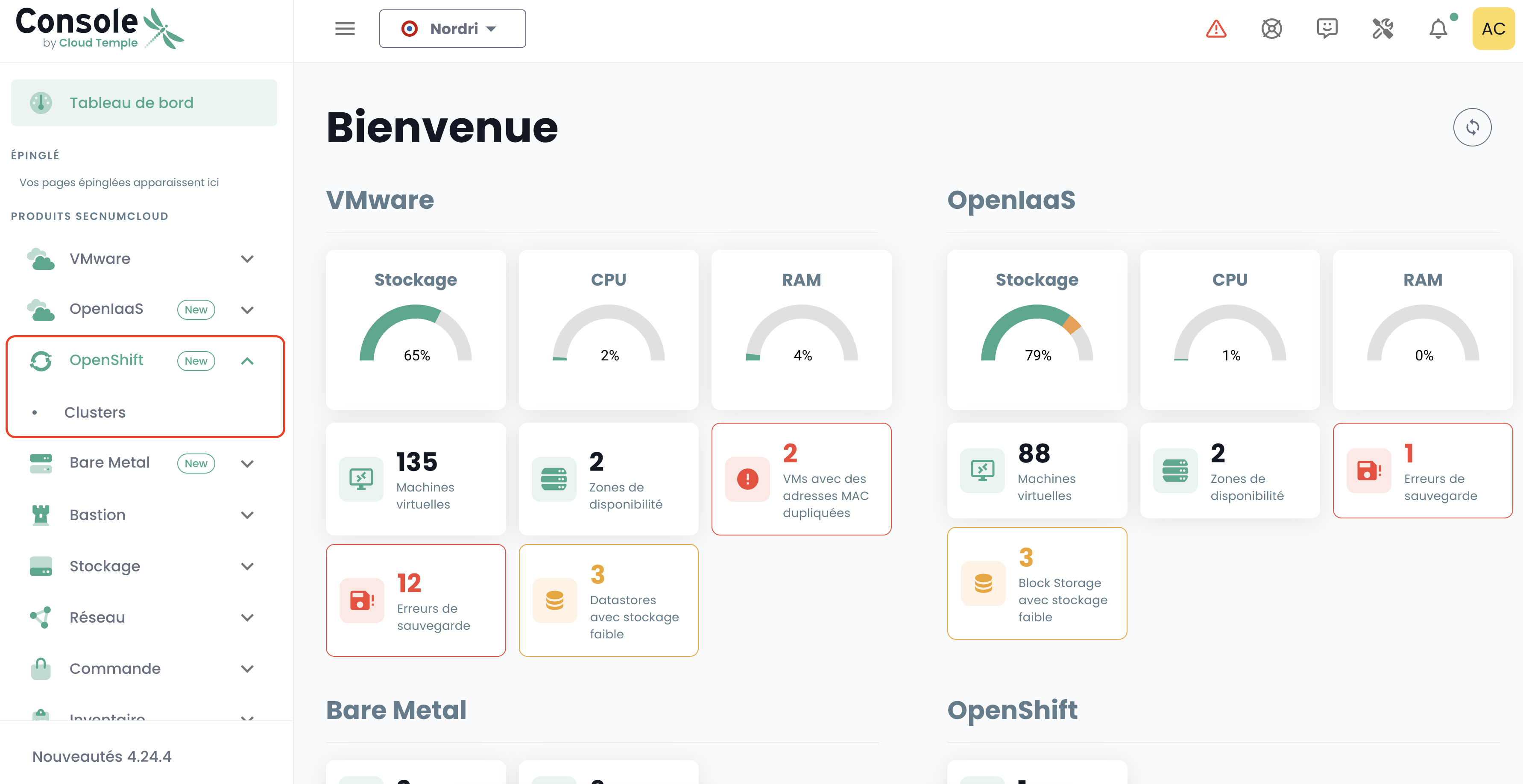
1. Liste der Clusters
Das Untermenü Clusters zeigt Ihnen eine Tabelle mit allen verfügbaren OpenShift-Clustern an, die innerhalb Ihres Tenants bereitgestellt wurden. Die Tabelle enthält die wichtigsten Informationen für jeden Cluster:
- Cluster-Name
- Zugriffs-URL
- API-URL
- Version
- Status
- Letzte Aktualisierung
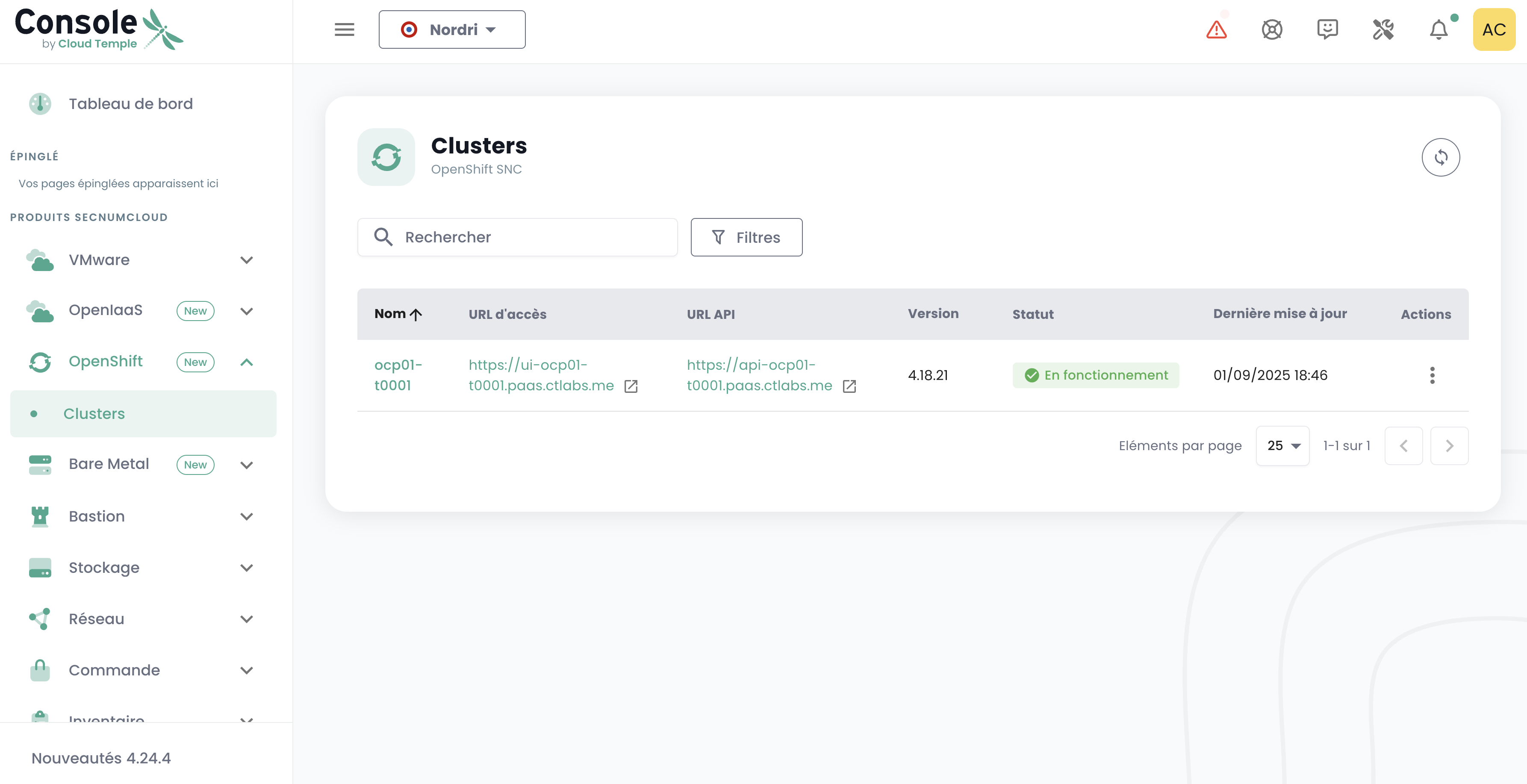
💡 Um detaillierte Informationen zu einem Cluster anzuzeigen, klicken Sie auf dessen Namen in der Tabelle.
2. Cluster Details
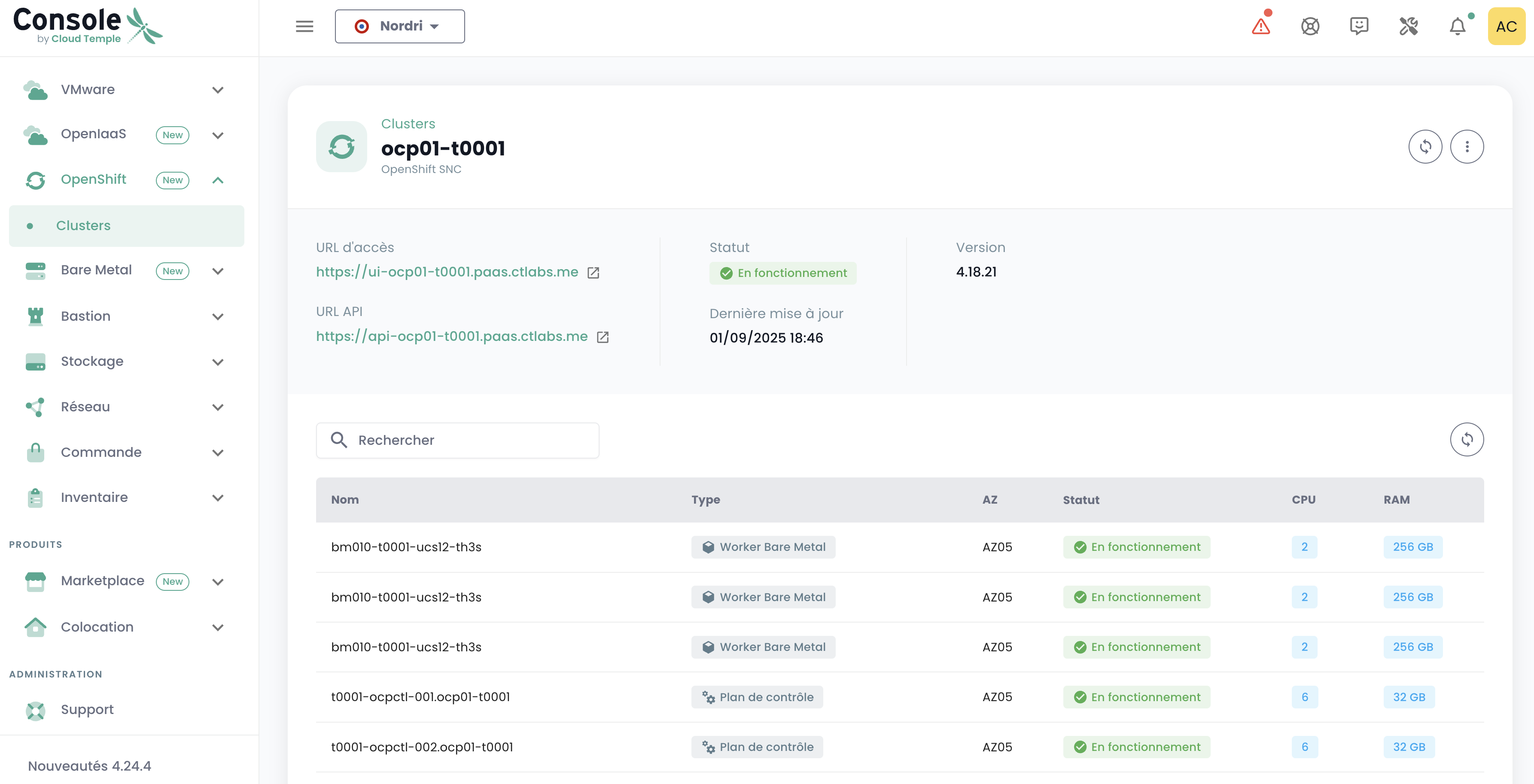
When you click on a cluster name in the list, a detailed page appears displaying complete cluster information:
Connectivity Information:
- Access URL: Web interface of the cluster
- API URL: API endpoint for CLI operations
General Information:
- Status: Current state of the cluster
- Last Updated: Date of the last modification
- Version: OpenShift version deployed
Cluster Nodes:
A table provides detailed information for each node:
- Node Name
- Type
- AZ (Availability Zone)
- Status
- CPU
- RAM
Access to the OpenShift Administration Interface
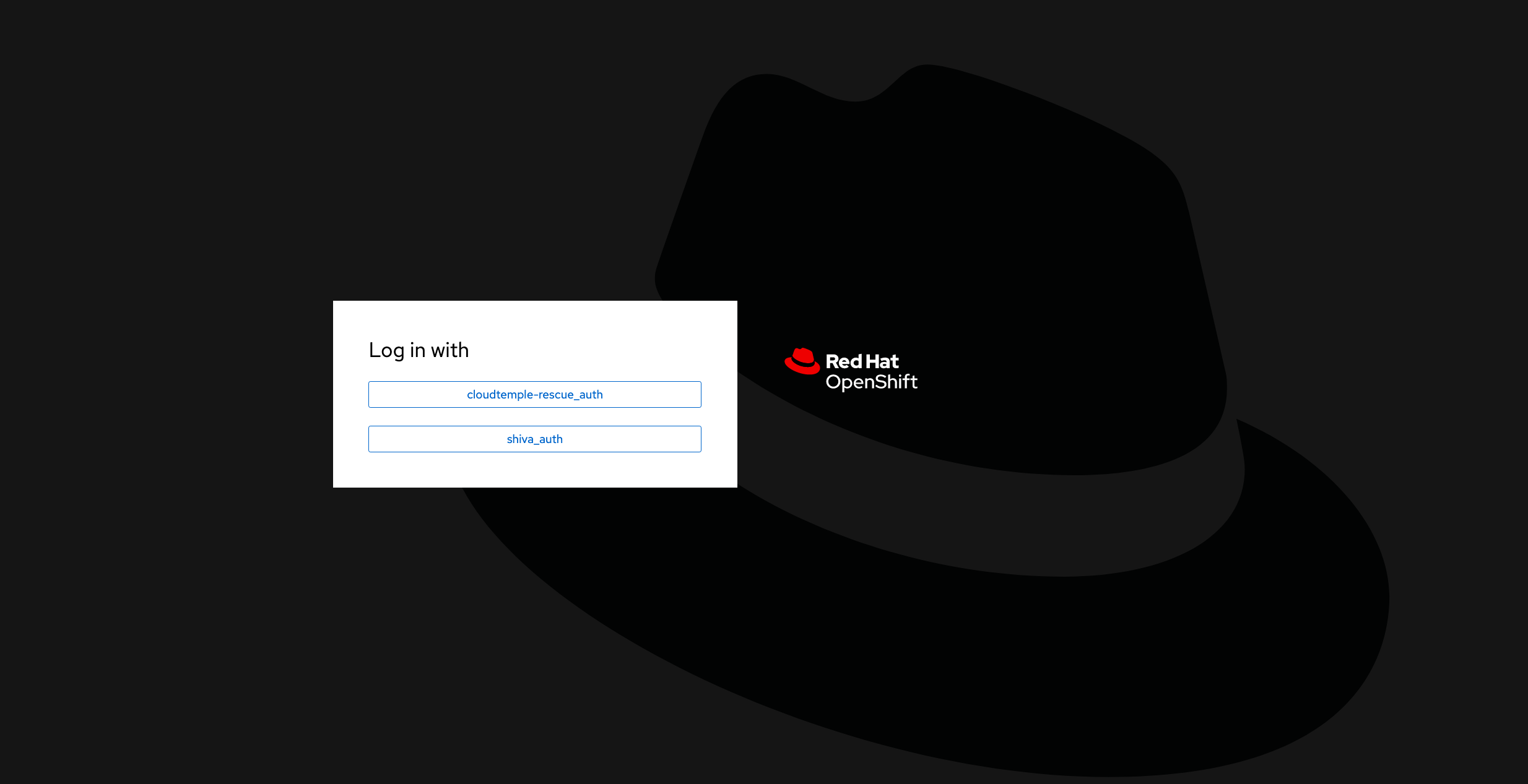
Click on the Access URL of the cluster you wish to manage. You will be directed to the cluster administration environment:
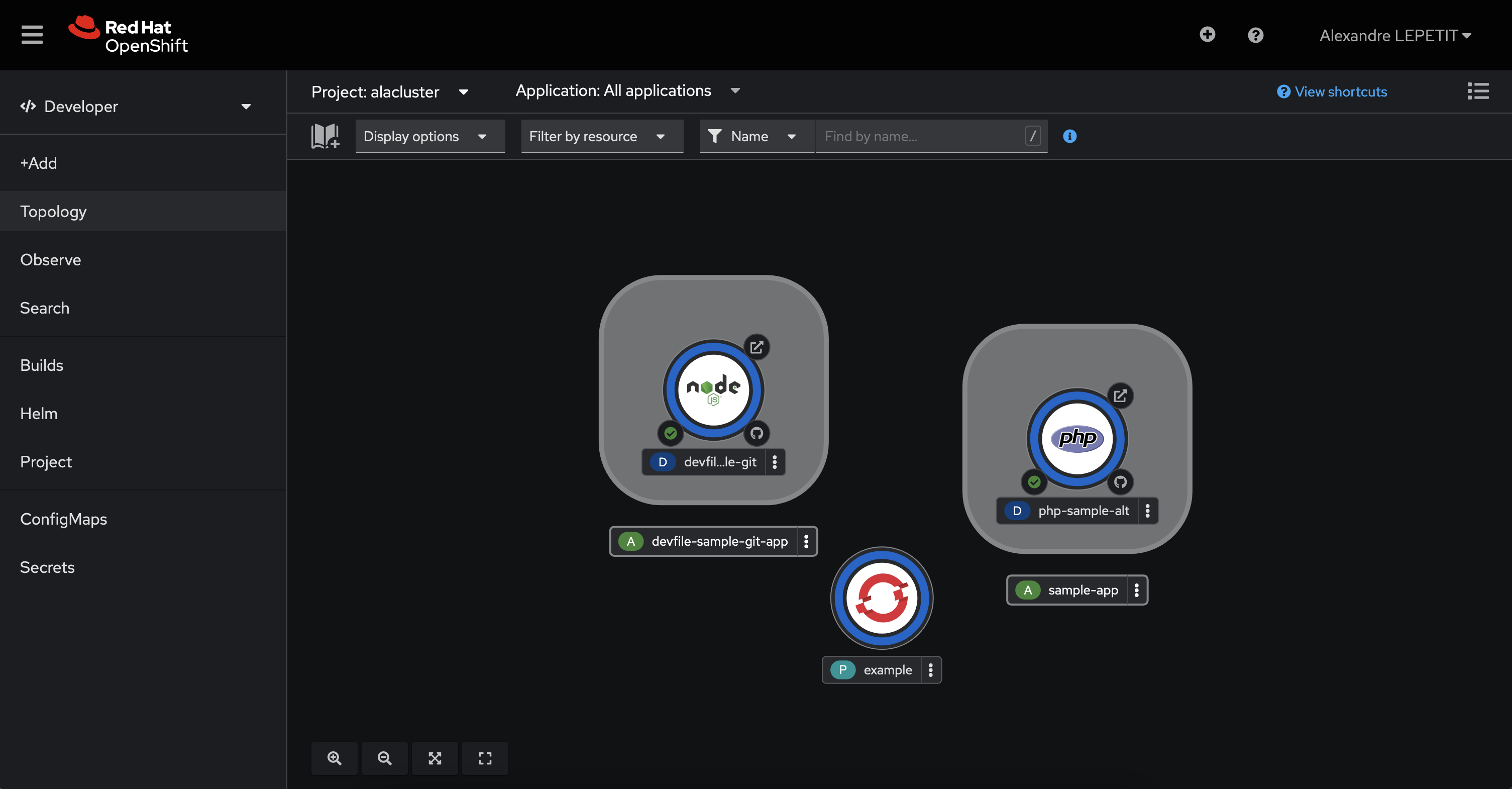
After authentication, you can manage your cluster:
Resources of your environment
Here are the connection and configuration details specific to your OpenShift environment.
Connection Details
To access the various OpenShift components, ensure your tenant is whitelisted in the console (see documentation: Cloud Temple Documentation).
-
Tenant Console URL: https://your-tenant-id.shiva.cloud-temple.com/
-
OpenShift UI: https://ui-ocp01-your-tenant-id.paas.cloud-temple.com/
-
External API: https://api-ocp01-your-tenant-id.paas.cloud-temple.com
-
GitOps (ARGOCD): https://gitops-ocp01-your-tenant-id.paas.cloud-temple.com/applications
Verbindung zum Cluster über die Befehlszeile (CLI)
Verwenden Sie den folgenden Befehl, um sich über die Befehlszeile (CLI) zu verbinden:
oc login https://api-ocp01-{Ihre-ID}.paas.cloud-temple.com/ --web
Zugriff auf den Registry
Um auf die Registry zuzugreifen, melden Sie sich mit den folgenden Befehlen an:
oc login https://api-ocp01-{Ihr-ID}.paas.cloud-temple.com --web
docker login -u {Ihr-Benutzername} -p $(oc whoami -t) registry-ocp01-{Ihr-ID}.paas.cloud-temple.com
Testen Sie anschließend die Erstellung und das Hochladen eines Docker-Images:
docker build -t <namespace>/temp:latest .
docker tag <namespace>/temp:latest registry-ocp01-{Ihr-ID}.paas.cloud-temple.com/<namespace>/temp:latest
docker push registry-ocp01-{Ihr-ID}.paas.cloud-temple.com/<namespace>/temp:latest
Configuration of Routers and Load Balancers
The platform offers flexible options for traffic routing and load balancing:
- By default, private load balancers are used for routes and ingresses.
- Domains:
*.apps-priv-ocp01-{your-id}.paas.cloud-temple.com*.apps-ocp01-{your-id}.paas.cloud-temple.com
Ensure your routes or ingresses are configured with the appropriate ingress labels or classes to guarantee correct routing.
Example:
metadata:
  labels:
    ct-router-type: public
IaaS Networking
Network configurations play a crucial role in securing communications with OpenShift.
- Interconnection Network: 100.67.0.0/28
- Private Load Balancer VIP: 100.67.0.3
Ensure your firewall has a dedicated interface and permits traffic between the specified networks.