VMware-Image anpassen
Dieses Tutorial erklärt, wie Sie ein von der Marketplace bereitgestelltes VMware-VM-Image (VMI) anpassen, um Ihre eigenen wiederverwendbaren Vorlagen zu erstellen.
Allgemeines Prinzip
Die Marketplace stellt generische Betriebssysteme (OS) bereit. Das Deployment über die Marketplace bietet Ihnen eine solide Grundlage, die sich schnell und einfach bereitstellen lässt, wodurch manuelle Uploads entfallen und Ihre Bereitstellungen beschleunigt werden.
Nach dem Deployment wird das Image zu einer virtuellen Maschine, die Sie konfigurieren können. Anschließend können Sie sie als wiederverwendbare Vorlage exportieren, die von allen Benutzern Ihres Tenants genutzt werden kann.
Anpassungsschritte
- Bereitstellen des Basisimages aus dem Marketplace.
- Konfigurieren der virtuellen Maschine nach Ihren Anforderungen.
- Erstellen eines Modells aus der konfigurierten virtuellen Maschine.
- Bereitstellen einer neuen virtuellen Maschine aus Ihrem benutzerdefinierten Modell.
Schritt 1: Basis-Image bereitstellen
Folgen Sie dem Tutorial Ein Image auf VMware bereitstellen, um zu beginnen.
Schritt 2: Virtuelle Maschine konfigurieren
Nachdem die virtuelle Maschine bereitgestellt wurde, konfigurieren Sie sie nach Ihren Anforderungen (Softwareinstallation, Sicherheitskonfiguration, usw.).
Schritt 3: Eine Vorlage aus der virtuellen Maschine erstellen
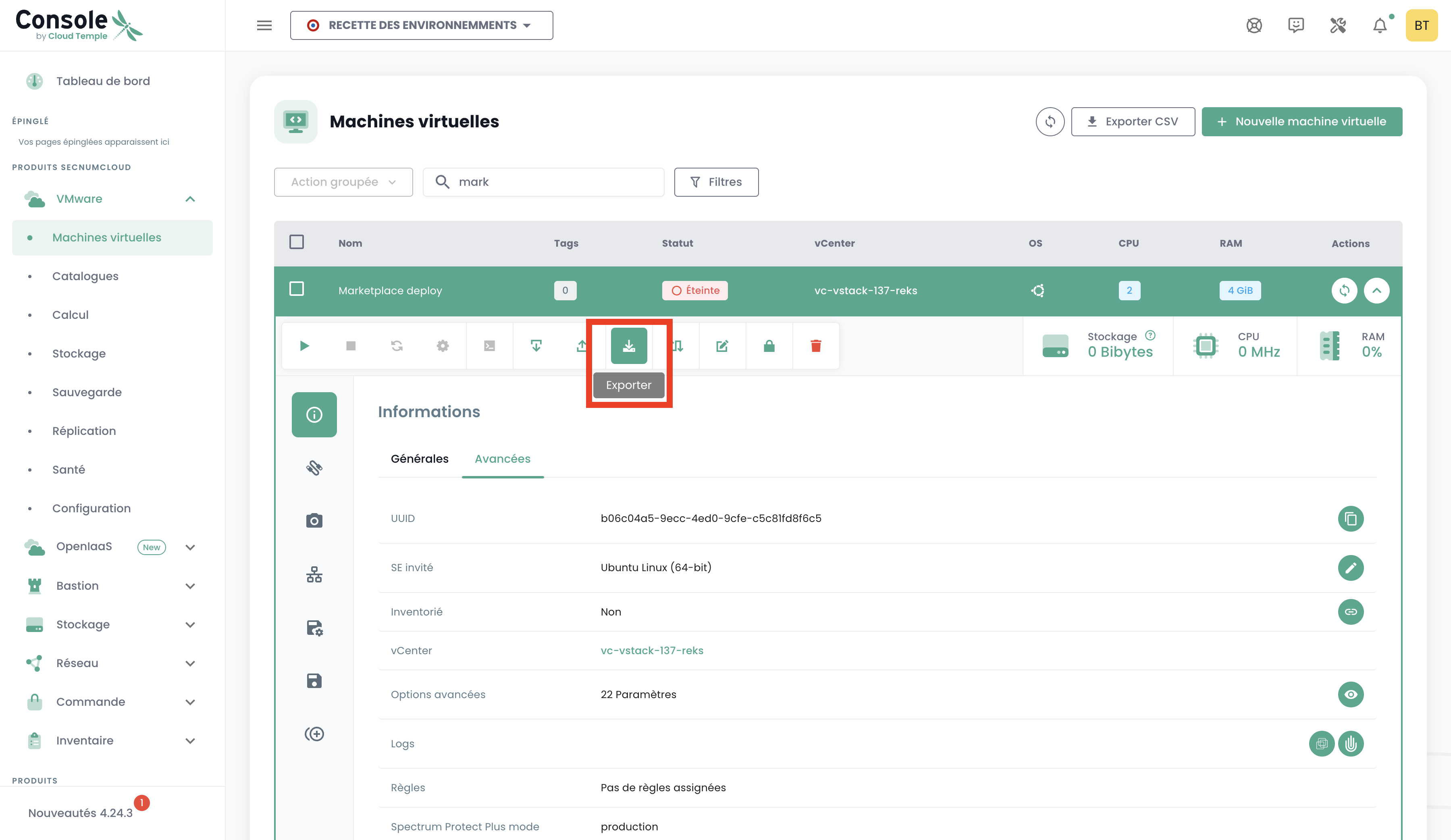
- Wählen Sie in der Liste Ihrer virtuellen Maschinen die konfigurierte virtuelle Maschine aus.
- Wählen Sie in der Aktionsleiste "Exportieren" aus.
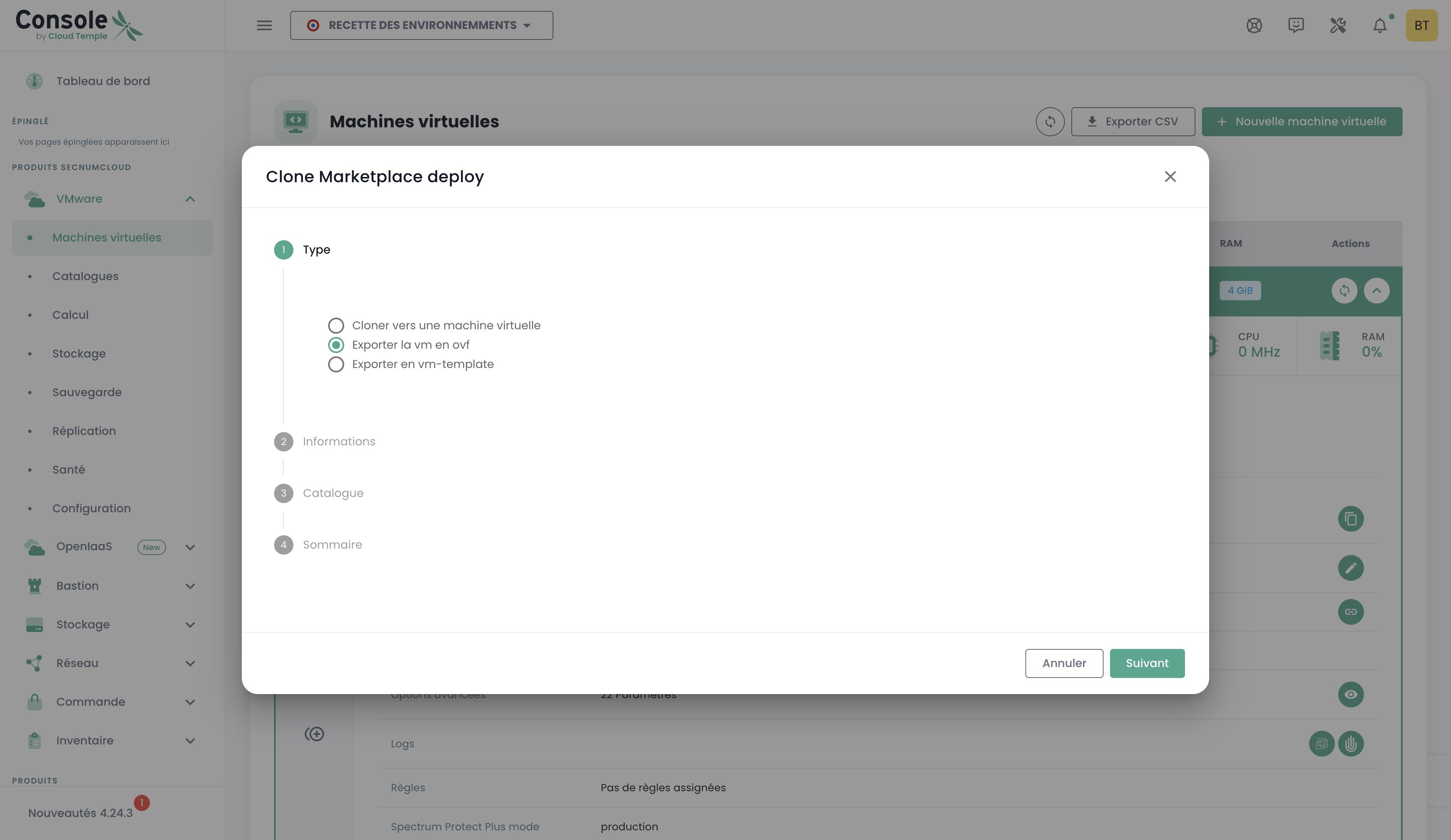
- Folgen Sie den Schritten in der Konsole, um die Vorlage zu exportieren.
Schritt 4: Vom neuen Modell bereitstellen
Sie können vom Katalog oder von der Seite "Virtuelle Maschinen" bereitstellen.
So stellen Sie von der Seite Virtuelle Maschinen bereit:
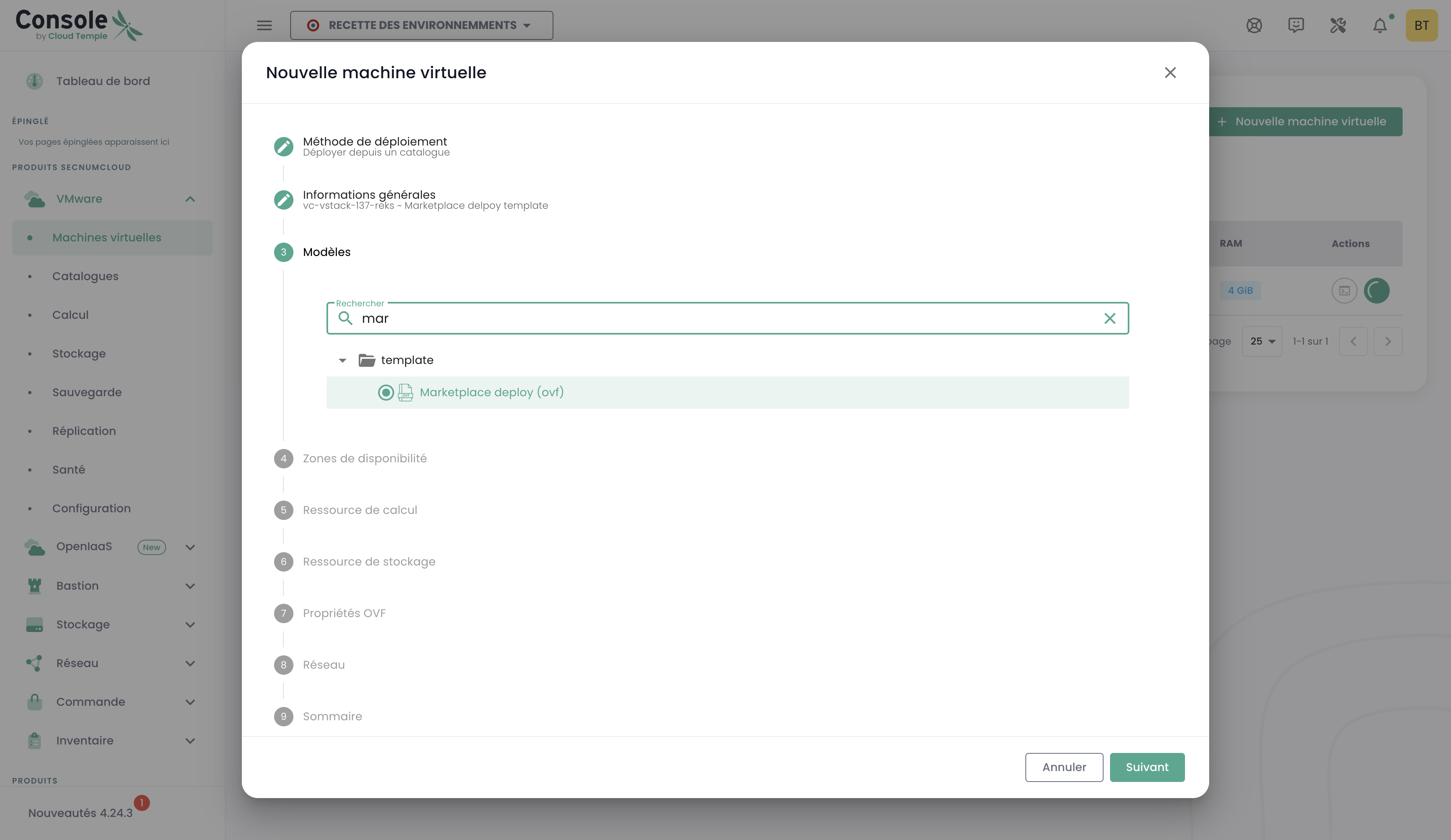
- Klicken Sie auf "Virtuelle Maschine erstellen".
- Wählen Sie "Vom Modell bereitstellen".
- Wählen Sie Ihr neues Modell aus der Liste aus.