Kosten mit OpenCost verfolgen
Ziele
Dieses Tutorial stellt Ihnen OpenCost vor, das integrierte Tool zur Überwachung und Optimierung der Kosten in Ihrem Managed Kubernetes-Cluster. Am Ende dieses Leitfadens werden Sie in der Lage sein:
- Die OpenCost-Oberfläche aufrufen.
- Die Struktur der Oberfläche und die verfügbaren Ansichten verstehen.
- Die Kostenverteilung Ihrer Anwendungen und Ihrer Infrastruktur analysieren.
Was ist OpenCost?
OpenCost ist eine Open-Source-Lösung und Standard der CNCF (Cloud Native Computing Foundation), die Ihnen Echtzeit-Transparenz über die Kosten Ihrer Kubernetes-Umgebungen bietet. Sie hilft Ihnen, genau zu verstehen, welche Ressourcen in Ihrem Cluster verbraucht werden und wie sich dies in Kosten niederschlägt.
Im Produkt Managed Kubernetes ist OpenCost vorinstalliert und konfiguriert, um Ihnen eine klare Übersicht über Ihre Ausgaben zu geben. Es ist direkt mit den tatsächlichen Kosten der Cloud-Temple-Infrastruktur hinterlegt.
Zugriff auf die OpenCost-Oberfläche
Die OpenCost-Oberfläche wird über eine sichere, cluster-spezifische URL bereitgestellt. Um darauf zuzugreifen, verwenden Sie die folgende URL und ersetzen Sie identifiant durch die Kennung Ihres Clusters (z. B. ctodev):
https://opencost.external-secured.identifiant.mk.ms-cloud-temple.com
ℹ️Der Zugriff auf diese URL ist auf die IP-Adressen beschränkt, die Sie beim Cloud Temple-Support angegeben haben. Wenn Sie keinen Zugriff erhalten, wenden Sie sich bitte an den Support, um die Firewall-Regeln überprüfen zu lassen.
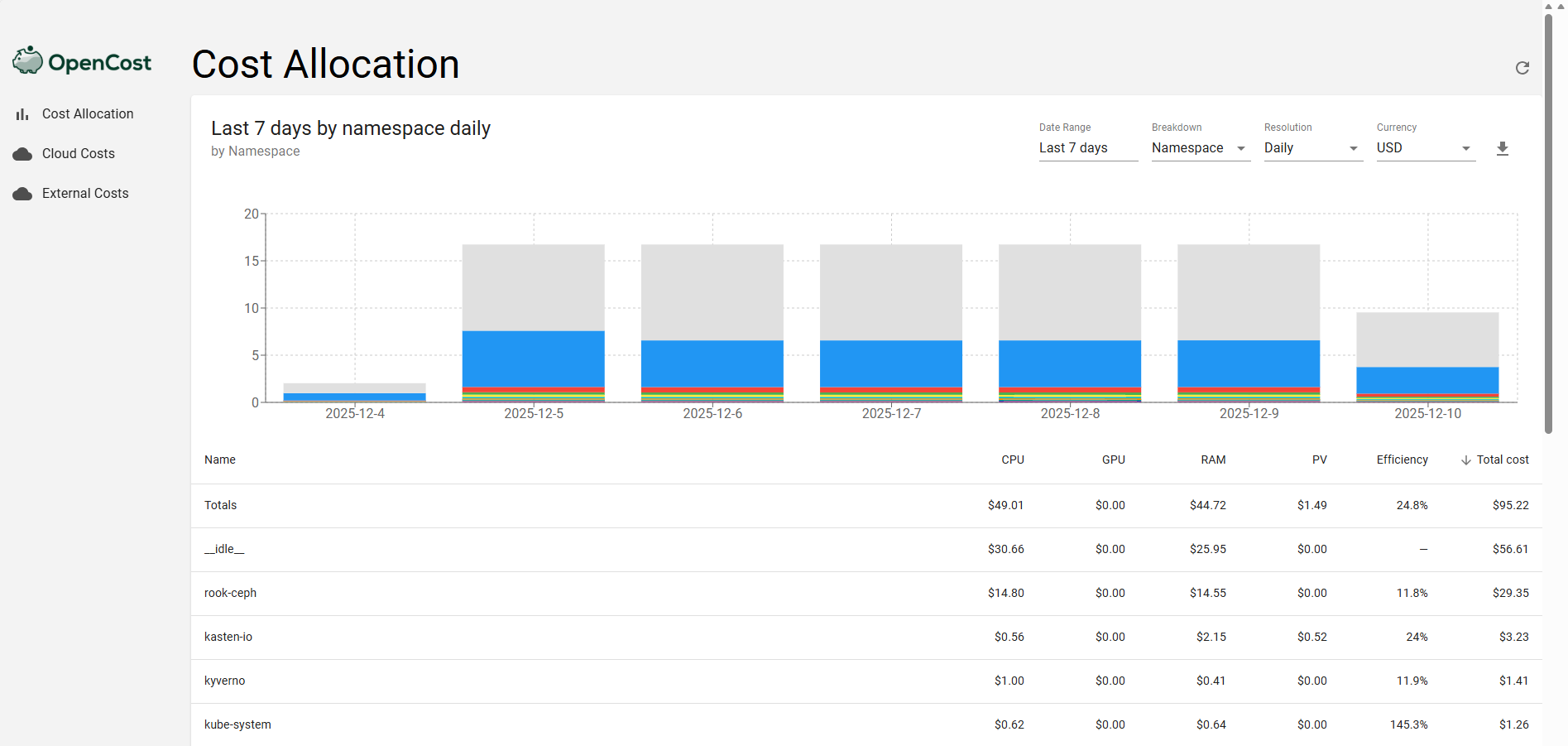
Die Kostenverteilung (Allocations) erkunden
Die Haupt- und detaillierteste Ansicht von OpenCost ist das Allocations-Dashboard. Hier können Sie den Ressourcenverbrauch in Echtzeit visualisieren.
Diese Ansicht ermöglicht es Ihnen, die Kosten nach nativen Kubernetes-Konzepten aufzuschlüsseln. Das Dropdown-Menü "Aggregate by" ist das Hauptwerkzeug für Ihre Analyse und ermöglicht es Ihnen, die Kosten nach folgenden Kriterien zu gruppieren:
- Namespace : Für eine Ansicht nach Umgebung oder Team.
- Deployment, StatefulSet usw. : Zur Analyse der Kosten einer bestimmten Anwendung.
- Controller : Für eine technischere Ansicht.
Aggregation nach Labels
Für eine noch detailliertere Finanzanalyse kann OpenCost die Kosten basierend auf Kubernetes-Labels aggregieren. Es gibt keine direkte "Label"-Option im Menü, aber OpenCost verarbeitet Ihre Labels und ermöglicht es Ihnen, benutzerdefinierte Aggregationen zu erstellen. Dafür ist eine konsistente Labeling-Strategie unerlässlich. Beispielsweise können Sie durch die Verwendung von Labels wie team: backend oder product: api-gateway die Kosten analysieren, die exakt Ihrer Organisation entsprechen.
Für diese Art der Analyse müssen Sie die KI-Integration von OpenCost nutzen.
Grafana-Dashboard
Ein Grafana-Dashboard ist ebenfalls verfügbar, um die OpenCost-Daten zu visualisieren. Dieses Dashboard bietet eine alternative und ergänzende Ansicht zur OpenCost-Oberfläche und speichert den vollständigen Verlauf der Kostenmetriken, sodass Sie Trends langfristig analysieren können.
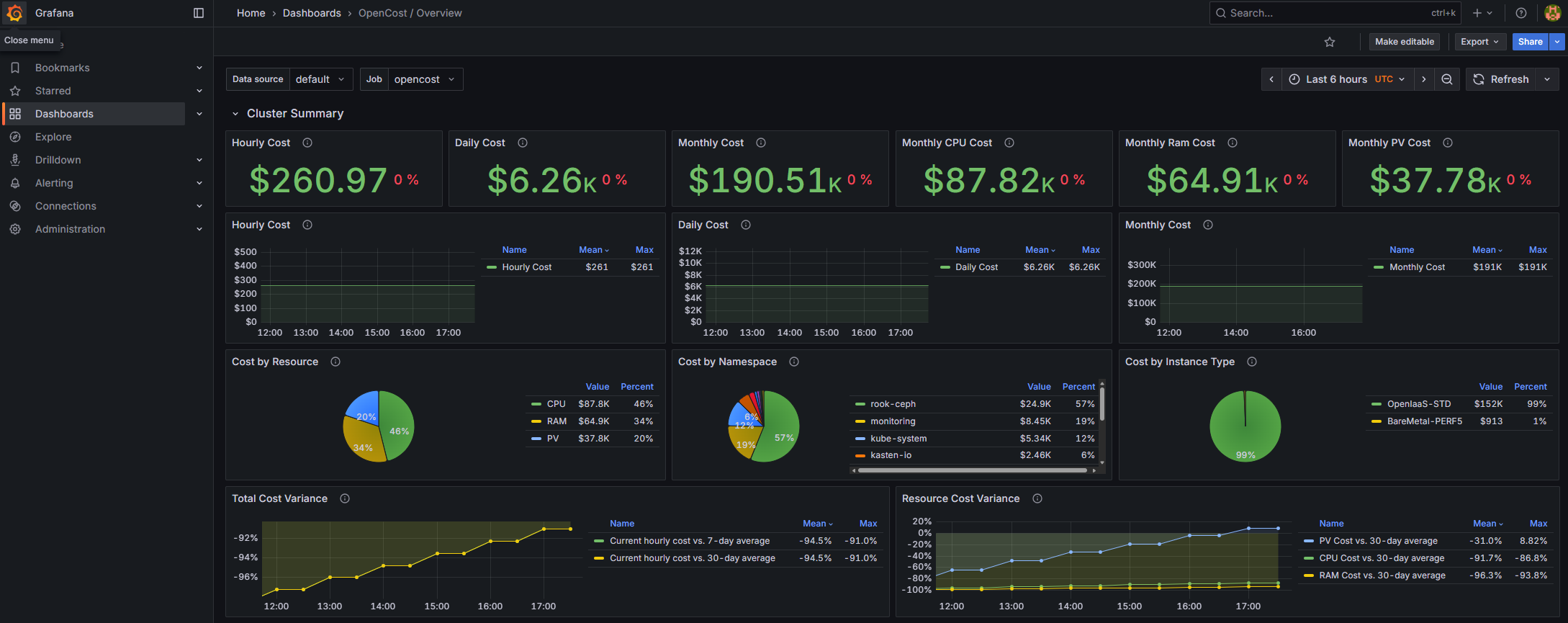
Erweiterte Nutzung: Integration mit einer KI (MCP-Server)
Für fortgeschrittene Benutzer kann OpenCost direkt über den Konversationsassistenten Cline (oder andere) abgefragt werden, dank des Systems der MCP (Model Context Protocol) servers. Dies ermöglicht es Ihnen, Abfragen zu skripten und Kostendaten direkt in Ihren Konversationen abzurufen.
1. Konfiguration von MCP OpenCost in Cline
Um Cline mit Ihrer OpenCost-Instanz zu verbinden, müssen Sie die folgende Konfiguration zu Ihrer Datei cline_mcp_settings.json hinzufügen. Diese Datei befindet sich normalerweise im Konfigurationsverzeichnis von Cline.
Wir empfehlen, einen MCP-Server "opencost-xxxxx" zu erstellen, wobei xxxxx der Name Ihres verwalteten Kubernetes-Clusters ist.
Die URL des MCP-Servers hat das Format https://opencost-mcp.external-secured.identifiant.mk.ms-cloud-temple.com
Zum Beispiel für den Cluster "bestie":
{
  "mcpServers": {
    "opencost-bestie": {
      "disabled": false,
      "timeout": 60,
      "type": "streamableHttp",
      "url": "https://opencost-mcp.external-secured.bestie.mk.ms-cloud-temple.com",
      "headers": {
        "Authorization": "Basic <TOKEN>"
      }
    }
  }
}
Um den Wert <TOKEN> aus Ihren Anmeldeinformationen zu generieren, verwenden Sie einen der folgenden Befehle:
Für Linux/macOS:
echo -n 'finopsadm:VOTRE_MOT_DE_PASSE' | base64
Für Windows (PowerShell):
$credentials = [System.Text.Encoding]::UTF8.GetBytes("finopsadm:VOTRE_MOT_DE_PASSE")
[System.Convert]::ToBase64String($credentials)
Sobald diese Datei gespeichert ist, lädt Cline beim Start automatisch den MCP opencost-xxxxx.
2. Abfragen von OpenCost mit dem MCP
ℹ️[Voraussetzungen] Um mit dem MCP in natürlicher Sprache zu interagieren, muss die zugrunde liegende KI Zugriff auf Sprachmodelle (LLMs) haben, entweder lokal (LMStudio usw.), über eine Verbindung zu öffentlichen Diensten wie GPT-5 oder Gemini oder durch Verwendung unseres souveränen Produkts LLM-as-a-Service.
Nach der Konfiguration können Sie die LLM-Tools verwenden, um Abfragen in natürlicher Sprache an diesen MCP-Server zu stellen.
Beispiel
"verwende den MCP "opencost-bestie" und sag mir, welcher Prozentsatz der Cluster-Kosten nicht Ressourcen zugeordnet ist" Sie erhalten Folgendes:
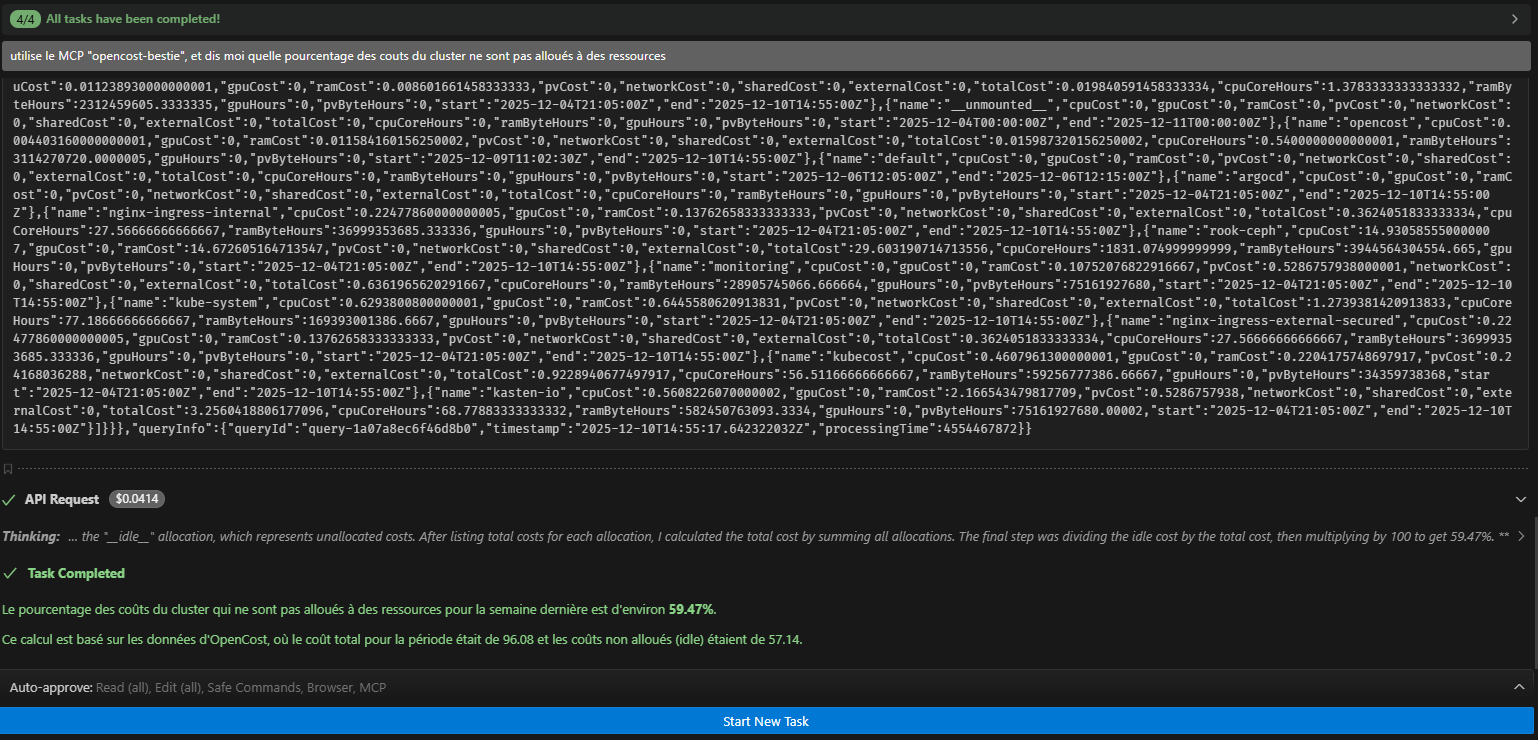
Beispiel 2
"verwende den MCP "opencost-bestie" und liste mir die Kosten auf, die mit den persistenten Volumes für den gestrigen Tag verbunden sind"
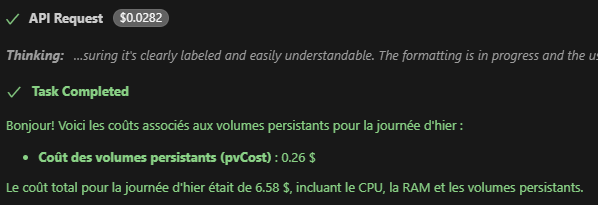
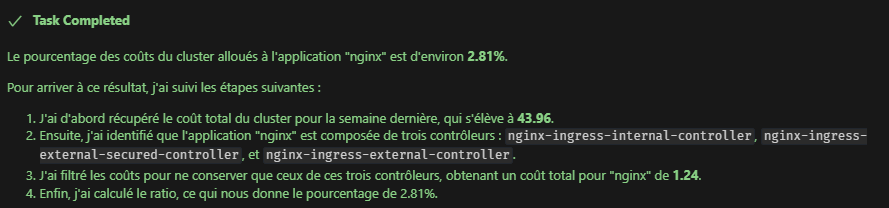
Beispiel 3
"verwende den MCP opencost-bestie, und sag mir, welcher Prozentsatz der Cluster-Kosten der Anwendung mit dem Label "nginx" zugewiesen ist. (filtre de la forme filter: "label:app:frontend" )"
Conclusion
OpenCost bietet Ihnen leistungsstarke Tools für eine detaillierte und Echtzeit-Analyse der Kosten Ihres Kubernetes-Clusters. Durch die primäre Nutzung der Allocations-Ansicht in Kombination mit einer durchdachten Labeling-Strategie erhalten Sie eine klare Übersicht über Ihre Ausgaben, die sowohl mit Ihren technischen Bereitstellungen als auch mit Ihrer internen Organisation abgestimmt ist. Der Einsatz von LLMs und des OpenCost-MCP-Servers ermöglicht eine noch tiefgehendere Datenauswertung.