Scheduled Operations and Incident Management
As with any cloud infrastructure platform, the Temple Cloud platform regularly undergoes maintenance and hardware/software updates.
Access to ongoing operations and incidents
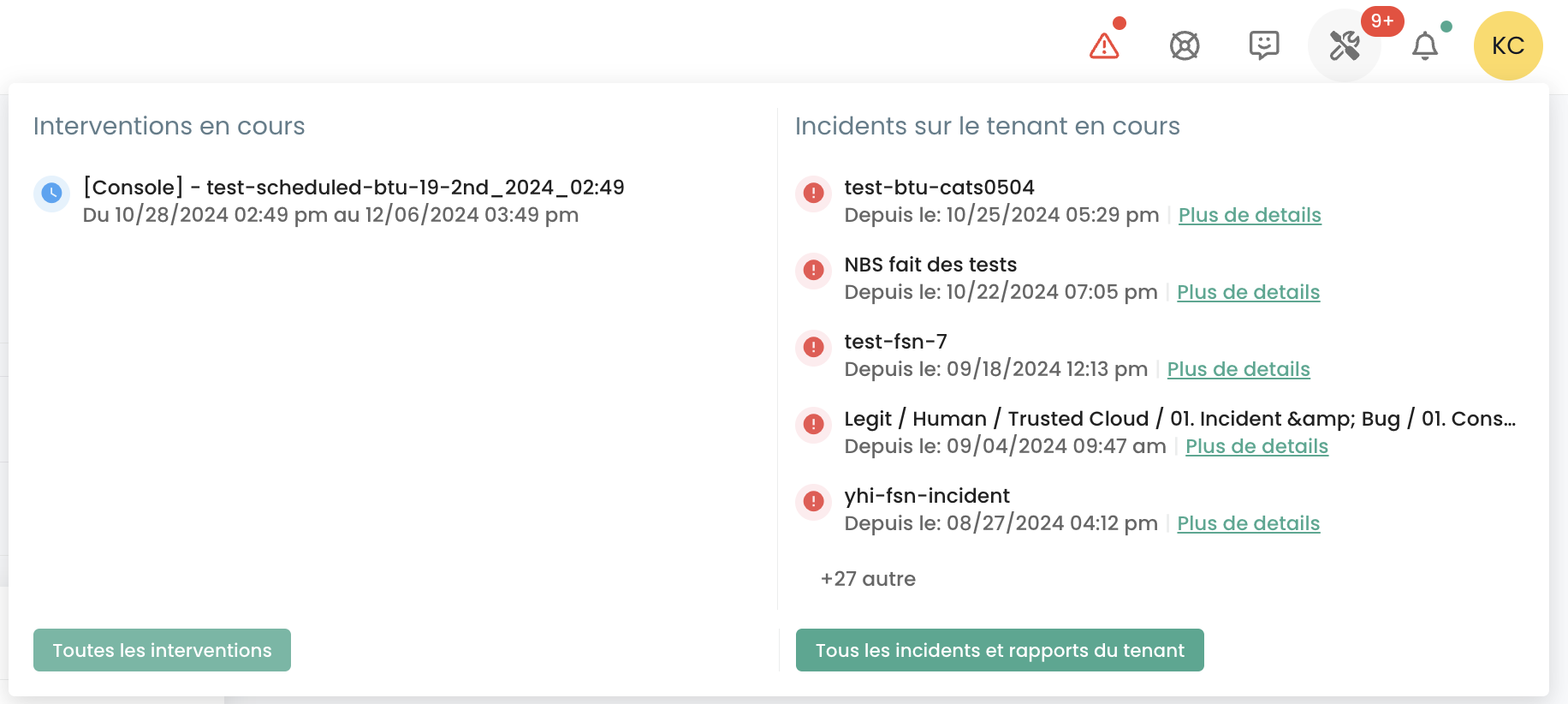
The operations tracking icon allows you to view planned operations on the Cloud Temple infrastructure as well as open incidents on the tenant. This icon is accessible in the icon bar in the top-left corner of the screen and appears as the 'Tools' icon.

This icon is designed to provide visibility into planned, ongoing, and completed interventions, as well as incidents on the tenant.
When ongoing interventions and/or incidents exist, a number appears on the icon.
By clicking on "Quick view," you can see the ongoing interventions. It is also possible to click on 'All Interventions' or 'All Incidents and Tenant Reports' to display more details.
Geplante Interventionen verfolgen
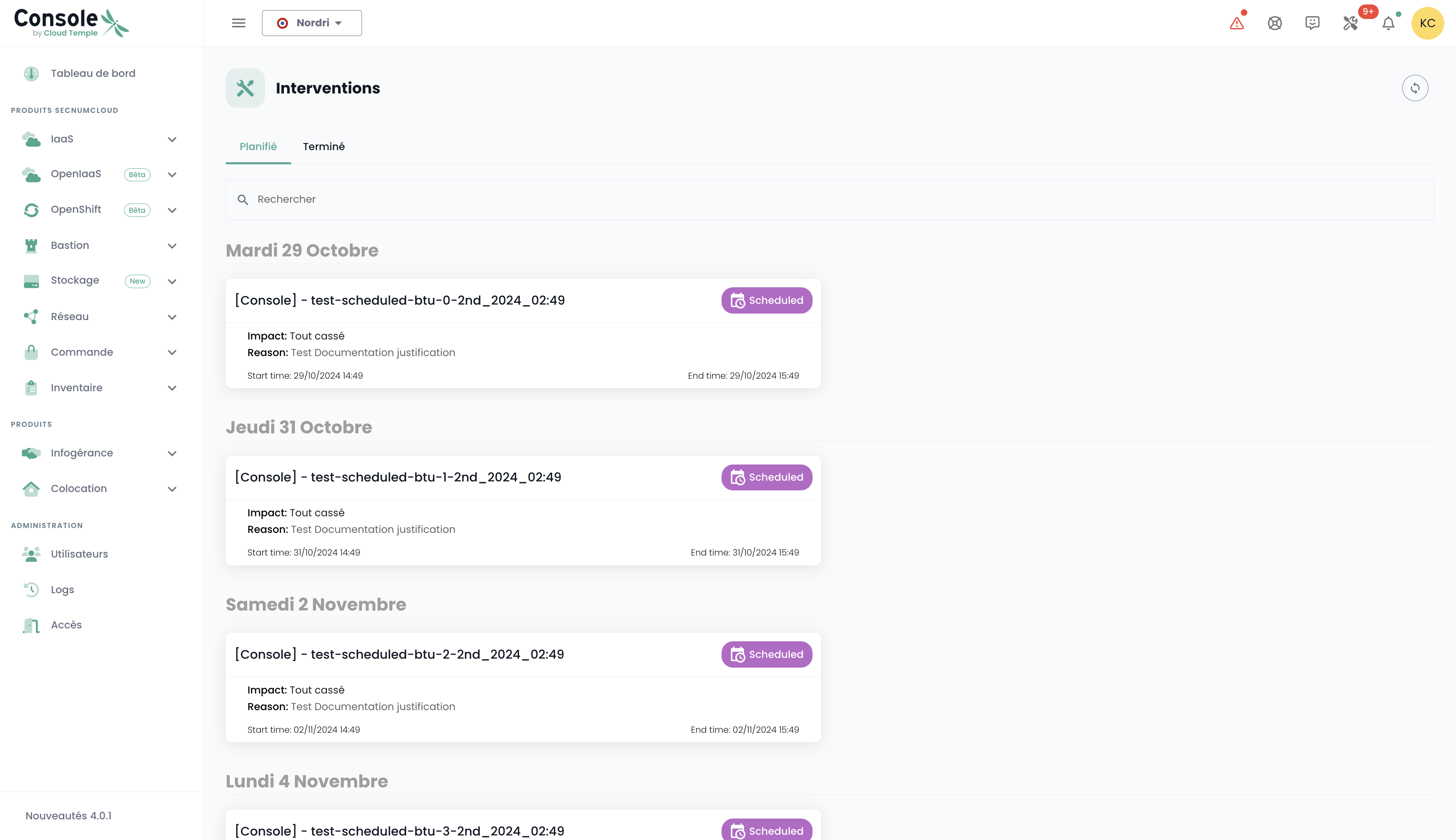
Die Seite "Interventionen" besteht aus zwei Registerkarten. Die erste Registerkarte zeigt die geplanten Interventionen für die nächsten 60 Tage sowie laufende Interventionen an.
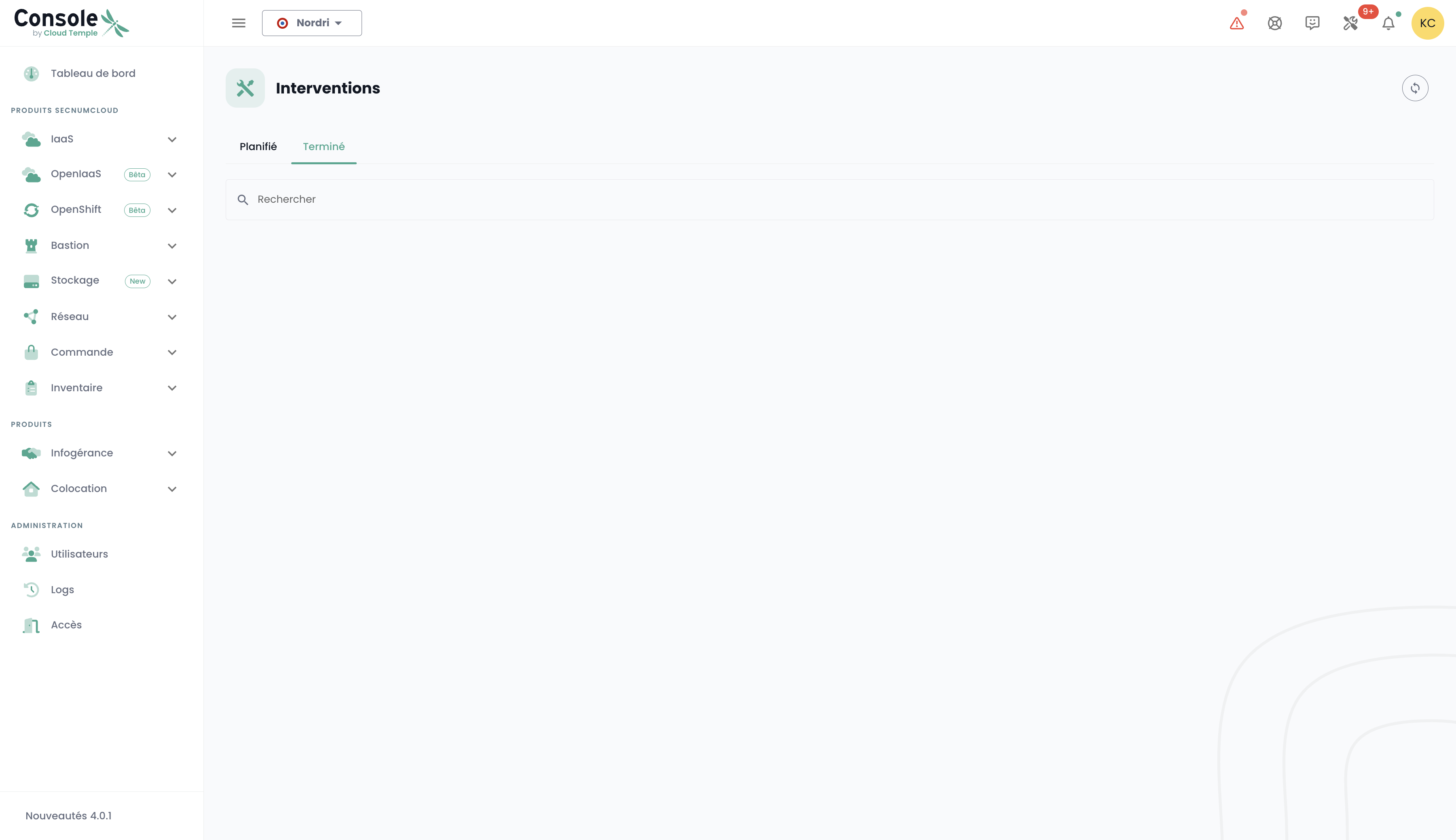
Die abgeschlossenen Interventionen sind in der zweiten Registerkarte „Abgeschlossen“ sichtbar. Abgeschlossene Interventionen werden 60 Tage im Vergangenheitsbereich aufbewahrt und bleiben zugänglich, um einen vollständigen Überblick über die Wartungsgeschichte zu gewährleisten.
Der Zugriff auf diese Informationen erfordert für das Benutzerprofil die Berechtigung 'intervention_read'.
Incident Management
Two types of incidents need to be distinguished: global incidents, which affect the entire system, and client-specific incidents, which impact only the resources or services associated with a particular client.
Global Incidents
Retrieving information about global incidents does not require any special permissions. A red banner is displayed immediately upon logging into the console to alert users of an ongoing global incident currently being resolved. Users have the option to temporarily hide this banner during their session, but it will reappear on every new login or page refresh as long as the incident remains unresolved.
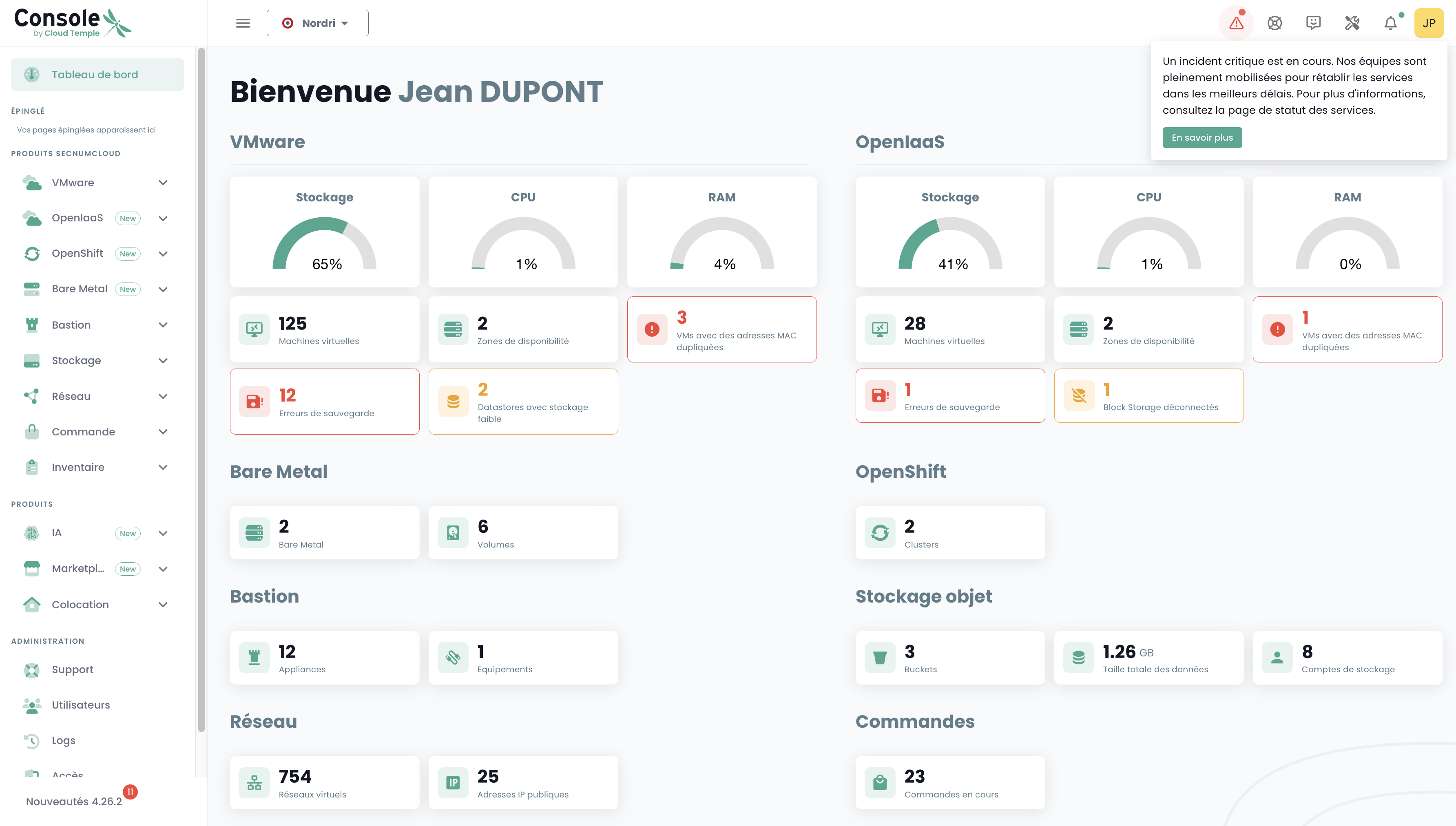
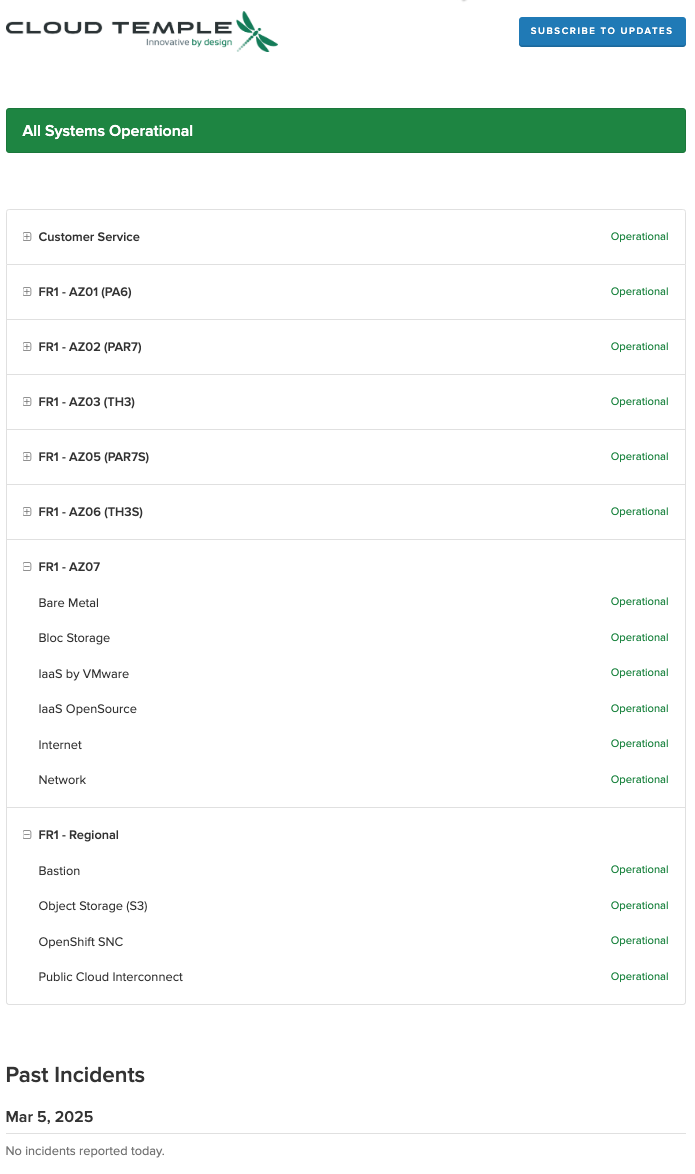
A button labeled 'Learn more' redirects to the public incident tracking page, providing additional details about the current incident:
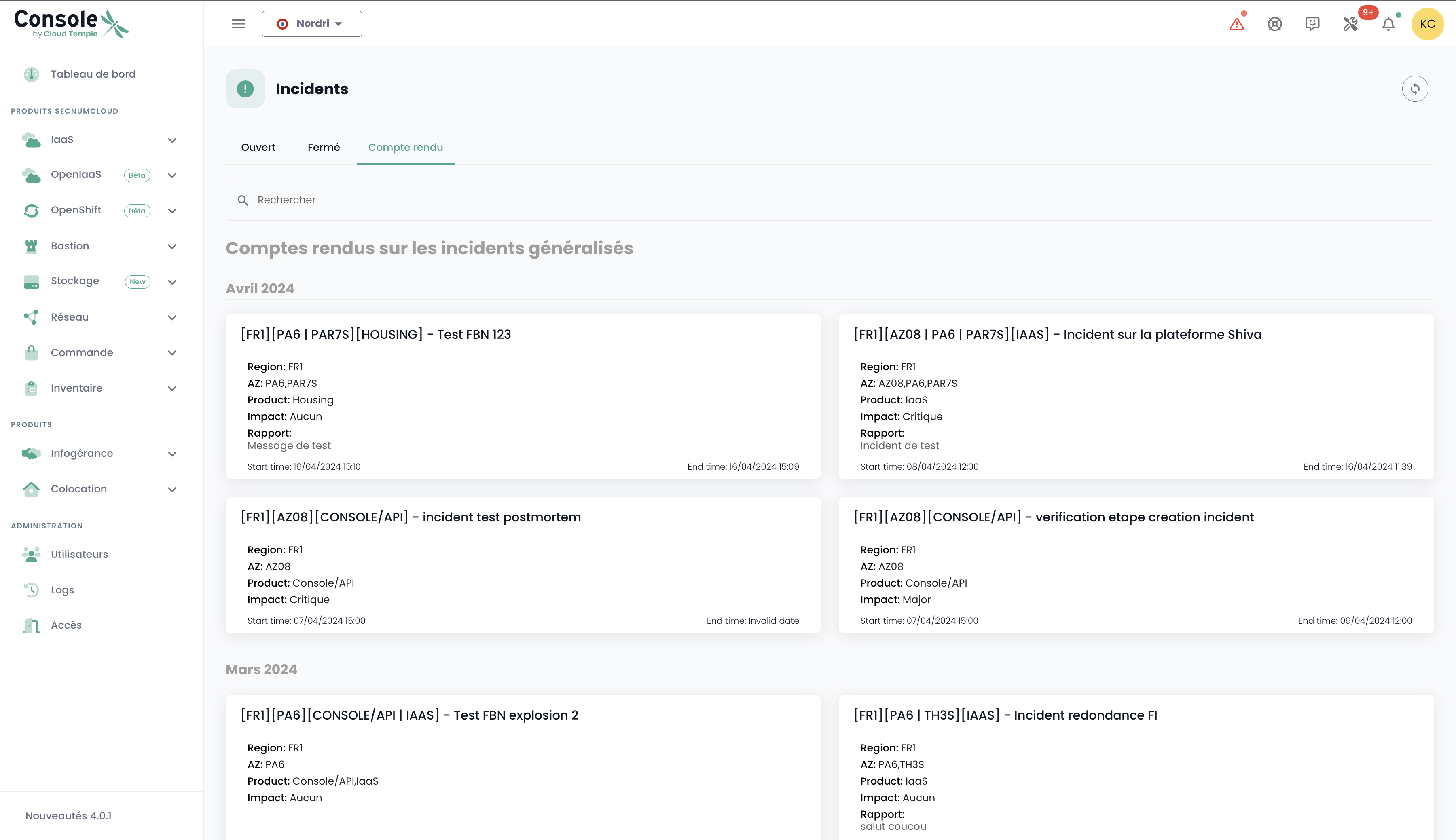
Global incident reports can be accessed. Access to these reports requires the specific permission 'incident_management'. Global incident reports are archived and remain accessible for 60 days after resolution, ensuring full traceability of system events.
Here is an example of the tab displaying these reports:
Incidents within a Customer Scope
Visibility of incidents specific to a customer scope requires the incident_read permission. These incidents are represented by a dedicated icon, accompanied by a red badge indicating the number of ongoing incidents.
The icon is clickable, allowing you to list the tickets associated with the incidents. Each ticket includes a link to the incident details, enabling you to track the progress of resolution. Resolved incidents and their incident reports (CRs) remain accessible for 60 days, allowing for retrospective analysis and follow-up on corrective actions taken.
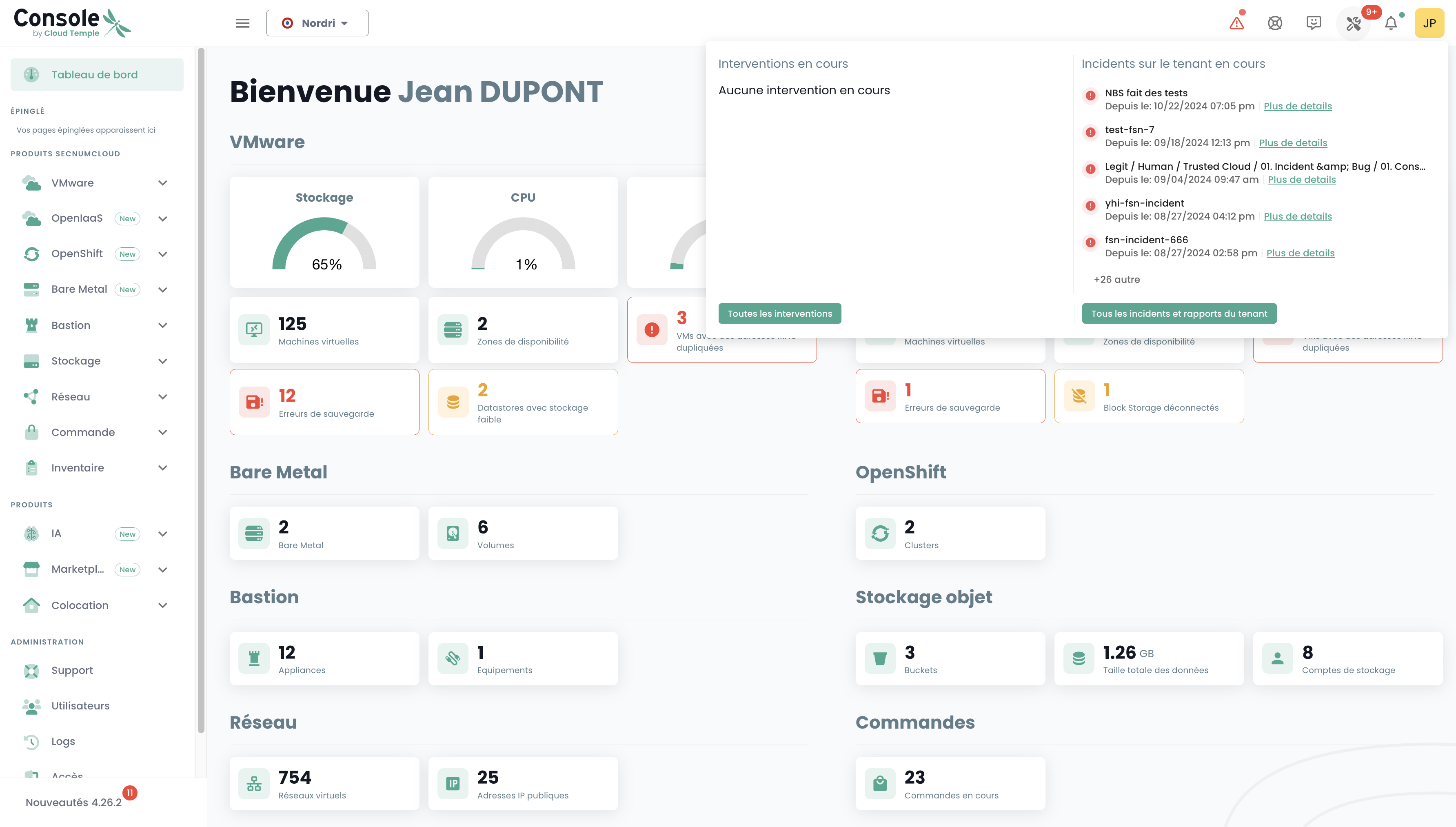
To view the details of an incident, you must either be the ticket author or hold the support_management permission.
Notification Management
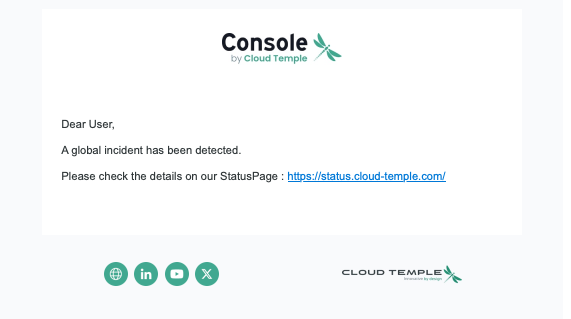
To quickly inform users about new incidents, an email notification system has been implemented. From their user profile, users can subscribe to notifications for both types of incidents via a tab titled 'My Subscriptions'. As a result, they will receive an email shortly after an incident is reported or resolved.
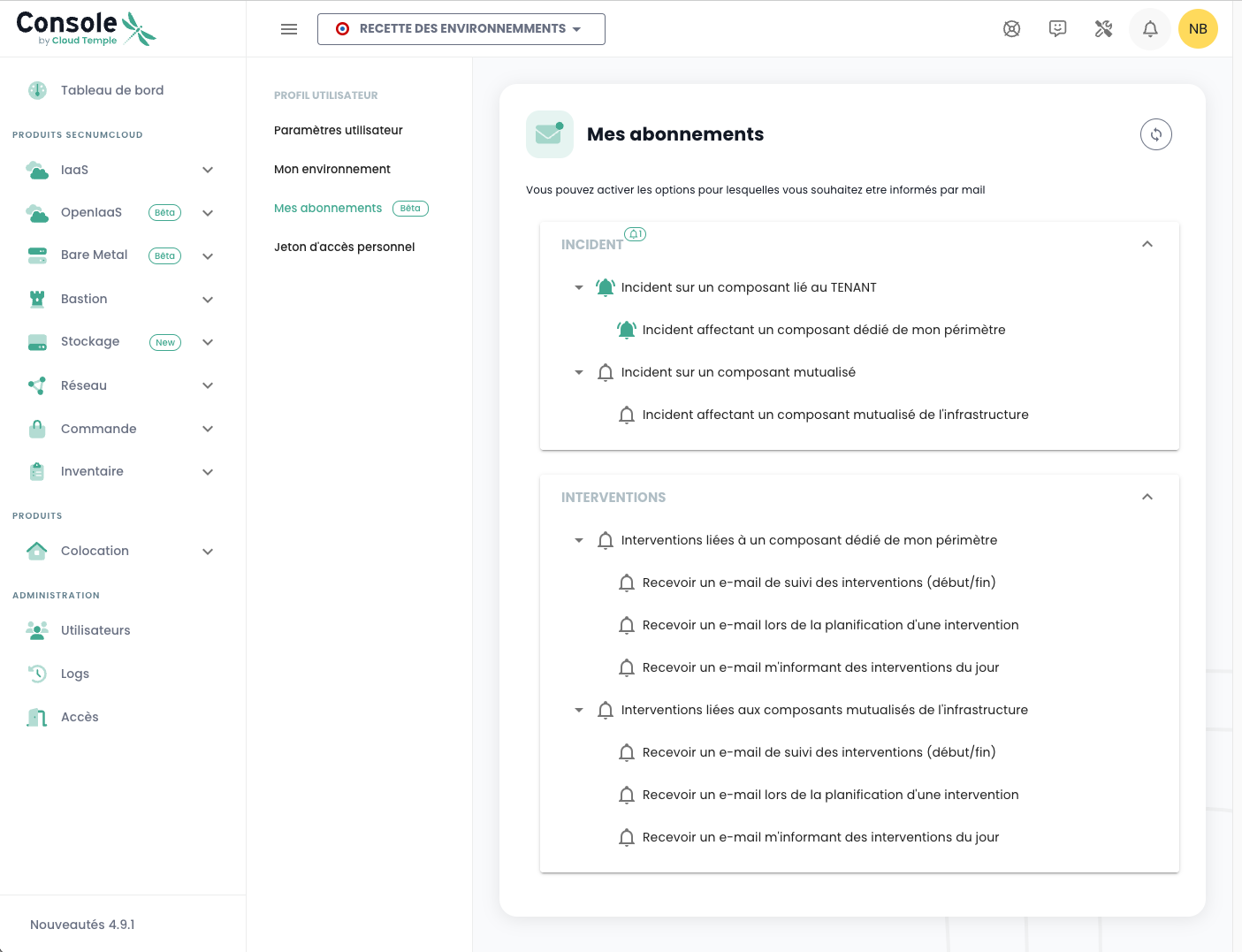
The email subject will indicate the type of incident, and in the case of an incident related to a scope, it will include the name of the affected scope. The notification will also contain a link allowing direct access to the incident details: