Schnellstartanleitung
Mandant
Creation of a tenant
Die Erstellung eines Mandanten erfolgt im Self-Service über die Konsole, ohne vorherige Serviceanfrage. Unter 'Administration > Tenants' öffnet die Schaltfläche 'Neuer Mandant' ein zweiteiliges Formular: die Identität des Mandanten (Name und Beschreibung) und die darin zu aktivierenden Produkte.
Das genaue Verfahren ist im Konsolen-Quickstart beschrieben.
Selection of a tenant
The selection of a tenant is performed from the main page of the Console:
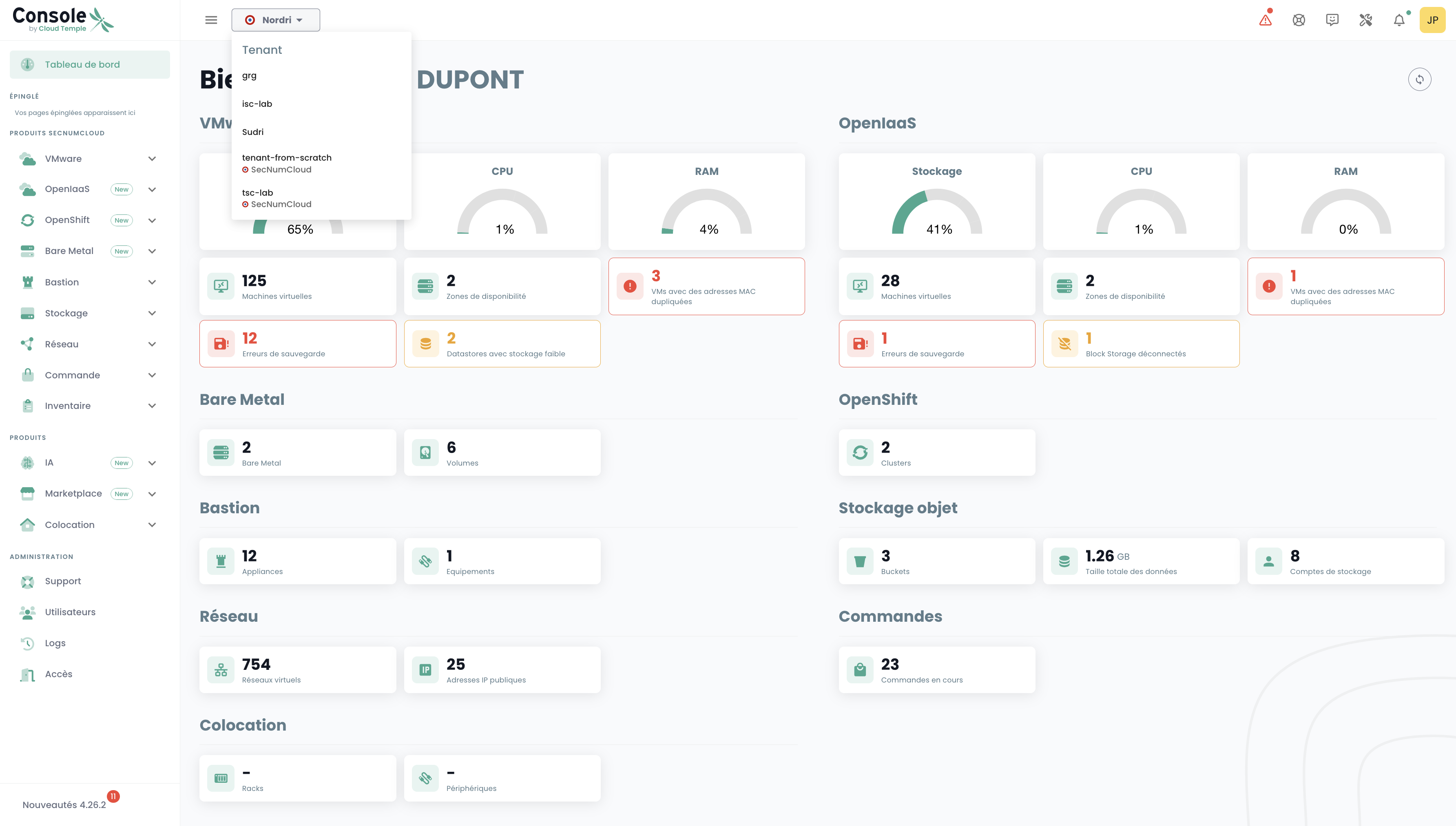
Note: The resources of a tenant are exclusive to that tenant and cannot be mixed with those of other tenants.
Access Accounts for the Console
Access accounts for the Console are created by the sponsor's master account upon invitation (regardless of the authentication repository).
Credentials are global to your Organization.
Note: Identity federation is managed at the organization level
Erstellung eines Benutzerkontos in Ihrer Organisation
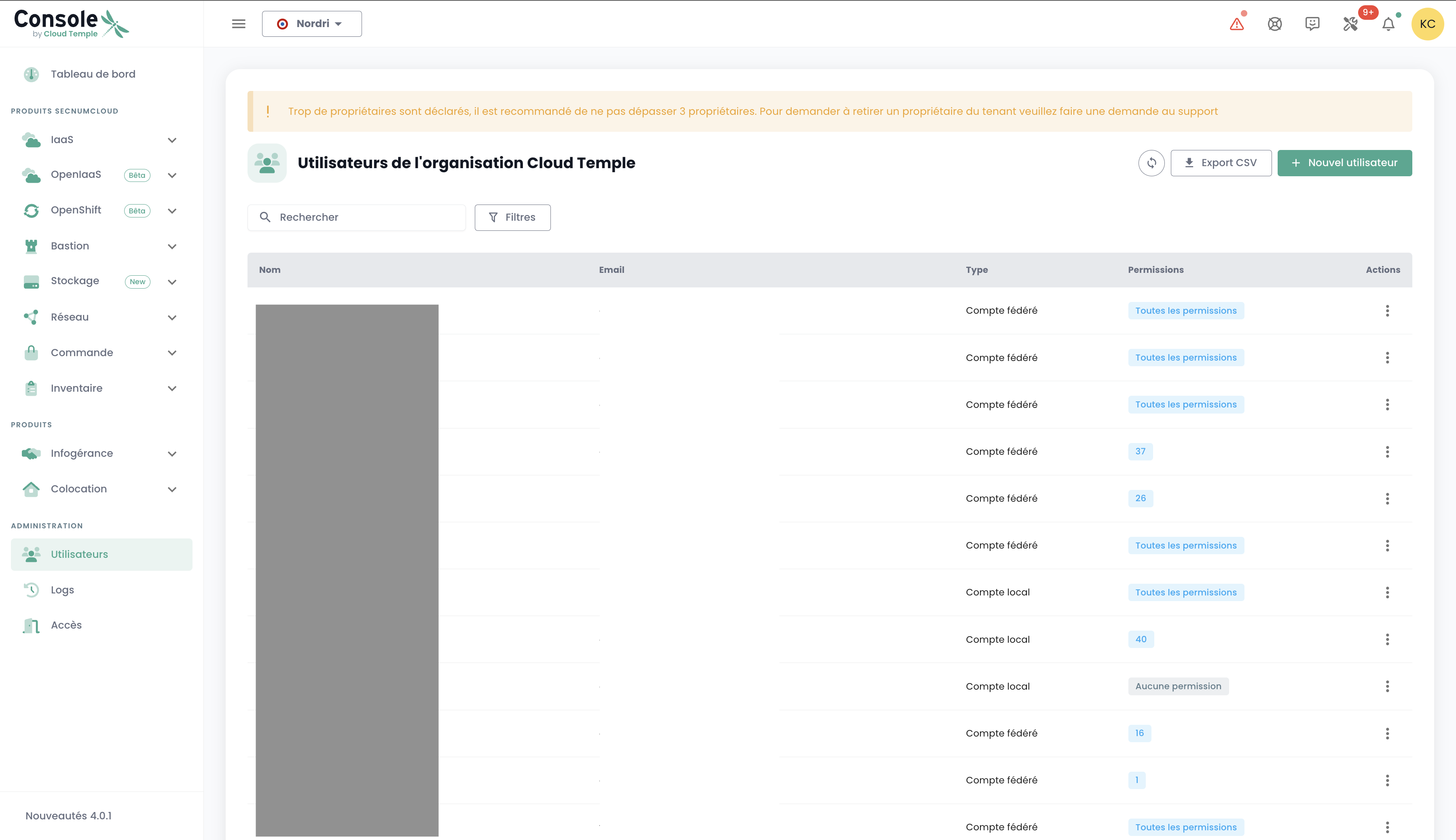
Die Erstellung eines Benutzerkontos in Ihrer Organisation erfolgt über eine Einladung. Um einen Benutzer in einer Organisation einzuladen, navigieren Sie im linken Menüband (grüner Balken) zu 'Administration' und dann zum Untermenü 'Benutzer'.
Klicken Sie auf die Schaltfläche 'Neuer Benutzer' auf der Benutzerseite.
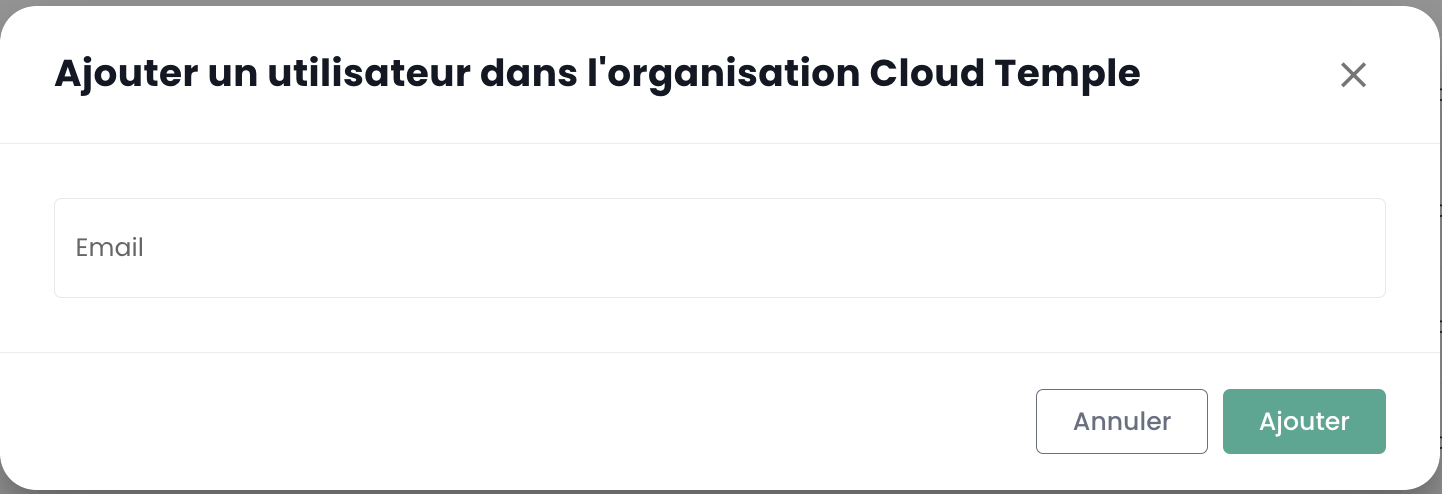
Geben Sie anschließend die E-Mail-Adresse des Benutzers ein.
Der Benutzer erhält dann eine E-Mail zur Bestätigung.
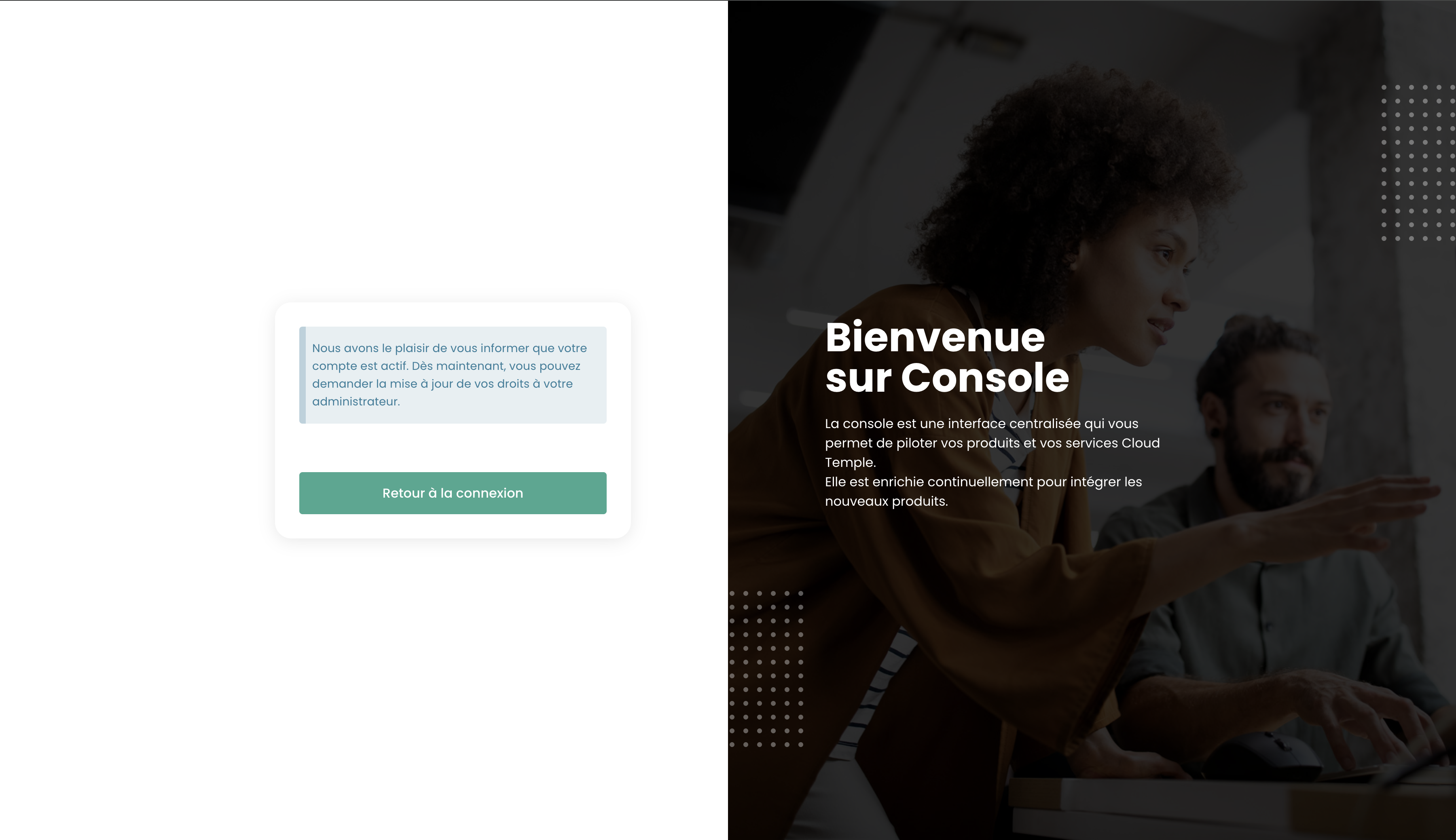
Nach Abschluss der Überprüfung kann sich der Benutzer auf der Konsole anmelden.
Assignment of Permissions to a User
User rights management is performed from the user page.
By default, a user has no rights. Therefore, the administrator who sent the invitation must assign the necessary rights for the user's activities. Simply click on the user's 'Actions' menu and select the 'Edit' option.
The rights activation menu then appears:
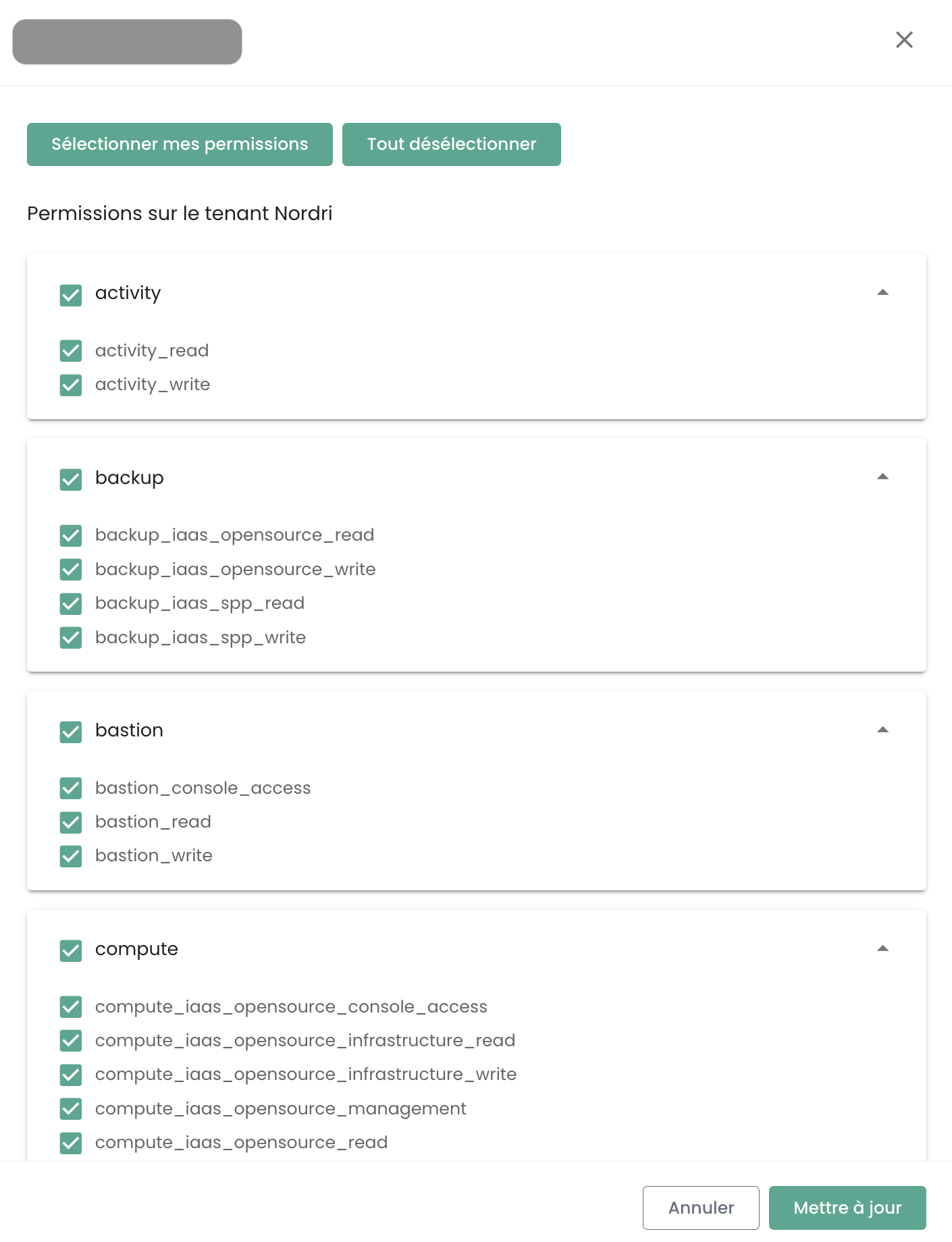
Permission configuration must be done for each Tenant within the Organization.
The list of permissions and their definitions is available here.
Change the language of a user
Changing a user's language is done in their 'Profile', located in the top right corner of the screen, under 'User Settings'.
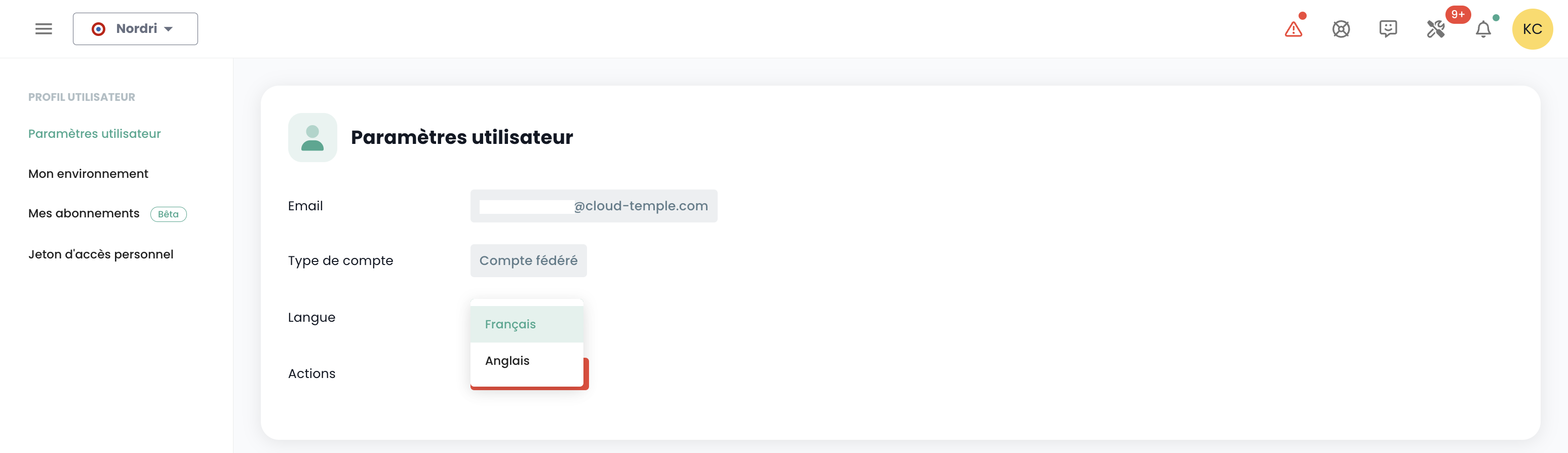
The configuration is set individually for each tenant Tenant.
Thematic Notifications Subscription
Managing subscriptions allows you to receive emails related to activated themes, which are automatically sent when corresponding events occur.
This feature is accessible in the user profile, under the "My Subscriptions" tab:
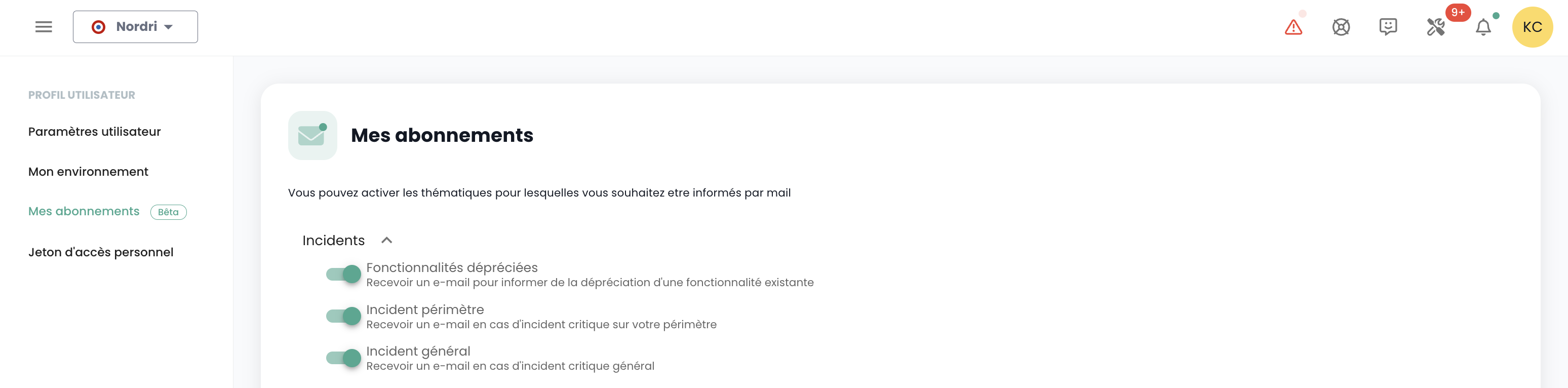
For example, in the event of an incident, specific email notifications related to this theme will be generated.
The list of available themes may evolve and gradually expand to adapt to changing operational needs and environment requirements.
Berechtigungen
Welche Berechtigungen sind für Benutzerkonten in der Konsole verfügbar?
Hier finden Sie die Liste der verfügbaren Berechtigungen.
How to add a permission?
The procedure for assigning permissions is available here
Why can't I add a permission?
To add a permission, you need to have the 'iam_write' permission as well as the permission you want to add.
How to add a user?
Note : To add a user, you must have the 'iam_write' permission.
How to audit user access/permissions?
Go to the users page and click the 'Export CSV' button:
How to delete a user?
In the 'Administration' menu on the green bar on the left side of the screen, under the sub-menu 'User', click the 'Action' icon of the target user and select 'Delete'.
Note:
- To add a user, you must have the 'iam_write' permission.
- If this is a federated user, make sure the user has also been deleted from the identity repository.
How to reset your password?
You can reset your password from the Console login page by clicking on 'Forgot password?'.
Warum sind einige Benutzer grau?
Graue Benutzer sind solche, deren Konto noch nicht bestätigt wurde. Beim Erstellen des Kontos erhalten die Benutzer eine Bestätigungs-E-Mail.
Sobald die Bestätigung abgeschlossen ist, kann sich der Benutzer in die Konsole einloggen.
Das Konto bleibt grau, solange die Bestätigung nicht abgeschlossen ist.
Was ist ein Personal Access Token (PAT)?
Die Erstellung eines API-Schlüssels, auch als Personal Access Token (PAT) bezeichnet, ist eine sichere Methode, um sich an die Console-APIs anzumelden, ohne eine grafische Benutzeroberfläche verwenden zu müssen.
What is MFA and is it mandatory?
MFA (multi-factor authentication) is a concept of user identity verification in two steps, also known as two-factor authentication.
The user must provide two distinct proofs of identity. In the case of the Console, two-factor authentication is mandatory and requires entering a one-time code after the user has entered their account password.
Access Management and Authentication
Zugriffsberechtigung auf die Konsole: Genehmigte IP-Adressen
Der Zugriff auf die Cloud-Verwaltungskonsole ist streng auf vorab genehmigte IP-Adressen beschränkt, in Übereinstimmung mit den Anforderungen der SecNumCloud-Zertifizierung. Diese Einschränkung gewährleistet ein erhöhtes Sicherheitsniveau, indem nur Benutzer aus festgelegten IP-Bereichen Zugriff erhalten, wodurch das Risiko von unbefugtem Zugriff minimiert und die Cloud-Infrastruktur gemäß den höchsten Sicherheitsstandards geschützt wird.
Die Liste gehört zur Organisation: eine aus einem beliebigen Mandanten hinzugefügte Adresse erlaubt den Zugriff auf die Konsole für die gesamte Organisation. Sie kann über den Tab 'Administration > Zugriff' eingesehen und ergänzt werden.
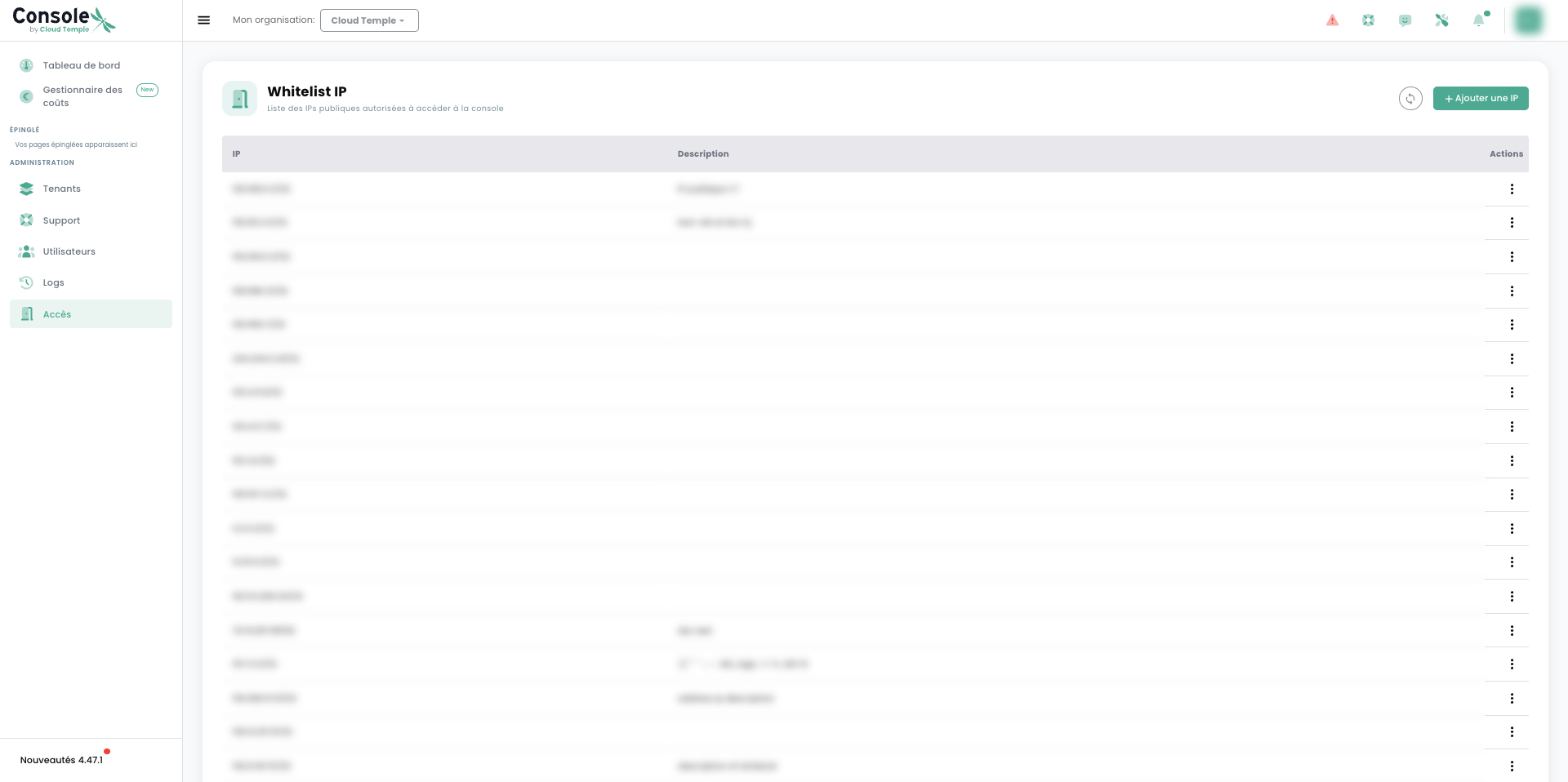
Dazu muss der Benutzer die Berechtigung console_public_access_read besitzen, um die genehmigten IPs einzusehen, und die Berechtigung console_public_access_write, um eine öffentliche IP-Adresse der Liste hinzuzufügen.
Anschließend kann eine neue IP-Adresse hinzugefügt werden:
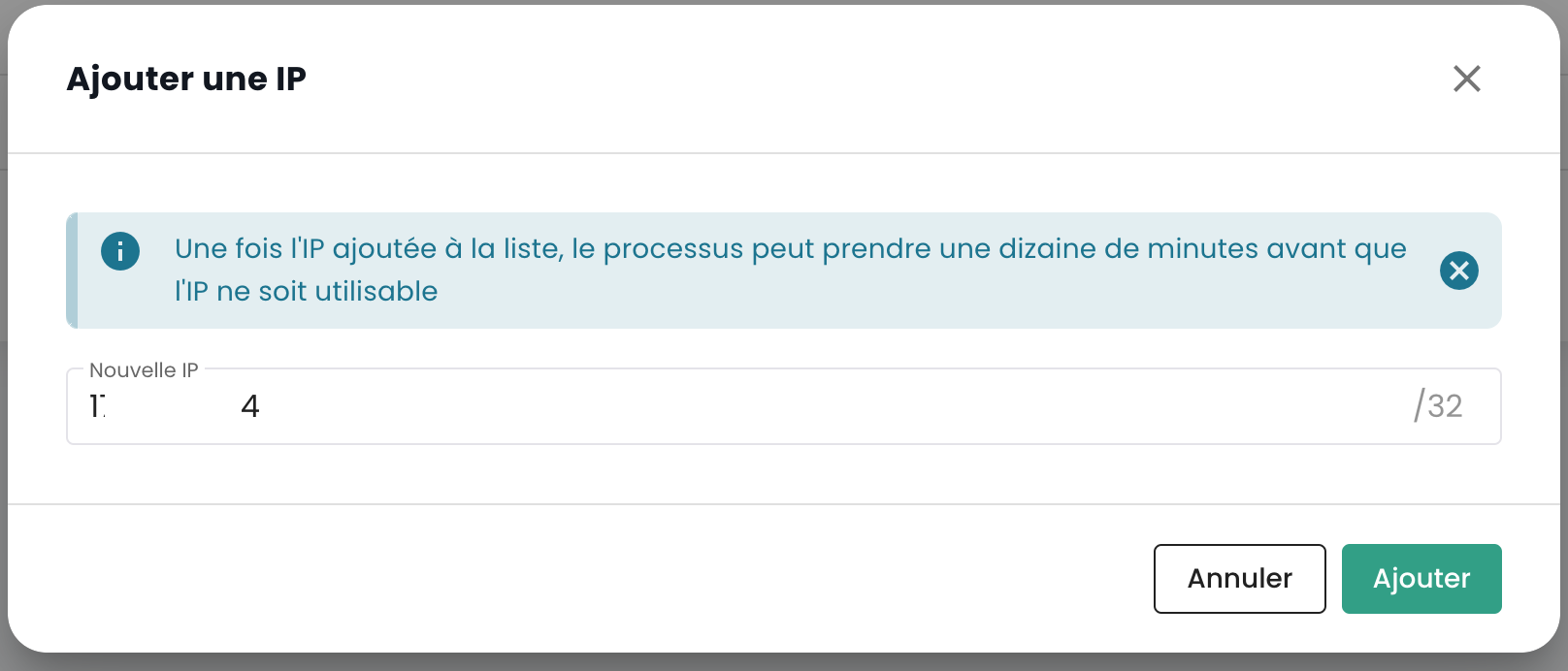
Hinweis: Die Entfernung einer genehmigten IP-Adresse erfolgt über eine Support-Anfrage in der Cloud-Temple-Konsole.